Copying Existing Feeder
It is now possible to copy an existing feeder both in xFlow Web and in xFlow Fiori. To enable this, a button has been added.
This function is not available for xFlow Mobile.
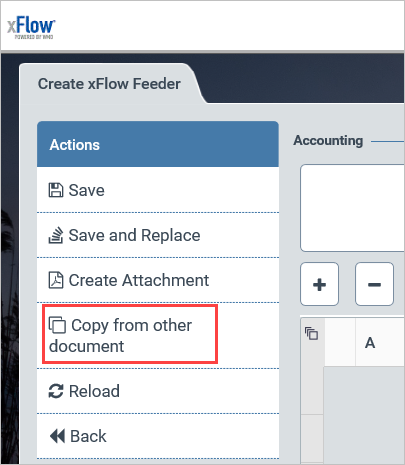
In xFlow Web, the new button, Copy from other document can be found on the left side of the feeder.
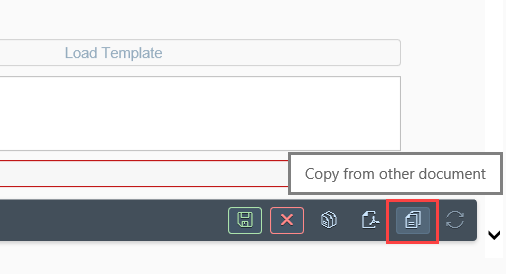
In xFlow Fiori, the button is the located on the right side of the footer of the document.
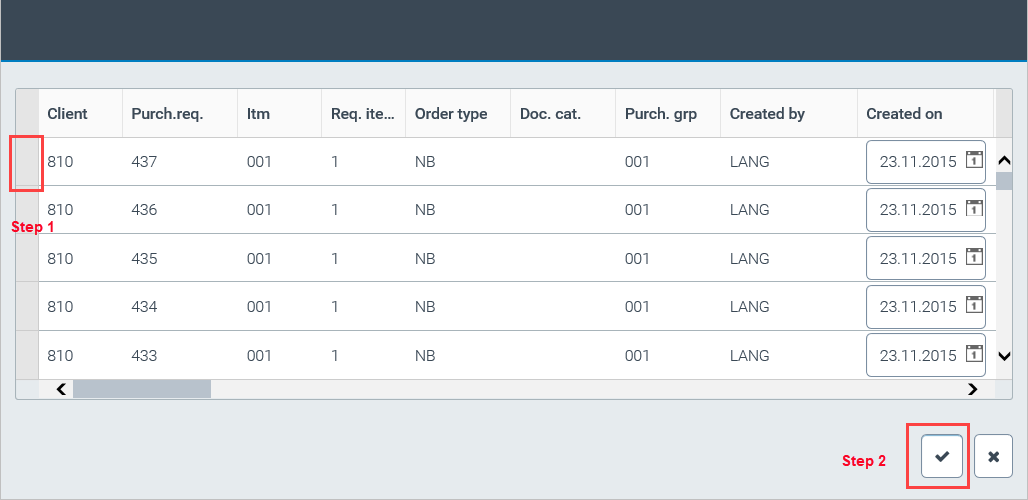
In xFlow Web, a dialog screen for selection will open. If you select a line, the attachments available for adoption will be displayed. When the selected attachments have been confirmed, display will shift back to the line. A confirmation of the selected line will copy the contents of the selected feeder into the entry fields of a new feeder.
Selection and confirmation of the feeders to be copied:
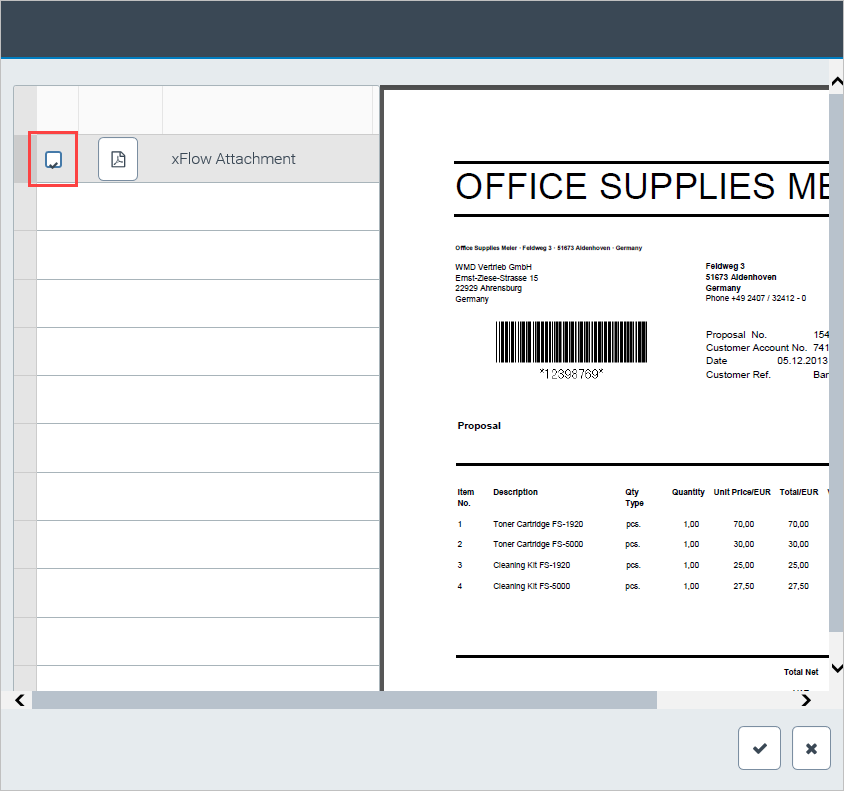
Selection of attachments:
In xFlow Fiori, the procedure is somewhat different. It is as follows: Click the Copy from other document button to trigger display of a dialog for the selection of a feeder. The existing feeder can still be displayed in its entirety here.
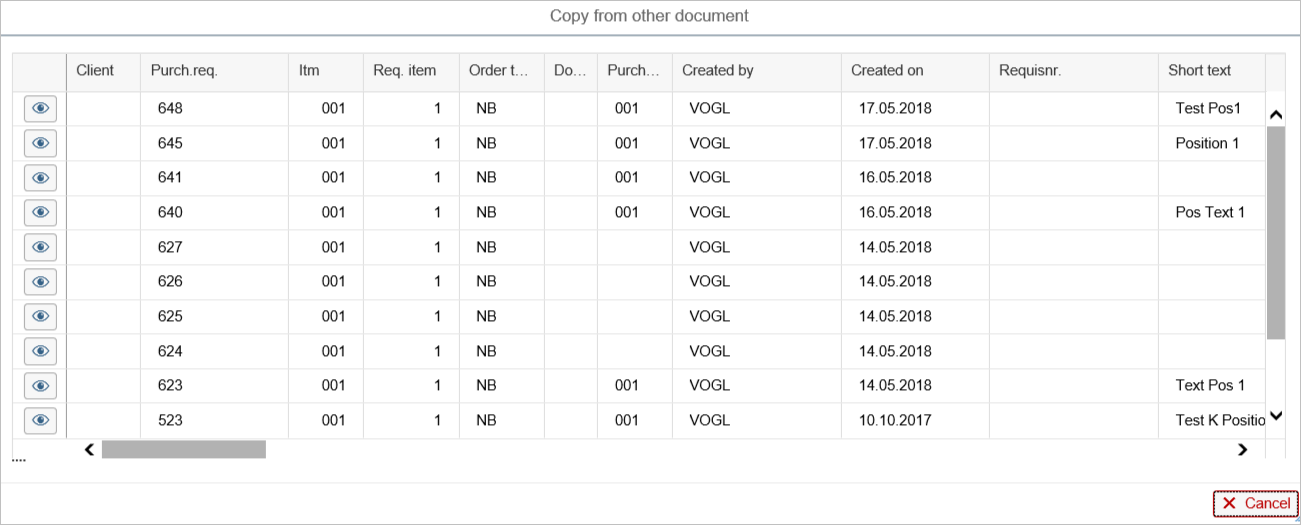
For display of the existing feeder, click on the icon outlined in red below.
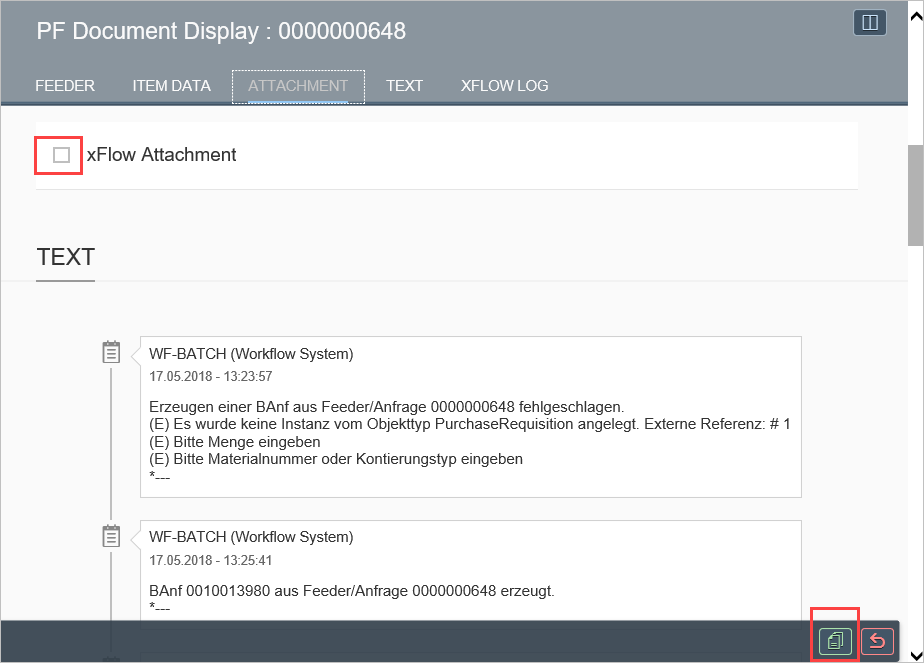
Here you can see all the data and select the desired attachments. Then you can start copying by clicking the copy button in the lower right corner of the screen.