Display settings for xSuite Overviews (xSuite Web)
In the xSuite Overviews in xSuite Web, the user can use the settings to specify what columns are displayed and in which order they are displayed. These display settings have been reworked.
Display of unavailable columns
In the xSuite Overviews, some columns are only available if the corresponding checkbox is activated in the search area. For example, if the Include items checkbox is activated in the PO Overview, the additional columns Line item and Purchasing organization will be available.
In previous version, if this checkbox was deactivated, these columns were grayed out in the display settings. Now display-setting columns that are not available are completely hidden.
Column order
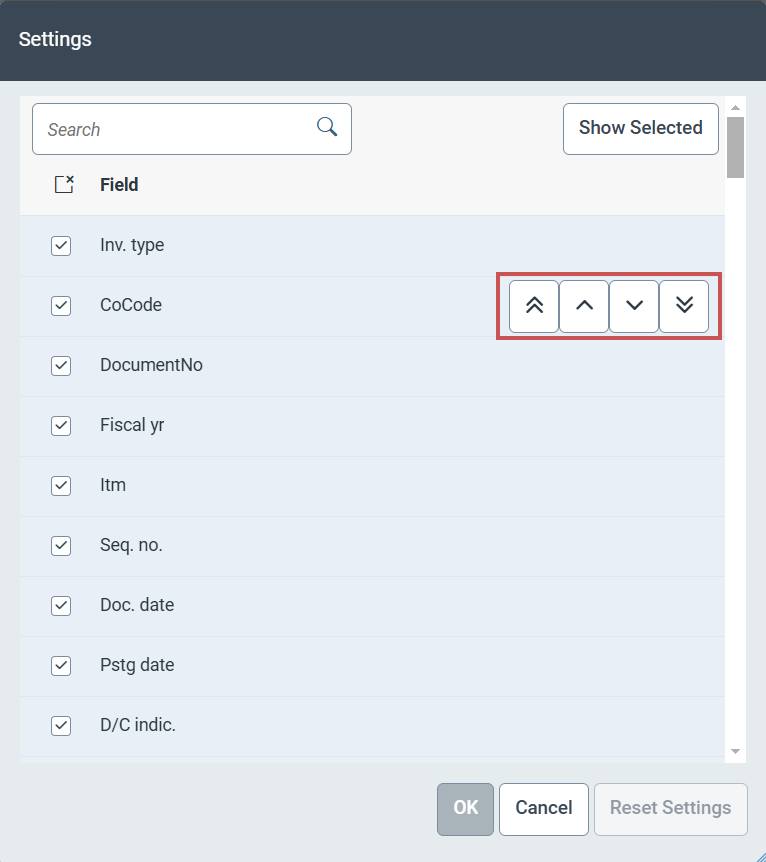
In previous versions, the order of the columns could be changed using drag-and-drop. Now the order is defined using the following buttons.
 |
Button | Description |
|---|---|
| Moves the column to the top. |
| Moves the column up one position. |
| Moves the column down one position. |
| Moves the column to the bottom. |


Notice
Alternatively, the order of the columns can be changed using the arrow keys on the keyboard.
Resetting the settings
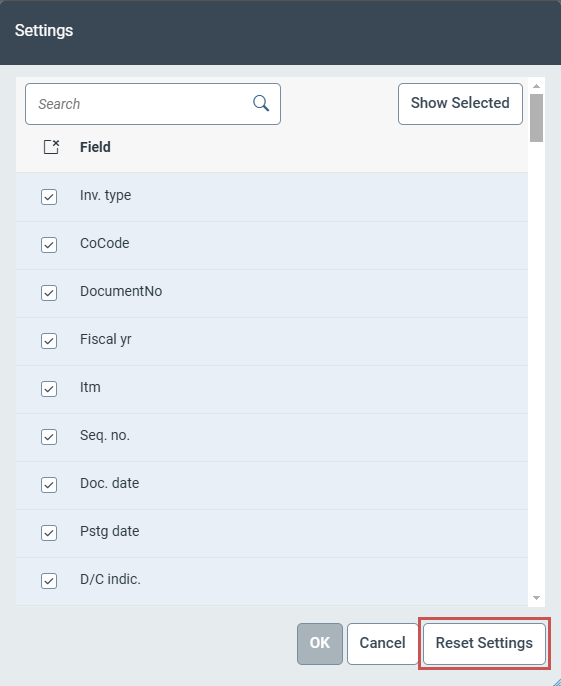
If the display settings have been changed, these changes can be accepted by clicking OK. To undo the changes, open the display settings again and click on Reset settings.
 |
Notice
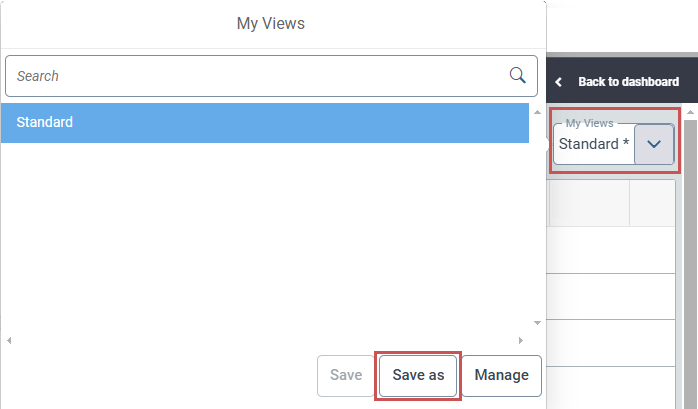
To save changed display settings permanently, save as a view via My views.
 |