Copy Function for Purchase Request (Feeder)
In the transaction /WMD/XF_PF_CREATE (PU Create purchase request), it is now possible to create a purchase request based on an existing feeder. The line-item data, including the line-item texts, the account-assignment data, and (optionally) the linked images are transferred.
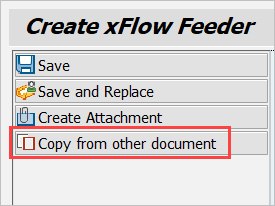
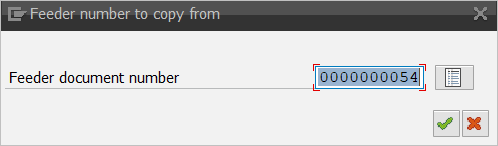
Click the button Copy from other document to open a dialog for entering the number of the source document. Enter the number of the feeder from which order data is to be copied (see field outlined in red) right here.
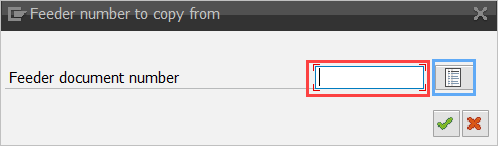
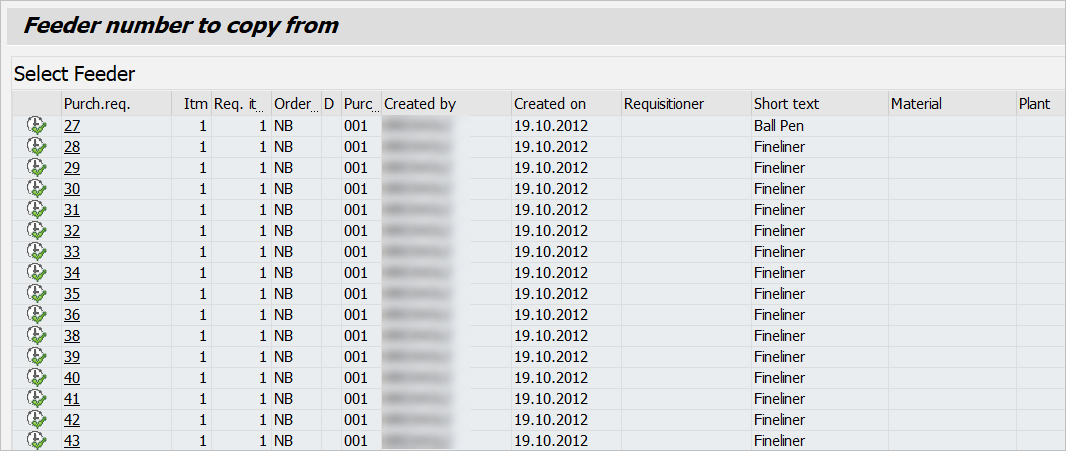
As an alternative, you can use the selection button (outlined in blue) to request a pick list.
Note
When performing manual entry, only those documents are accepted which have been created by the user himself. Only these documents will appear in the pick list.
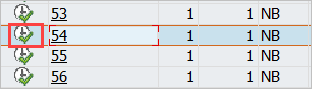
Click the document number to go to the view of the feeder:
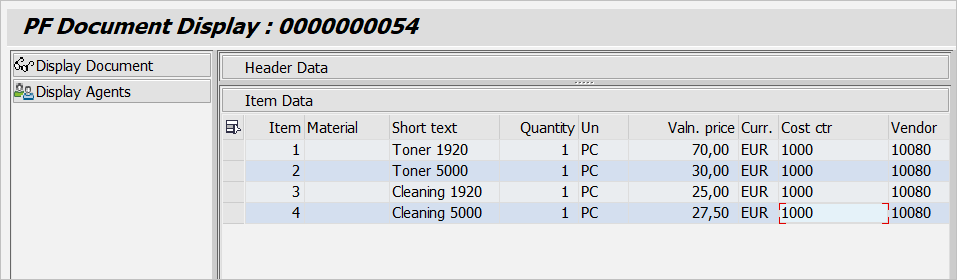
Use the button Execute (outlined in red) to adopt the number of the source document in the entry dialog:
Transfer the data of the source document to the current feeder by using the  icon or by pressing Enter.
Note
If data has already been entered in the feeder, it will be overwritten.
If the source document is linked to one or more image, the images will be offered as options for transfer to the current document. If there are no linked images, this step will be skipped.
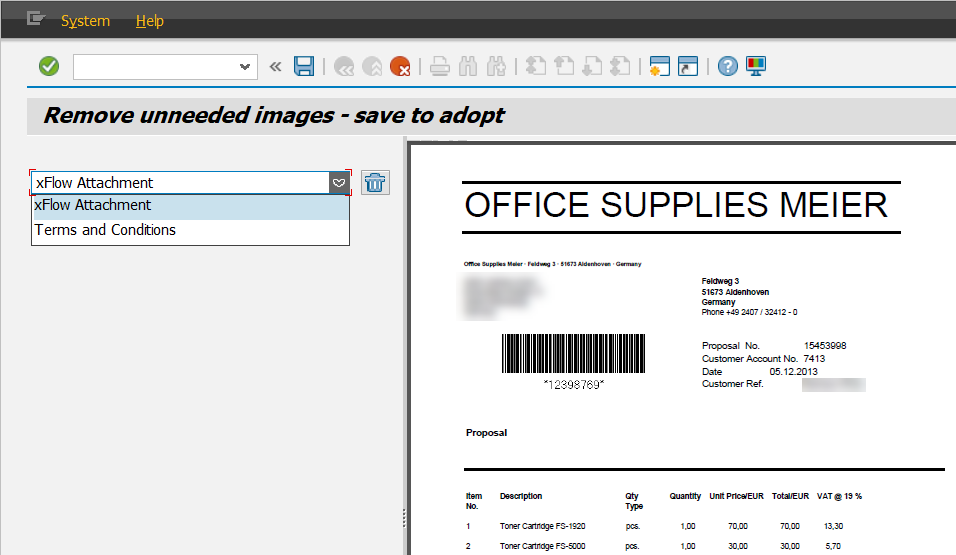
In the pick list (in the upper left part of the screen), you can switch between the different images. Use the trash icon to the right to delete the image currently displayed from the list.
The example shown here shows the xFlow log of the previous document. It is not generally practical to adopt it, but it is possible. There are various ways of leaving the image pick list, as follows:
Use Cancel
 to leave the pick list, without adopting an image.
Use Backup
 or Enter
  to adopt the selected image to the current feeder. Copies of the image are generated and linked to the current feeder.