SAP Fiori
PNG Viewer – SAP Fiori
The PNG Viewer is now available for the Invoice Monitor, the Orders Monitor and the Order Confirmation Monitor in SAP Fiori.
If the first attachment of a document can be loaded from xSuite Capture Prism or xSuite Capture Helix, this attachment will be displayed in the PNG Viewer. The prerequisite for this is that the PNG Viewer is configured.
Changes in the settings.json file
In the xSuite monitors, you can now choose between the PNG Viewer and the PDF Viewer (docViewer) in SAP Fiori.
This will result in changes in the settings.json file.
The settings.json from Version 5.2.7 can no longer be used in Version 5.2.8. The configuration must be transferred to the modified settings.json structure.
The viewerType parameter is new. This parameter defines which viewer will be used.
Value | Description |
|---|---|
| The PNG Viewer is used. (Default value) |
| The PDF Viewer (docViewer) is used. |
Additional parameters are grouped under the pngViewer parameter. These parameters are only relevant when using the PNG Viewer.
Parameter | Range of values | Description |
|---|---|---|
|
| Controls whether pages without thumbnails are hidden in the Pages tab. |
|
| Controls whether the Pageview tab is displayed in the PNG Viewer. |
|
| Controls whether the Pages tab is displayed in the PNG Viewer. |
|
| Controls whether an authentication token is required for requests to xSuite Bus Prism (on-premises). |
|
Default value: | After saving a training, defines the time intervals within which a check is to be performed time intervals as to whether xSuite Bus Prism has completed the training. Time unit used: milliseconds. |
The docviewer parameter has been renamed to busSettings.
The subordinate parameter service is no longer used.
settings.json parameters version 5.2.7 | settings.json parameters version 5.2.8 |
|---|---|
|
|
To use the xSuite PNG Viewer, specify the scheme, the host and if necessary the port under the parameter uri.
The default directory of the xSuite Bus service must not be specified.
Example:
Complete URL of the xSuite Bus services: https://www.example.com:8080/XFlowBusWebServiceHost/XFlowBusWebService.svc/web/
Value for parameter uri: https://www.example.com:8080
UI elements – the PNG Viewer in SAP Fiori
For the most part, the structure and the functionality of the PNG Viewer correspond to the previous versions of the xSuite Viewer.
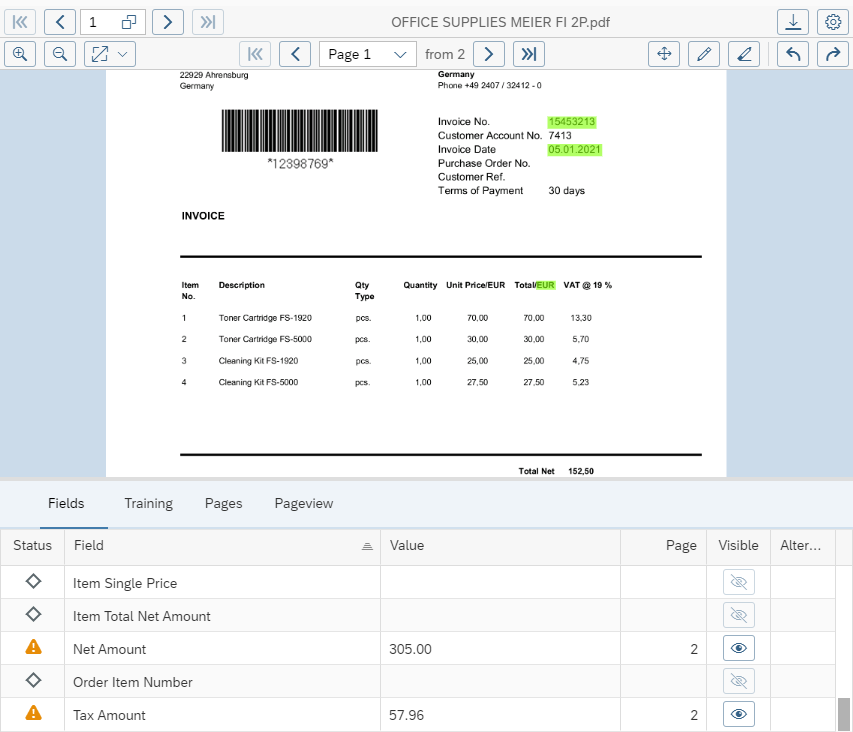 |
Button | Name | Description | ||
|---|---|---|---|---|
| Download document | Downloads the image. | ||
| Settings | Opens the display settings of the PNG Viewer. Here the user can configure the display the settings for displaying a new document or a new page. If the settings have been changed, these changes will apply to the current session. If the changes are to be applied permanently, the app settings must be saved. The settings apply to the PNG Viewer regardless of which xSuite monitor is being used. | ||
| Zoom in | Zooms in on the page. | ||
| Zoom out | Zooms out of the page. | ||
| Zoom options | Opens the zoom options of the PNG Viewer. You can select different zoom values to expand or shrink the image displayed, or one of the following settings:
| ||
| First page | Brings you straight to the first page. | ||
| Page back | Scrolls one page back. | ||
| Page forward | Brings you forward a page. | ||
| Last page | Brings you straight to the last page. | ||
| Activate selection mode Activate navigation mode | Switches between navigation and selection mode. In navigation mode, the user can move the page by holding down the left mouse button. In selection mode, the user can select a page range by holding down the left mouse button. NoticeMore options for marking an area of the page (regardless of the mode selected):
| ||
| Show all recognized fields | Highlights all field values found. | ||
| Remove all highlights | Removes all highlighting. | ||
| Rotate 90° to the left | Turns the page 90° to the left. | ||
| Rotate 90° to the right | Turns the page 90° to the right. |


Tab | Description | |
|---|---|---|
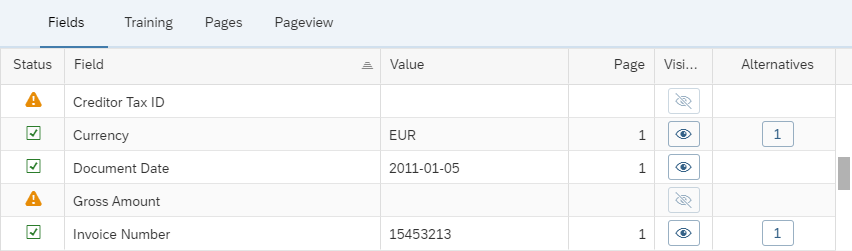
Fields | This displays the recognized values for each field from the field catalog. By clicking on a column name, the corresponding column can be sorted in ascending or descending order. For each field, the status is displayed next to the field name. When a field is detected, the value is displayed, as is the number of the page on which the value was detected. To mark the field detected on the page, click on the button If alternative values have been detected, this will be indicated in the Alternatives column. To highlight the alternatives on the page, click on the button in the column.
| |
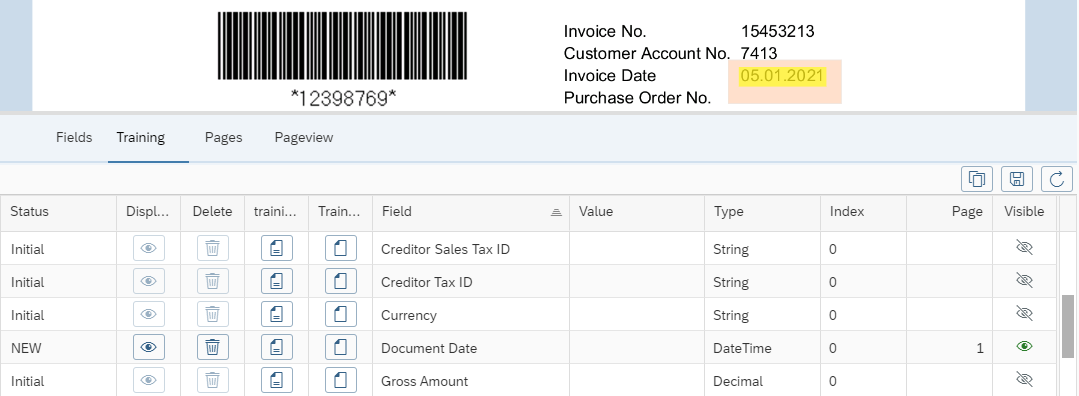
Training | This allows the user to explicitly train the field recognition for xSuite Capture Prism. NoticeWhen using xSuite Capture Helix, this tab is hidden, because in xSuite Capture Helix there is always an implicit training when posting or parking an SAP document. For more information, see Training – PNG Viewer in SAP Fiori. | |
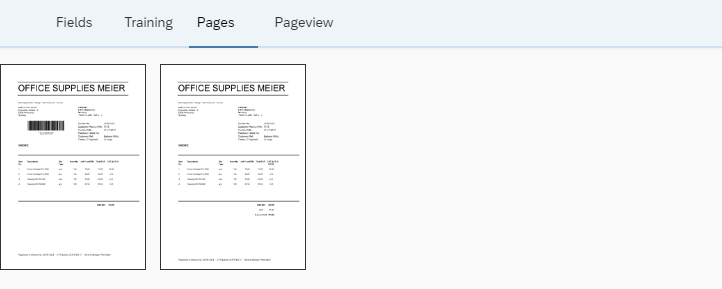
Pages | A gallery view of all individual pages is displayed here. Clicking on a single page will open that page in the main window.
NoticeThe Pages tab can be hidden using the | |
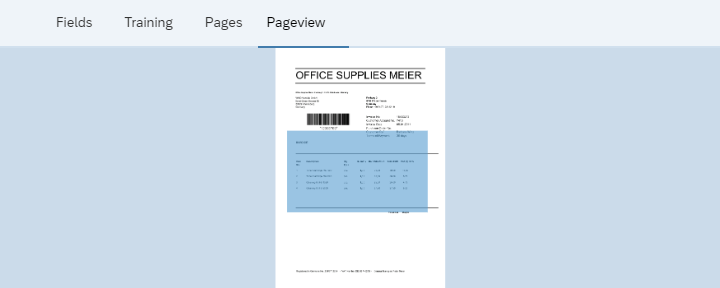
Pageview | This is where the preview of the current page is displayed. The page area displayed in the main window is highlighted. The size of the area displayed will vary depending on the selected zoom and the size of the browser window. The user can move the highlighted page section by holding down the left mouse button. The page view in the main window will adjust accordingly.
NoticeThe Pageview tab can be hidden using the |

Training – PNG Viewer in SAP Fiori
In xSuite Capture Prism, a training is always created for a vendor. Therefore, the vendor must first have been recognized by or trained to the xSuite Capture system.
If no vendor could be determined, the user must set the vendor at the beginning of the training and transfer it to the xSuite Capture system.
If no vendor could be determined, the vendor training will be displayed:
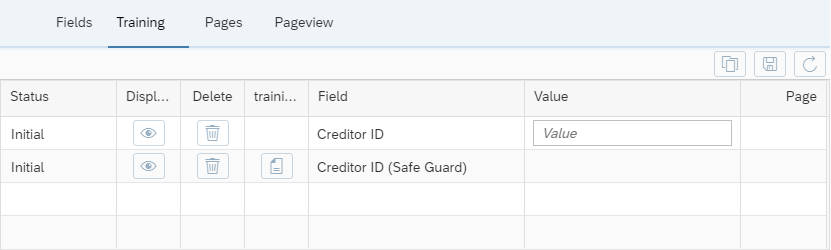 |
In the Value column of the Creditor ID row, the user must enter the SAP vendor number to be trained. The system always uses the entire first page of the document as the area to be trained.
In addition, the user can mark a Safeguard area in the document with a right mouse click. To add the Safeguard area to the training, click the  Training (Area + Text) button.
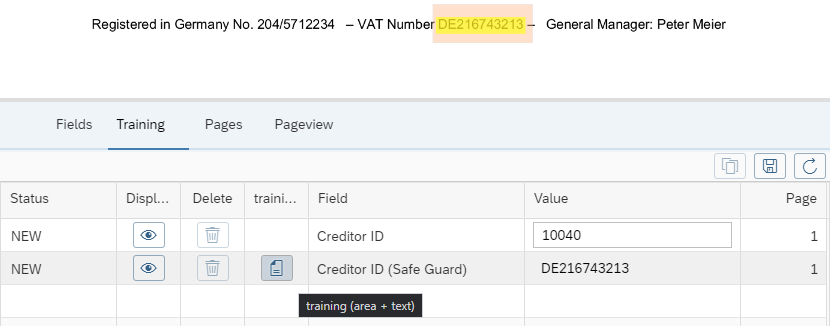 |
Then, to send the training to the xSuite Capture server where the training will be saved, click the  Save training button. This process may take a few seconds to complete. During this time, a message will appear reading "Training is executed. Please wait."
When the vendor training is complete, the field training view is displayed.
Caution
Changing and re-saving the vendor training will delete all the associated field training. The field training must be recreated afterwards.
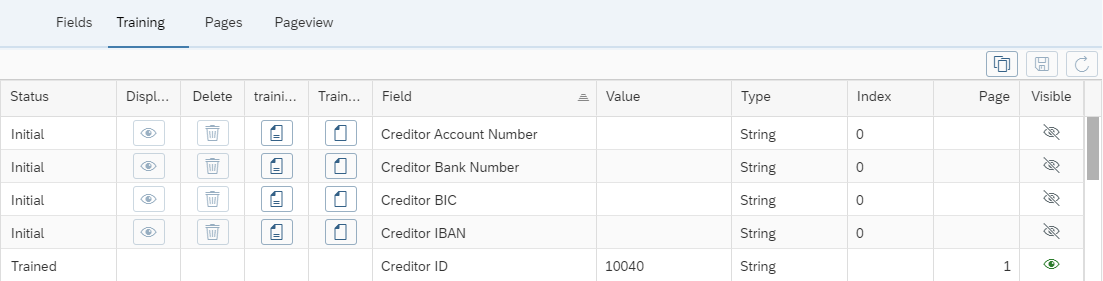 |
The field training view displays a list of all fields that can be trained.
The following buttons are available for field training:
Button | Name | Description | ||
|---|---|---|---|---|
| Display training area | Marks the training area on the page. | ||
| Delete | Clears the field training. | ||
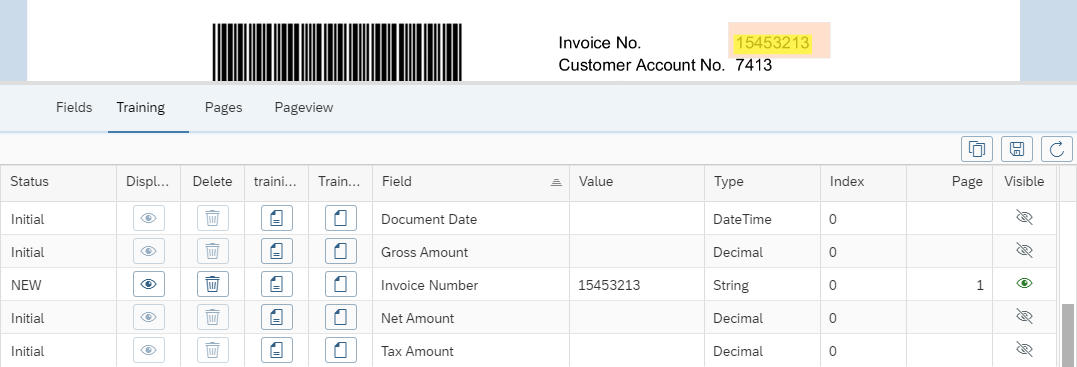
| Training (Area + Text) | Adopts the selected area, including full text. The text is displayed in the Value column.
| ||
| Training (only area) | Only adopts the selected area.
| ||
| Switch to general training / Switch to creditor training | Switches between field and vendor training. | ||
| Save training | Sends the training to the xSuite Capture server. There the training is saved. Training is always saved for all fields at the same time. Saving may take a few seconds. During this time a message will appear indicating that waiting is required. | ||
| Reload training | Updates the training data. All changes since the last save will be discarded. |




Reports for user management – SAP Fiori (Web GUI)
Additional tiles are now available in SAP Fiori for access to reports for xSuite user management.
These correspond to the range of functions in the reports in the SAP GUI and are provided by the SAP ITS. The tiles can be added to your own tile lists via the App Finder.
The following tiles are now available:
Name | Report | Description |
|---|---|---|
User Upload | /WMD/WF_XF_USR_UPLOAD | Create user by file upload |
User Update | /WMD/WF_XF_USR_UPDATE | Mass modification of user data and/or user attributes |
Extract User Data | /WMD/WF_XF_USR_GET_SAPUSER | Extracting users for an xSuite user update |
Escalation Report | /WMD/XF_USR_ESCALATION | Work item escalation notification by e-mail |
Mail Template | /WMD/XF_USR_MAIL_TEMPLATE | Work item notification by e-mail |
Sorting – SAP Fiori
Sorting has been adjusted in the front-end to accommodate data fields that have the data type "CHAR" (character), an alpha conversion, and a defined field length.
Values containing a non-numeric character are sorted as before.
Values that contain only numeric characters(0-9) are – only for sorting, not for display – provided with leading zeros according to the field length.
Example
Ascending sort of a character field with an alpha conversion and the field length "5":
Previous sorting (e.g., Version 5.2.7):
Displayed value |
|---|
100 |
2 |
2B |
40 |
A1 |
C |
New sorting (Version 5.2.8):
Displayed value | Value for sorting |
|---|---|
2 | 00002 |
40 | 00040 |
100 | 00100 |
2B | 2B |
A1 | A1 |
C | C |
xSuite PDF Viewer – SAP Fiori
The xSuite PDF viewer has been updated to Version 1.6.8 in the xSuite monitors.