Changing the delivery address in the feeder
It was not possible to change the delivery address in the xSuite feeder in the past. Adjustment of the delivery address could be done at the earliest in the purchase requisition or in the order. The delivery address was always derived from the plant address and was therefore the same for all items.
In the current xSuite version, it is possible to change the delivery address of every single item already in the xSuite feeder. The addresses are transferred to the purchase requisition and to the purchase order(s) during the workflow.
Changing the delivery addresses is only possible in the following workflow tasks:
Create feeder (role PFCR)
Change preliminary feeder (role PFCC)
Edit feeder (role PFET)
Edit rejected feeder (role PFER)
In all other tasks of the feeder workflow, the addresses can only be displayed.
This function is available in SAP GUI, SAP Fiori and xSuite Web.
Changing the delivery address in the feeder – SAP GUI
By clicking on the button  Delivery address button or double-clicking in the Addr. no. column the delivery address dialog for the selected item will open.
 |
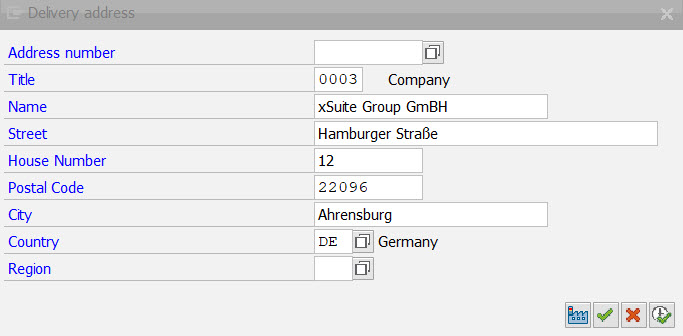 |
In this dialog the user can either select an existing address via the address number or else enter a new address manually.
If the user changes an address manually, the system will check whether this address already exists using a hash value. If this is the case, the number of the address that already exists will be used.
If this is not the case, a new address number is generated via the Business Address Services (BAS) interface. The address data is then stored in the BAS tables. The feeder only receives the address number as a reference to the address.
Otherwise, the system will keep the address belonging to the number.
The address can be reset to the plant address with the button  Reset to plant address.
The changes will not be applied to the feeder item until the button Save has been clicked. After the feeder has been saved, the new address numbers will appear in the Addr. no. field of the feeder item.
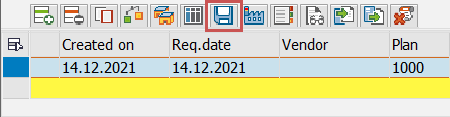 |
If the Address field is empty, the plant address will be used.
Plausibility checks
Plausibility checks take place in all fields that have F4 input help.
Address number: Specifying an invalid address number will turn the field blank.
Title: Specifying an invalid title key will turn the field blank.
Country/Region: The system checks whether country and region match. If this is not the case, a message will be issued.
Country and region are defined in the Data Dictionary via a foreign key relationship, allowing the SAP system to perform a plausibility check itself. If both fields are cleared manually, the labels will also be cleared.
Technical background
Addresses are processed and managed using SAP Business Address Services (BAS). For this purpose, the xSuite Feeder uses the BAS interfaces officially released. In this case, these are the function blocks of the function group SZA0, since they can be processed in the background.
The persistence of the addresses is handled by BAS. The respective application, i.e. the xSuite feeder, receives an address number as reference to the address data, which the application itself persists. Access to the address data always takes place via the address number assigned.
To be able to use the BAS interface, some prerequisites must be fulfilled, which are entered in SAP Customizing. The customizing settings are part of the xSuite delivery package.
Address groups
Address groups are an ordering criterion of BAS, for managing addresses organizationally.
Address groups already exist as a standard feature in SAP, but they are reserved for SAP applications and may not be used by customer-specific applications, e.g. ME01 (purchasing master data) or ME02 (purchase orders).
Address groups are maintained in customizing with the SM30 view TSAD7. xSuite uses the address group ZWMD for addresses that are created in the feeder.
 |
Logical table / field name
Each application for which its own addresses are created must have a logical table and a logical field name set up.
The logical table is maintained in the SM30 view TSADRV. Here, you can also specify the physical table and the field name.
xSuite delivery settings are as follows:
 |
Number range object ADRNR Maint.
The BAS function modules use the number range 10 of the number range object ADRNR.
Currently, there is no provision for the xSuite application to use its own number range.
Data avoidance
For minimal generation of redundant addresses, a hash value is first formed for each address changed when the feeder is saved and compared with existing hash values. This does not apply to existing addresses that have been explicitly selected with the input help.
If the hash value formed is identical to an existing one, the address number associated with that hash value will be used. The hashes are persisted in the /WMD/XF_PU_AHSH table.
If no hash is available, a new address number will be requested, and a new hash will be formed for the address fields and stored in the /WMD/XF_PU_AHSH table.
Changing the delivery address in the feeder – SAP Fiori
Clicking on the icon in the Addr. no. column opens the delivery address dialog.
 |
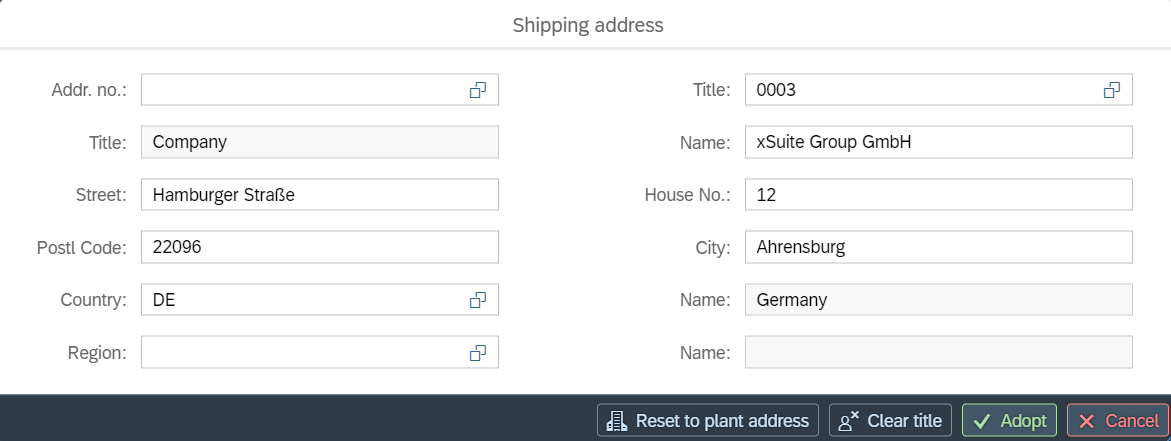 |
In this dialog the user can either select an existing address via the address number or else enter a new address manually.
The address can be reset to the plant address with the Reset to plant address button.
After applying the changes and closing the dialog, the user can apply the new address to all other items whose delivery address matches the original address of the current item.
The icon in the Address column indicates whether the plant address or a different delivery address is used for an item:
Icon | Description |
|---|---|
| The plant address is used. |
| A different delivery address is used. |


Changing the delivery address in the feeder – xSuite Web
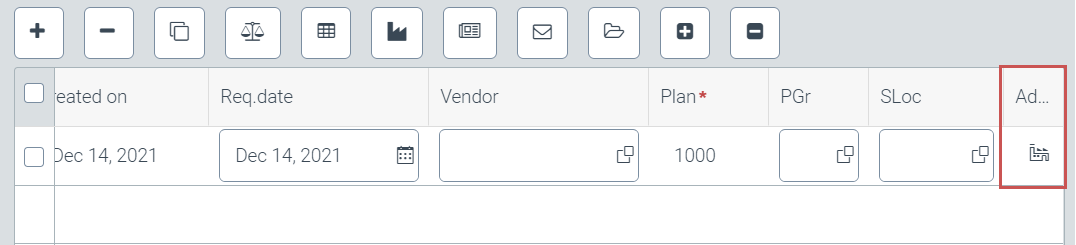
Clicking on the icon in the Addr. no. column opens the delivery address dialog.
The icon in the Addr. no. column indicates whether the plant address or a different delivery address is used for an item:
Icon | Description |
|---|---|
| The plant address is used. |
| A different delivery address is used. |


 |
In this dialog the user can either select an existing address via the address number or else enter a new address manually.
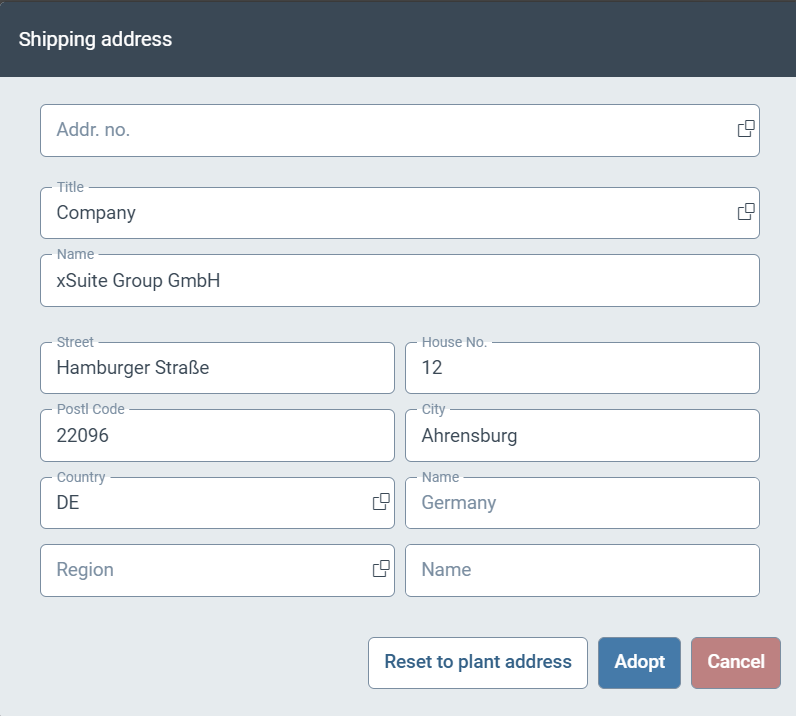 |
When editing an address selected by the user, the address number is initially discarded. The new address is treated as a new record that is held within the application for further processing in the back-end and is logically bound to the item by referencing.
The Cancel button will discard the changes. The Reset to plant address button resets the address to the factory address.
After applying the changes and closing the dialog, the user can apply the new address to all other items whose delivery address matches the original address of the current item.
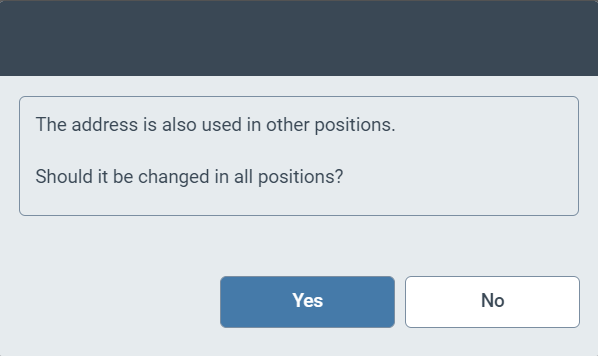 |
The procedure for adopting a new address for other items depends on the type of change:
The type of change made | Description |
|---|---|
Changing a plant address | If a plant address has been changed, all other items with this plant address reference will be adjusted. |
Changing an existing address | If an existing address has been changed to another existing address, other items referencing the same original existing address will be searched for. |
Creation of a new address | If free changes have been made to the address record and thus a potentially new address has been created, the delivery addresses of the remaining items are matched with the changed address record. The address data is logically bound to a line item via BANFN and BUZEI and transmitted to the back-end. In the back-end, the data is matched with the address master using an MD5 hash with the relevant address fields. If there is a match, it will be bound to the item by the address ID. If there is no match, the new address is added to the address master and bound to the item by ID. |
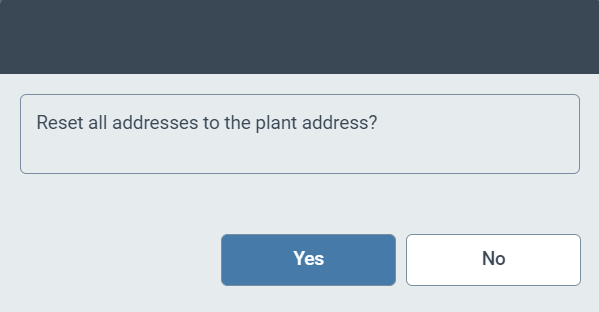
If the plant for a purchase order is changed, the new plant address can be adopted for all items.
 |
Technical integration
When implementing delivery address management, the need for changes to the existing feeder/PO infrastructure of the web application was kept to a minimum.
In addition to a largely event-driven dialog control for data display and entry(DeliveryAddressMaintenance.js in /sap/bc/bsp/wmd/ui5_365/wmd_ui5_500/ext/ui/po), the concrete business logic was mapped in the directory /sap/bc/bsp/wmd/ui5_365/wmd_ui5_500/po in three controller extensions:
DeliveryAddressExtension.js→ Business LogicDeliveryAddressFeederExtension.js→ Address persistence forfeeder.controller.jsDeliveryAddressPoToolbarExtension.js→ Address persistence forpo_toolbar.controller.js
The solution can thus be applied to the items and release in addition to the feeder block.
The integration of the extensions into the relevant controller classes works via an inline override directive. In this way, aspects to be operated generically, such as the underlying application model and the referencing of the target table in the UI and the corresponding field catalog, can be implemented per controller.
xf5web.feeder_ctrl = "wmd.xfweb.wmd_ui5_500.po.feeder";
xf5web.feeder_mname = "";

sap.ui.define(['jquery.sap.global', 'sap/ui/core/mvc/Controller',
'wmd/xfweb/wmd_ui5_500/ext/ui/Dialog/ConditionalConfirm',
'wmd/xfweb/wmd_ui5_500/po/DeliveryAddressExtension',
'wmd/xfweb/wmd_ui5_500/po/DeliveryAddressFeederExtension'],
      function (jQuery,ParentController, ConditionalConfirm,
DeliveryAddressExtension,DeliveryAddressFeederExtension) {

   return ParentController.extend("wmd.xfweb.wmd_ui5_500.po.feeder", {
   deliveryAddressFeederSupport: DeliveryAddressFeederExtension,
   deliveryAddressSupport: DeliveryAddressExtension.override({
      getTargetTable: function () {
         console.log("Serve target table \"feeder_table\"");
         return sap.ui.getCore().byId("feeder_table");
      },

      getAdrsFieldIdPrefix: function () {
         return "feeder_input_";
      },

      getModelName: function () {
         return xf5web.feeder_mname;
      },

      getFcatName: function () {
         return "et_feed_fcat";
      },

      getAdrnrFieldName: function () {
         return "adrnr";
      }
   }),
If an explicit need for change arises in the course of a project, the same mechanism can be used to override the logic of the standard methods in the controller extensions.