Cockpit App
With this release, the cockpit from the SAP GUI (transaction /WMD/XF_BC_ADMIN) is also available in the Fiori Launchpad as a separate xSuite App.
The prerequisite for using the application is a gateway or SSO.
Start page
When the application is started, a search dialog similar to that in the SAP GUI will be displayed.
After checking the search parameters, click on the Search button, and the page with the search results will open if there are any search results.
Search results page
The search results are displayed in tabular form on the search results page. You can toggle between the two display modes Object View and Display WF Steps with the button at the top right.
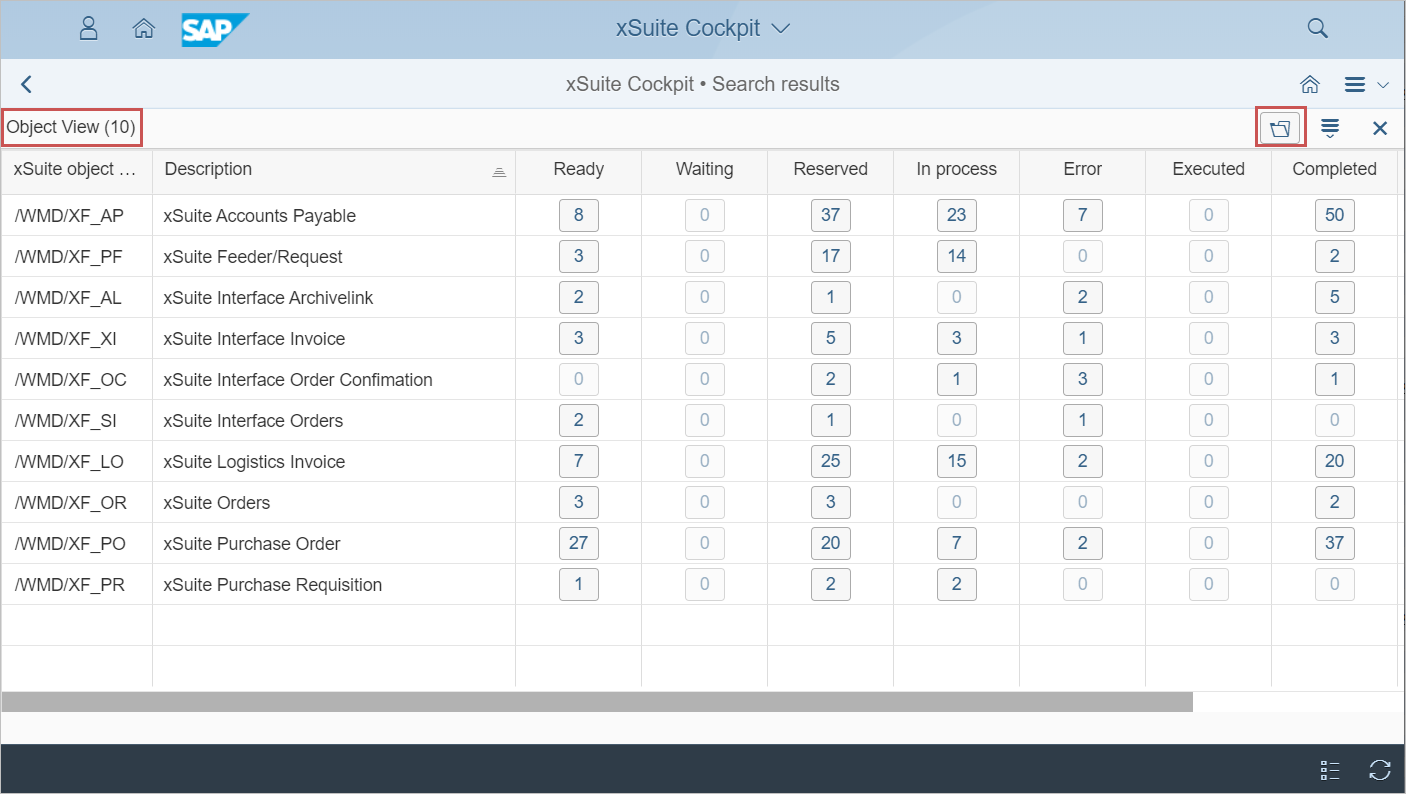
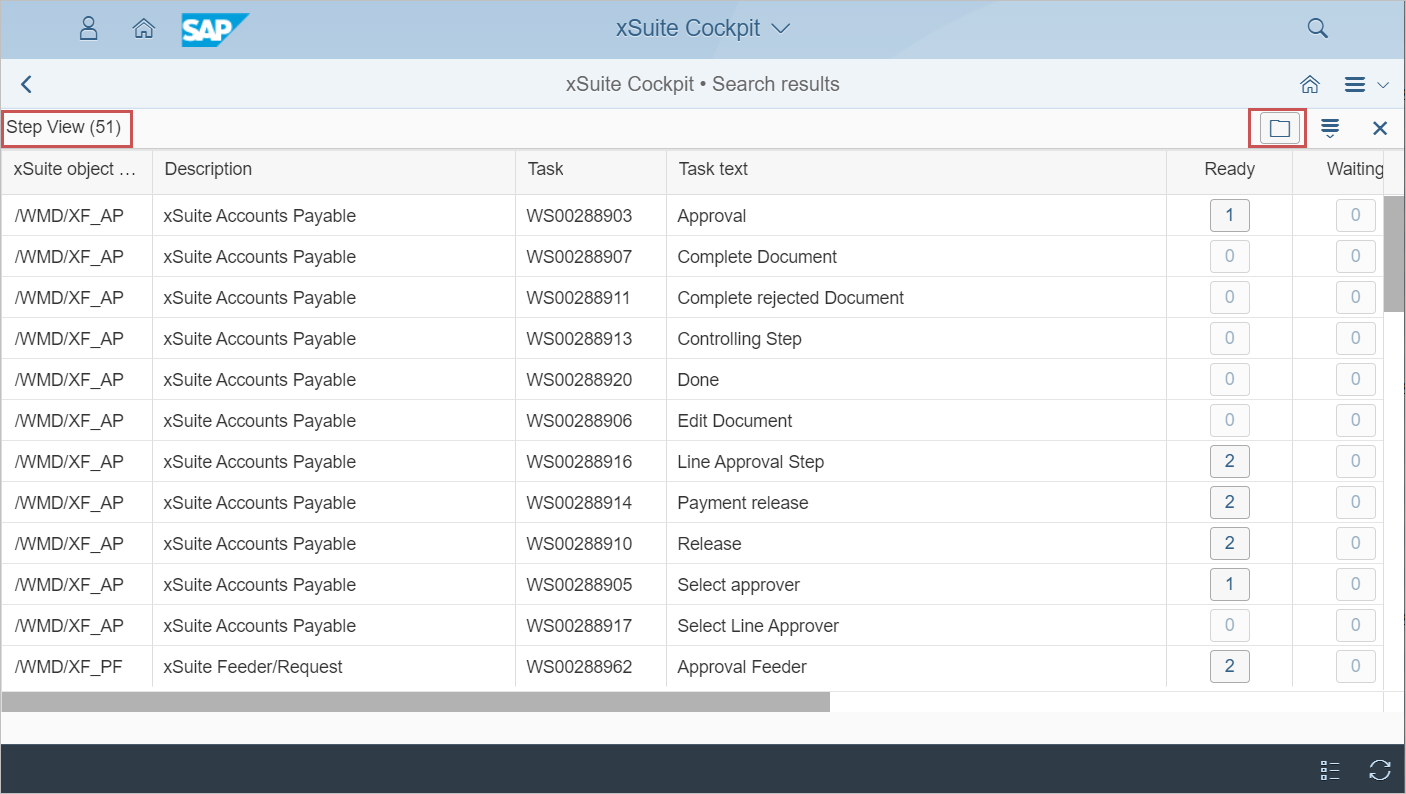
Click on one of the buttons within the table to open the detail view.
Detail view
When a user comes from the Object View view, the detail view will show all found objects with the selected object type and status.
When a user comes from the Display WF Steps view, the detail view will show all found objects with not only the selected object type and status, but also the task.
In the table, an object can be selected using the radio button at the front. Depending on the status of the object, the following actions can then be performed from the toolbar of the table:
Replace
Restart Step
Restart Workflow
Delete
Agent Determination Preview
When you select the Edit Preview action, the system will switch to the Editors Finding — Options view.
If the Workflow App is available, you will also be able to click the object key in the table. The object will then be displayed in the overview of the Workflow App and can be opened there. For example, the Invoice Overview will open for object type /WMD/XF_XI. From the Workflow App, you can navigate back to the search results of the Cockpit App, either using the Back button in the page title or the footer bar.
"Agent determination — Options" view
In this view, you can define the parameters for which the agent determination is to take place.
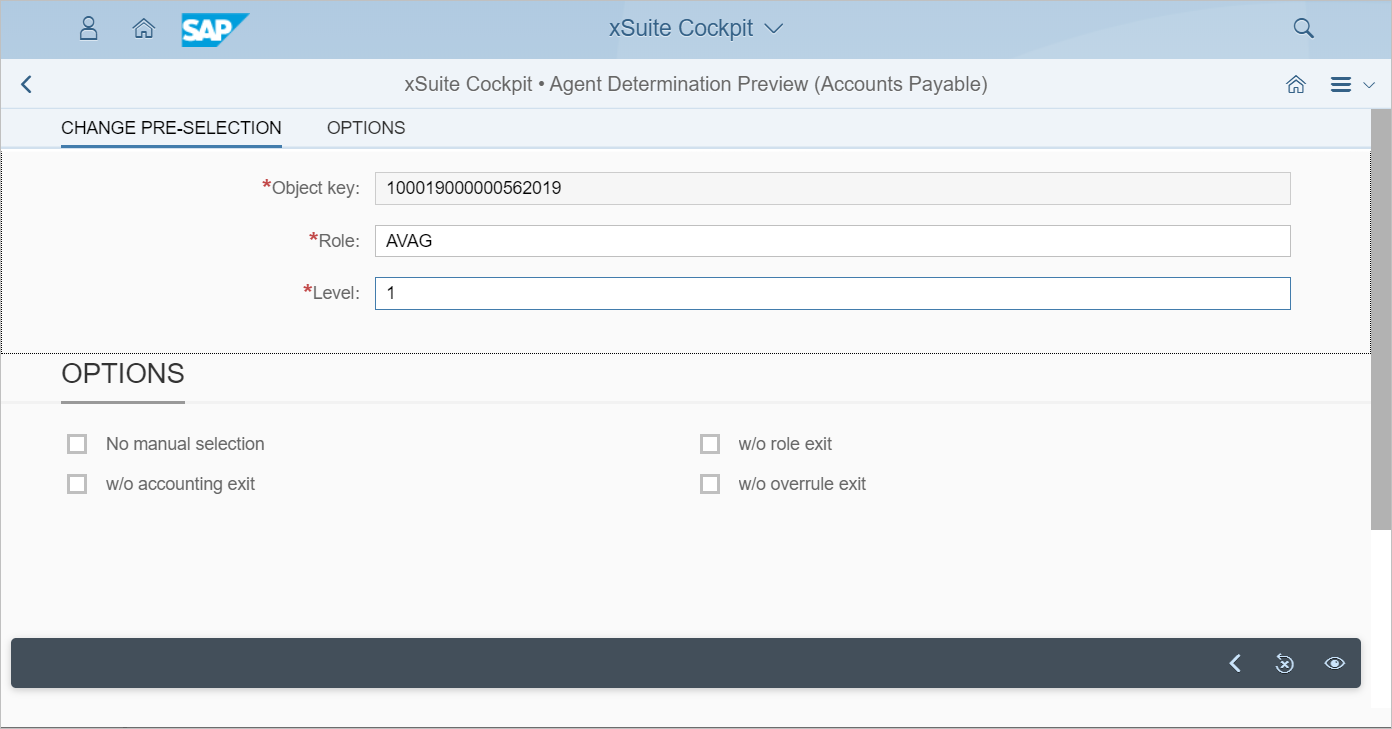
Use the Execute button in the footer bar to perform agent determination and to toggle to the Agent Determination view. Return to the detail view with the Back button in the footer bar.
"Agent determination" view
The results of the agent determination are displayed in the Agent determination view. The Back button in the footer bar takes you back to the Agent determination — Options view.