xFlow Orders Summary Report
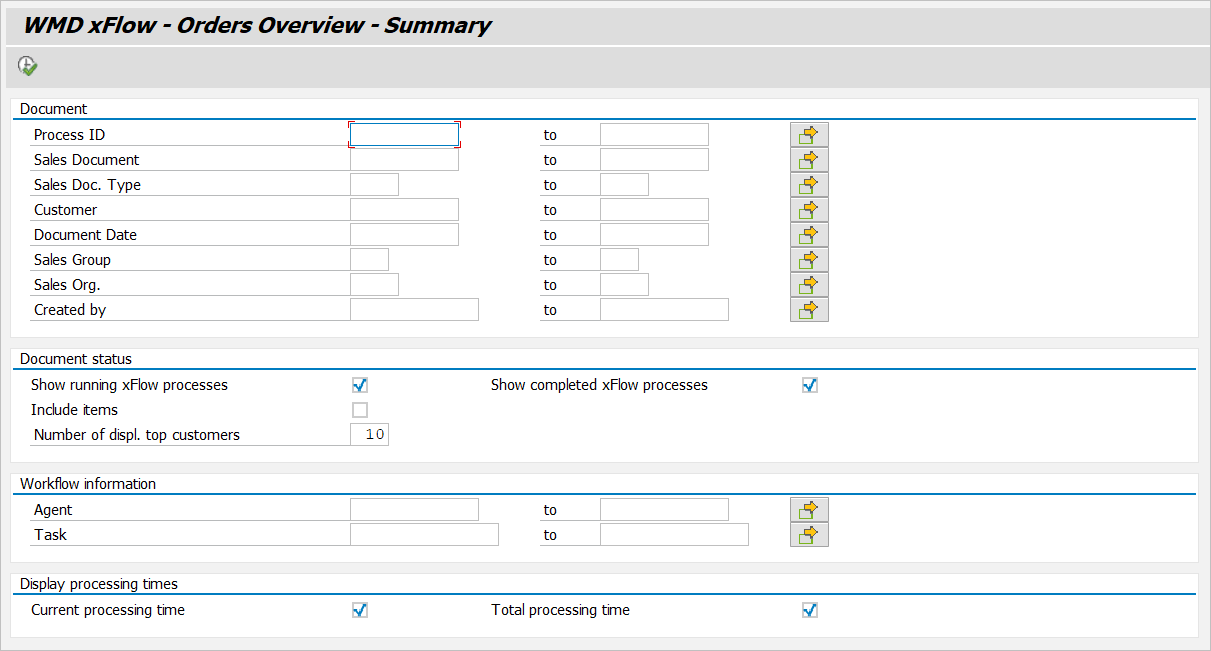
The Management Summary for xFlow Orders (SD) is a new feature, included in xFlow as of Version 5.2.1. The transaction code is /WMD/XF_OR_SUMM. Both appearance and functionality are oriented around the respective programs for xFlow Invoice and xFlow Procurement. After entering Transaction /WMD/XF_OR_SUMM, the selection screen will open.
The results dialog is divided into multiple panes:
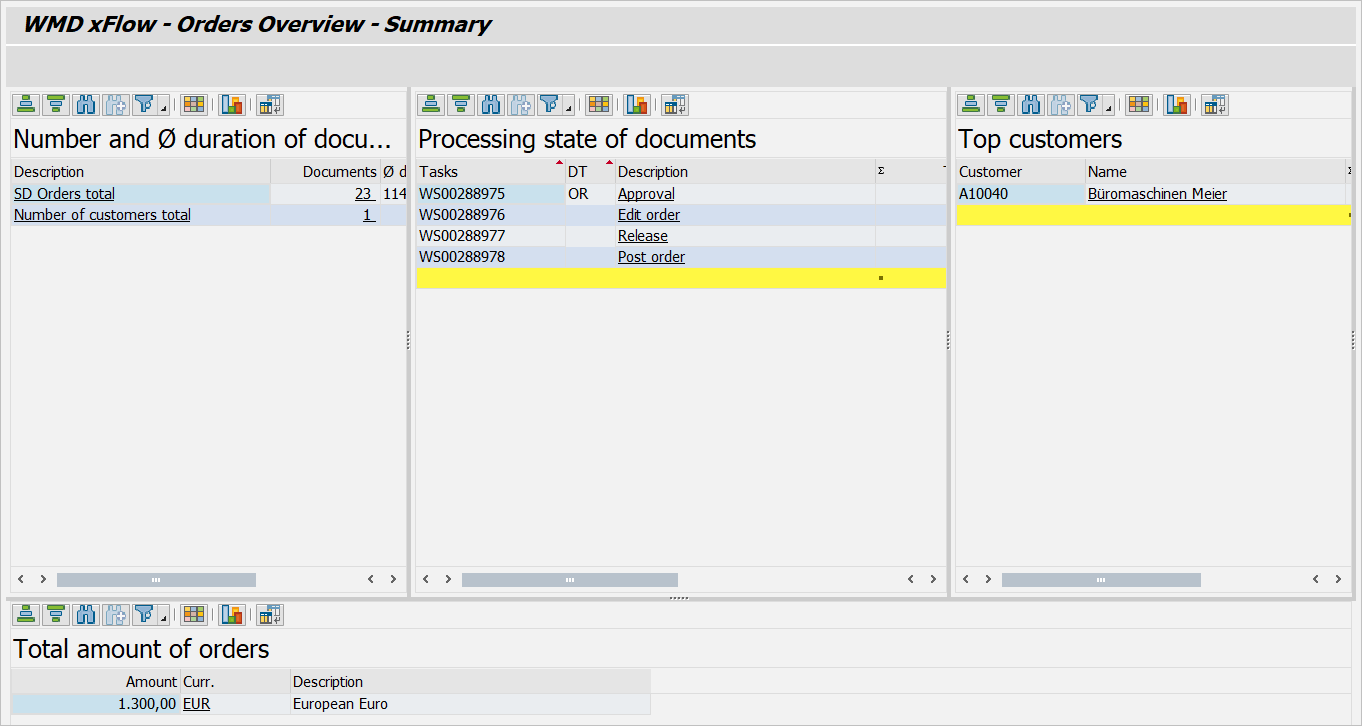
The number and document cycle times of the documents are displayed in the upper left corner.
The upper middle area displays the processing status of documents, broken down according to the current workflow step of the respective document.
An overview of top customers is located in the upper right corner.
In the lower section of the screen, the total amounts are displayed, broken down by currency key.
It is possible to drill down to more detailed information in the different sections.
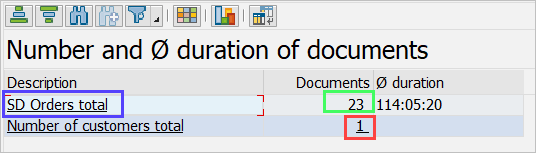
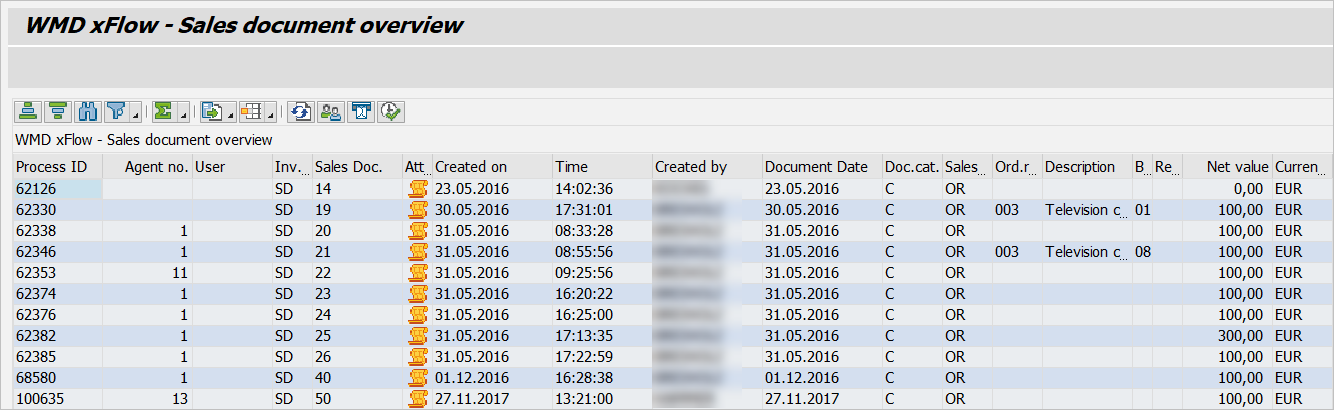
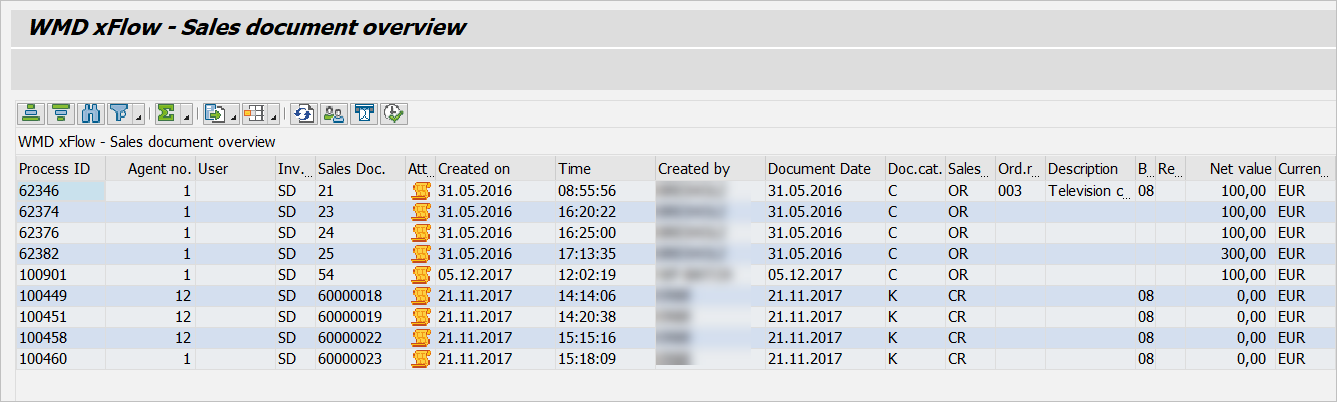
Click on the field SD Orders Total (outlined in blue) in the Sales Document Overview.
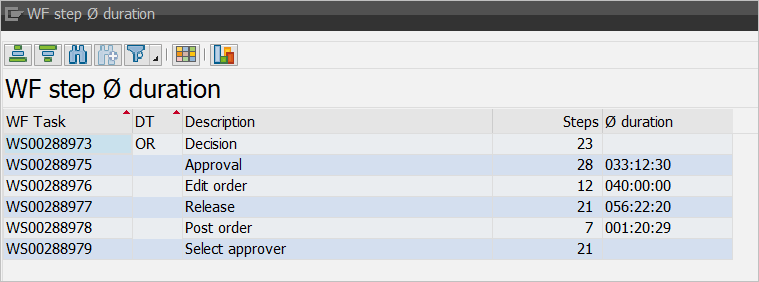
The field Documents (outlined in green) leads to the display of the individual workflow steps and the average duration.
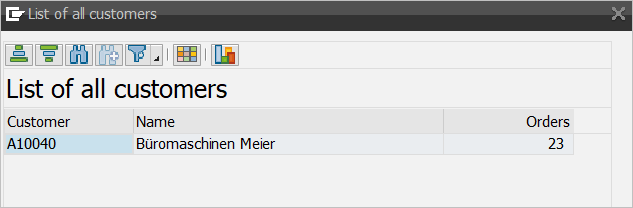
Click on the field Documents (outlined in red) to see all customers included in the selection list.
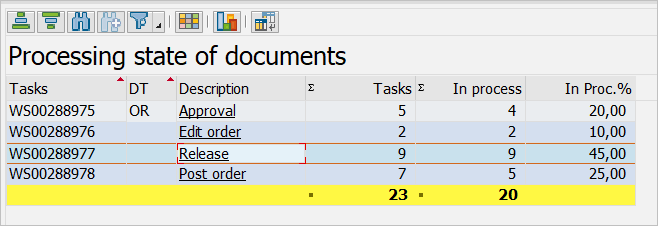
The section Processing state of documents offers an overview of the current processing steps of documents. If the value NO_STATS appears in the column Tasks, the reason will generally be that older documents for which the xFlow statistics table does not contain entries have been analyzed. To go to the Sales Document Overview and see the documents in the respective processing step, click on the task description (outlined in red; here, Release).
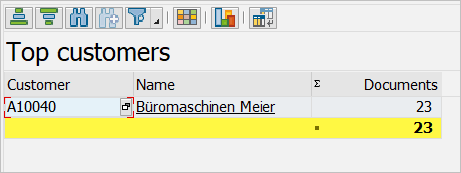
The section Top customers lists customers by the number of the respective sales document.
Click on the customer name to go back to the Sales Document Overview and view the documents of the customer.
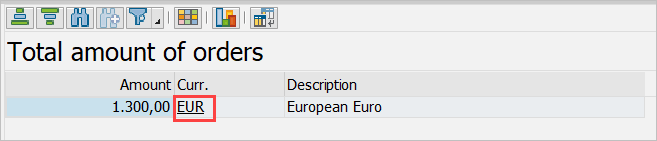
The section Total amount of orders lists the total amounts by currency key. Click on the currency key (outlined in red; here, Euro) to go to the Sales Document Overview and see the documents in the currency key.