The Workflow Builder in SAP Fiori
As of version 5.2.5, the Workflow Builder from the SAP GUI (transaction /WMD/XF_BUILDER) is available as an xSuite App for SAP Fiori.
Overview of buttons on the start page
Notice
The availability of the buttons depends on the value of the XF_BUILDER_SYSTEM parameter in the xSuite parameter table (transaction /WMD/XF_PARAM).
The user can edit and export a workflow on the system specified as the value for this parameter, e.g., i08/800.
On all other systems that are not specified as a value for this parameter, only the import action is available.
Icon | Name | Description |
|---|---|---|
| Display | Opens the workflow selected. |
| New ID | Creates a new workflow with a new builder ID and version 001. |
| Copy to new ID | Creates a new workflow based on the workflow selected in the table. The builder ID is regenerated. |
| New version | Creates a new workflow version for the workflow selected in the table. |
| Copy to new vers. | Creates a new workflow version based on the workflow version selected in the table. |
| Request new values | Reloads the contents of the table using the filter criteria specified. |
| Detail | Opens a dialog that shows the details of the workflow selected. The user can edit some of the details. |
| Activate | Activates the workflow selected. |
| Deactivate | Disables the workflow selected. |
| Status | Changes the status of the workflow selected. |
| Delete | Deletes the workflow selected. |
| Export WF | Exports the selected workflow to a TXT file that is downloaded. |
| Import WF | Opens a dialog for importing a workflow based on a TXT file. |
| Filter | Opens the filter options for the list. |
| Clear all filters | Removes all filters set for the list. |
| Sorting | Opens the sort options for the list. The user can select one or more columns and sort the columns in ascending or descending order. |
| Restore default sorting | Removes all sorting set and restores the original sorting. |


Structure of the workflow view
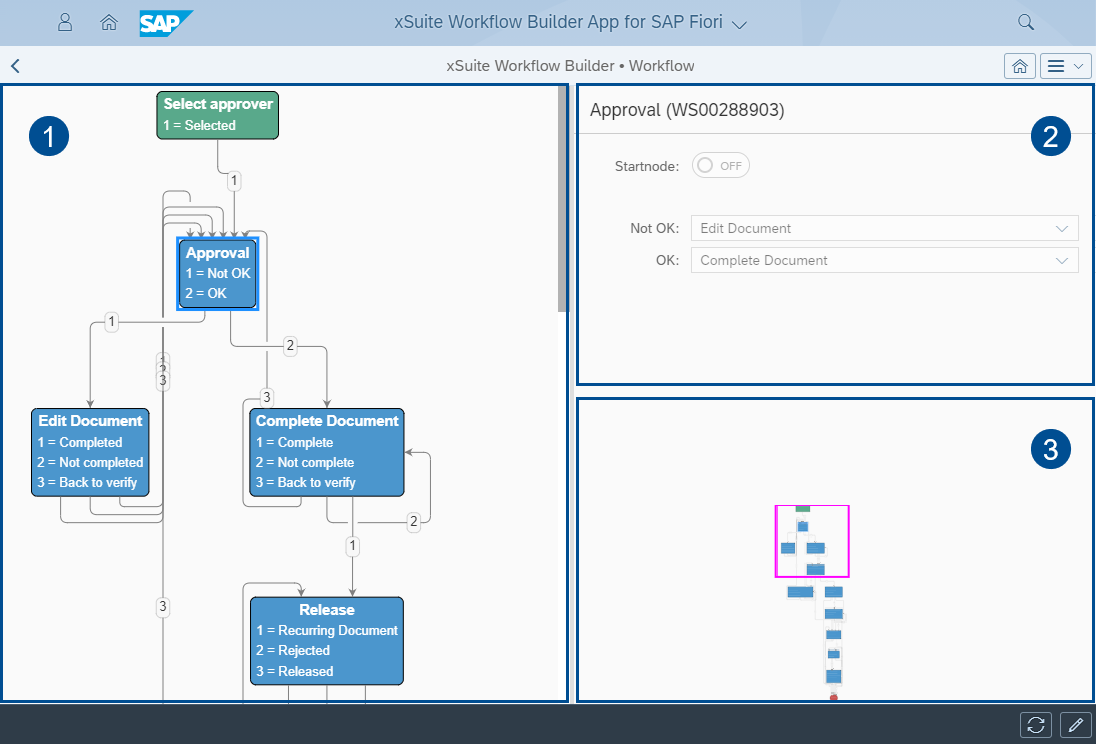
Element | Description | |
|---|---|---|
1 | Workflow diagram | Represents a workflow in the form of a diagram. Workflow tasks are displayed as nodes. |
2 | Detail view | Shows the outputs of the node selected. |
3 | Mini-map | Displays a small version of the workflow diagram. The border indicates which area of the workflow is displayed in the workflow diagram. |
4 | Buttons |
|


Edit mode of a workflow
A selection of nodes is displayed in the edit mode of a workflow. Each node represents a workflow task.
The user can drag and drop a node into the workflow diagram. In the detail view, the user can edit the outputs of a node and mark a node as a start node.
For technical reasons, the diagram is recreated after each change.
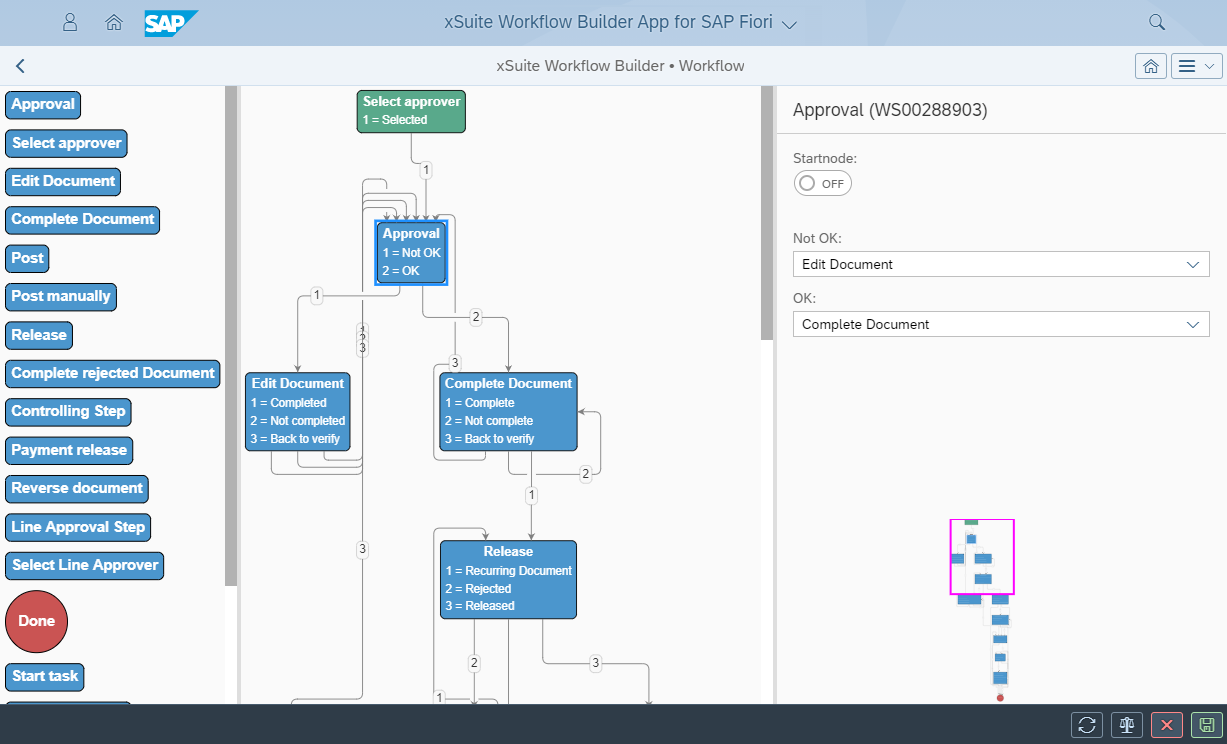
In the edit mode of a workflow, three additional buttons are available:
Icon | Name | Description |
|---|---|---|
| Check | Checks the workflow data. |
| Decline | Closes edit mode without saving changes. |
| Save | Saves all changes to the workflow and then closes edit mode. |


