xSuite Feeder Monitor
In the xSuite Feeder Monitor, all feeders are displayed that were created via web service. The Feeder Monitor can be used to search specifically for feeders and perform validation.
The xSuite Feeder Monitor is available in SAP Fiori and the SAP GUI. In the SAP GUI, the monitor can be called via Transaction /WMD/XF_PFM. In SAP Fiori, the monitor can be accessed via the Feeder Monitor tile.
xSuite Feeder Monitor in the SAP GUI
Selection View – xSuite Feeder Monitor (SAP GUI)
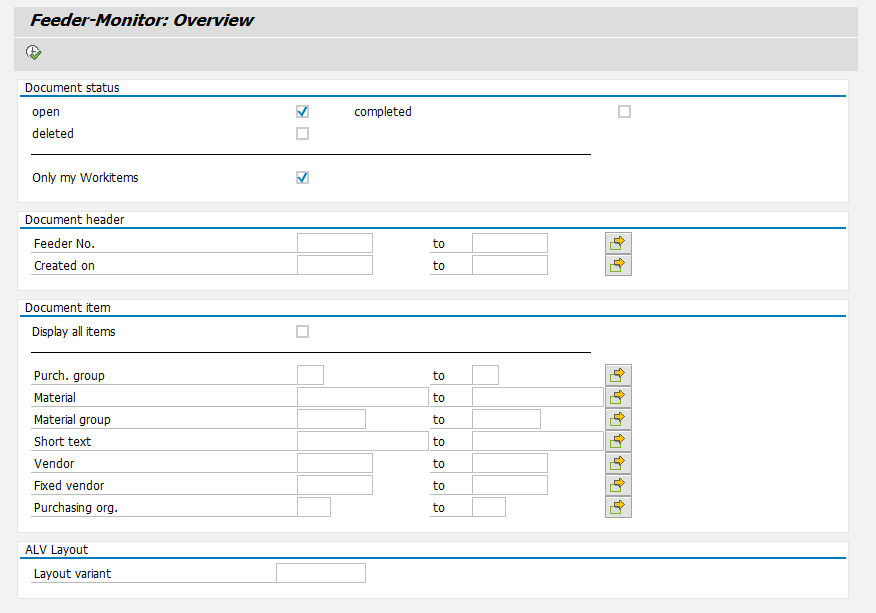 |
In the selection view of the xSuite Feeder Monitor, the user can select and enter various search criteria to search for specific feeders.
The user must select at least one document status. The following statuses are available:
open: Searches for preliminary feeders (Role PFCC). These feeders can be edited.
completed: Searches for feeders that have already been created. These feeders cannot be edited.
Deleted Searches for feeders that were rejected and deleted at a specific time.
The checkbox Only my Workitems allows the user to limit the search to feeders that are assigned to him or her. When selecting the checkbox and the status open, a list with all editable feeders will be made available to the user responsible.
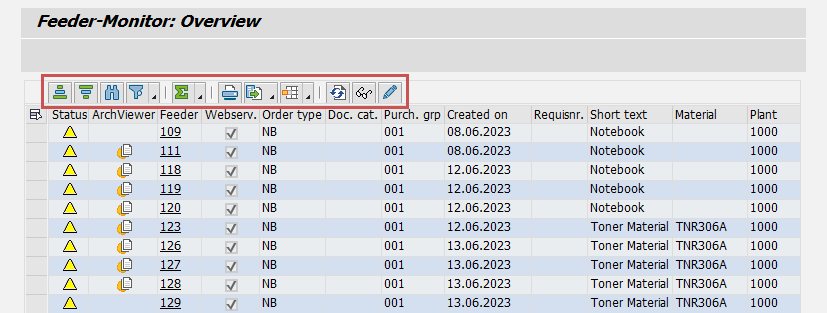
Buttons in the Hit List – xSuite Feeder Monitor (SAP GUI)
The hit list displays all feeders that match the search criteria from the selection view.
The user can edit only preliminary feeders assigned to him or her.
 |
Icon | Name | Description | ||
|---|---|---|---|---|
| Sort in Ascending / Descending Order | Sorts the search results. You can select one or more columns and specify the type of sorting (ascending/descending) in each case. In the default layout, the hit list is sorted in ascending order according to the Feeder column. | ||
| Find | Opens a pop-up for searching the hit list. | ||
| Set filter | |||
| Total | |||
| Opens the print function for the hit list. | |||
| Export | Exports the hit list. The following export formats are available: Spreadsheet, Word processing, and Local file. | ||
| Choose Layout | Offers options for handling the layout of the hit list. The following layout options are available: Choose Layout, Change Layout, Save Layout, and Manage Layouts. | ||
| Refresh | Refreshes the hit list. | ||
| Change | Opens a document in edit mode. The edit mode is available only for feeders created by the user. | ||
| Display | Opens a document in display mode. |


xSuite Feeder Monitor in SAP Fiori
The new xSuite Feeder Monitor (Transaction /WMD/XF_PFM) is also available in SAP Fiori as an xSuite App.
Login requires a valid SAP user account. xSuite Web accounts are not supported.
The back end delivers a maximum of 500 documents as search results to the front end. If more than 500 documents have been found, a notification will appear in the table header. The filter and sorting functions only apply to these 500 documents. It is therefore advisable to restrict searches so that a maximum of 500 documents are found.
settings.json – xSuite Feeder Monitor
Configuration for the xSuite Feeder Monitor App is performed in the settings.json file of the xSuite Base Library in the object app_pfm:
 |
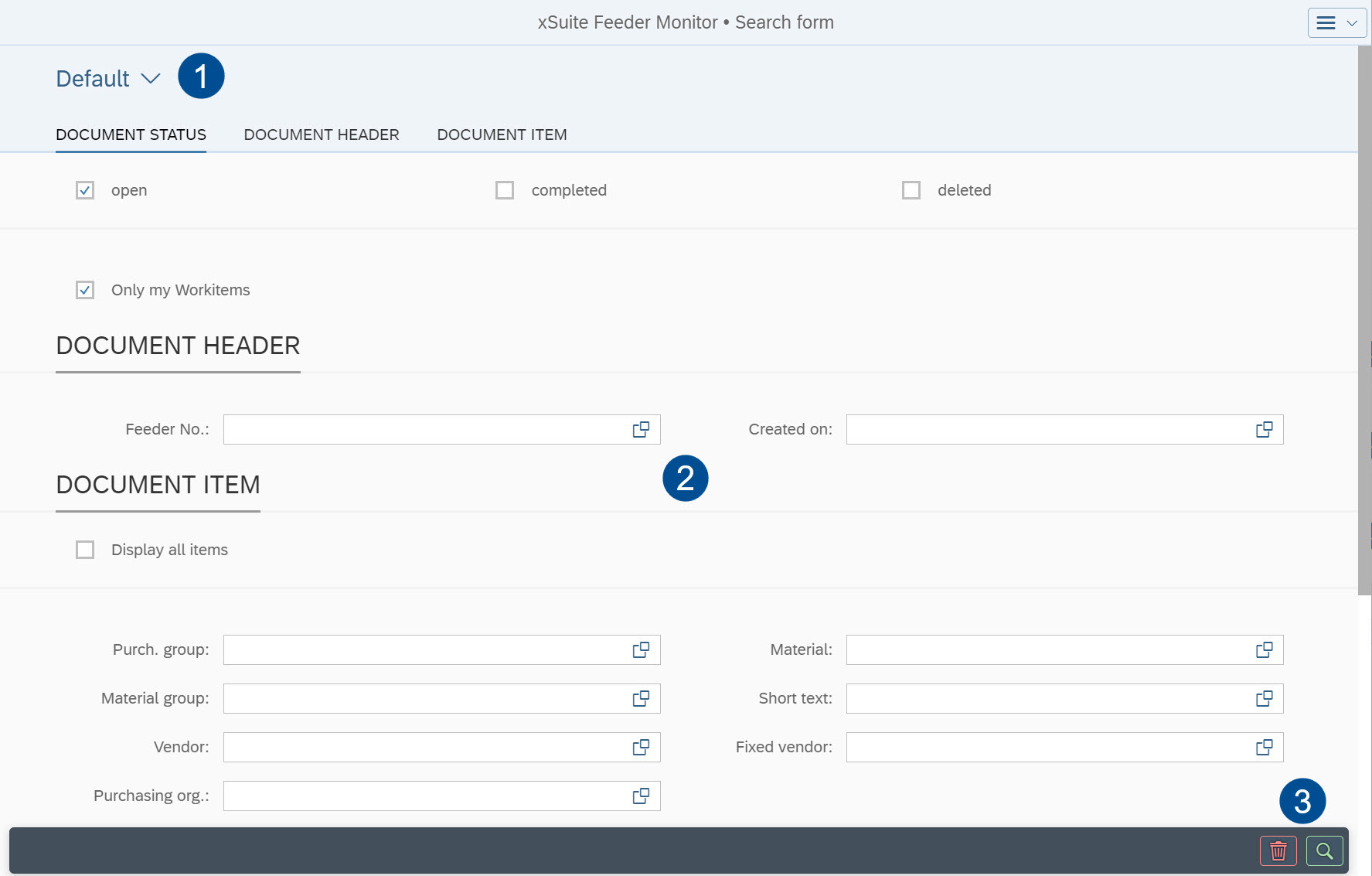
Selection View – xSuite Feeder Monitor (SAP Fiori)
 |
Element | Description | |
|---|---|---|
1 | Search variants | The user can save custom search variants via the variant management, and load both custom and global variants. In addition, the user can specify the default variant. |
2 | Search fields | Here, the user can enter different search criteria. A star (*) is used to indicate fields as mandatory. If mandatory fields are empty, they will be outlined in red. The user must select at least one document status. The following statuses are available:
The checkbox Only my Workitems allows the user to limit the search to feeders that are assigned to him or her. When selecting the checkbox and the status open, a list with all editable feeders will be made available to the user responsible. |
3 | Buttons | The user can perform the following actions via the buttons:
|


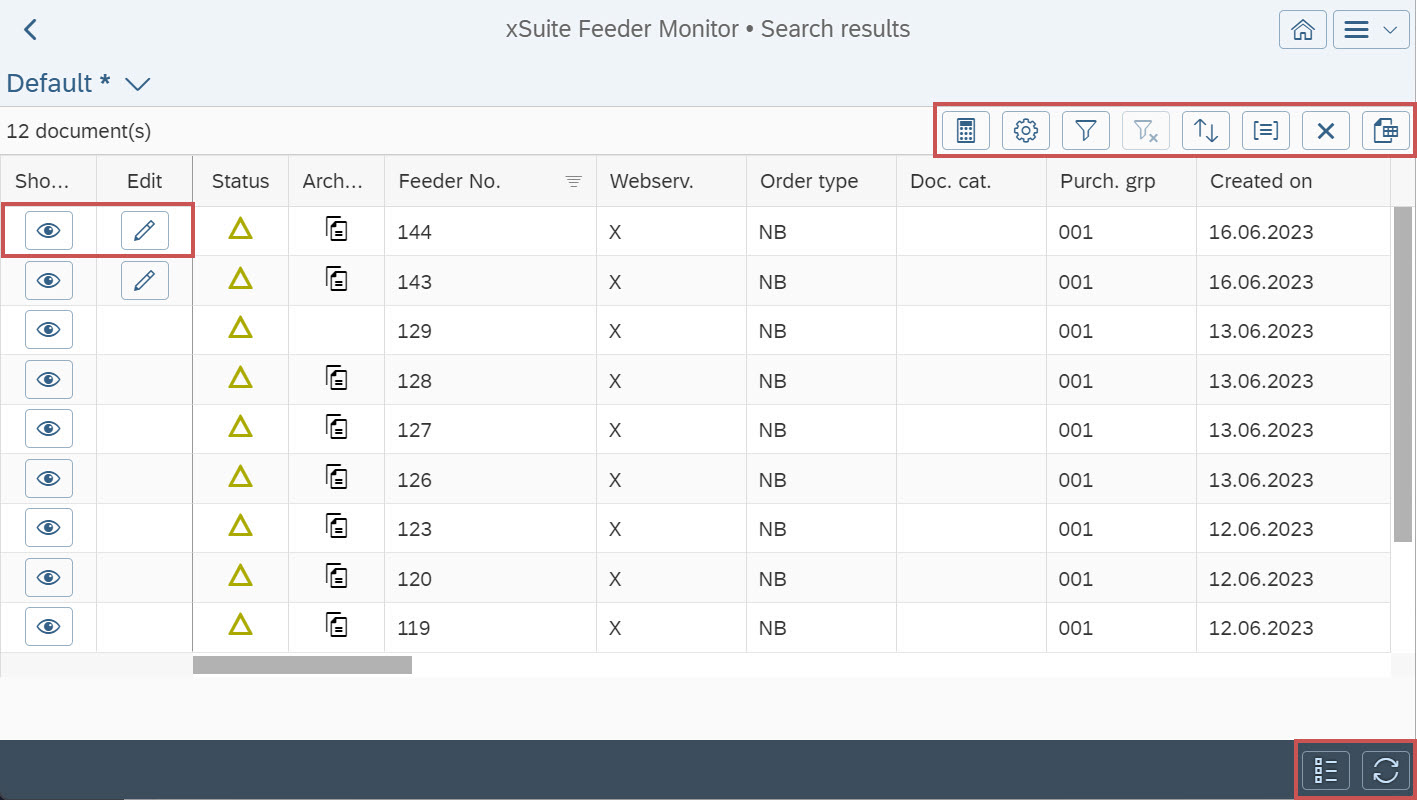
xSuite Feeder Monitor (SAP Fiori) – Hit List Buttons
The hit list displays all feeders that match the search criteria from the selection view.
The user can edit only preliminary feeders assigned to him or her.
 |
Icon | Name | Description |
|---|---|---|
| Show document | |
| Edit | The edit mode is available only for feeders created by the user. |
| Total | |
| Columns | Opens a list of all available columns. You can select which columns to show or hide and specify the order of the columns. |
| Filter | Opens the filter options for the hit list. |
| Clear all filters | Removes all filters set. |
| Sorting | Sorts the search results. You can select one or more columns and specify the type of sorting (ascending/descending) in each case. |
| Categorization | Categorizes the search results. You can select a column whose values are to be categorized. |
| Restore default sorting and clear categorization | Removes any sorting or categorization that has been set. This function is only available for responsive tables. |
| Export | Exports the hit list as an Excel file. This function is only available for responsive tables. |
| Refresh | Refreshes the hit list. |
| Show search criteria | Shows the search pane and hides the hit list. |


