Monitor for Delivery Notes – SAP Fiori
As of this release, the xSuite Delivery Notes Monitor from the SAP GUI (transaction /WMD/FP_DNM) is also available in the Fiori Launchpad as a separate xSuite App.
Login requires a valid SAP user account. xSuite Web accounts are not supported.
The back end delivers a maximum of 500 documents as search results to the front end. If more than 500 documents have been found, a notification will appear in the table header. The filter and sorting functions only apply to these 500 documents. It is therefore advisable to restrict searches so that a maximum of 500 documents are found.
Back-end user exits
If user exits are available on the back end for the xSuite Delivery Notes Monitor, these user exits must be checked as to whether they work in conjunction with the xSuite App for SAP Fiori.
Graphic SAP GUI elements such as dialogs are not permitted for user exits; user exits may not generate them during user exit execution via the application. Appropriate switches are required.
settings.json – Delivery Notes Monitor
Configuration for the xSuite Delivery Notes Monitor App is performed in the settings.json file of the xSuite Base Library in the object app_dnm:
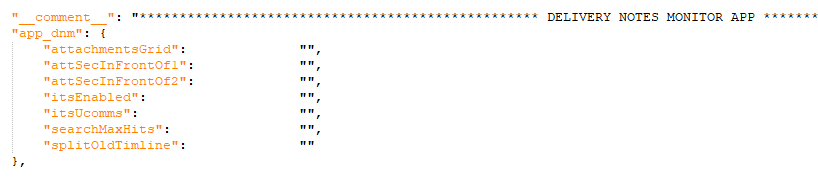 |
The available configuration parameters correspond to those of the other xSuite Monitor Apps, such as the xSuite Invoice Monitor.
UI elements – Selection – Delivery Notes Monitor
 |
Element | Description | |
|---|---|---|
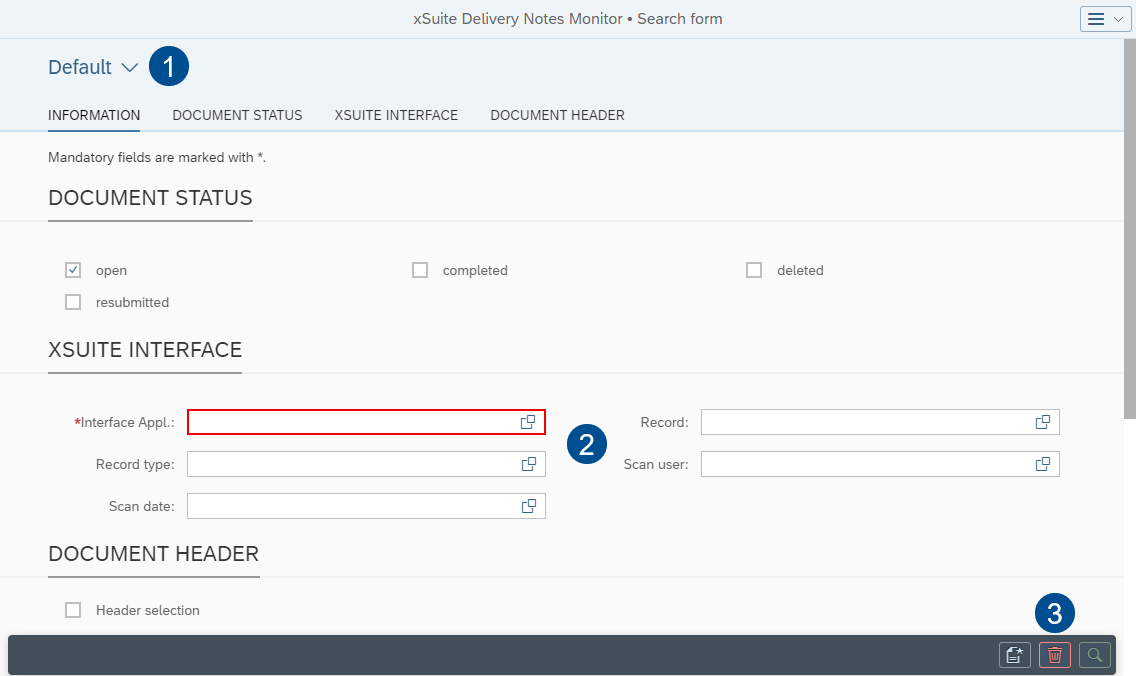
1 | Search variants | The user can save custom search variants via the variant management, and load both custom and global variants. In addition, the user can specify the default variant. |
2 | Search fields | Here, the user can enter different search criteria. A star (*) is used to indicate fields as mandatory. If mandatory fields are empty, they will be outlined in red. The user must select at least one document status. The field Interface Appl. only accommodates the entry of one single value. All other fields allow the entry of multiple values with search operators (e.g., "starts with" and "contains"). |
3 | Buttons | The user can perform the following actions via the buttons:
|


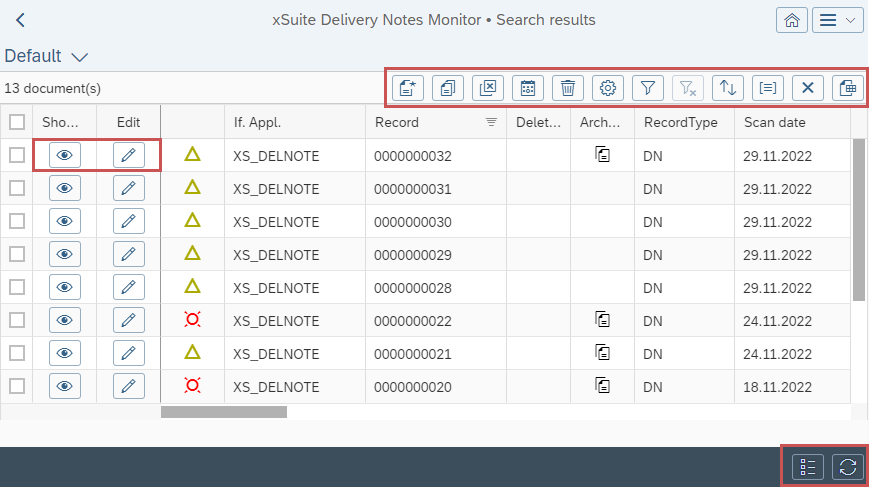
Buttons – Hit List – Delivery Notes Monitor
 |
Icon | Name | Description |
|---|---|---|
| Show document | |
| Edit | |
| Create | Creates a new document. |
| Reactivate | Reactivates a deleted document. A copy will be created for the deleted document that can be edited. The deleted document will remain unchanged. |
| Cancel data extraction | Aborts document extraction. |
| Resubmission | Resets one or more documents for later processing. Resubmitted documents will no longer be displayed in the hit list until the resubmission date. |
| Mass deletion | Sets selected documents with a deletion indicator. |
| Columns | Opens a list of all available columns. You can select which columns to show or hide and specify the order of the columns. |
| Filter | Opens the filter options for the hit list. |
| Clear all filters | Removes all filters set. |
| Sorting | Sorts the search results. You can select one or more columns and specify the type of sorting (ascending/descending) in each case. |
| Categorization | Categorizes the search results. You can select a column whose values are to be categorized. |
| Restore default sorting and clear categorization | Removes any sorting or categorization that has been set. This function is only available for responsive tables. |
| Export | Exports the hit list as an Excel file. This function is only available for responsive tables. |
| Refresh | Refreshes the hit list. |
| Show search criteria | Shows the search pane and hides the hit list. |


Documents
Cache
As do other apps, the ArchiveLink Monitor App uses a cache to improve performance. The functionality is identical to that of the cache in the xSuite Invoice Monitor App.
Data validation
Along with the front-end data validation described above, the header and line-item data is sent to the back end for validation as soon as it has been entered. Invalid data is discarded directly.
Attachments
As do other apps, the xSuite Delivery Notes App uses the xSuite PNG Viewer to display attachments.
On mobile end devices such as tablets and smartphones, attachments are always displayed in a separate window. On desktop PCs and laptops, display in a separate window is optional and can be activated at need.
When external display is used, attachments are opened in a separate browser window.