Transfer of data to the purchase order
As a counterpart to the existing function Confirmation data from PO item, there is now the function Conf. Data => Purchase Order.
Using the function Conf. Data => Purchase Order, it is possible to adopt certain field contents from the confirmation items in the respective PO item.
The order is therefore changed here on the basis of the confirmation.
The following fields can be transferred to the PO item:
Delivery Date
Quantity
Unit of Measure (not for material items)
Net price
Price unit
Order price unit
The following restrictions apply:
There must not be any confirmations to the PO item. If a confirmation already exists, confirmation items cannot be assigned uniquely to schedule line items.
The number of confirmations must match the number of schedule lines in the PO item. Otherwise, the distribution of dates and partial quantities from the confirmation items to the schedule line items would be unclear.
The PO item must not contain any multiple account assignments. If a multiple account assignment is included, the distribution of the quantity to the account assignment will be unclear, at least if it is a quantitative distribution. Therefore, this is currently not supported.
It is not possible to deviate from the base unit of measure for material-related items. While transaction ME22N performs an automatic quantity conversion if the unit of measure is changed (and retains the base unit of measure), function module BAPI_PO_CHANGE only transfers the quantity, but does not adjust it.
Settings in customizing
The settings for which fields can be transferred to the purchase order are made by activating the relevant checkboxes in the detail view of tolerance customizing (transaction /WMD/BC_SPRO → Order Confirmation: Tolerance Settings).
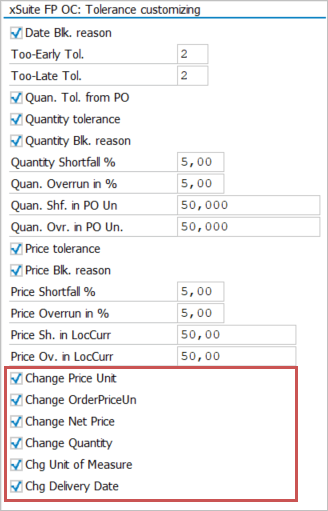
Only fields activated here can be transferred to the order.
Example: Change price unit / price unit of measure
Changing base unit of measure to target unit of measure
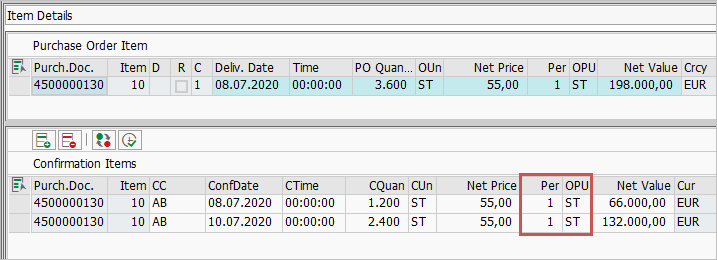
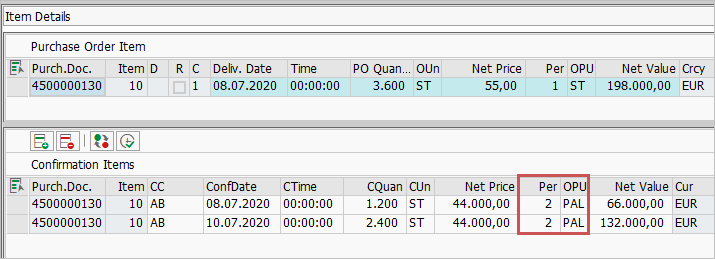
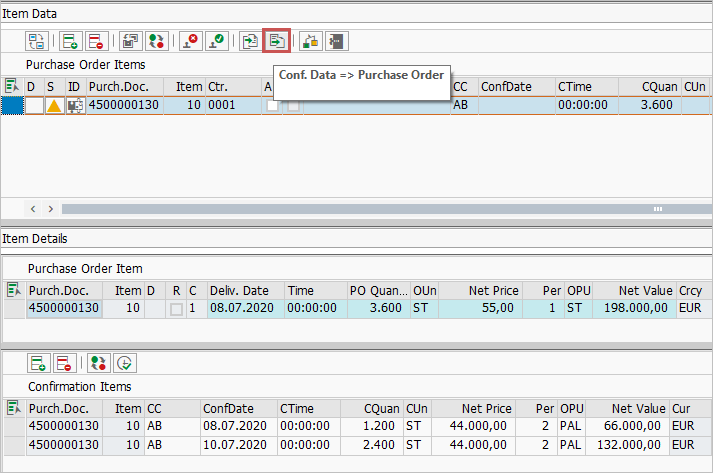
If you receive a confirmation such as this, the net unit price will be calculated using the conversion factors stored in the material master. The items can be posted. The order does not have to be changed for this.
However, it will be possible to copy these fields into the PO item.
To do this, mark the corresponding PO item in the Item Data area and click the button  Conf. Data => Purchase Order.
It is also possible to process several line items at once.
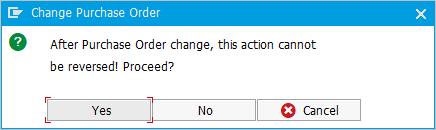
The system displays a security prompt about the purchase order change and, in this case, also about the conversion factors for the units of measure, since function module BAPI_PO_CHANGE changed them.
Confirm with Yes.
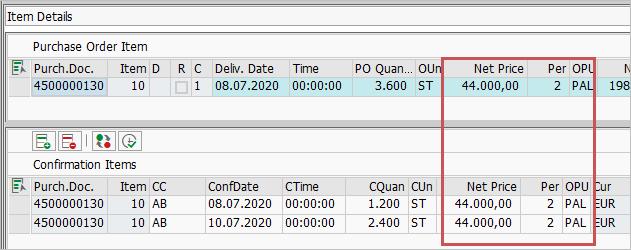
The base unit of measure was changed to the target unit of measure PAL.
Changing target unit of measure to base unit of measure
It is also possible to change the target unit of measure (ST in this example) to the base unit of measure.
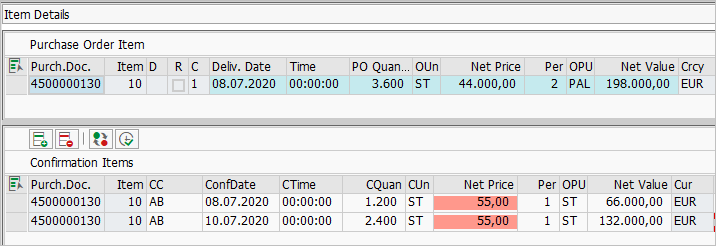
Note that SAP does not support recalculation of the target unit of measure to the base unit of measure. Depending on the settings in tolerance customizing, a recalculation like this will result in an error message.
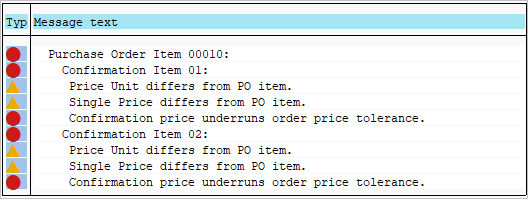
It is still possible to update the change. However, a security prompt will appear.
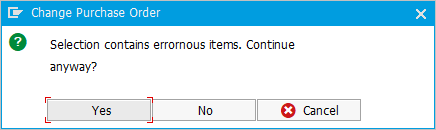
Before you continue, make sure that only the fields to be updated are affected.
Check which errors are present by clicking on the status button.
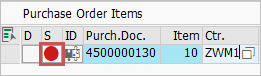
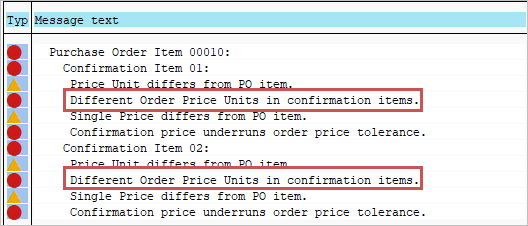
In this example, the price units of measure of the two confirmation items are different.
If you ignore these error messages and continue anyway, the following will result:
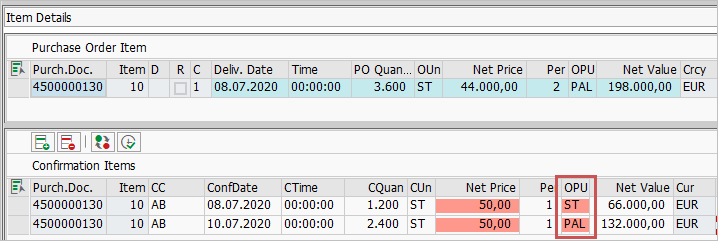
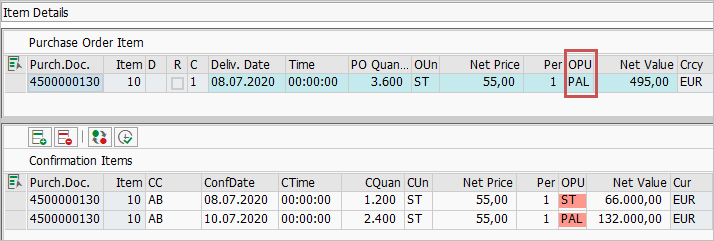
In this case, correct the unit of measure of the confirmation item again.
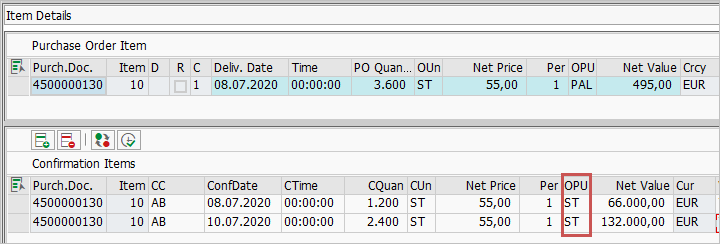
Execute the order change for this item again by clicking on the button Conf. Data => Purchase Order.
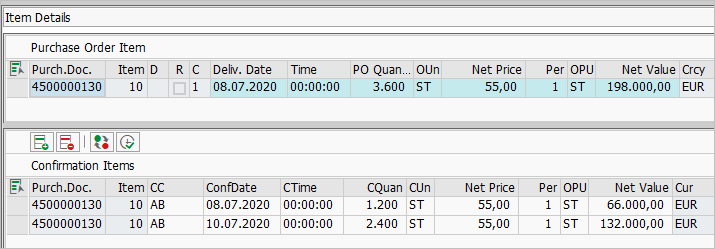
You can therefore make changes to the purchase order even if the purchase order items cannot be validated.
Always make sure that no more error messages exist.
Example: Change quantity
Depending on the settings in tolerance customizing, a different quantity in the confirmation may lead to an error message.
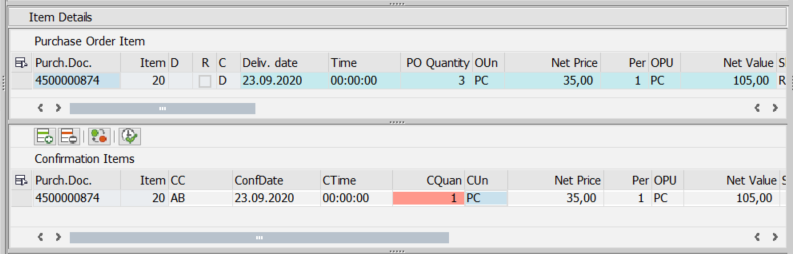
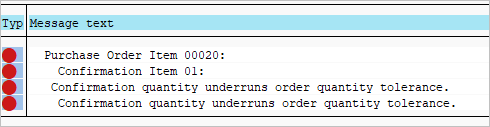
To transfer a quantity variance to the purchase order anyway, proceed as described in the last section (see Example: Change price unit / price unit of measure).
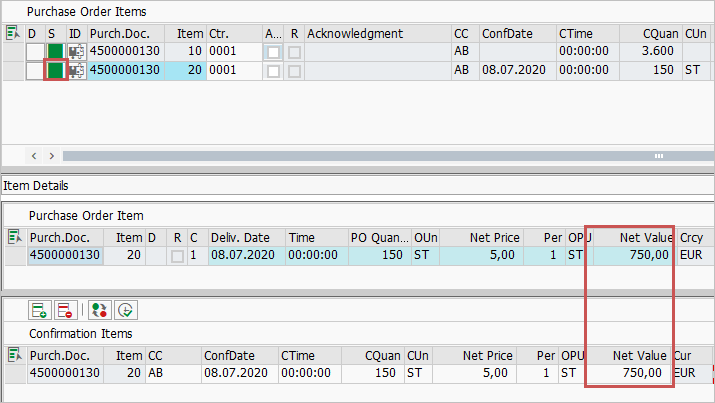
The quantity from the confirmation item will be transferred to the purchase order.
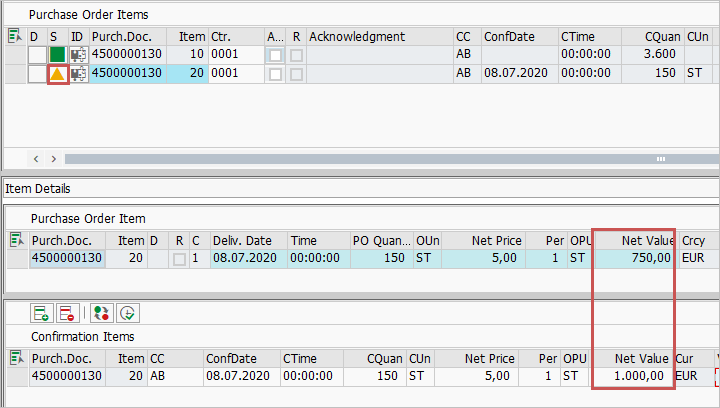
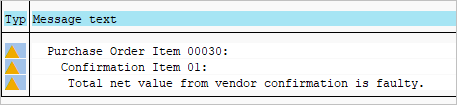
The total net value of the confirmation items will no longer match the total net value of the PO item.
You will receive a warning message.
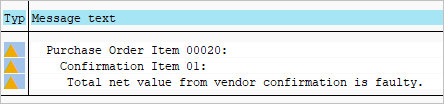
Adjust the total net value in the confirmation item accordingly.
Example: Change unit of measure
Item with material reference
You will receive the following confirmation item:
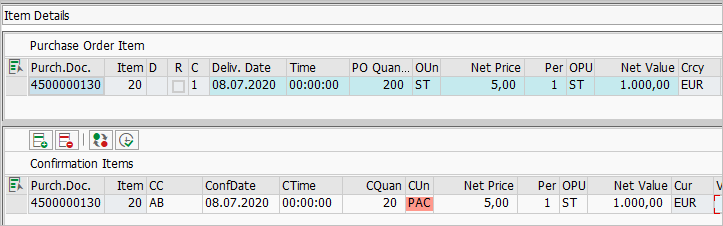
As with the price unit of measure, a conversion could be made here using the conversion factors stored in the material master.
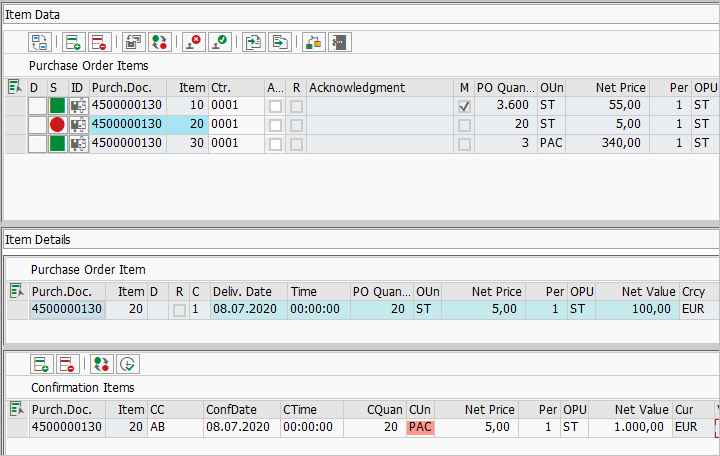
However, the base unit of measure cannot be changed for a material-related PO item. The function module BAPI_PO_CHANGE only updates the quantity, not the unit of measure, for items with material reference.
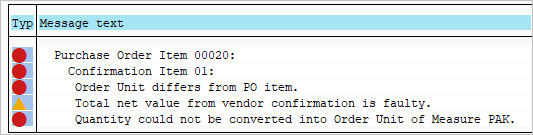
You would thus have the following result:
Proceed as follows:
Double-click on the document number in the column Purch.Doc in the item overview.
The transaction ME23N will open. Switch to edit mode (transaction ME22N).
Change the unit of measure according to the confirmation item and confirm with ENTER.

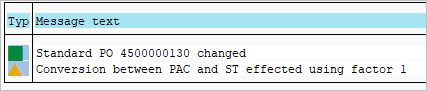
Transaction ME22N has now automatically converted the quantity using the conversion factors in the material master and changed the unit of measure back to the base unit of measure.
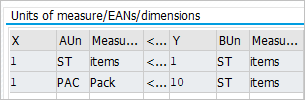

Take a look at the message.

If you click on the question mark, a longer description of the message will appear.
Save the order. You will be sent back to the order confirmation.
Update the order data by clicking on the button  Mix in PO data.
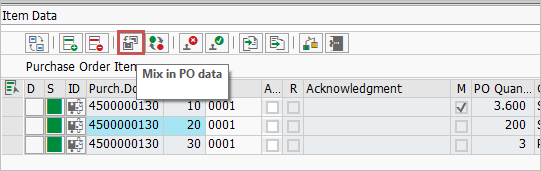
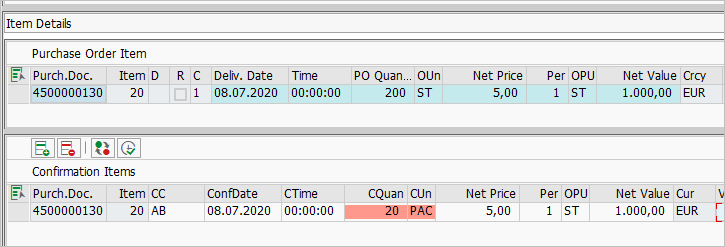
Then perform the document check.
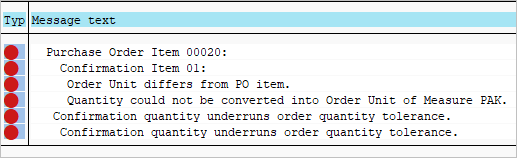
Now make sure to adjust the confirmation item.
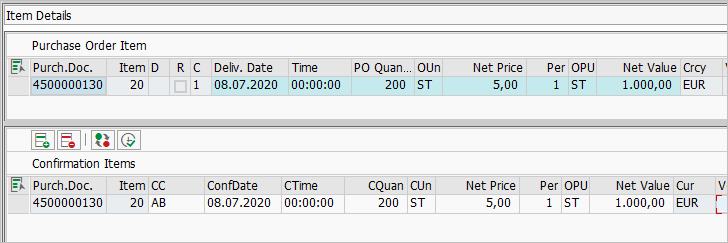
If you do not adjust the confirmation item, you will not be able to post the document.
If the document can still be posted because of the settings in tolerance customizing, the system will write incorrect quantities and units of measure to the confirmation items when the confirmations are posted.
In this example, the quantity 20 and the unit of measure ST would be incorrectly written to the confirmation item.
Item without material reference
For an item without material reference, on the other hand, you can adopt the unit of measure.
Please note, however, that you must then make the conversion to another unit yourself.
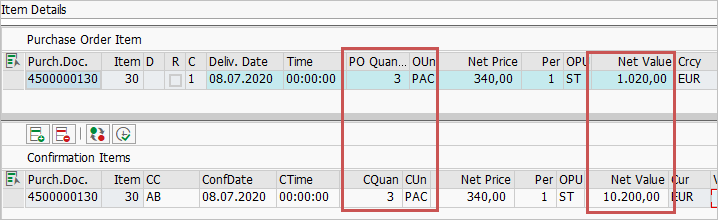
The error status will now show the following and it is up to the user to make the necessary changes manually.