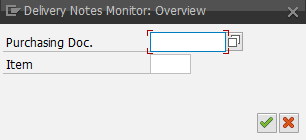
Delivery Notes Monitor
For post-processing of imported data sets, an xSuite monitor is available, analogous to those in the other xSuite Interface modules. The monitor can be called up via transaction /WMD/FP_DNM.
Here, the user can create documents manually and post goods receipts. The document initially appears completely empty when you first open it.
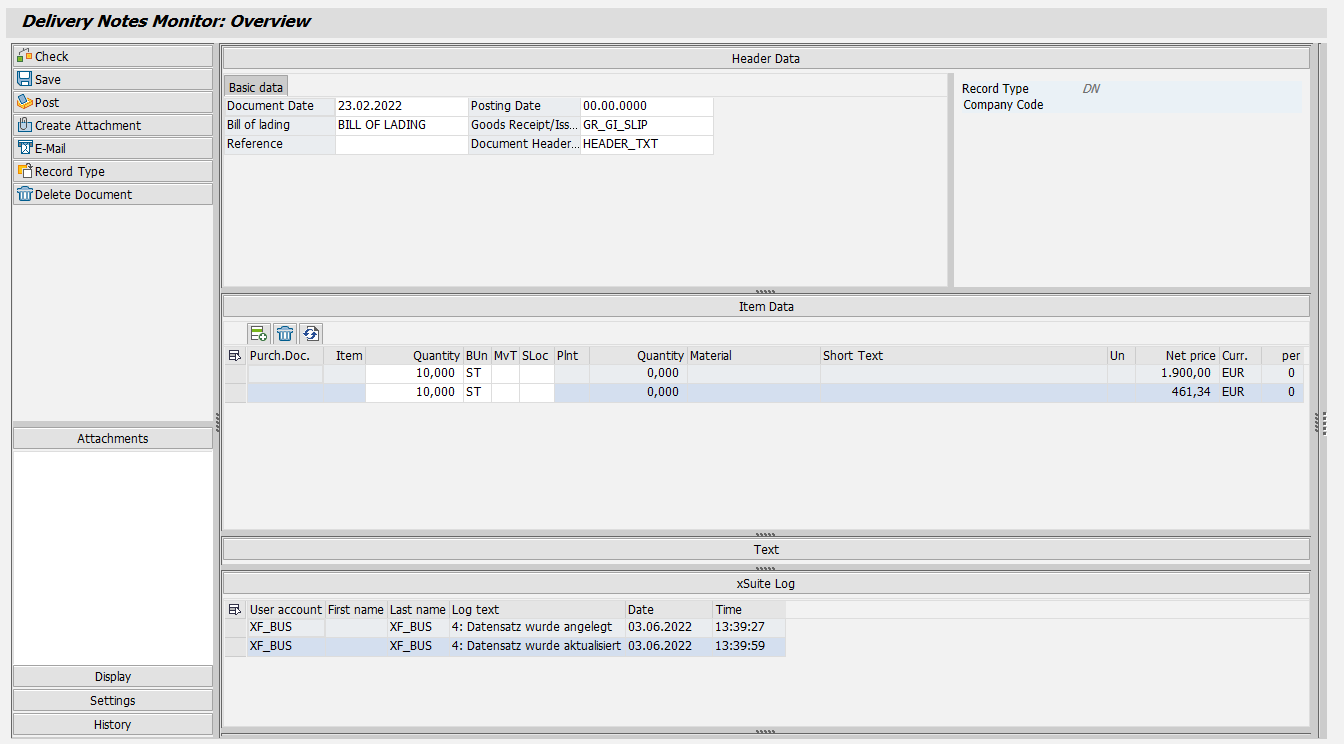 |
In the standard system, the following buttons are available for the document:
Button | Description |
|---|---|
Check | Checks the data of the document. |
Save | Saves the data. |
Post | Posts the document. The update is performed with the BAPI BAPI_GOODSMVT_CREATE, which is provided by SAP. |
Create Attachment | Creates an attachment (object type BUS2017). |
Sends an e-mail, e.g., a query to a supplier or another agent. | |
Record Type | Switches the document type. This function can be used if, for example, the document was incorrectly recognized as a delivery note. |
Delete Document | Deletes the document. This function can be used, for example, if a document exists twice in the system. |
Notice
For posted documents, it is possible to display the material document and list the change documents.
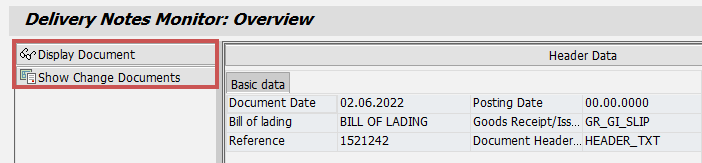 |
The fields in the header and item data are no longer editable for posted documents.
Header data
In the header data, the following fields are available and can be edited:
Document Date
Posting Date
The posting date is not a required field in the standard system. If no date is specified, the current date is set.
Bill of lading
Goods Receipt/Issue Slip
Reference
Document Header Text
Item data
In the item data, the order number, the order item and other details relating to the purchase order are displayed. Double-click on the order number to open the complete purchase order.
The data for a supplier and the company code are not displayed unless a purchase order is specified in the Purch. Doc. column.
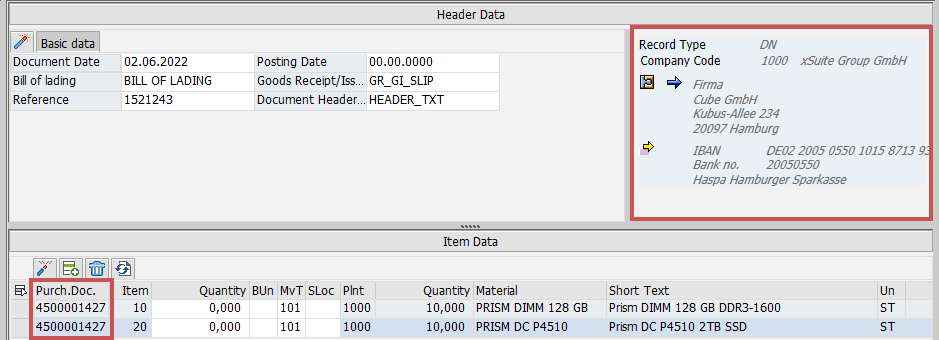 |
Purchase orders must therefore always be assigned to the same supplier. Otherwise, an error message will appear.
The following fields can be edited in the item data:
Quantity
BUn (base unit of measure)
MvT (movement type) (e.g.
101for a goods receipt)SLoc (storage location)
In the standard system, the following buttons are available in the item data:
Button | Description | |
|---|---|---|
| Opens a dialog to add a new item row.
If the user specifies only the purchase order number, all purchase order items will be included in the document if they are not already in the document. Any entries that already exist are automatically ignored. | |
| Deletes one or more selected lines. | |
| Updates the order data if it has been changed in the meantime. |