User Maintenance App
As of this release, user maintenance from the SAP GUI (transaction /WMD/XF_USR_ADMIN) is also available in the Fiori Launchpad as a separate xSuite application.
The prerequisite for using the application is a gateway or SSO.
Start page
On the start page you can create a new account (Create tab) or you can search for a user account or a group account (Single user or User group tab). When an account is found, it will appear in the list located below, along with several actions.
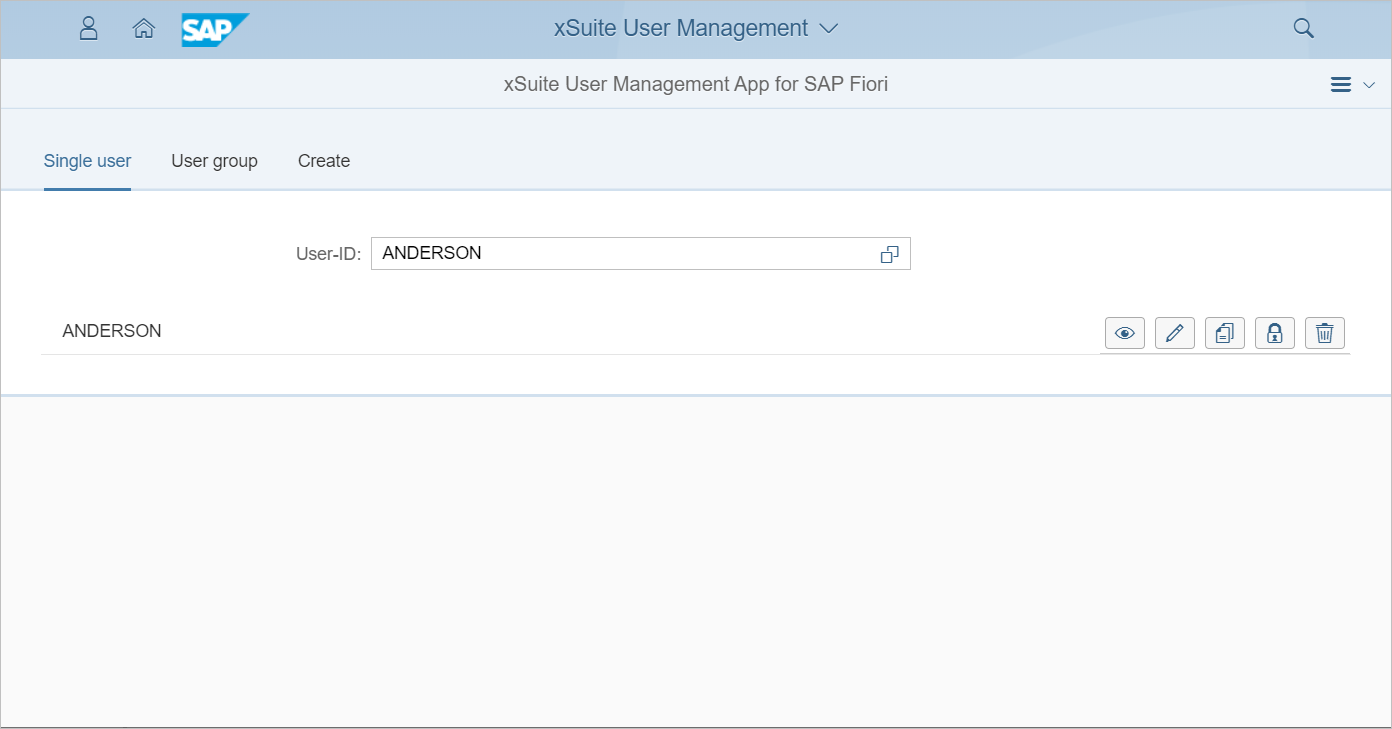
The following actions are provided for an account:
Open account in display mode.
Open account in edit mode.
Use account as a template for a new account.
Lock or unlock account.
Delete account.
Detail view
If an account was selected via the start page and then the action Display or Edit was selected, the detail view of the account will open. It is similar to the detail view in the SAP GUI.
The master data and a tab bar are displayed in the detail view. You can switch between the different account areas using the table bar.
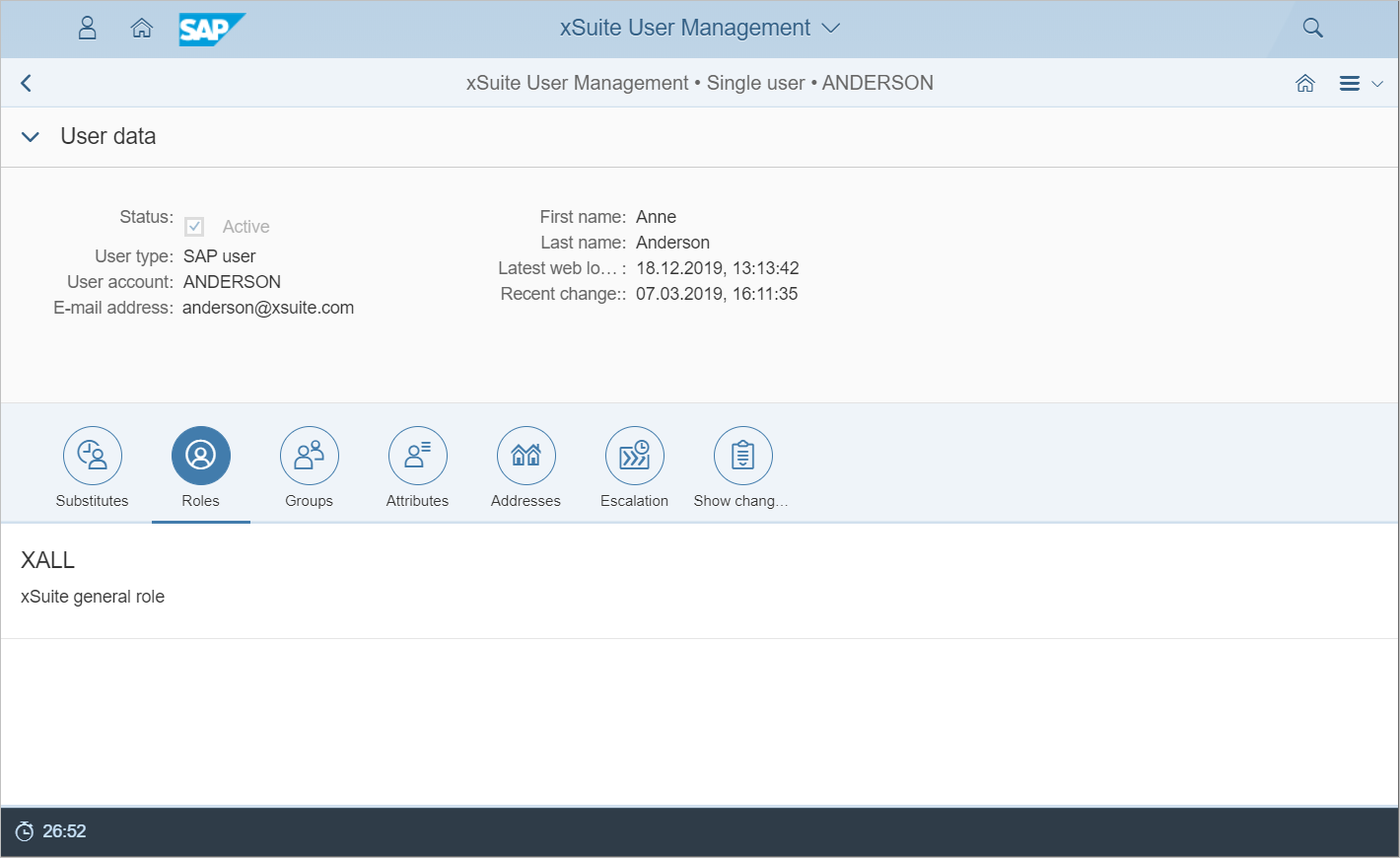
Tab bar
Which tabs are displayed depends on the account type and the user type. Possible tabs include:
Substitutes
Roles
Groups
Members
Attributes
Addresses
URLs
Escalation
Show change documents
Each of the tabs, with the exception of the change documents, can be switched to its own editing mode in which the tables or lists can be edited. By clicking on the Apply button, these changes are then transferred to the cache. If the Cancel button is clicked, the status is restored from the cache.
As long as a tab is in edit mode, all other tabs or other input fields are deactivated. The editing of the tab must therefore be completed before the tab can be changed.
Final save
Changes made via the edit mode of a tab are not all automatically saved in the database after the Apply button has been clicked. Instead, the changes are initially copied to the cache, which serves as the processing basis for user maintenance.
If all changes made are to be saved, the Save button at the bottom right of the screen must be clicked. Using this button is the only way to finalize the changes. If you leave the page before having clicked the button, the changes will remain in the cache, but this state is only temporary and not represented in the database.
Cache
In change mode, you work on a cache that becomes invalid after a certain time in which changes have not been input. To keep track of this time and manually extend the cache runtime, a countdown is displayed at the bottom left of the screen showing the remaining time that the cache will be retained. A click on the "countdown" will reset the time to the initial value. In addition, the rundown time of the cache is also extended after each change made by the user.
Exiting the detail view
If the detail view is opened in display mode, it can be exited in any way.
However, if it is opened in editing mode, it is not advisable to exit the detail view by closing the browser window. The browser session would then be lost, and the opened account would remain temporarily locked for other users, because by closing the browser window the lock indicator can no longer be removed. After 30 minutes, the account is automatically released again and can be edited again.