Invoice Overview
Batch processing functions have been added to the Invoice Overview, including forwarding, posting, approval, release, execution, payment release, and changing the posting date.
The default minimum for performing these functions is one selected line. The default maximum is set at 100 lines at once.

To enable batch processing of releases, approvals and payment releases, the parameter XF_IIL_MASS must be set to X in the parameter table (transaction /WMD/XF_PARAM).
To activate the change of the posting date, set the parameter XF_IIL_BUDAT to X.
Note
Only SAP users can use the batch processing functions in the Invoice Overview.
Batch processing has been implemented centrally in a new overview controller base class (wmd.xfweb.wmd_ui5_500.overviews.OverviewBase in file /sap/bc/bsp/wmd/ui5_365/wmd_ui5_500/overviews/OverviewBase.js) and is largely uniform for all overviews.
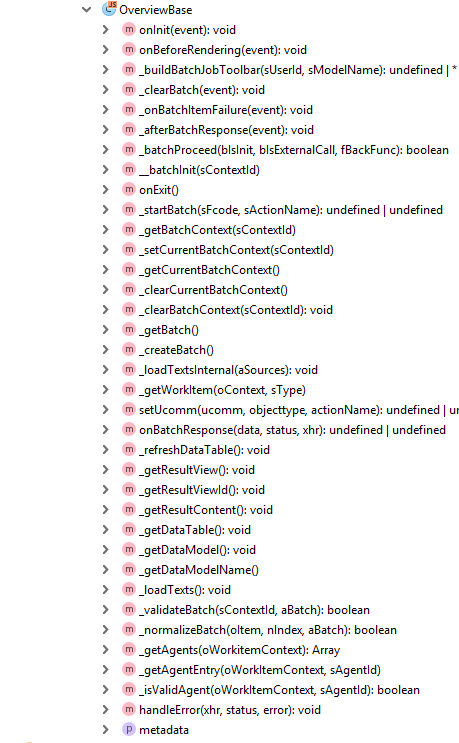
The batch tasks themselves usually have to be implemented in the concrete overview controllers, just like several abstract methods on which the batch processing routines are based. Customizing in overview controllers should, if possible, only be made in the specific controllers.
"Forward work item" button
Requirements for forwarding documents:
The documents have the status READY.
The user is a valid agent.
Documents selected simultaneously belong to the same task and the same company code.
If several items of a document are selected, the entire document is always forwarded.
As in the workflows, when a valid selection is made, F4 input help will appear and can be used to select the forwarding target.
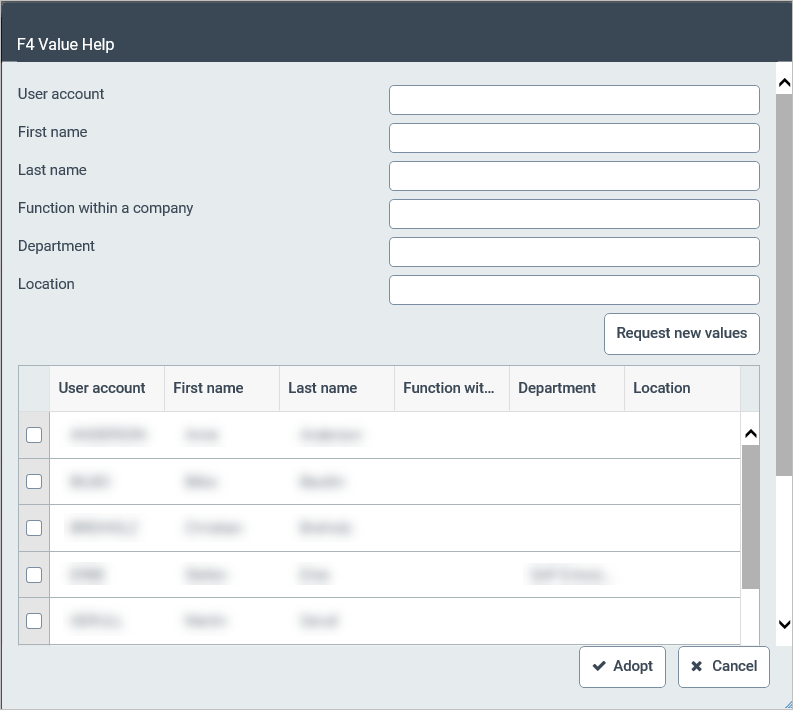
After selection and confirmation, the forwarding is carried out. The overview is then updated.
"Release invoice" button
When releasing the invoice, documents of the tasks AREL, XIRE or LREL must be selected. When the prompt has been confirmed, the selected documents will be released or rejected.
"Approve invoice" button
Here, documents of the task AVAG or LVAG must be selected. The documents must belong to the current user. When the prompt has been confirmed, the selected documents will be approved or rejected.
"Execute work item" button
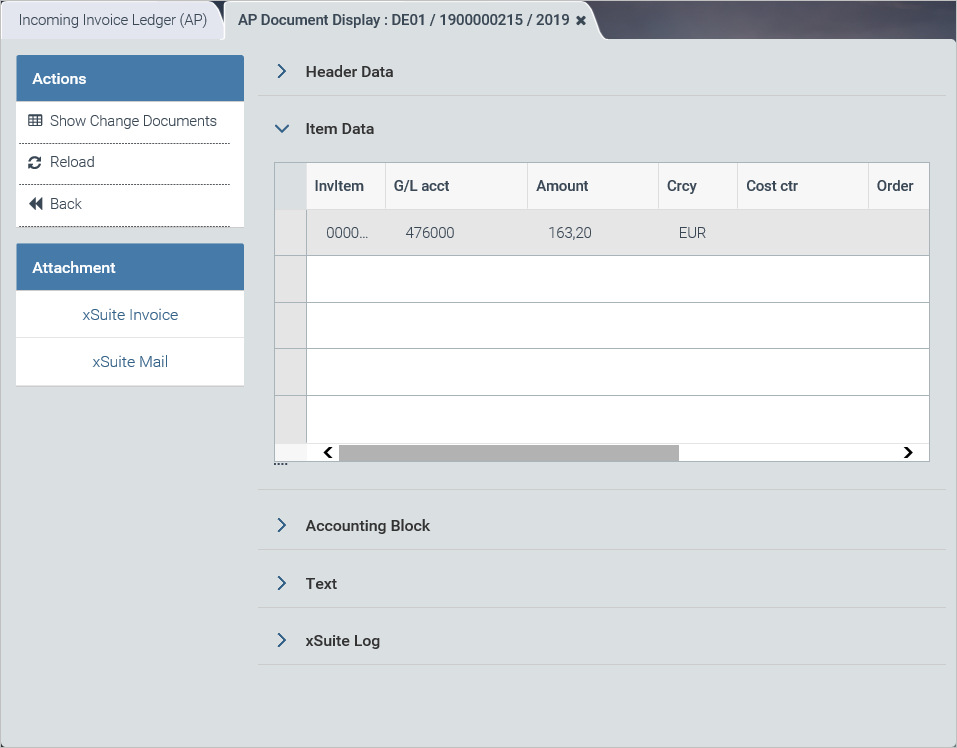
Selected work items are opened one after the other in another tab — in display mode (external user) or in execution mode (own user), depending on the user assignment.
Display mode:
Execution mode:
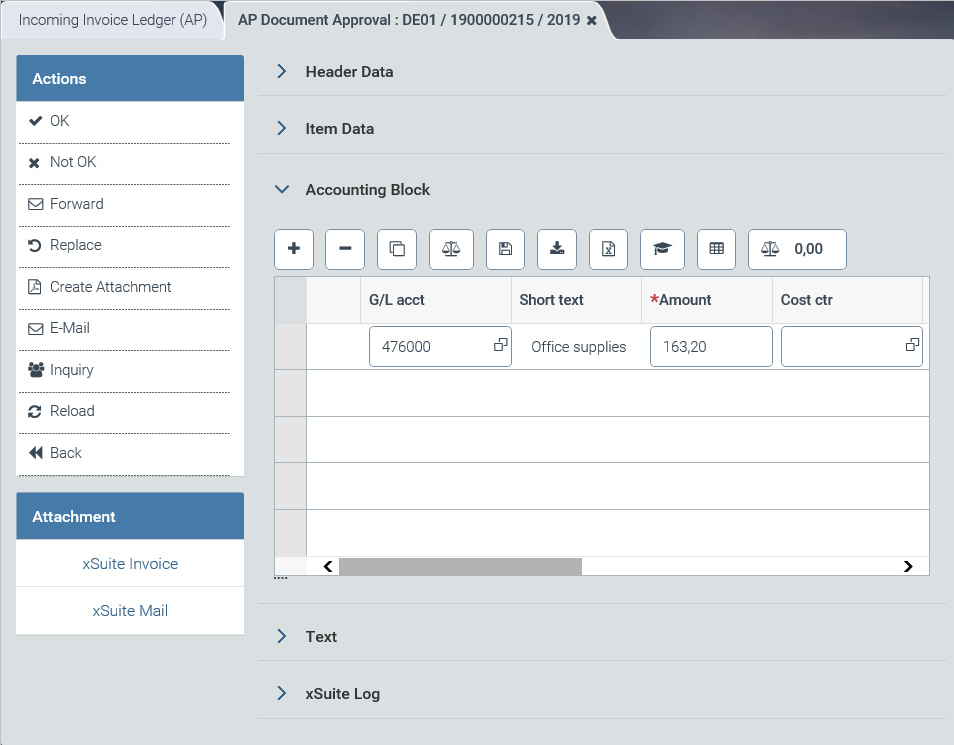
When processing is finished or execution mode is closed with the Back or X button, the next work item will open in the same position. When the last work item is closed, the results list of the Invoice Overview will be reloaded.
"Post" button
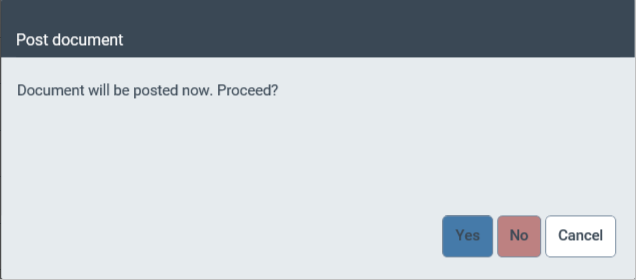
Only documents with the status READY are to be selected for posting. In addition, they must be of the same type, of the same company code, and scanned and parked. When the prompt has been confirmed, the selected documents will be posted, if technically possible, and the overview will then be reloaded.
"Release invoice for payment" button
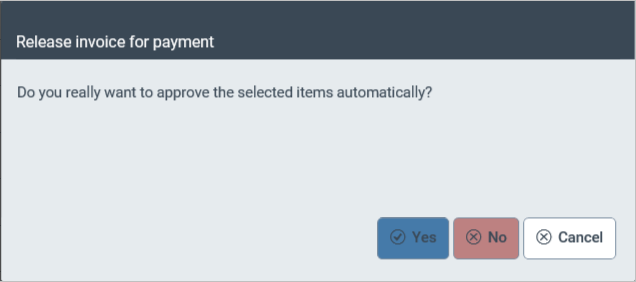
Here, documents of the tasks ACAG or LCAG must be selected. The documents must be assigned to the current user for payment release.
When the prompt has been confirmed, the selected documents will be approved or rejected.
"Change posting date" button
To change the posting date, after selecting the work items and clicking on the button, a dialog will appear in which the desired posting date can be selected.
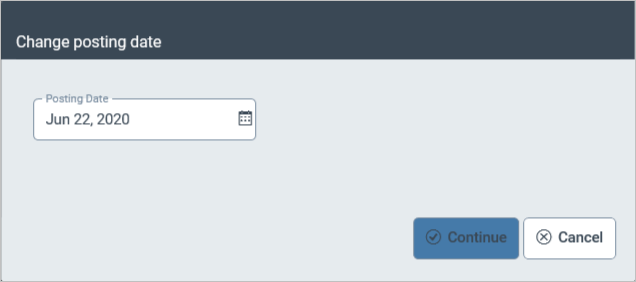
After changing the posting date, the overview will be reloaded and the relevant documents transferred to the corresponding fiscal year.
Before the change:

After the change:

The function must be activated in the parameter table (transaction /WMD/XF_PARAM) by setting the parameter XF_IIL_BUDAT to X.