New functions in monitoring
Additional features have been added to monitoring the confirmation items:
Resubmission
Direct access to "Monitor confirmation item"
Direct access to the PO document
Resubmission
The resubmission function allows documents to be resubmitted for processing.
A document can be set to resubmission if the following requirements have been filled:
The document does not have a processing status. As such, it has neither the processing status "S" (scanned) nor "W" (in the workflow).
The document is not flagged for deletion.
The document is not completed.
Search for resubmitted documents
Resubmitted documents are not displayed in the overview until the resubmission date has been reached.
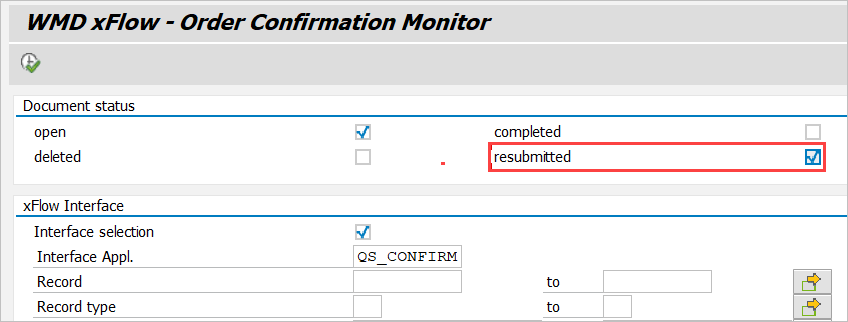
If documents are to be displayed even if their resubmission date has not been reached, the new check box resubmitted must be activated in the selection screen:
Setting a document to resubmission
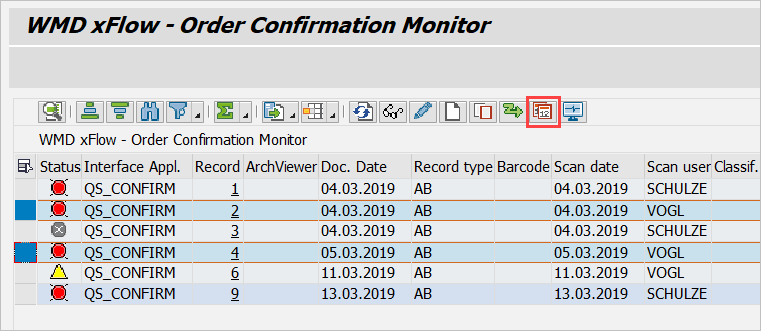
Documents can be set to resubmission with the new  Resubmission button. Flag the documents:
In the following dialog screen, enter a resubmission status and a resubmission date:
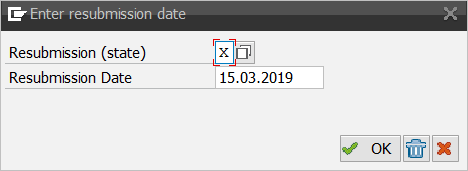
We recommend using "X" (Resubmission) as the resubmission status.
As the resubmission date, we recommend specifying the next day.
Note
The resubmission status "G" (Goods receipt) does not affect order confirmations. Therefore, the proposed resubmission status should be used.
When you have clicked OK, the following notification will appear:
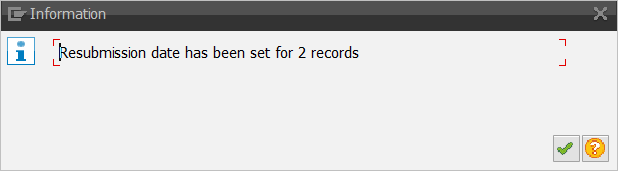
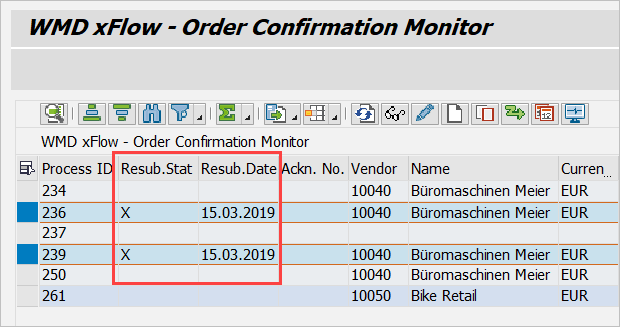
In the monitor, the resubmission will be displayed as follows:
When one or more documents has the processing status "S" (scanned) or "W" (in the workflow), an error message will be output.
Terminating resubmission early
The resubmission can be terminated before the resubmission date has been arrived at. To do so, select the documents in the monitor and click the new Resubmission button:
In the following dialog, click the  End resubmission button:
Monitoring confirmation items
From the xFlow Order Confirmation Monitor, you now have direct access to order confirmations (Transaction ME2A) with the  Monitor Vendor Confirmations button.
Here, you can view purchase orders for which confirmations have not yet arrived.
Direct access to the purchase order
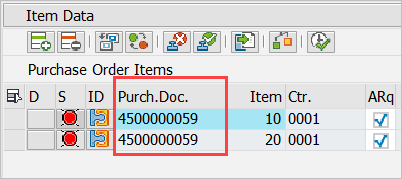
To view the purchase order, open Transaction ME23N with a double-click in the column Purch.Doc.