Subsequent Changes to Purchase Requisitions
Purchase requisitions can now be edited both after they have been approved and after subsequent purchase orders have been created.
In previous versions, when a unique purchase order was created from a purchase requisition, the process ID was used by both workflows. As of Version 5.2.10, the work items of purchase requisition workflows and the work items of purchase order workflows have different process IDs.
Therefore, when upgrading to Version 5.2.10 or higher, note the following:
The standard Builder ID 102 (Version 1) is now obsolete. The new Version 2 is a copy of Version 1 and contains new exits for the workflow tasks "Edit purchase requisition" (role PRET) and "Edit rejected purchase requisition" (role PRER).
For more information, see Changes to the Standard Builder ID 102.
Notice
If a custom Builder ID is used that was copied from ID 102, it must be adjusted manually.
The new report /WMD/XF_PU_PROCESID_UPDATE generates new process IDs for the old workflows. This report must be run after SAINT upgrade activities. This change must be taken into account when customizing.
For more information, see Migrating Workflows for Purchase Orders.
Restarting the Purchase Requisition Workflow
Changes made to an existing purchase requisition will cause the requisition workflow to restart.
When a new item is added to an existing purchase requisition, a new purchase order will be created for that item. Changes to existing items in the purchase requisition will result in a change to the associated existing purchase order (see Example).
If an error occurs when changing an old purchase order or creating a new one, the error messages will be included in the text of the account-assignment block, and the document will be returned to the "Edit purchase requisition" workflow task (PRET role).
Example
The following purchase requisition contains two items, each assigned to different vendors.
 |
After approval, two different orders are generated:. The first order has already been approved, but the second has not yet been approved:
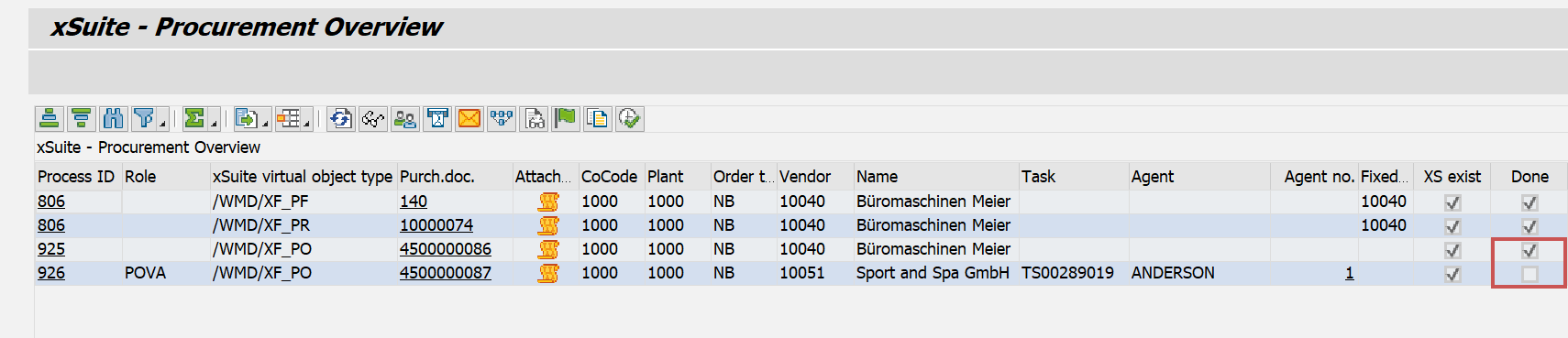 |
The user now changes the quantity in the existing items in the purchase requisition and adds a third item:
 |
Due to these changes, the purchase requisition must now be released anew. The purchase requisition workflow therefore starts from the beginning and the purchase requisition is once again sent for approval.
Purchase order workflows are not affected by this. The orders can be approved in parallel with the initial values:
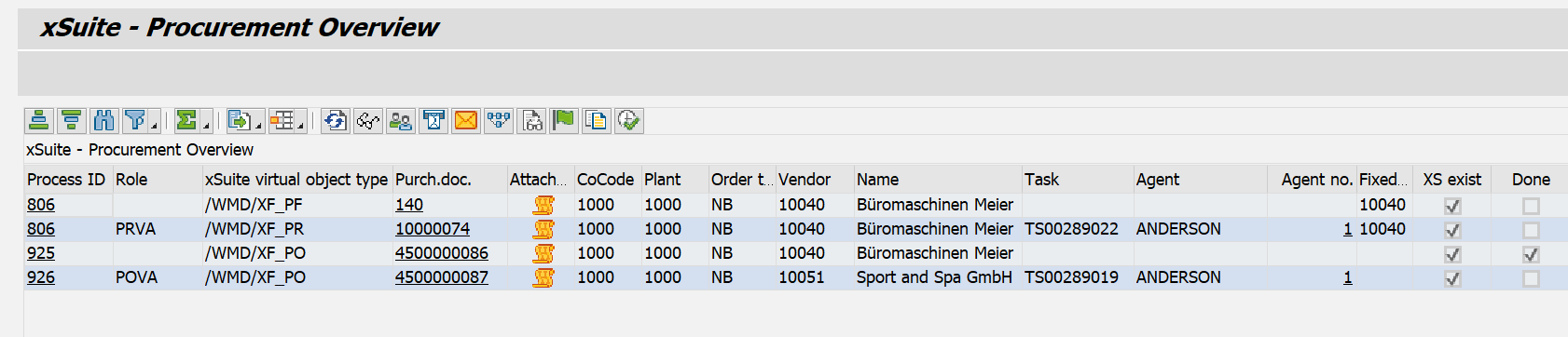 |
As soon as the purchase requisition is approved again, a new purchase order will be generated. All other ordering workflows are restarted to approve the new quantities:
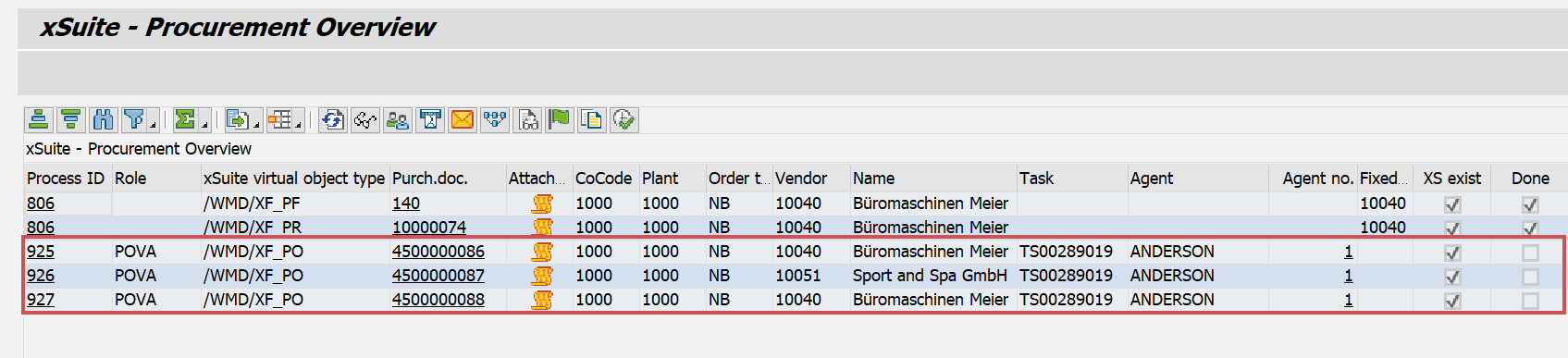 |
Changes to the Standard Builder ID 102
In the workflow tasks "Edit purchase requisition" (role PRET) and "Edit rejected purchase requisition" (role PRER), the new outcome "Finished manually" has been added.
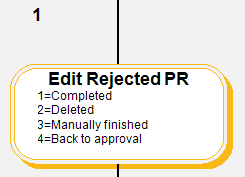 |
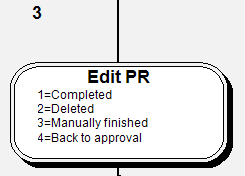 |
These changes are included in the standard Builder ID 102 (Version 2). Builder ID 102 (Version 1) is therefore obsolete and should no longer be used.
When upgrading to Version 5.2.10 or higher, these changes must be implemented manually in existing custom Builder IDs.
Migrating Workflows for Purchase Orders
The /WMD/XF_PU_PROCESID_UPDATE report is available for migrating PO workflows. This report generates new process IDs for old PO workflows.
Notice
As part of the process, the Builder ID associated with the requisition and PO workflow is changed to the ID currently active.
Therefore, the new Builder ID must be implemented before the report is executed; see Changes to the Standard Builder ID 102.
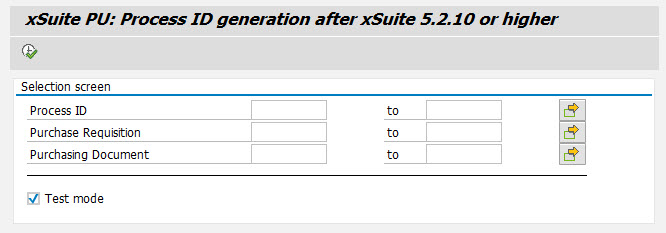 |
The report should first be run in test mode (Test mode checkbox). This way, a list of all affected workflows is displayed. A copy of this list can be saved in XLS format.
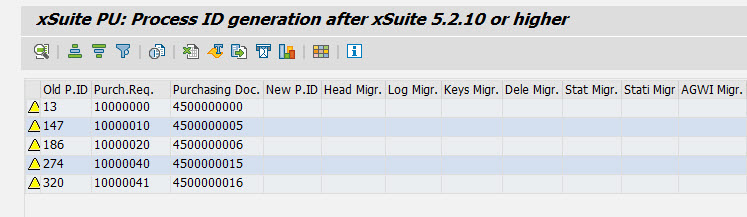 |
Before running the report, the status of the workflows can be checked in the Procurement Overview:
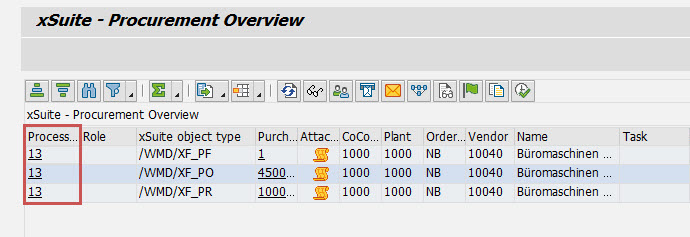 |
After the report is executed, a new process ID will be generated for the order workflow:
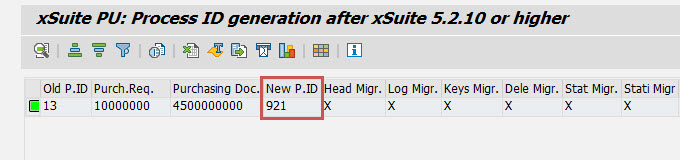 |
The status of the affected purchase order workflow can be checked in the Procurement Overview:
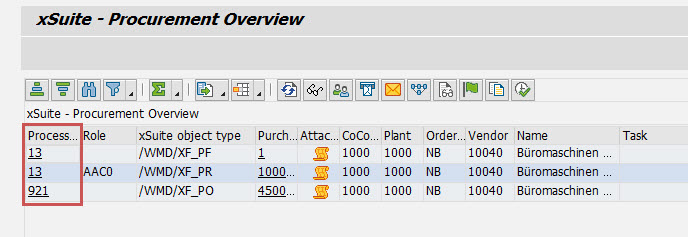 |
After the process has come to an end, the order must remain in the same workflow step. The purchase requisition workflow is assigned to the workflow step "Complete workflow."
New Button "Finish workflow"
For documents for which at least one purchase order already exists, the Finish workflow button is available in the workflow tasks "Edit purchase requisitions" (role PRET) and "Edit rejected purchase requisition" (role PRER).
Complete the manual handling of the purchase requisition workflow by clicking Finish workflow. The subsequent purchase orders will not receive any changes from the purchase requisition. If necessary, the user can navigate to the order and make the changes manually (see New Fields in the Item-Data Section of the Purchase Requisitions).
No new purchase orders are generated for new items in the purchase requisition if the process was completed manually.
Before manually ending the workflow, enter a comment. The comment PR workflow manually ended by XXXXX is automatically included in the text of the account-assignment block.
New Fields in the Item-Data Section of the Purchase Requisitions
In the item data of purchase requisitions, the new fields Purch.Doc and Item are now available.
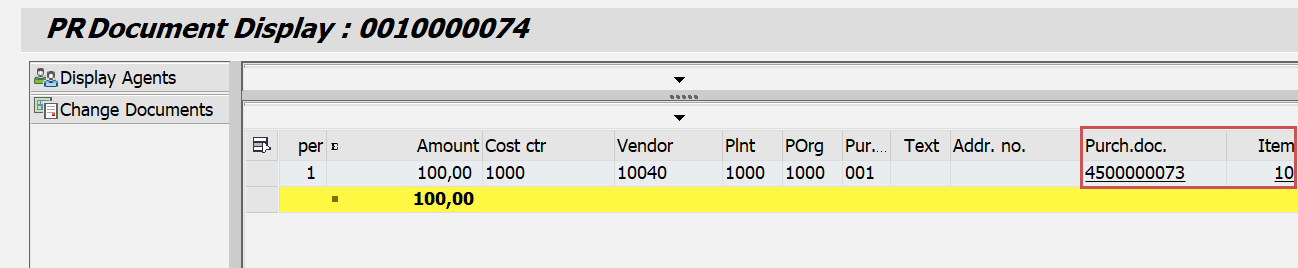 |
Clicking on the order number or on the item number in these fields will open the corresponding purchase order.
The two fields are only displayed if a follow-up purchase order has already been generated from the purchase requisition.
Skipping PR Workflow Tasks
To avoid having to repeatedly approve items that have not been updated or whose changes are not relevant for the release of the document, a new tolerance output is available.
The standard field Subj.to release (EBAN-FRGRL) is used to determine whether workflow tasks are skipped as follows:
For item-level workflow tasks (e.g., role PRRE), the line item is skipped if the field Subj.to release is empty.
For document-level workflow tasks (e.g. role PRVA), the workflow task is skipped if none of the items are relevant for release.
To activate or deactivate this functionality, go to the checkbox Chk PR tol in xSuite Customizing (Transaction /WMD/BC_SPRO → xSuite Business Solution → Workflow → Procurement → Documents → Global Settings).
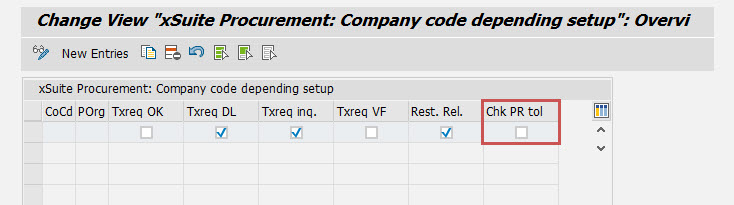 |