Agent determination
As of Version 5.2.4, agent determination from the SAP GUI (transaction /WMD/XF_AGDET) is also available in the Fiori Launchpad as a separate xSuite app.
The prerequisite for use is logging on as an SAP user from the Fiori Launchpad.
Start page
The start page of the application represents a search mask, which can be used to limit the search results.
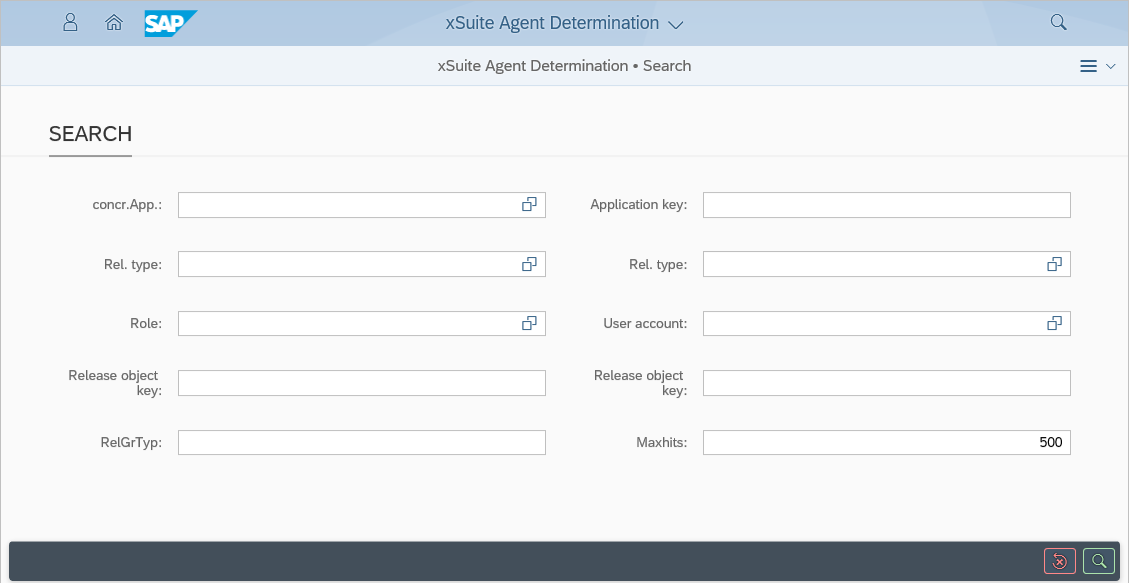
By clicking the button  Search, the user arrives in the result list.
When the button  Reset is clicked, the search mask returns to its original state.
Result list
The result list displays the results found for the previously specified search parameters within the following five tabs:
Agent table
Search priorities
Manual selection
4-eyes principle
Release groups
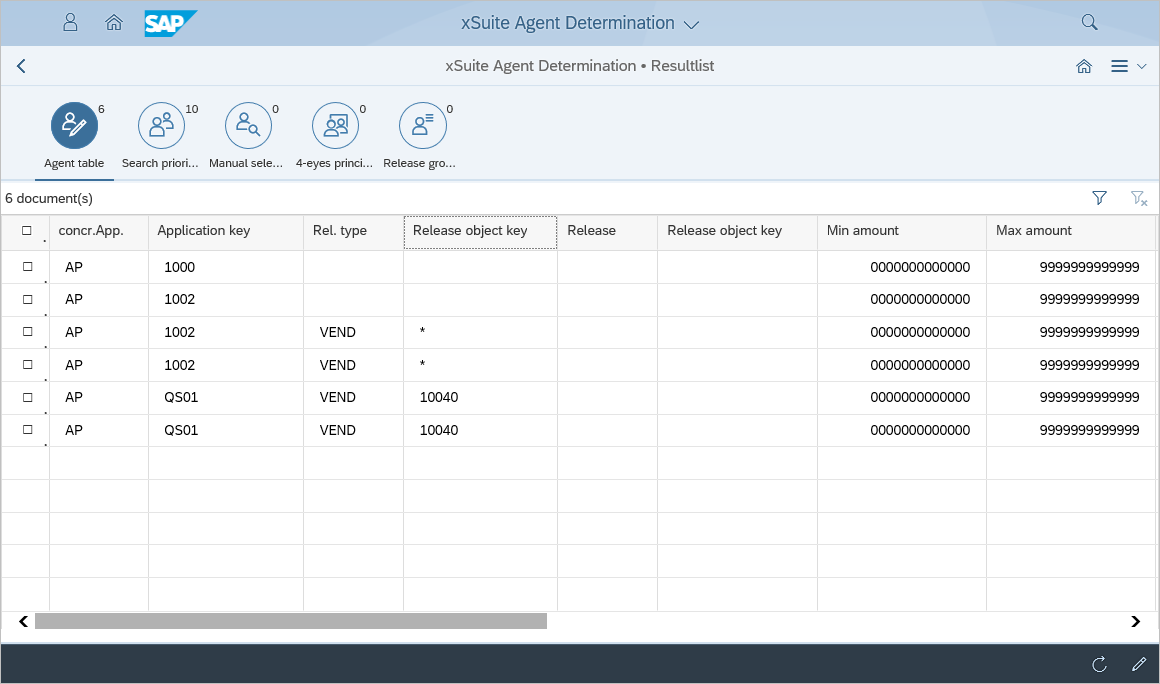
Buttons in the results list of agent determination
Using the buttons in the result list, the following actions can be performed in all tabs:
Button | Name | Description |
|---|---|---|
| Filter | Filters the result list. |
| Clear all filters | Removes all set filters. |
| Edit | Opens the edit mode. Note: Regardless of the selected search parameters, only one user can be in edit mode at a time. If the edit mode is started while another user is in it, an error message is displayed indicating this. |
| Refresh | Updates the result list. |


Edit mode
The procedure described below applies equally to all tabs.
The edit mode is called up with the button  Edit.
Edit.
Regardless of the selected search parameters, only one user can be in edit mode at a time. If the edit mode is started while another user is in it, an error message will appear indicating this.
Buttons in edit mode of the result list
Using the buttons in the edit mode of the result list, the following actions can be performed in all tabs:
Button | Name | Description |
|---|---|---|
| Create | Creates a new, empty line at the beginning of the list. |
| Copy | Copies a selected line. Since it is an exact copy after copying, the line must first be changed before it can be saved. Only one line can be copied at a time. |
| Delete | Deletes one or more selected lines. The deletion process is irrevocable and is executed immediately. |
| Save | Saves all changes made. Prerequisite: There are no error messages. |
| Decline | Ends edit mode. |


Error handling
After each entry in an input field within a row of a table, a validation is performed for the corresponding row. If an error occurs at this point, all incorrect input fields of the line are marked and the error text for the field is set.
In addition to the validation of the input values, a duplicate check is performed. The duplicate check prevents lines from being written twice.
If an error occurs in a tab, the color of the tab will change to highlight it. The changed data can only be saved if all tabs are free of errors.
Cache timer
When edit mode is initiated, the expiry date of the cache is saved. If the expiration date is exceeded, an error message will appear, prompting the user to reload or directing him back to the search mask.