New functions in the validation screen
In the validation screen, confirmation-item processing has been completely overhauled.
In addition, display of header data has been extended and display of line item details enhanced.
Header data
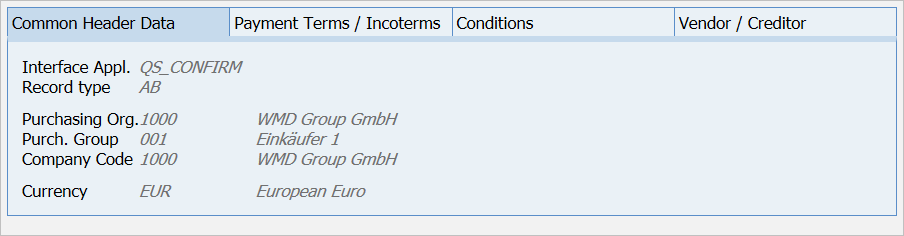
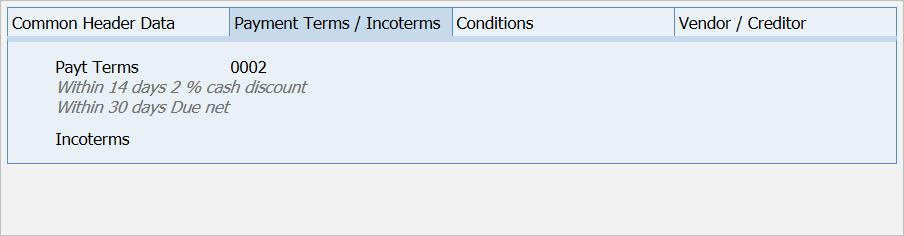
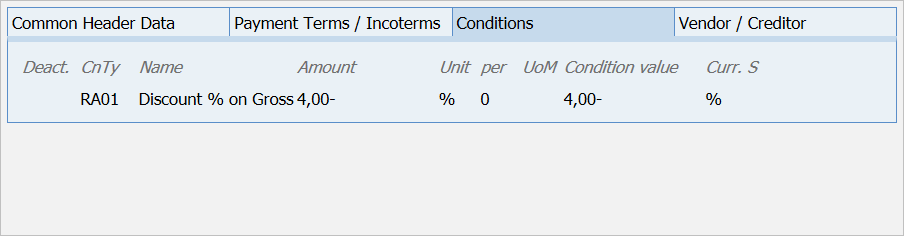
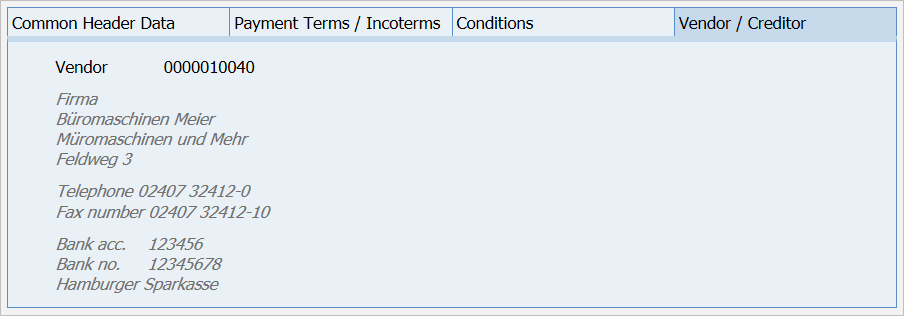
The extended header data is displayed on the following tabs:
Note
All data besides that in the fields Interface Appl. and Record type originates in the purchase order.
Common Header Data
Payment terms/Incoterms
Conditions
(Only those conditions which are maintained are displayed.)
Vendor/Creditor
Confirmation-item processing
How confirmation items are processed has changed from the ground up. There is no longer a switch from PO line items to confirmation items.
Instead, the confirmation items are now displayed in the new section Item Details.
Overview of the new section "Item Details"
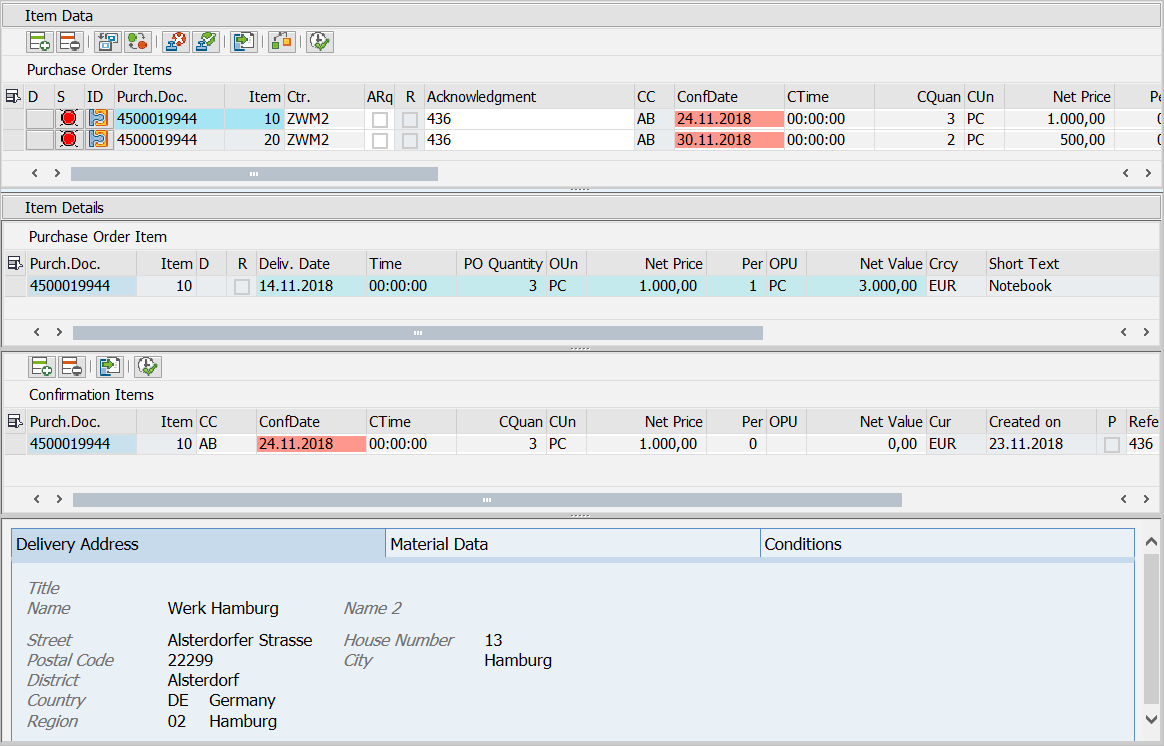
The section Item details displays the details of an item. It is subdivided into three sections:
Purchase order item (read only)
At least one confirmation item for the purchase order item (read and edit)
Details on the purchase order item (read only, see Displaying additional item data for description)
Navigation
When the validation screen is opened, the first purchase order item in the section Item Data is automatically selected. You can choose another item in the column ID with the  Item Details button.
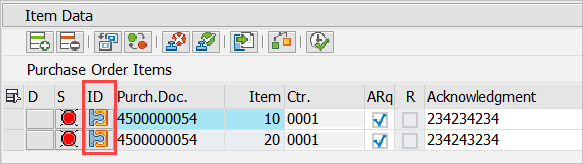
The fields in the columns Purch.Doc. and Item of the purchase order item you have selected will be highlighted in blue.
Note
Many fields in the line are not highlighted in order that any other signal colors are not shaded over with blue. For more information, see Tolerance check.
"Item Details" section
The fields in this section are also displayed in the section Purchase Order Items. The fields here are, however, positioned directly above the fields of the section Confirmation Items:
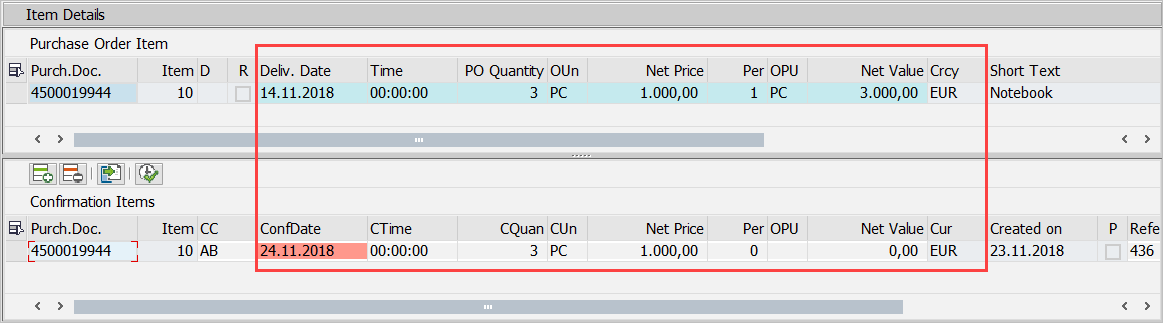
The fields that are relevant for validation are highlighted in blue.
This new arrangement allows direct comparison of confirmation items with the respective PO line items.
Processing confirmation data
As in the past, single confirmations can be processed both in the section Item Data and in the section Item Details.
Multiple confirmations can only be processed in the section Item Details.
Note
We recommend completing the entry of a field by pressing Enter. This will trigger the following:
The value entered will be transferred to the other respective section.
The tolerance check will be executed. For more information, see Tolerance check.
Fields containing errors will be indicated. For more information, see Tolerance check.
The curser will be placed in the next field (to the right).
When the entry in the section Item Data is completed, this item will also be automatically selected in the section Item Details.
Persistent confirmation items
Confirmation items are persistent if they are already saved in the purchase order.
In the past, it was not possible to process persistent confirmation items in validation screen. This was only possible in Transaction ME22N.
Persistent confirmation items can now also be processed in the validation screen. For more information, see Processing multiple confirmations in the section "Item Details".
Note
It is still not possible to delete persistent confirmation items.
Tolerance check
In addition to the explicit tolerance check with the buttons Check items and Check document, an implicit check is also executed now.
If a field contains an error that would prevent the posting of a document, the field will be highlighted in red. Which error would prevent the posting of a document is, as in the past, partially dependent on tolerance customizing.
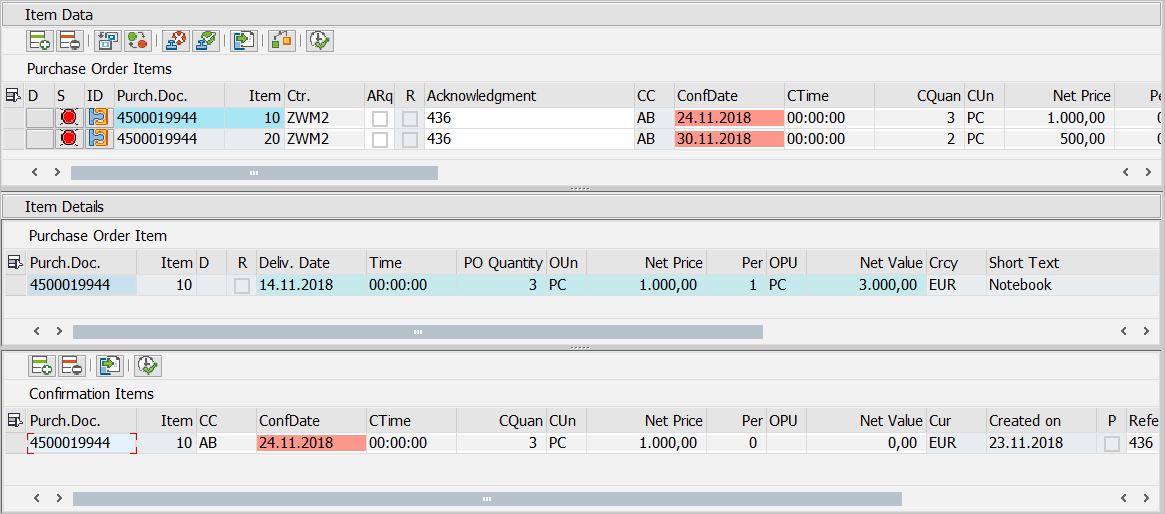
In this example, the delivery date has not been met. The field is highlighted both in the section Item Data and in the section Item Details. Since it is a single confirmation, the field can be corrected in both sections.
Persistent line items are also checked now. Exceptions to the case are, in the standard version, the fields Net Price and Net Value, since these fields are not saved in the purchase order and, as such, cannot be extracted from the purchase order. This can be resolved individually during the implementation project, for instance by only checking when the values of the fields are not equal to zero.
Processing multiple confirmations in the section "Item Details"
Multiple confirmations are now processed in the section Item Details.
The following table offers an overview of all options for processing.
Button | Name | Description |
|---|---|---|
| Add confirmation | As in the past, creates a new blank confirmation item. |
| Delete confirmation | As in the past, deletes a confirmation item. Persistent confirmation lines still cannot be deleted. |
| Confirmation data from PO item | Adopts the confirmation data from the PO line item. This is only necessary in this section if the confirmation in question is a multiple confirmation. Otherwise, this function can also be run in the section Item Data. |
| Transfer | Serves as a back-up function for the key Enter. If one or more fields have been changed without the key Enter having been pressed, the button can be used to transmit the changes made to the section Item Details. |


Processing single confirmations in the section "Item Data"
The toolbar in the section Item Data has been rearranged and extended.
The following table offers an overview of all options for processing.
Button | Name | Description |
|---|---|---|
| Add PO items | As in the past, a blank confirmation item is created with a reference to an existing confirmation item. Note: If the line-item number is left blank in the following dialog for inquiry of the purchase-order number / PO line item, all line items of the purchase order are scanned. |
| Delete PO items | As in the past, deletes the connection to a PO line item and, along with it, the confirmation data previously entered. Note: If the confirmation data entered are to be retained, switch to the mode "Change PO line item" and change the assignment of the line item. |
| Mix in PO data | As in the past, merges the data of the purchase order into the existing data. Changed behavior: Order data is now automatically merged when the validation screen is opened from the monitor and when switching back to the mode "Change PO items". Manual merging is therefore only required when the purchase order has been changed while the validation screen is open and the user has not left the mode "Change PO items". |
| Change PO items | As in the past, opens the mode "Change PO items". From there, the confirmation data that has already been entered can be assigned to another purchase order / PO line item. Changed behavior: When switching back from the mode "Change PO item", the PO data is now automatically merged. Note: If the connection of confirmation data entered is to be completely severed without having specified a concrete purchase order or PO line item, then PO_INITIAL must be entered as a purchase order in the mode "Change PO items", followed by Enter. The line-item number is then generated automatically, and the confirmation data is retained. |
| Set rejection indicator | As in the past, sets the rejection flag for this PO line item. Note: After posting a line item such as this, it will receive the deletion flag in the purchase order. |
| Unset rejection indicator | As in the past, removes the rejection flag for this purchase order. |
| Confirmation data from PO item | Adopts the confirmation data from the PO line item. Multiple line items can be selected simultaneously and merged, provided that none of these line items have multiple confirmation. Hinweis: In the case of multiple confirmations, this function must be executed in the section Item Details. |
| Check items | As in the past, executes the tolerance check. |
| Transfer | Serves as a back-up function for the key Enter. If one or more fields have been changed without the key Enter having been pressed, the changes made can be transmitted to the section Item Details. |


Displaying additional item data
In the section Item Details, additional data from the PO line item is displayed.
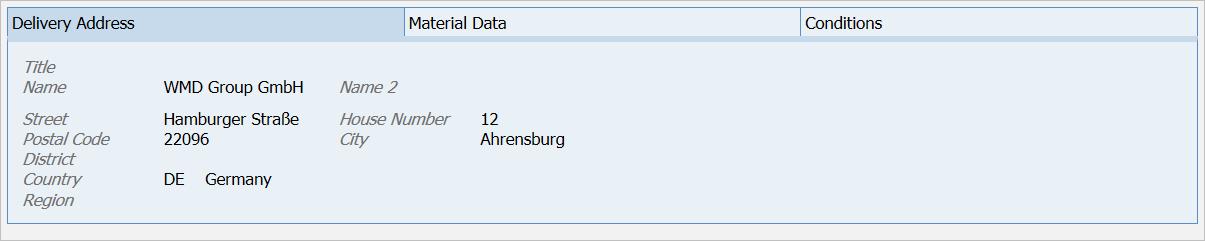
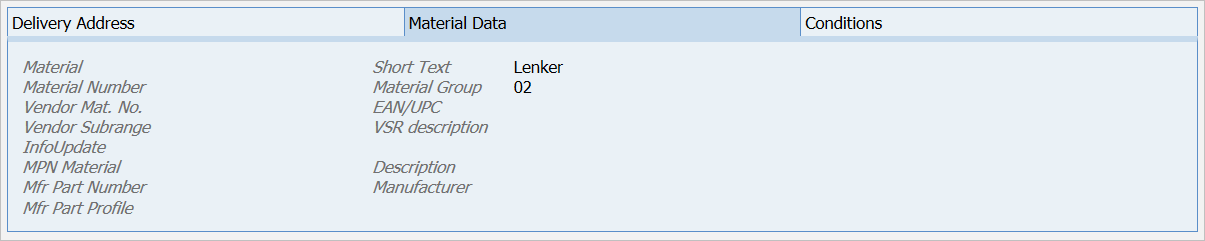
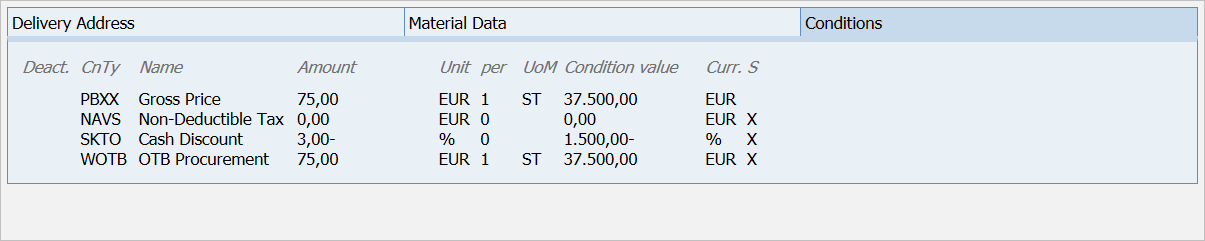
The data from the PO line item is displayed on the following tabs:
Delivery Address
Material Data
Conditions
Payment and delivery conditions
The information on payment and delivery conditions is located in the header data.
Material number and manufacturer part number
Material number and manufacturer part number are not presently validated.