Sales Document Monitor
Various enhancements and adjustments have been made to the Sales Document Monitor (transaction /WMD/FP_SDM). These changes are described below.
Create with reference
This is for creating with a template. It is now possible to create an Interface SD document on the basis of a preceding document. The Create with reference button was introduced for this purpose.
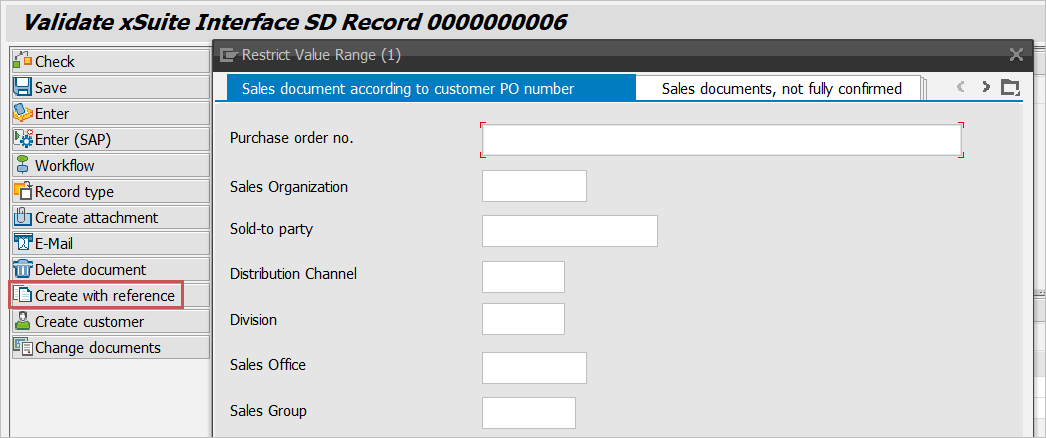
An F4 input help (VMVA0) will open for SAP SD documents. The selected SAP SD document will then serve as a template for the Interface SD document. The header and item data are filled.
Proposal of material data
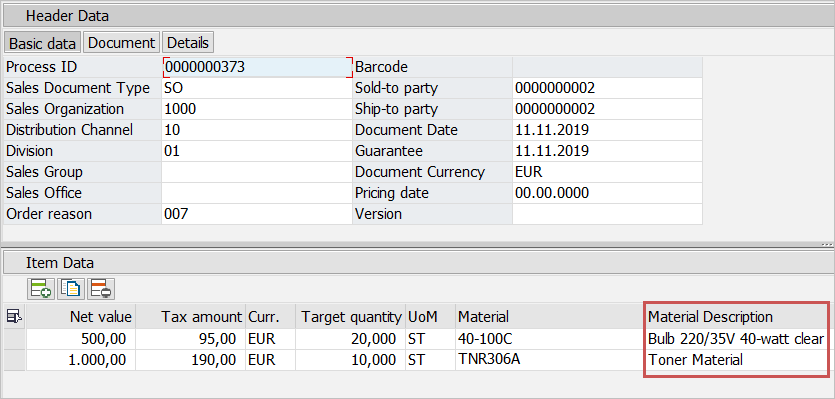
Previously, material information was missing after the material data was transferred from OCR to the Sales Document Monitor.
This material information is now read in the INIT method of the model as well as in HANDLE_INPUT_ITEM and when importing SD document data (GET_SD_DOCUMENT_DATA). The data includes the short text under "Material Description" and the data from structure BAPIMATDOA.
Branching directly to the material master
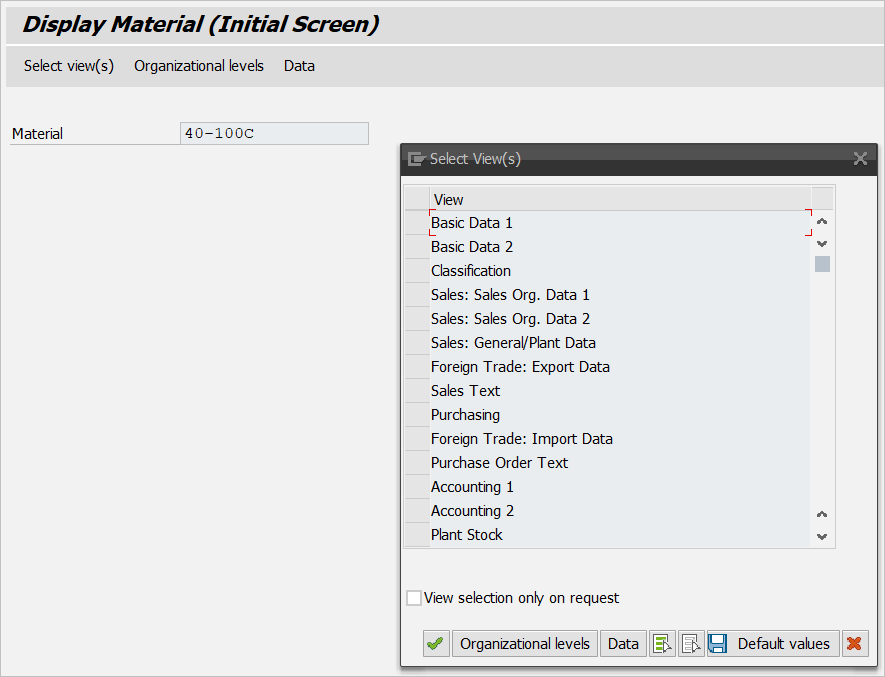
In an SD document, it is now possible to switch over to the material master for this material by double-clicking on the material number.

Resubmission
In the past, it was possible to process documents that were set to resubmission.
This is no longer possible. The document opens in display mode.
If the resubmission date is displayed in the header data, it is now displayed in DD.MM.YYYY format.
"Create customer" function
As of the present release, the Create Customer button has been added. It works in the same way as the Create Vendor button in the Invoice Monitor.
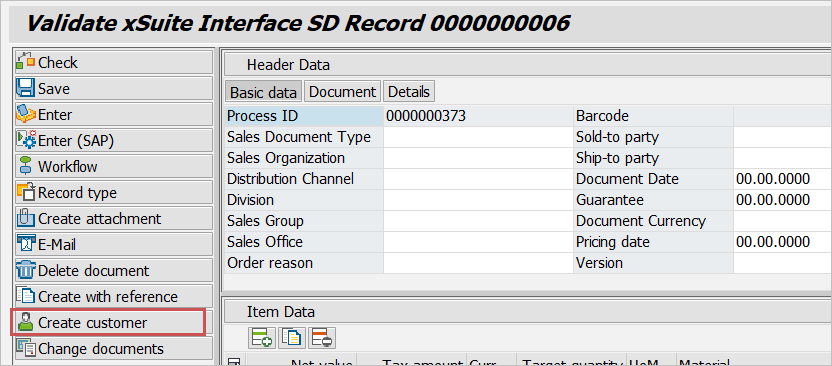
Go to master record maintenance for customers. If the creation was successful, the customer is copied to the Sold-to party field in the header data.
Date of service
The service creation date (FBUDA) was added to the header data and entered in the field catalog for the layout key DEFAULT_SO.
If you create an SD document using a BAPI, the field will be copied to both the document header and the line items.
If you create an attachment using batch input, the field is copied to the header. The SD document will then automatically copy the field into the items.
Changes for SAP Fiori
The Sales Document Monitor is also available as an xSuite App for SAP Fiori.
In the course of this development, some changes were made to the back end. The interfaces have remained largely as is or have been extended by optional importing or exporting parameters.
Caution
Under no circumstances may the parameter iv_web or i_web or web be set to "X" in a user exit. This parameter is reserved for the Fiori interface.
If any processing of the F4 input helps was necessary, it has been adjusted. An adjustment is not necessary after an update. However, there may be differences in the source code between user exits here and in the standard version.
Further incompatibilities to user exits are unknown, but cannot be ruled out as the changes are far-reaching and numerous. Therefore, if there is a high proportion of user exits, it is advisable to carry out a short test run after the update.