SAP Fiori
Minimum requirement – SAP Fiori
The minimum requirement for the SAPUI5 framework has been changed from Version 1.60 to Version 1.71.
Additional workflow tasks – SAP Fiori
Work items that are in the following workflow tasks can now be accessed and edited via the xSuite Inbox App in SAP Fiori:
Workflow task | Role | Required? |
|---|---|---|
AL edit rejected document | ALER |
|
AL edit document | ALET | |
AL post document | ALPO | |
OC edit rejected order confirmation | OCER |
|
OC edit order confirmation | OCET | |
OC post order confirmation | OCPO | |
SI edit rejected document | SIER |
|
SI edit document | SIET | |
SI post document | SIPO |
Monitor for ArchiveLink documents – SAP Fiori
As of this release, the xSuite ArchiveLink Monitor from the SAP GUI (transaction /WMD/FP_ARM) is also available in SAP Fiori as a separate xSuite App.
Login requires a valid SAP user account. xSuite Web accounts are not supported.
The back end delivers a maximum of 500 documents as search results to the front end. If more than 500 documents have been found, a notification will appear in the table header. The filter and sorting functions only apply to these 500 documents. It is therefore advisable to restrict searches so that a maximum of 500 documents are found.
Back-end user exits
If user exits are available on the back end for the xSuite ArchiveLink Monitor, these user exits must be checked as to whether they work in conjunction with the xSuite App for SAP Fiori.
User exits may not have any graphic SAP GUI elements such as dialogs, nor may they generate them when the user exit is executed via the application. Appropriate switches are required.
settings.json – ArchiveLink Monitor
Configuration for the xSuite ArchiveLink Monitor App is performed in the settings.json file of the xSuite Base Library in the object app_arm:
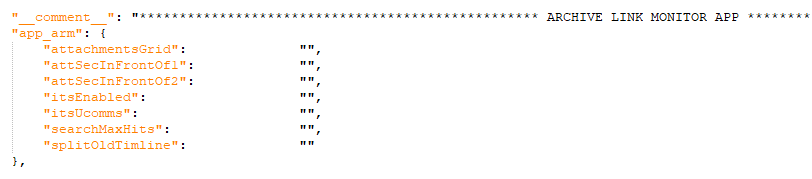 |
The available configuration parameters correspond to those of the other xSuite Monitor Apps, such as the xSuite Invoice Monitor.
UI elements – Selection view – ArchiveLink Monitor
 |
Element | Description | |
|---|---|---|
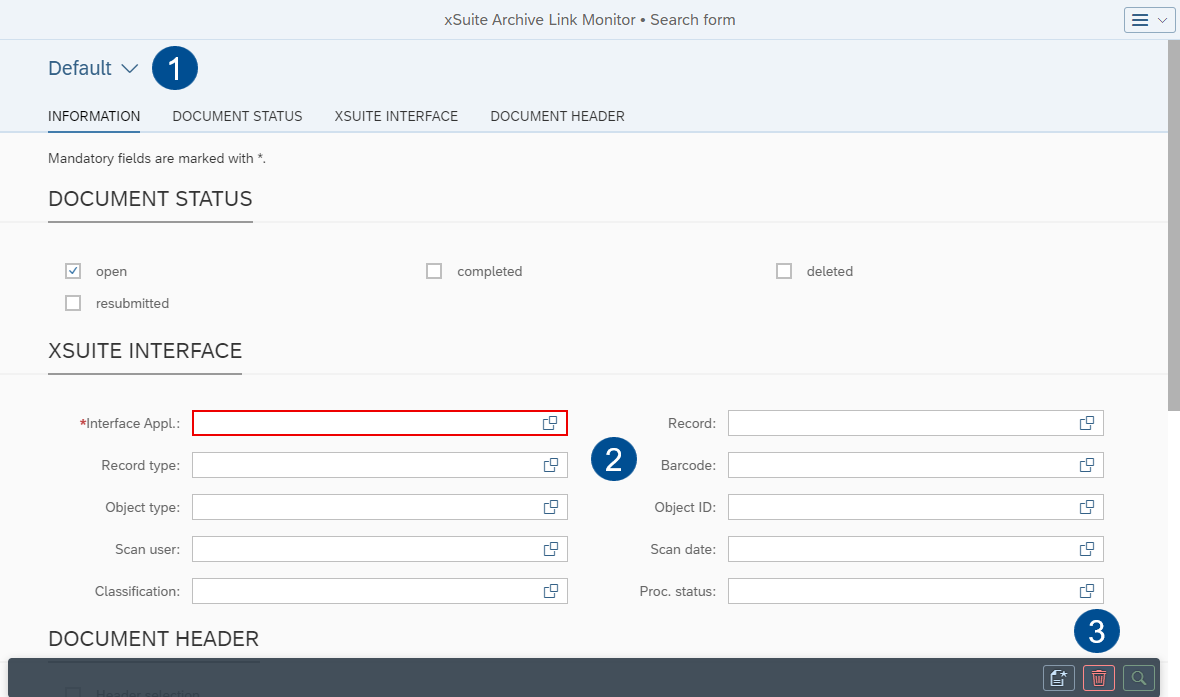
1 | Search variants | The user can save custom search variants via the variant management, and load both custom and global variants. In addition, the user can specify the default variant. |
2 | Search fields | Here, the user can enter different search criteria. A star (*) is used to indicate fields as mandatory. If mandatory fields are empty, they will be outlined in red. The user must select at least one document status. The field Interface Appl. only accommodates the entry of one single value. All other fields allow the entry of multiple values with search operators (e.g., "starts with" and "contains"). |
3 | Buttons | The user can perform the following actions via the buttons:
|


Buttons – Hit List – ArchiveLink Monitor
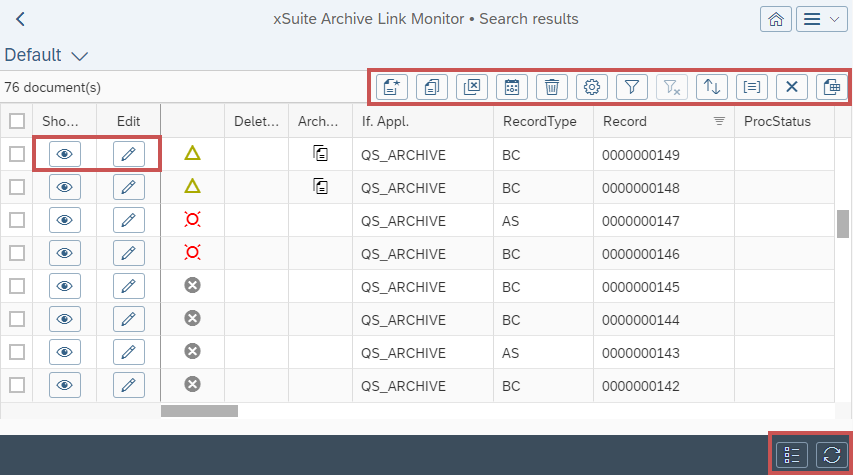 |
Icon | Name | Description |
|---|---|---|
| Show document | |
| Edit | |
| Create | Creates a new document. |
| Reactivate | Reactivates a deleted document. A copy will be created for the deleted document that can be edited. The deleted document will remain unchanged. |
| Cancel data extraction | Aborts document extraction. |
| Resubmission | Resets one or more documents for later processing. Resubmitted documents will no longer be displayed in the hit list until the resubmission date. |
| Mass deletion | Sets selected documents with a deletion indicator. |
| Columns | Opens a list of all available columns. You can select which columns to show or hide and specify the order of the columns. |
| Filter | Opens the filter options for the hit list. |
| Clear all filters | Removes all filters set. |
| Sorting | Sorts the search results. You can select one or more columns and specify the type of sorting (ascending/descending) in each case. |
| Categorization | Categorizes the search results. You can select a column whose values are to be categorized. |
| Restore default sorting and clear categorization | Removes any sorting or categorization that has been set. This function is only available for responsive tables. |
| Export | Exports the hit list as an Excel file. This function is only available for responsive tables. |
| Refresh | Refreshes the hit list. |
| Show search criteria | Shows the search pane and hides the hit list. |


Documents
Cache
Like other apps, the xSuite ArchiveLink Monitor app uses a cache to improve performance. The functionality is identical to that of the cache in the xSuite Invoice Monitor App.
Data validation
Along with the front-end data validation described above, the header and line-item data is sent to the back end for validation as soon as it has been entered. Invalid data is discarded directly.
Attachments
Like other apps, the xSuite ArchiveLink Monitor app uses the xSuite PNG Viewer to display attachments.
On mobile end devices such as tablets and smartphones, attachments are always displayed in a separate window. On desktop PCs and laptops, display in a separate window is optional and can be activated at need.
When external display is used, attachments are opened in a separate browser window.
xSuite Transactions App – SAP Fiori
When called, the xSuite Transactions App displays a list of tiles. Each of the transactions opened via the ITS has a corresponding tile:
Notice
The ITS must be enabled and configured to use this app.
Extract User Data
/WMD/BC_GET_SAPUSER
Customizing
/WMD/BC_SPRO
User Update
/WMD/BC_USER_UPDATE
User Upload
/WMD/BC_USER_UPLOAD
Account assignment templates
/WMD/FP_ACC
Account assignment templates (Public Sector)
/WMD/FP_ACC_PS
Capture Analyzer Invoice
/WMD/FP_STAT
Escalation Report
/WMD/XF_ESCALATION
Recurring Documents Overview
/WMD/XF_RD_ADMIN
Notes mail via template
/WMD/XF_USR_MAIL_TPL
The settings.json file of the xSuite Base Library can be used to define which tiles are generally displayed.
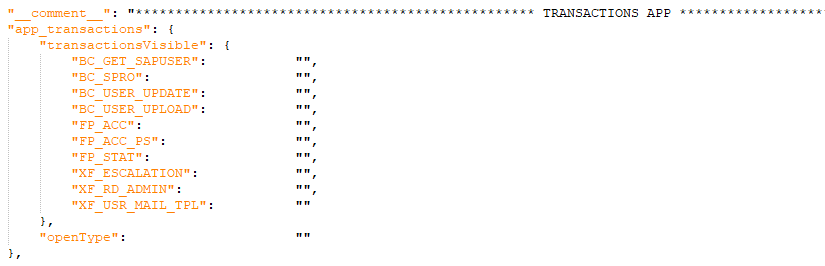 |
The tile Account assignment templates (Public Sector) (Transaction /WMD/FP_ACC_PS) is not available by default to the user. It must be explicitly activated in settings.json.
All other tiles are available to the user by default and do not require extra activation.
It is also possible to specify whether the ITS is opened in a new browser tab (openType = "W" (default)) or within a dialog in the current browser tab (openType = "D").
The user can switch to the edit mode of the xSuite Transactions App with the button Edit. In this mode, each user can individually define which tiles are displayed and how they are arranged. Also, the user can change the title, description and icon of the tiles. Variant management is used for saving and loading layouts.
"Normal" mode
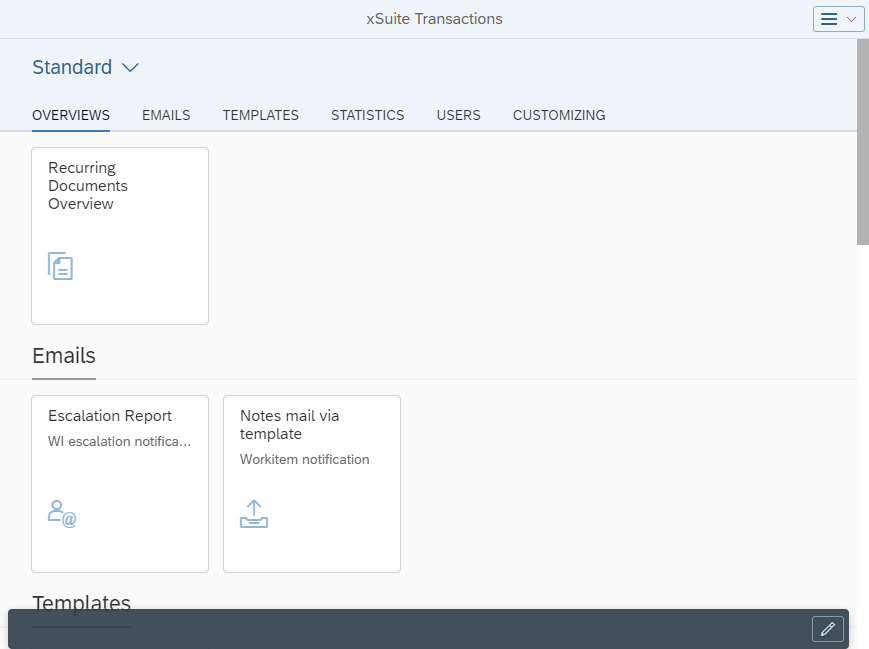 |
Edit mode
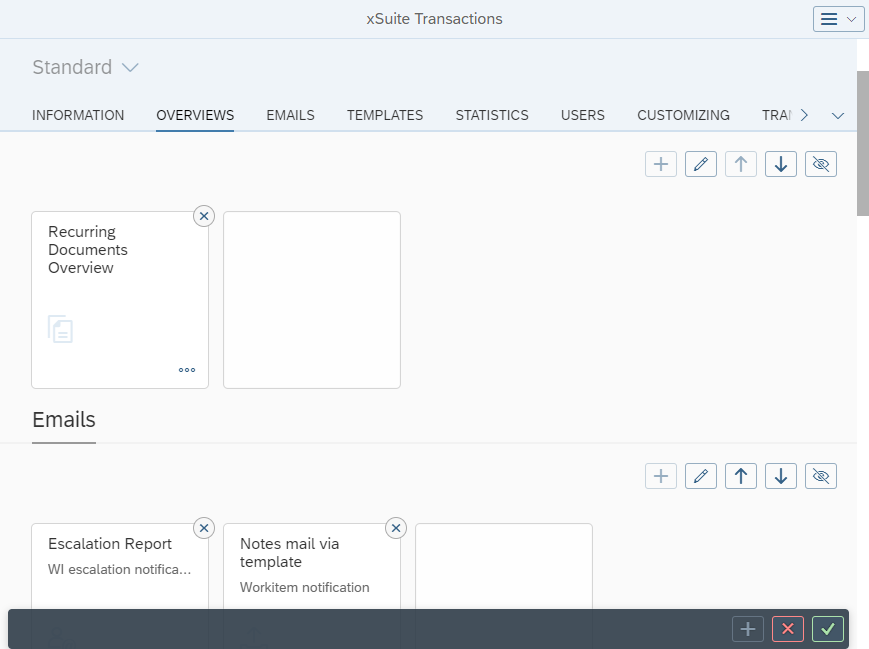 |
PNG Viewer – SAP Fiori
Monitors
The PNG Viewer is now a standard component in SAP Fiori and fully integrated with all xSuite monitors. All attachments are displayed through the PNG Viewer. As a result, PDF files are now displayed consistently, regardless of whether or not they have entered through scan or OCR.
When a document has been scanned or undergone OCR, the Fields and Training tabs will be displayed. For PDF files that have not been scanned or gone through OCR, these tabs are not present.
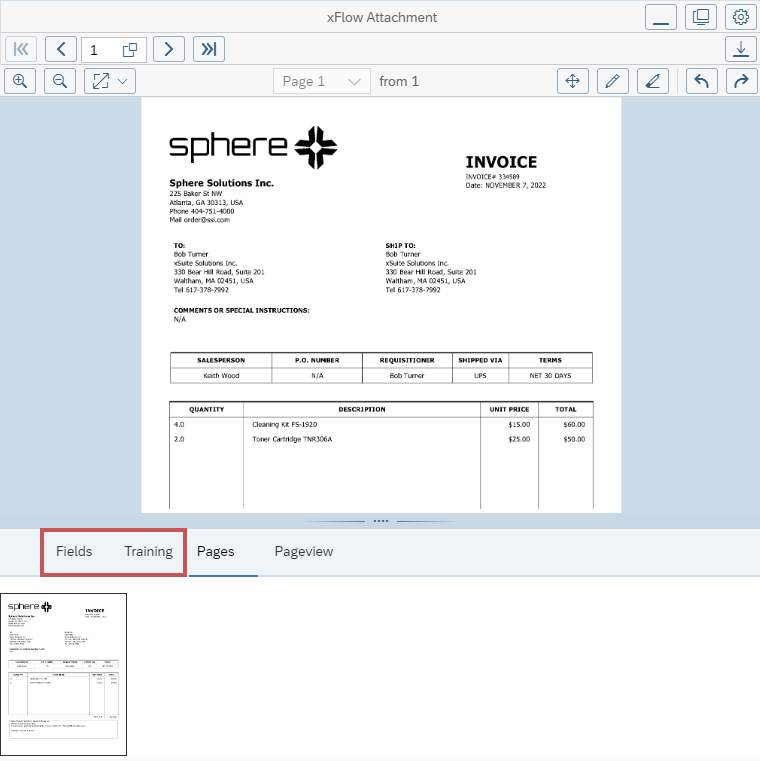 |
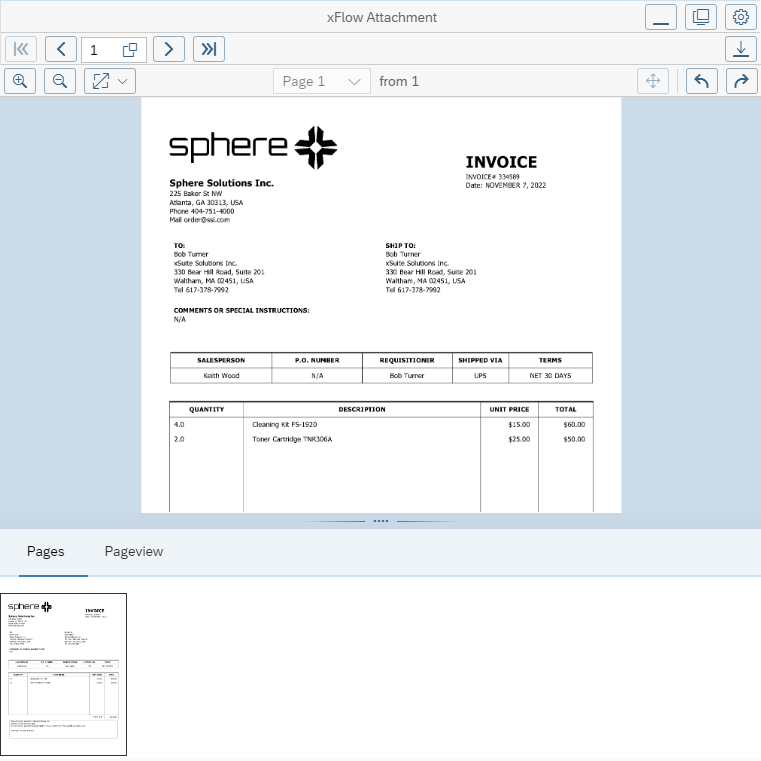 |
The DocViewer can still be used for the display. However, the DocViewer is now a PNG Viewer plugin.
In addition, error messages from the Viewer are now also responded to. These error messages appear in the logs of the xSuite Monitor Apps.
settings.json (tokenRequired)
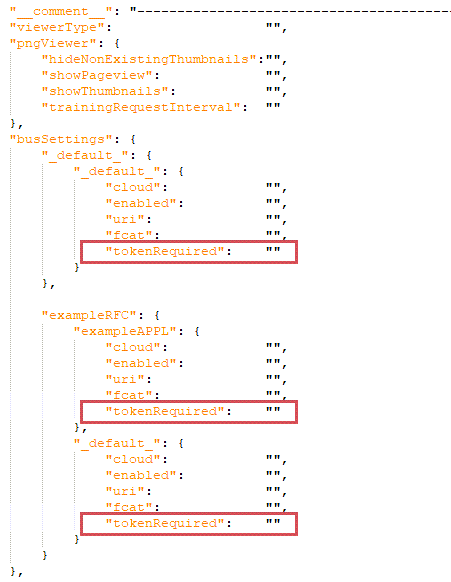
In the settings.json file of the xSuite Base Library, you can now specify separately for each combination of RFC connection and application whether an authentication token is required or not (tokenRequired parameter).
 |
Apply selected values
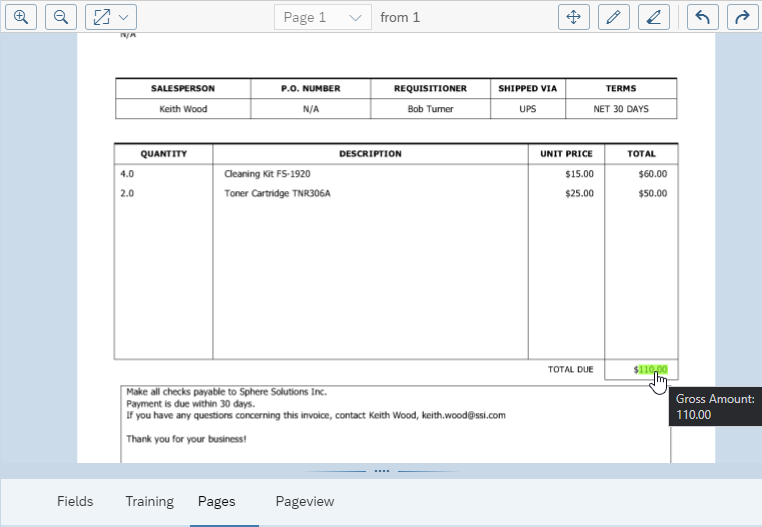
In the PNG Viewer, the user can now open a dialog by clicking on a found value or a marked area.
 |
Here, the user can select whether the value is copied to the clipboard or transferred to a field.
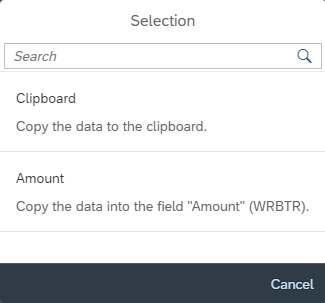 |
The value can always be transferred to the clipboard, provided that this functionality is supported by the browser and is not disabled. If the selected value is assigned to a field in the document, the value can also be transferred directly to the corresponding field. The prerequisite for this is that the field is editable.
Independent of this new feature, the text of a selected area or field can still be transferred to a text field of the document via drag-and-drop.
Agent maintenance – SAP Fiori
The functionality of substitute maintenance in SAP Fiori is analogous to the functionality in SAP GUI. In addition to individual users, groups can thus also be defined as substitutes.
 |
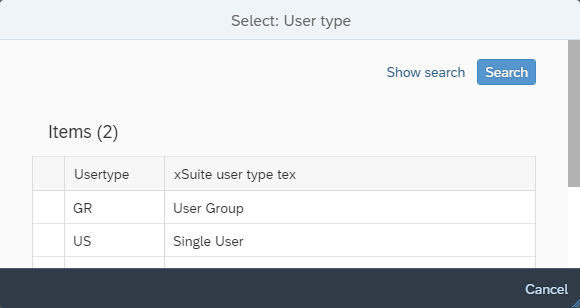
Thus, when creating a new entry, the type of the substitute must be selected first:
US: Single user (default value)GR: User group
 |
If there are conflicting substitutions for users or user groups, an error message will appear when you try to save a substitution rule.
In addition, a check is performed for whether a specified substitute actually exists. If this is not the case, then an error message to this effect will appear.
Performance – SAP Fiori
Provided the browser used provides this functionality and it is not disabled, texts loaded from the back-end are now cached in local storage. The texts have a validity period of 5 days. When this period has expired, the texts are reloaded from the back-end.
Since all xSuite apps can access the texts in the local storage, the texts no longer have to be requested individually by each app at the back-end if they have already been loaded by another app before. This speeds up app launch.
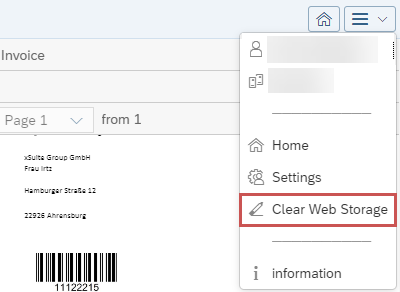
However, this has the effect of back-end changes not becoming visible in the front-end for 5 days in some cases. If a user wants to transfer text changes to the front-end immediately, the texts can manually be removed from the local storage. This will reload all texts from the back-end.
To remove texts manually, go to the menu button and select Clear Web Storage.
 |
F4 Help for Email Recipients in Workflow – SAP Fiori
The users available for selection in SAP Fiori in the F4 help of the email recipients used to differ significantly from the users available in the SAP GUI.
The F4 help result list is now identical in SAP Fiori and SAP GUI.
F4 Help – SAP Fiori
A fallback is now implemented for the case that the Fiori front-end does not receive F4 help customizing from the back-end for a field (for instance, when there is no suitable customizing in the back-end for the field data stored in the front-end).
This fallback is based on the HANDLE_F4 method in the /WMD/CL_XF_BC_UTIL object of the SAP GUI back-end. Depending on the current field name, an attempt may be made to open F4 help with an alternative field name as well as an alternative tab name. This may (or may not) enable opening of F4 help.
If the corresponding method is changed in the SAP back-end, the corresponding change should also be made in the xSuite Base Library.
In addition, the current user ID is now always sent with the F4 help requests.
Supported Locales / Fallback Locale – SAP Fiori
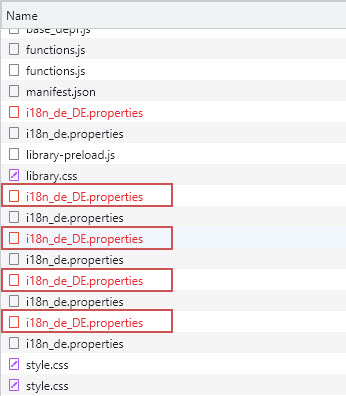
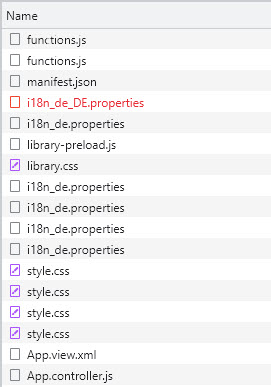
Since SAPUI5 Version 1.77, the supported languages and the fallback language can be defined. Older SAPUI5 versions ignore these definitions.
The supported languages and the fallback language are now defined in the xSuite Apps as well as in the xSuite Base Library. This reduces the number of unnecessary or "erroneous" file requests.
SAPUI5 <1.77
 |
SAPUI5 1.77+
 |
SAP Horizon Theme – SAP Fiori
The SAP Horizon themes (sap_horizon, sap_horizon_dark, sap_horizon_hcb, sap_horizon_hcw) are now listed as supported-Themes in the manifest.json files.
Dark Themes – SAP Fiori
Extra User Exit CSS files now exist for the "Dark Themes" in the xSuite Apps as well as in the xSuite Base Library.
/userexits/style_dark.css
Conversion to Promises – SAP Fiori
Depending on whether and where front-end user exits are used, the following technical change may be relevant. Otherwise, it is irrelevant for the user.
Internet Explorer (IE11) failed to support parallel requests using Promises. However, these are standard in JavaScript with the "ECMAScript 2015" (June 2015). Therefore, parallel requests would be handled with the functions of the xSuiteFiori.BF.parReq object of the xSuite Base Library.
Since Version 5.2.6, xSuite Apps for SAP Fiori no longer support the IE11. Therefore, all parallel requests have now been changed to Promises, and the functions as well as the object xSuiteFiori.BF.parReq have been removed from the xSuite Base Library.
User exits that previously used these functions must also be changed to Promises.