SAP Fiori
PNG Viewer
The PNG Viewer is now also used in SAP Fiori in the workflow. Only in the preview of the document in the inbox the display remains unchanged.
Display of Attachments / MIME Types
To prevent unnecessary downloads and data transfer, the PNG Viewer now only displays attachments whose output is supported by the web browser.
This requires that the SAP back-end or the archive transmits the correct MIME types of the attachments. For example, the MIME type of a PDF file is "application/pdf". If the SAP system or the archive transmits an incorrect MIME type, the PDF file is not displayed.
By default, files of the following MIME types are output:
application/json
application/pdf
application/xhtml+xml
application/xml
text/css
text/csv
text/html
text/json
text/markdown
text/plain
text/xml
image/gif
image/jpeg
image/png
image/svg+xml
If the web browser supports the output of additional file types (due to plug-ins, for example), the list of supported MIME types can be extended in the settings.json file. For this, the MIME types of these files are listed in the pngViewer → extFileSupportMimetypes property, comma-separated and without spaces.
Example: Due to a plug-in, the fictitious MIME types "aaa/type1" and "aaa/type2" are supported by the web browser. The entry in the settings.json file should look like this:
 |
Hiding and Showing Tabs
The tabs of the PNG Viewer can now be completely shown or hidden. For this, the following buttons are available in the web interface:
 Hide tabs: Hides the tabs.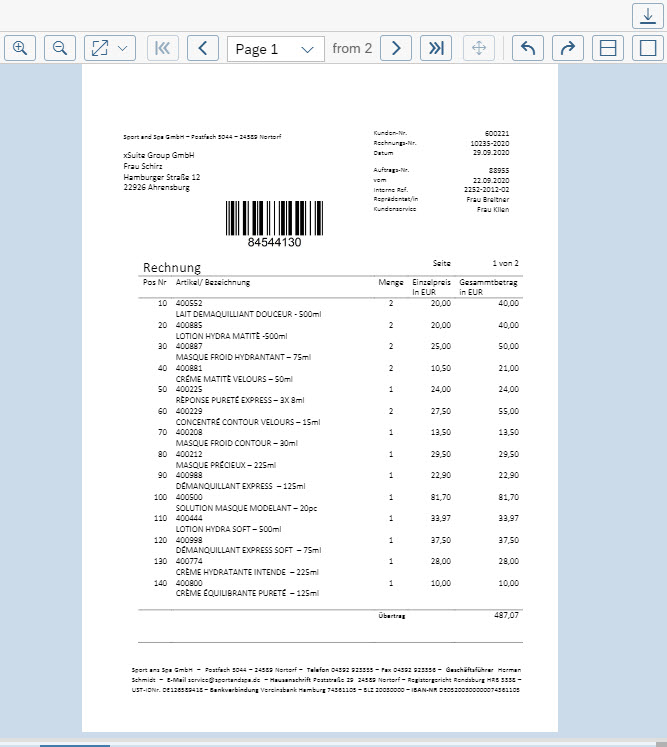
 Restore the default splitter size distribution: Hides the tabs and restores the default size distribution.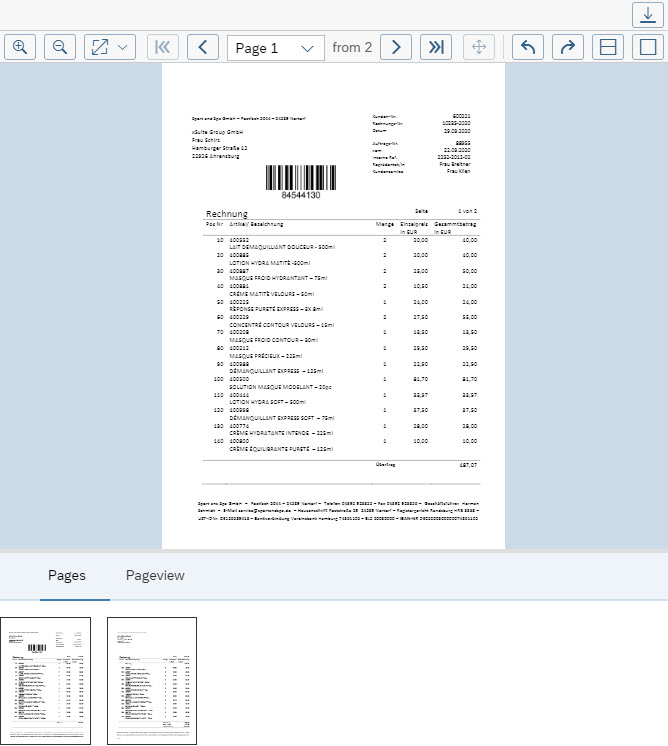
Alternatively, you can drag the slider up or down to increase or reduce the size of the tab area.
F4 Input Help Overhaul
The F4 input help in the xSuite Apps for SAP Fiori has been updated to include the back-end F4-help user exits (PRESEL, SELECT, and DISP).
The restriction remains that SAP GUI elements (e.g., dynpros) cannot be used for F4 input help used in the apps.
Display of Fields in Hit Lists
Similar to the behavior in the SAP GUI, the fields available in the hit lists of the xSuite Apps in SAP Fiori are now dependent on the search options selected.
Fields that are unavailable are temporarily removed from the current variant on an automatic basis. These fields cannot be displayed in the hit list and cannot be exported. The hit list cannot be sorted, grouped, or filtered by these fields.
For example, the WF time field is available in the Invoice Overview hit list only if the Total Processing Time search option is active. Only if the search option is active will the value for this field be determined and displayed.
E-Mail Display
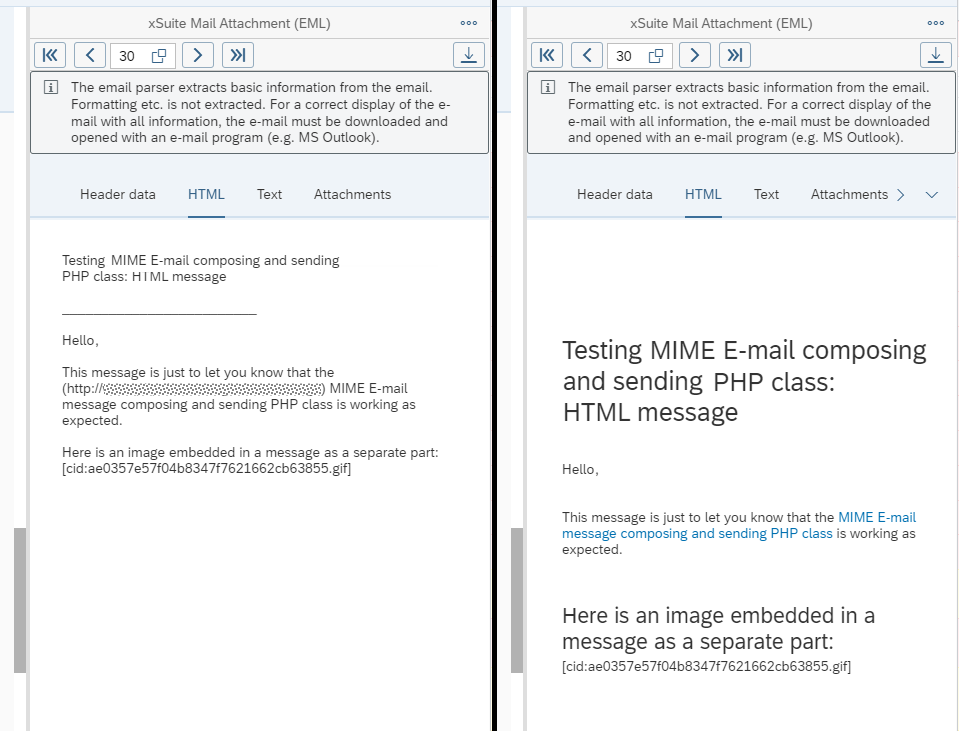
The PNG Viewer now also displays e-mail attachments (EML files) (MIME type "message/rfc822") and MSG files (MIME type "application/vnd.ms-outlook").
Notice
This display does not replace the display in a full-fledged e-mail program such as MS Outlook. Script and format specifications are ignored and not displayed in the PNG Viewer display.
The display provides only an overview of the content of the e-mail. If the content is of interest, the email should be downloaded and opened in an e-mail program.
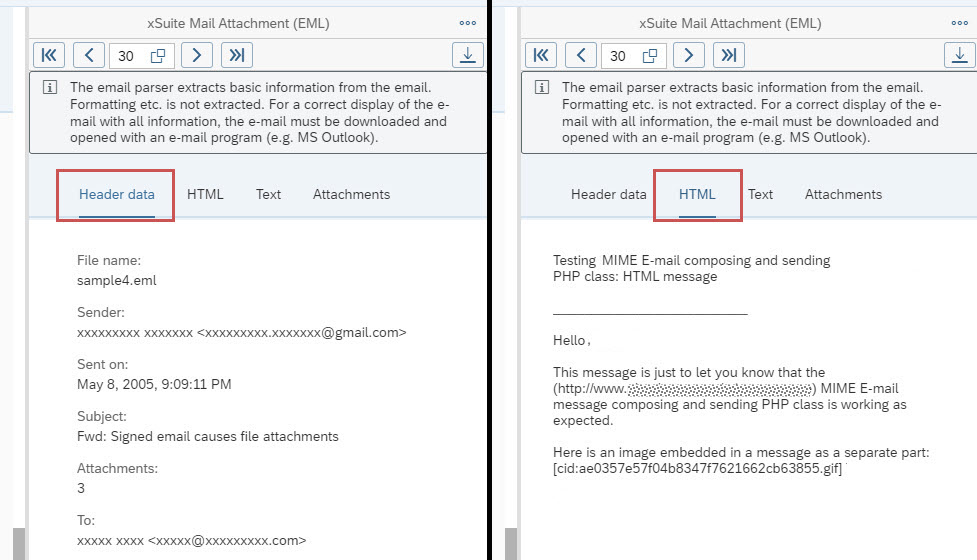
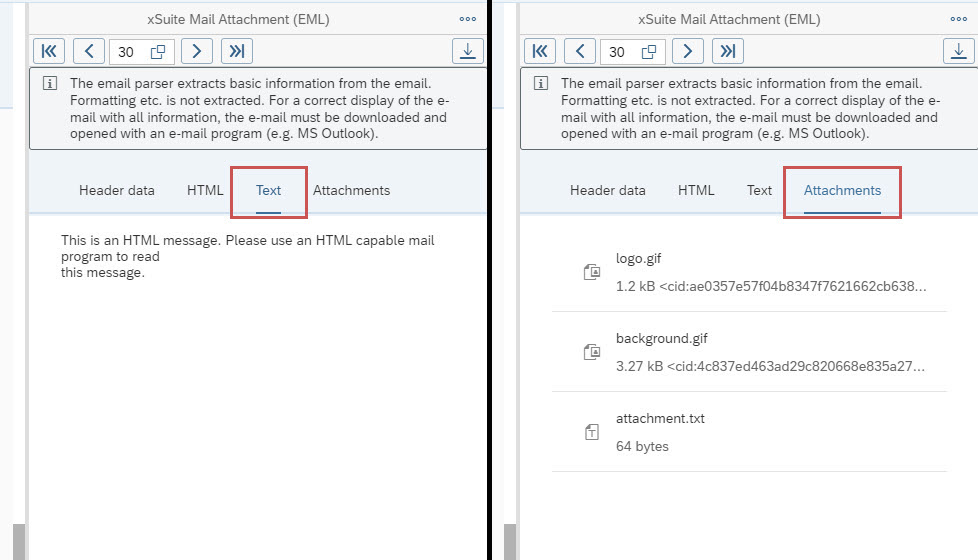
In addition to the header data (e.g., sender, recipient) and the content, the attachments are also listed. If these attachments can be parsed correctly, they can be downloaded directly along with the other data.
An e-mail may contain both a plain text message and an HTML message. If both messages are present, the HTML message is prioritized for MSG e-mails. In this case, only the Text tab will be available. For EML files, both messages are output if they are present. In this case, the HTML and Text tabs are available.
 |
 |
In the settings.json file, e-mail display can be disabled separately for EML files and MSG files. For this purpose, the value "false" is entered in this file in the property pngViewer → parseEML or pngViewer → parseMSG.
In the following sample code, both EML file output and MSG file output are disabled:
 |
HTML in EML files
In EML e-mail files, the inclusion of HTML tags can be enabled.
Caution
For security reasons, the inclusion of HTML tags is disabled by default (i.e., HTML tags are removed before the text is output or no HTML is parsed in the displayed text). Head and body scripts, img tags and script tags as well as the CSS of the e-mail should not be included even if activated.
 |
In the settings.json file, the inclusion of HTML tags can be enabled. For this purpose, the value "true" is entered in this file in the property pngViewer → parseEMLshowHTML.
 |
Cache Buster
Previously, when making changes to the xSuite Apps or xSuite Base Library, the cache of the web browser had to be cleared for these changes to take effect.
To eliminate the need to clear the cache after changes, the xSuite Apps and xSuite Base Library now use a cache buster. This ensures that changes are applied as soon as an xSuite App is reopened.
In the case of changes to back-end texts, code (e.g., due to a hotfix or the implementation of a user exit), or the settings.json file, the cache buster value must be changed. This automatically ensures that the web browser reloads the current code as well as the settings and back-end texts.
Caution
For technical reasons, this does not work for the Component.js file of the xSuite Apps. In order for the change to take effect, if any of the Component.js files are changed, the web browser cache must still be manually cleared.
The current value of the cache buster is in the xSuite Base Library in the file xscachebuster.js. If there are any changes, adjust the current cache buster value in this file.
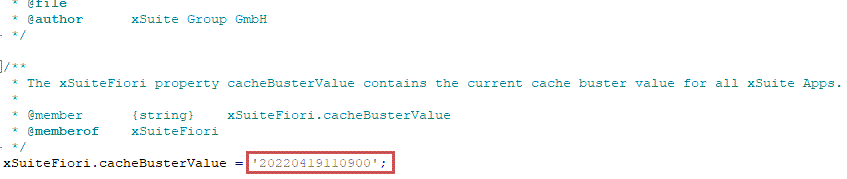 |
Usually, the current time is specified in the format YYYYMMDDhhmmss (year month day hour minute second) (e.g., 20230515140500). The time zone can be appended in the format ±hhmm (e.g., +0100 for CET).
Example without time zone:
xSuiteFiori.cacheBusterValue = '20230515140500';Example with time zone:
xSuiteFiori.cacheBusterValue = '20230515140500+0100';
Filtering for Data Fields of Data Type "CHAR" with Alpha Conversion
If a field has the data type "CHAR" and an alpha conversion, pure numeric values (0-9) are now stored in the data model with leading zeros. These leading zeros are not displayed in the data output.
If the leading zeros were not specified in a search with the search operation equal or not equal, the expected result was not displayed, because the value in the data model is always used for the search.
Therefore, when searching in a field of data type "CHAR" with alpha conversion, leading zeros are now automatically prepended if the search operation is: equal or unequal, the search value purely numeric, and the field length defined. The leading zeros will be displayed when the filter options are opened again.
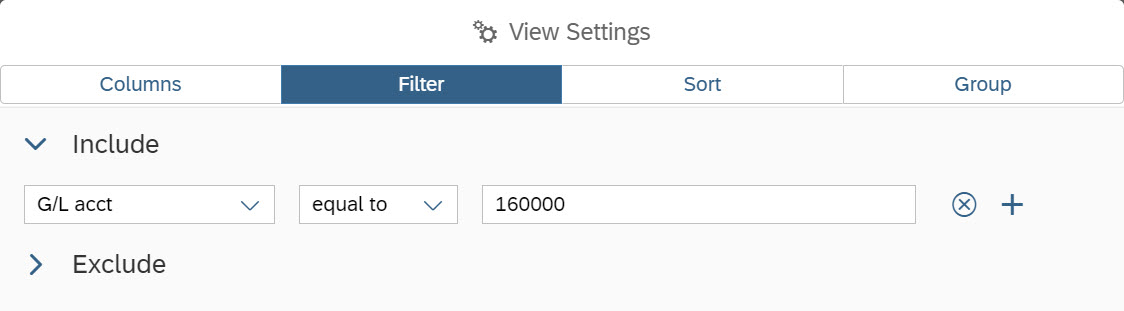
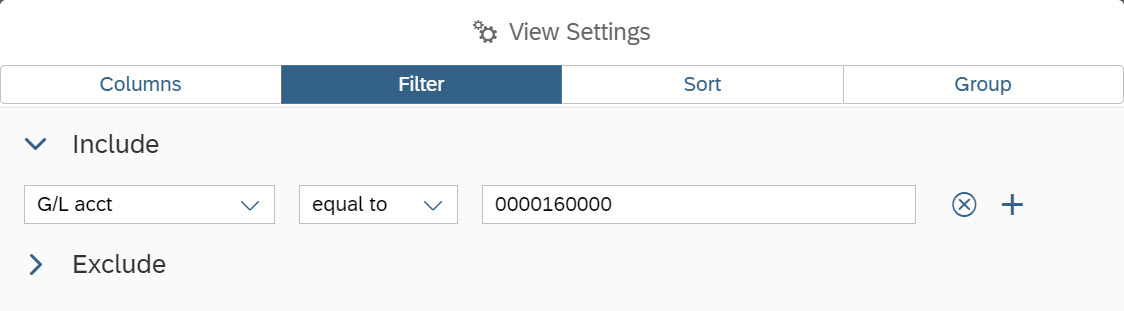
Example: With a field length of 5 characters and the displayed value 23, the value in the data model is 00023. When searching for equal to 23, the value will not be found because it is not equal to 23, but equal to 00023. Therefore, the leading zeros are now automatically prepended to obtain the expected result.
If, on the other hand, the user enters a value such as 1A or 1.2, then the value will not be changed. The reason is that these are not pure numerical values to which leading zeros would fit in the data model.
Warning Messages
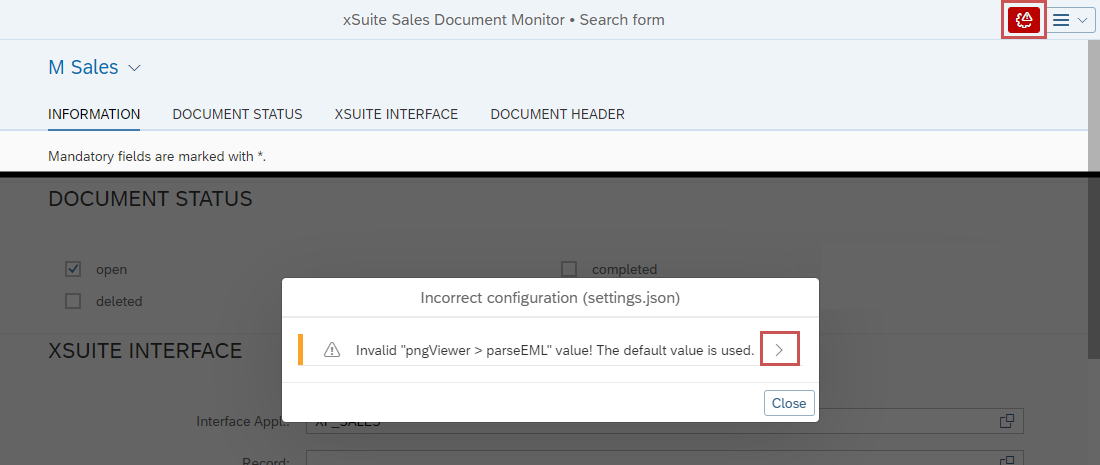
The settings.json file data is validated when an xSuite app is opened in SAP Fiori. If there is a serious configuration error, the applications cannot be opened and the corresponding error is displayed in the interface. "Simple" errors led to warnings that, in the past, were only displayed in the browser console, but not in the interface.
In the case of one or more warnings, the  button is displayed in the page header. Clicking this button will open a dialog where all warnings are listed. Some warnings can be clicked for more details. These warning messages are indicated by an arrow behind the message.
 |
Session ID
The session ID is now no longer sent as part of the URL, but within the request header. This increases application security without having a noticeable impact on the user.
This change must be taken into account for existing user exits if different request functions are used there.
Icon Set
The icon sets "SAP Fiori Tools" and "SAP Business Suite" can now be loaded, making them usable in user exits.
Closing an ITS View
When an operation is completed within an ITS view, the ITS view in SAP Fiori is now closed automatically. Clicking Close is no longer necessary.
Notice
Depending on web-browser security settings, the web browser may prevent automatic closing.
The ITS call of the xSuite Apps for SAP Fiori has been technically optimized for this, so user exits may have to be adapted in this area.
Back-End Cache for SAP Fiori
The conversion of ABAP table data to binary data and back to ABAP data did not work correctly if a value did not have the maximum length, and if it ended with a special character (e.g., ä, ü, ö). To work around this problem, another standard SAP method is now used.