Sending an Email from a Document in SAP Fiori
In SAP Fiori, open a document that supports sending email.
Click the
 E-mail button.
➣ The Info Mail screen will open.
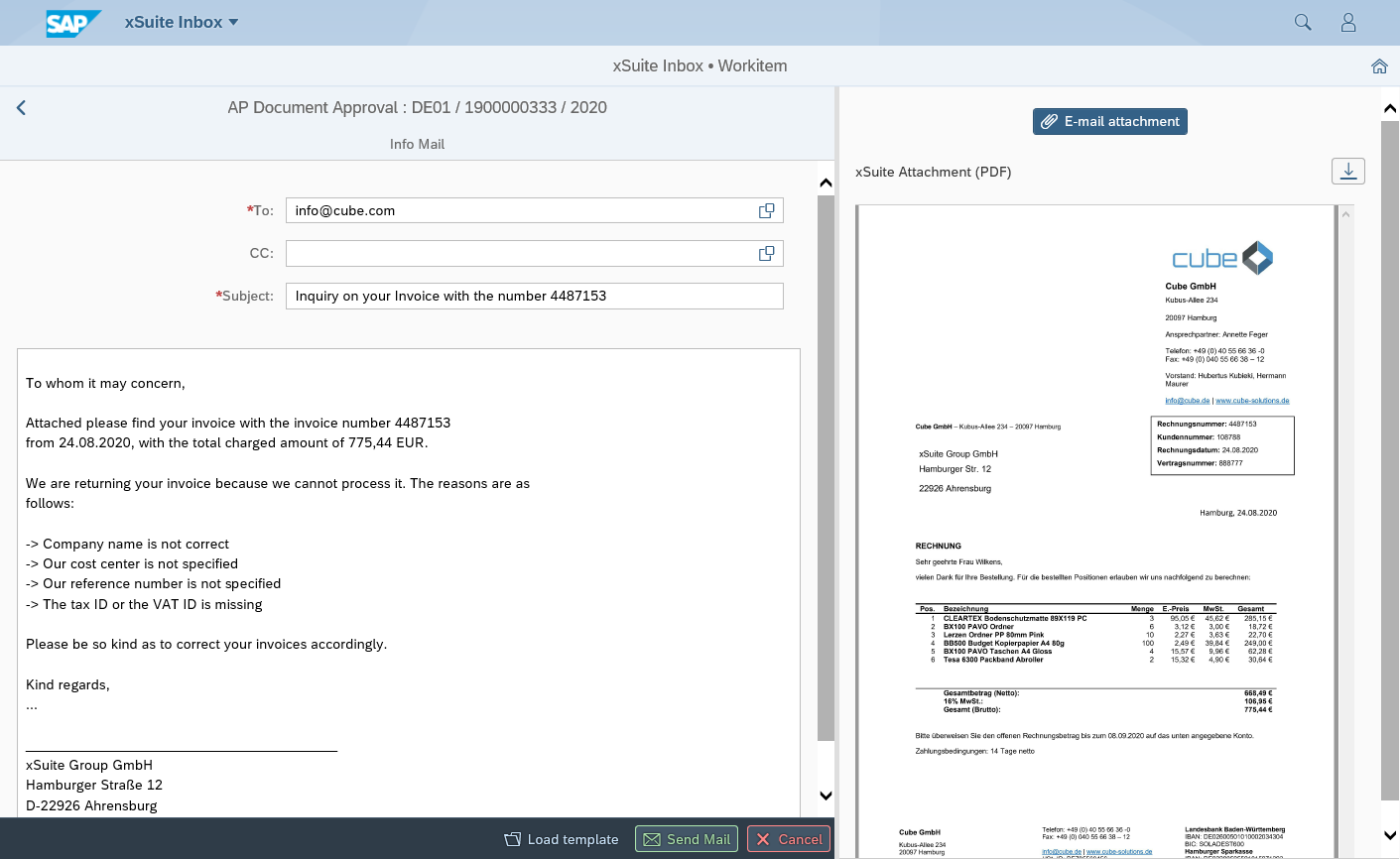
To use an email text template, click Load template.
For more information on text templates, see Text Templates for Emails.
For more information on text templates, see Text Templates for E-Mails.
For more information on text templates, see Text Templates for Emails.
For more information on text templates, see Text Templates for Emails.
➣ The dialog Select: Template will open.
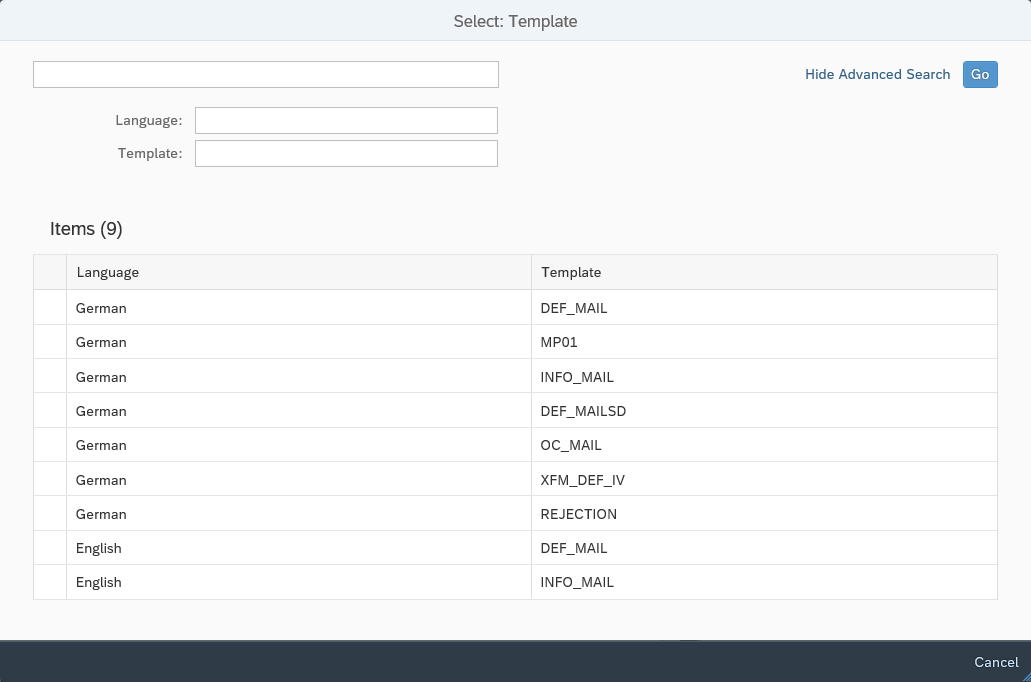
Click on the name of an email text template.
➣ The data from the email text template will be inserted in the Info Mail screen.
Edit the following data if necessary:
Field
Information
To
Enter the email address of the recipient.
CC
Enter the email addresses of additional recipients as needed.
Subject
Enter a subject.
Message field
The message is prepopulated with the text of the selected text template.
Edit the message.
Click the Send Mail button.
➤ You will receive a notification that the email has been sent.
➤ The entry
E-Mail sentwill be added to the document log.