Assigning a Purchase Order Item of an MM Document to Another SAP Purchase Order in SAP Fiori
Open an MM document in the validation screen in the SAP GUI. For more information, see Opening a Document in Validation in the SAP GUI.
In the Item Data area in PO reference, click the button
 PO items <-> PD items.
➣ The columns Purchase Order and Item will appear.
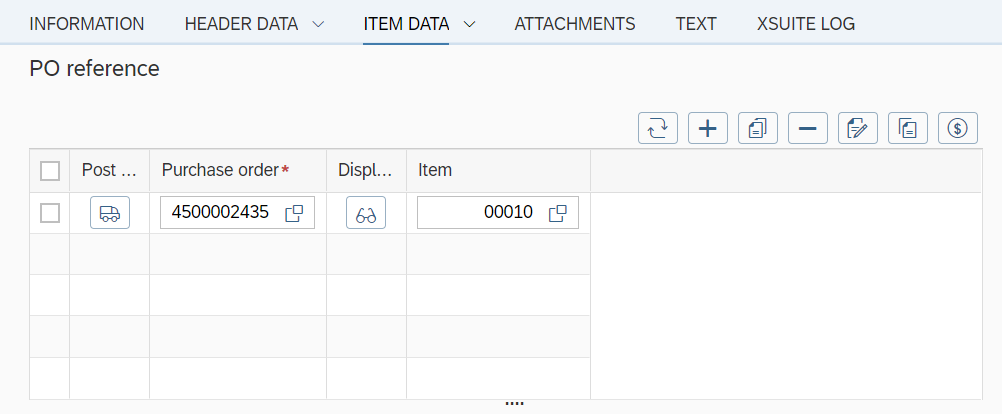
In an order item, click in the Purchase order column and press F4.
➣ F4 help will open.
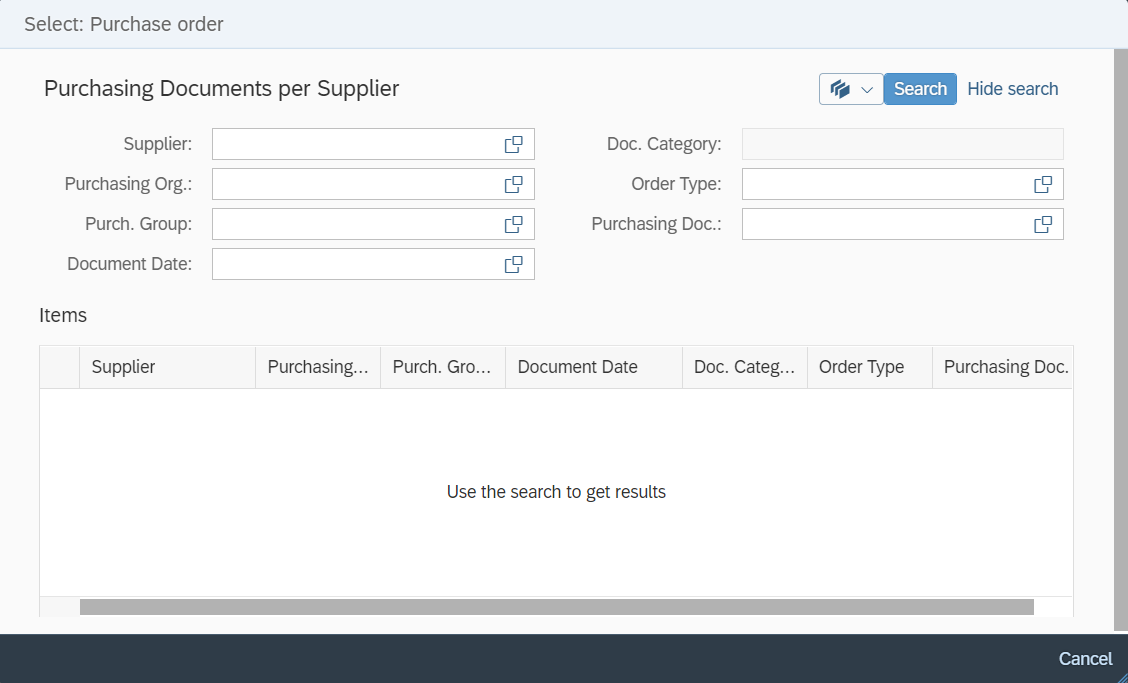
Select the Purchasing documents per supplier tab, enter your search criteria, and confirm.
➣ The hit list of values will appear.
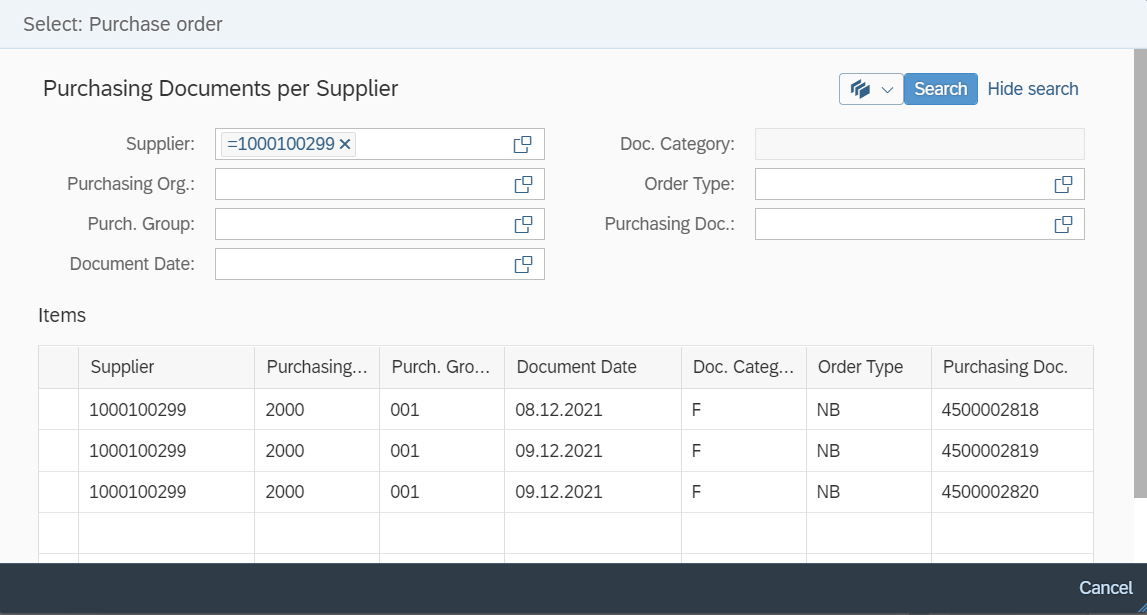
Double-click on a value.
➣ The value will be adopted to the order item.
Click in the Item column and press F4.
➣ F4 help will open.
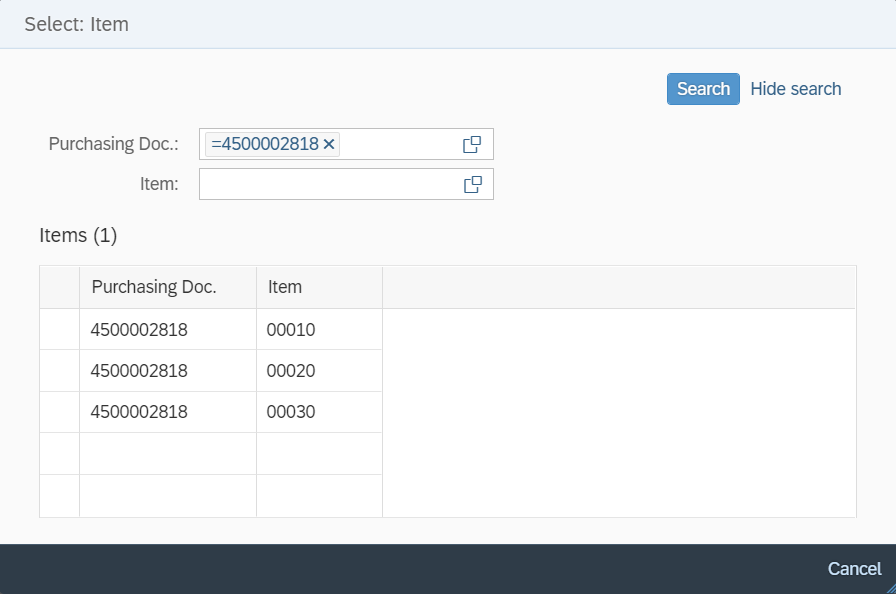
Double-click on a value.
➣ The value will be adopted to the order item.