The Standard MM Workflow
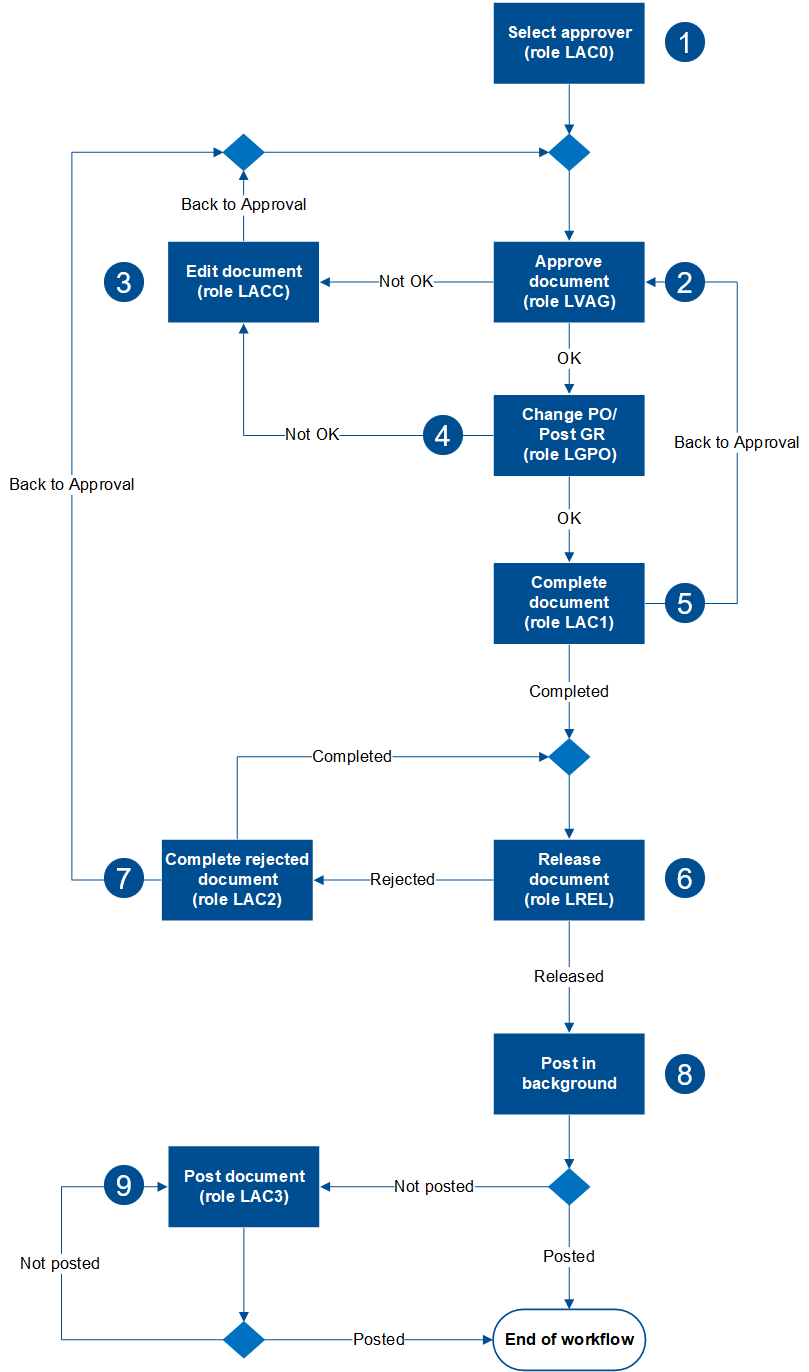
With xSuite Invoice, a standard workflow is delivered for invoice approval with purchase order reference (MM).
This workflow is based on project experience and is a best-practice solution. Any variations on it can be specified and implemented in the installation project.
The standard workflow consists of preconfigured workflow tasks. For more information, see Overview of MM Workflow Tasks.
Notice
In the standard system, several workflow tasks of the standard MM workflow are skipped. Which workflow tasks are skipped depends on how xSuite has been customized.
The procedure is as follows:
 |
Step | Description | |
|---|---|---|
1 | The approver is selected. | If no agent is found in the xSuite agent determination for the "Approve document" step, the workflow will start in the manual agent selection step. Here, you manually select an approver for the "Approve document" step. If an approver is found automatically, the workflow will start in the "Approve document" step. |
2 | The document is routed to the "Approve document" step. | The approver can confirm the details of the document as factually correct or reject them as incorrect. |
3 | The document is directed into the "Edit document" step. | A document goes into the "Edit document" step if it is rejected in "Approve document" (step 2). In the "Edit document" step, the document can be corrected using the rejection reasons and returned to the "Approve document" step. |
4 | The document is directed to the "Change purchase order / Post goods receipt" step. | A document will be directed to the workflow task "Change purchase order / Post GR" if price and/or quantity blocks exist. In the workflow task "Change purchase order / Post GR", an agent can remove price and quantity blocks. The agent can confirm the document as correct and direct it to the "Complete document" step, or he can reject it and direct it to the "Edit document" step. |
5 | The document enters the "Complete document" step. | A document goes into the "Complete document" step if it is confirmed as factually correct in "Approve document" (step 2), but cannot be completed automatically. In the "Complete document" step, the document can be saved as complete and sent to the "Release document" step, or returned to the "Approve document" step. |
6 | The document is directed to the "Release document" step. | A document is routed to the "Release document" step when it has been confirmed as being factually correct. In the "Release document" step, you can either release a document or reject it. A document qualifies as released when all invoice items have been released. A document qualifies as rejected if at least one invoice item is rejected. |
7 | The document enters the step "Complete rejected document." | A document goes into the "Edit rejected document" step if it is rejected in the "Release document" step (step 6). In the "Complete rejected document" step, the document can either be released, or rejected and returned to the "Approve document" step. |
8 | The document is posted automatically. | A document that has been released will generally be posted. Posting the document will trigger the writing of the document data to the SAP purchase order. The workflow is then completed. |
9 | The document is directed to the "Post document" step. | A released document will be directed to the manual posting step if it has not been posted automatically. There are two possible scenarios:
|