Invoice Overview in SAP GUI
[de] In der Anordnungsübersicht kann der Benutzer nach Belegen suchen und die Daten der gefundenen Belege einsehen.
[de] Der Benutzer kann die Anordnungsübersicht filtern und sortieren sowie verschiedene Aktionen für einzelne Belege ausführen.
[de] Anordnungsübersicht öffnen
[de] Anordnungsübersicht im SAP GUI öffnen
[de] Rufen Sie die Transaktion /WMD/XF_PS_ADMIN auf.
[de] ➣ Die Selektionsansicht öffnet sich.
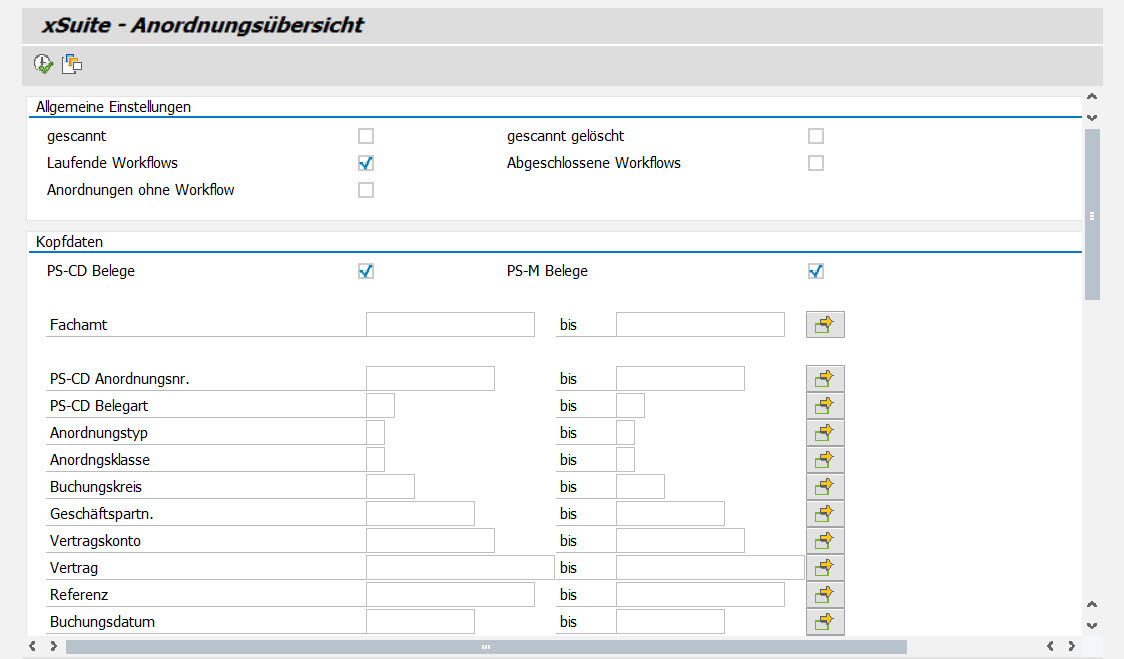
[de] Gebe Sie bei Bedarf in den Suchfeldern die jeweiligen Suchbegriffe ein.
[de] Informationen zu den Suchfeldern finden Sie unter Selection Screen.
[de] Klicken Sie den Button
 Ausführen oder drücken Sie F8.
[de] ➤ Die Anordnungsübersicht öffnet sich.
[de] Anordnungsübersicht in xSuite Web öffnen
[de] Öffnen Sie den xSuite-Webarbeitsplatz, siehe ???.
[de] Klicken Sie den Button Zurück zur Übersicht.
[de] ➣ Ihr Dashboard öffnet sich.
[de] Klicken Sie auf die Kachel Anordnungsübersicht.
[de] ➤ Die Anordnungsübersicht öffnet sich.
[de] Anordnungsübersicht in SAP Fiori öffnen
[de] Öffnen Sie die SAP-Fiori-Startseite.
[de] Klicken Sie auf die Kachel PS-CD-Übersicht.
[de] ➣ Der Suchbereich öffnet sich.
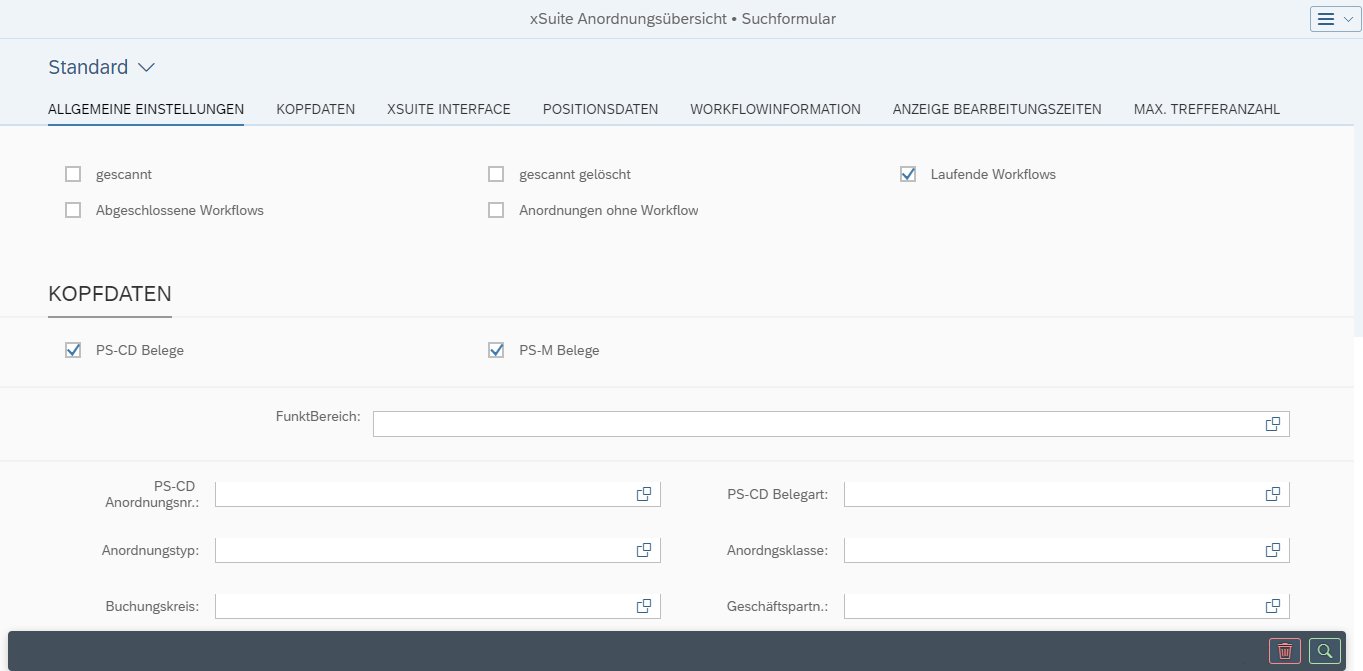
[de] Führen Sie einen der folgenden Schritte aus:
[de] Klicken Sie den Button
 Suchen.
[de] ➤ Die Trefferliste öffnet sich. Es werden alle Belege angezeigt.
[de] Geben Sie Suchkriterien ein, und klicken Sie den Button
Suchen.[de] ➤ Die Trefferliste öffnet sich. Es werden nur Belege angezeigt, die Ihren Suchkriterien entsprechen.
[de] Zur Auswahl stehen dieselben Suchfelder wie in der Anordnungsübersicht im SAP GUI, siehe Selection Screen.
Notice
[de] Sie können Ihre eingegebenen Suchkriterien als Ansicht speichern und die Daten vorhandener Ansichten laden.
[de] Weitere Informationen finden Sie unter Views in SAP Fiori.
[de] Aufbau – Anordnungsübersicht
[de] Aufbau – Anordnungsübersicht im SAP GUI
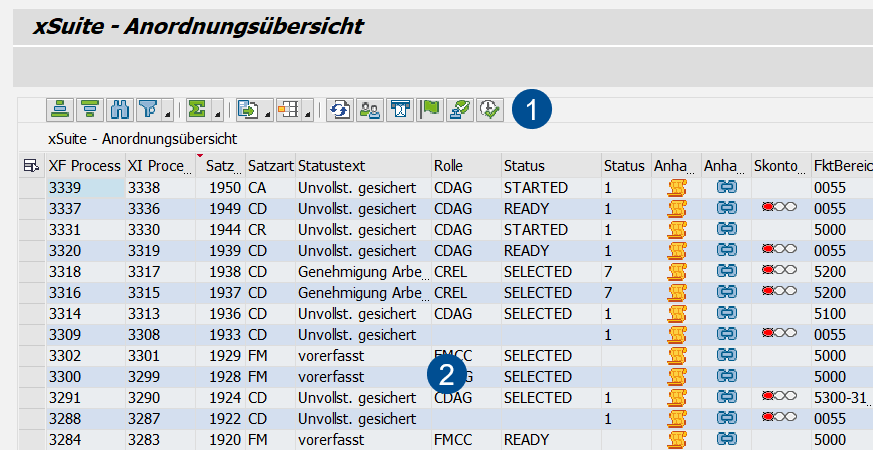 |
[de] Bereich | [de] Beschreibung | |
|---|---|---|
1 | [de] Buttons | [de] Informationen zu den Buttons in der Anordnungsübersicht finden Sie unter Toolbar. |
2 | [de] Trefferliste | [de] Hier werden alle Belege angezeigt, die den Suchkriterien entsprechen. [de] Eine Übersicht aller verfügbaren Spalten finden Sie unter Appendix AK, [de] Spalten – Anordnungsübersicht. |
[de] Aufbau – Anordnungsübersicht in SAP Fiori
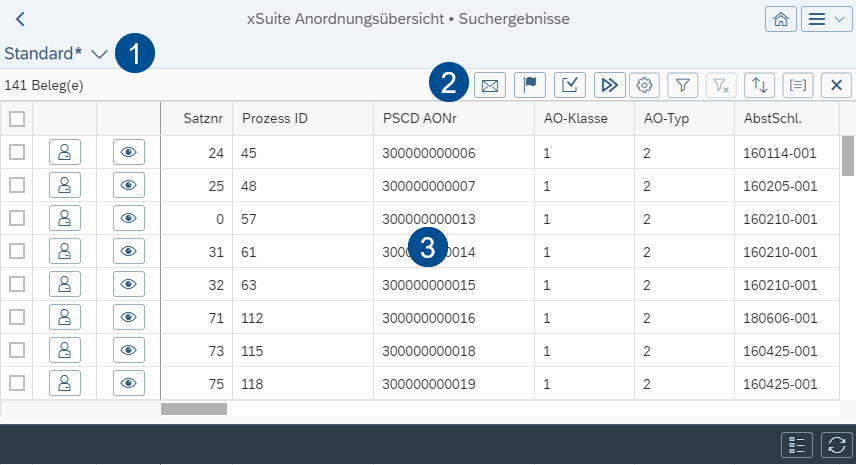 |
[de] Bereich | [de] Beschreibung | |
|---|---|---|
1 | [de] Ansichten | [de] Informationen zu Ansichten finden Sie unter Views in SAP Fiori. |
2 | [de] Buttons | [de] Informationen zu den Buttons in der Anordnungsübersicht finden Sie unter Toolbar. |
3 | [de] Trefferliste | [de] Hier werden alle Belege angezeigt, die den Suchkriterien entsprechen. [de] Die Spalten-Auswahl kann der Benutzer mit dem Button [de] Eine Übersicht aller verfügbaren Spalten finden Sie unter Appendix AK, [de] Spalten – Anordnungsübersicht. |

Views in SAP Fiori
Clicking on the name of the current view will open the My Views dialog.
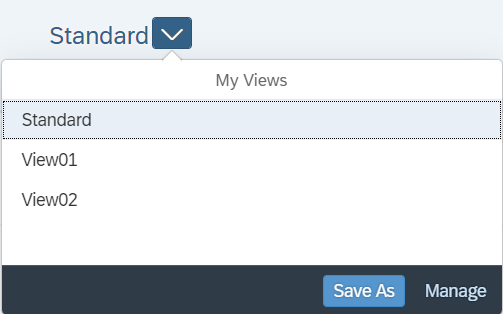 |
Button | Description | |
|---|---|---|
Save | Saves the changes made to the current view. This button is only displayed if the current view has been changed and it is a custom view. | |
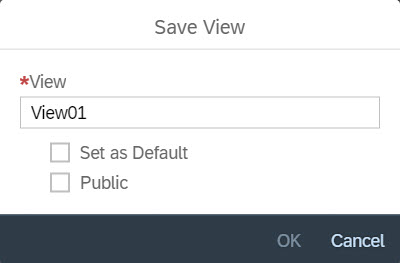
Save as | Saves the changes made to the current view as a new view. Click on the button to open the dialog Save View.
You can make the following settings:
| |
Manage | Opens the dialog Manage Views. All available views can be managed in this dialog. For more information, see "Manage Views" Dialog: Columns in SAP Fiori. |
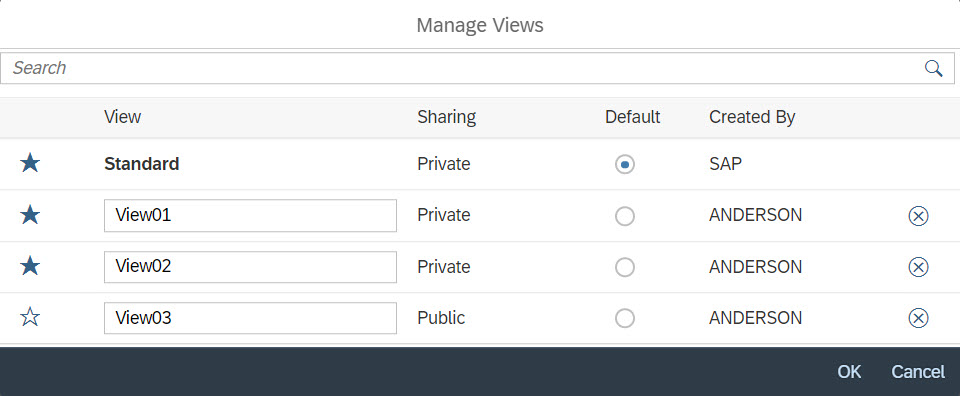 |
Column | Description |
|---|---|
Favorites | Shows one of the following icons:
To change the favorite status, click on the icon. Only views marked as favorites are displayed in the selection dialog My Views. |
View | Shows the name of a view. You can rename your views. The name of the view Standard and the names of views created by other users cannot be edited. |
Sharing | Indicates whether a view is public or private. This column is only displayed if there are public views as well as private ones. The following view types are available:
|
Default | Indicates whether a view is marked as default. By changing the selected radio button, the default view can be changed. The default view is called automatically when the application is launched. For each user, one single view is always marked as the default view. |
Created by | Shows the name of the user who created the view. |
Delete | Shows the icon This icon can be used to delete your own view. |


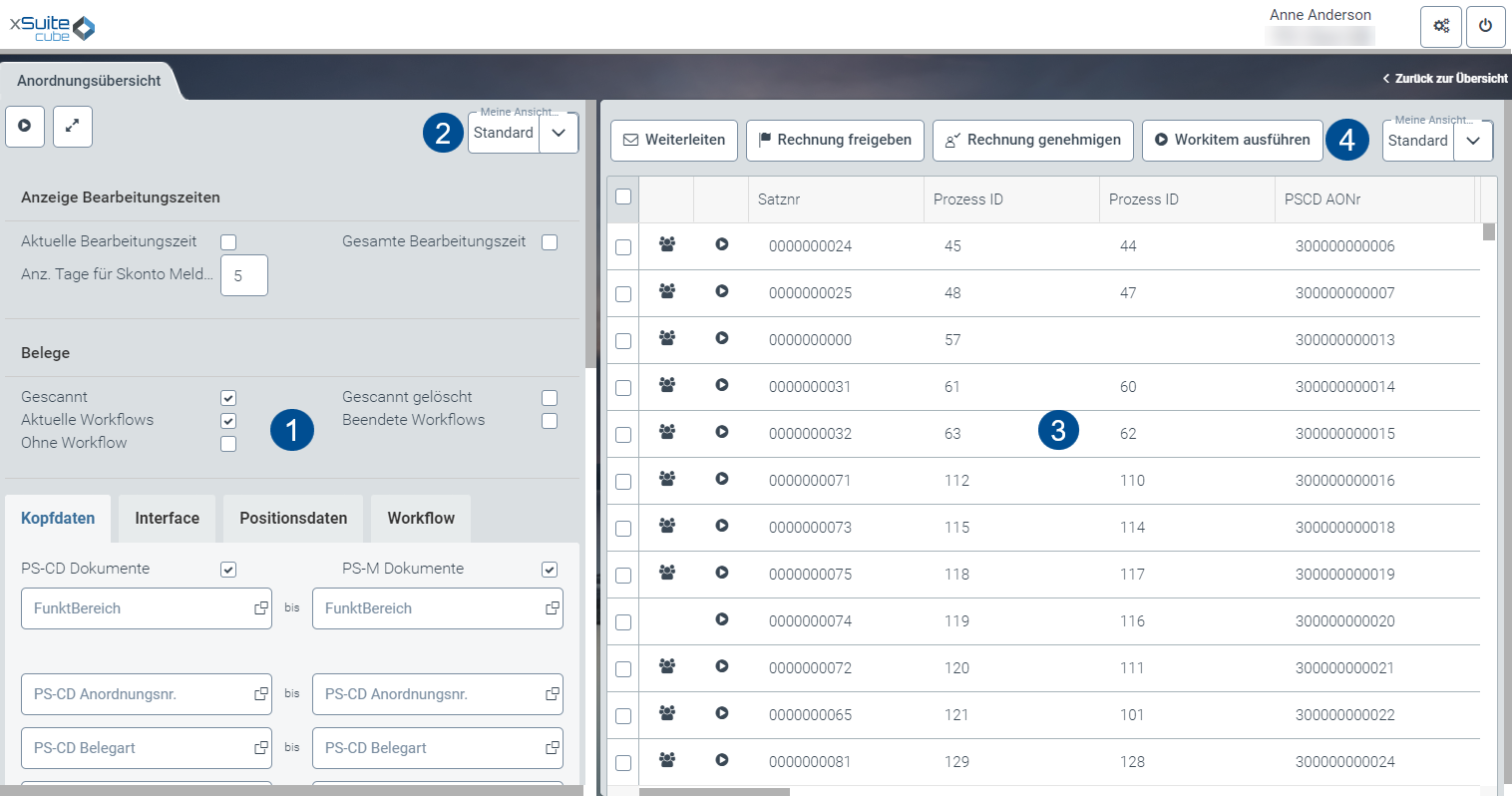
[de] Aufbau – Anordnungsübersicht in xSuite Web
 |
[de] Bereich | [de] Beschreibung | |
|---|---|---|
1 | [de] Suchbereich | [de] Hier kann der Benutzer Parameter für die Suche nach Belegen festlegen. [de] Informationen zu den Suchfeldern finden Sie unter Selection Screen. [de] Der Button [de] Der Button |
2 | [de] Ansichten | [de] Informationen zu Ansichten finden Sie unter Views in xSuite Web. |
3 | [de] Buttons | [de] Informationen zu den Buttons in der Anordnungsübersicht finden Sie unter Toolbar. |
4 | [de] Trefferliste | [de] Hier werden alle Belege angezeigt, die den Suchkriterien entsprechen. [de] Die Spalten-Auswahl kann der Benutzer mit dem Button [de] Eine Übersicht aller verfügbaren Spalten finden Sie unter Appendix AK, [de] Spalten – Anordnungsübersicht. |


Views in xSuite Web
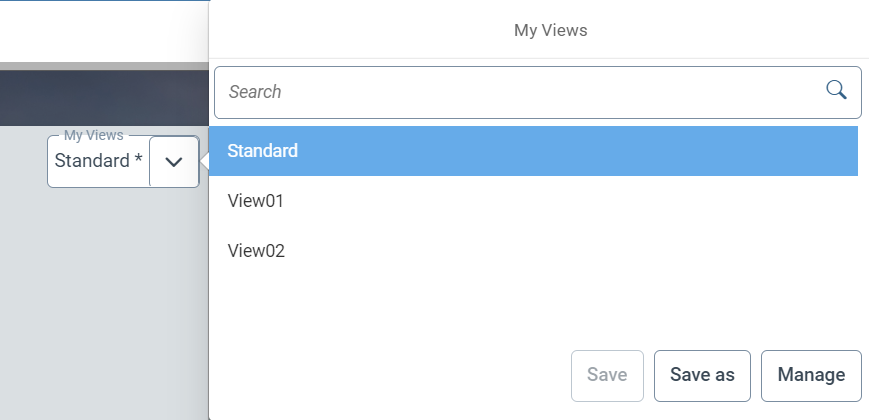
Clicking on the name of the current view will open the My Views dialog.
 |
Button | Description | |
|---|---|---|
Save | Saves the changes made to the current view. This button is only displayed if the current view has been changed and it is a custom view. | |
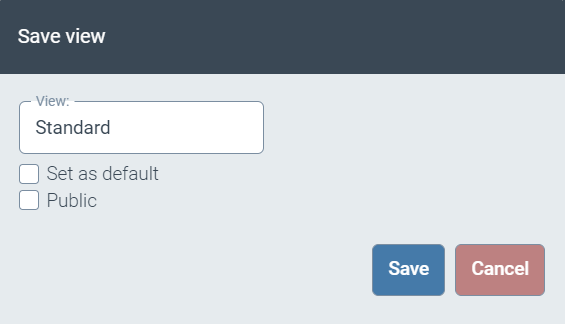
Save as | Saves the changes made to the current view as a new view. Click on the button to open the dialog Save View.
You can make the following settings:
| |
Manage | Opens the dialog Manage Views. All available views can be managed in this dialog. For more information, see "Manage Views" Dialog: Columns in xSuite Web. |
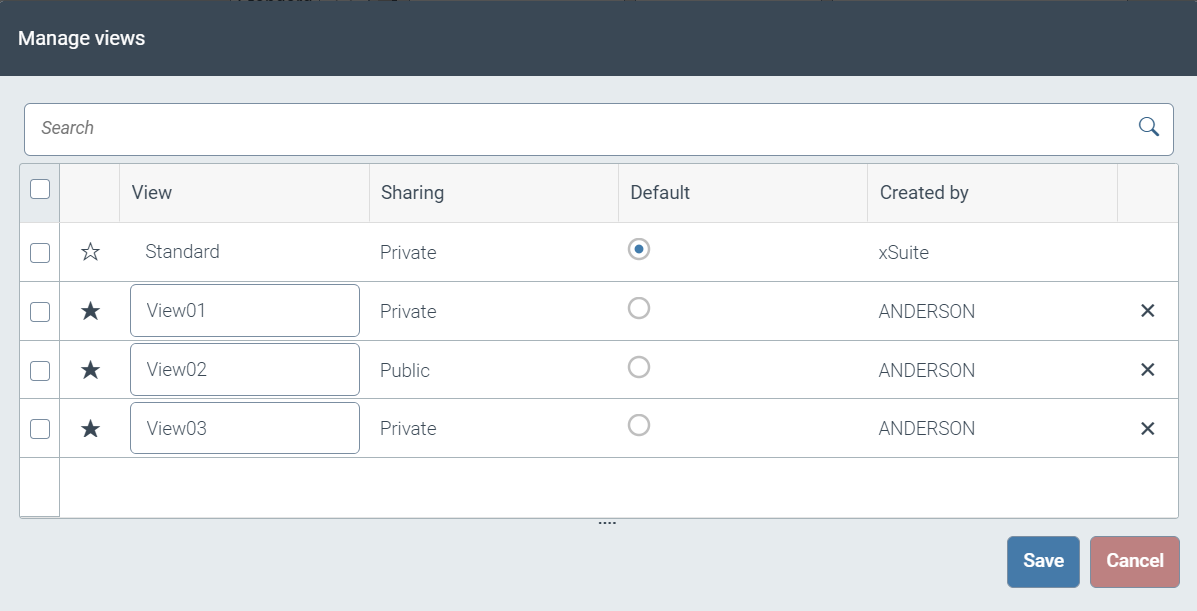 |
Column | Description |
|---|---|
Favorites | Shows one of the following icons:
To change the favorite status, click on the icon. Only views marked as favorites are displayed in the selection dialog My Views. |
View | Shows the name of a view. You can rename your views. The name of the view Standard and the names of views created by other users cannot be edited. |
Sharing | Indicates whether a view is public or private. This column is only displayed if there are public views as well as private ones. The following view types are available:
|
Default | Indicates whether a view is marked as default. By changing the selected radio button, the default view can be changed. The default view is called automatically when the application is launched. For each user, one single view is always marked as the default view. |
Created by | Shows the name of the user who created the view. |
Delete | Shows the icon This icon can be used to delete your own view. |


Selection Screen
[de] Die Selektionsansicht der Anordnungsübersicht ist in 7 Bereiche unterteilt:
[de] Allgemeine Einstellungen
[de] Weitere Informationen finden Sie unter General Setting.
[de] Kopfdaten
[de] Weitere Informationen finden Sie unter Document Header.
[de] xSuite Interface
[de] Weitere Informationen finden Sie unter xFlow Interface.
[de] Positionsdaten
[de] Weitere Informationen finden Sie unter Option.
[de] Workflowinformation
[de] Weitere Informationen finden Sie unter Workflow Information.
[de] Anzeige Bearbeitungszeiten
[de] Weitere Informationen finden Sie unter Display processing times.
[de] Layout
[de] Weitere Informationen finden Sie unter Layout.
General Setting
Option | Description |
|---|---|
Scanned | [de] Sucht alle Belege, die über das xSuite Interface verarbeitet wurde. |
Scanned deleted | Shows all records that have been created in the xFlow Interface and then marked there as deleted. |
Running workflows | Shows all records that are part of an active xFlow Interface workflow. |
Completed workflows | Shows all records associated with a completed xFlow Interface workflow. |
[de] Anordnungen ohne Workflow | [de] Sucht alle Belege, die keinen xSuite Workflow durchlaufen oder durchlaufen haben. |
Document Header
Option | Description |
|---|---|
PS-CD records | Enable this checkbox to display accounts payable records. |
PS-FM records | Enable this checkbox to display accounts receivable records. |
[de] Fachamt/FunktBereich | [de] Grenzt die Suche auf Belege eines oder mehrerer Fachämter ein. |
Option | Description |
|---|---|
[de] PS-CD Anordnungsnummer | [de] Sucht PS-CD-Belege nach ihrer PS-CD-Anordnungsnummer. |
PS-CD Document Type | [de] Grenzt die Suche auf PS-CD-Belege einer oder mehrerer Belegarten ein, z. B. |
[de] Anordnungstyp | [de] Grenzt die Suche auf PS-CD-Belege eines oder mehrerer Anordnungstypen ein. |
[de] Anordnungsklasse | [de] Grenzt die Suche auf PS-CD-Belege eines oder mehrerer Anordnungsklassen ein, z. B. |
Company Code | [de] Grenzt die Suche auf PS-CD-Belege eines oder mehrerer Buchungskreise ein. |
[de] Geschäftspartn. | [de] Grenzt die Suche auf PS-CD-Belege eines oder mehrerer Geschäftspartner ein. |
[de] Vertragskonto | [de] Grenzt die Suche auf PS-CD-Belege eines oder mehrerer Vertragskonten ein. |
[de] Vertrag | [de] Grenzt die Suche auf PS-CD-Belege eines oder mehrerer Verträge ein. |
[de] Referenz | [de] Grenzt die Suche auf PS-CD-Belege mit einer bestimmten Referenznummer oder innerhalb eines Bereichs von bestimmten Referenznummern ein. |
[de] Buchungsdatum | [de] Grenzt die Suche anhand des Buchungsdatums auf PS-CD-Belege eines bestimmten Buchungszeitraums ein. |
[de] Belegdatum | [de] Grenzt die Suche anhand des Belegdatums auf PS-CD-Belege eines bestimmten Zeitpunkts oder Zeitraums ein. |
[de] Nettofälligkeit | [de] Grenzt die Suche anhand des Nettofälligkeitsdatums auf PS-CD-Belege eines bestimmten Zeitpunkts oder Zeitraums ein. |
[de] Erfasst am | [de] Grenzt die Suche anhand des Erfassungsdatums auf PS-CD-Belege eines bestimmten Zeitpunkts oder Zeitraums ein. |
Status | [de] Grenzt die Suche auf PS-CD-Belege eines oder mehrerer Anordnungsstatus ein. [de] Folgende Anordnungsstatus stehen zur Auswahl:
|
Option | Description |
|---|---|
[de] PS-M Anordnungsnr. | [de] Sucht PS-M-Belege nach ihrer PS-M-Anordnungsnummer. |
Vendor | [de] Grenzt die Suche anhand der Lieferantennummer auf PS-M-Belege einer oder mehrerer Lieferanten ein. |
[de] Buchungskreis | [de] Grenzt die Suche auf PS-M-Belege eines oder mehrerer Buchungskreise ein. |
Document Type | [de] Grenzt die Suche auf PS-M-Belege einer oder mehrerer Belegarten ein, z. B. |
Reference | [de] Grenzt die Suche auf PS-M-Belege mit einer bestimmten Referenznummer oder innerhalb eines Bereichs von bestimmten Referenznummern ein. |
Posting Date | [de] Grenzt die Suche anhand des Buchungsdatums auf PS-M-Belege eines bestimmten Buchungszeitraums ein. |
Document Date | [de] Grenzt die Suche anhand des Belegdatums auf PS-M-Belege eines bestimmten Zeitpunkts oder Zeitraums ein. |
[de] Fällig am | [de] Grenzt die Suche anhand des Nettofälligkeitsdatums auf PS-M-Belege eines bestimmten Zeitpunkts oder Zeitraums ein. |
Entered on | Narrow down the number of invoices displayed to those created within a specific time frame or on a specific date. This is an optional entry. |
No. days for discount message | [de] Grenzt die Suche auf PS-M-Belege eines oder mehrerer Belegstatus ein. [de] Folgende Belegstatus stehen zur Auswahl:
|
xFlow Interface
Option | Description |
|---|---|
Interface data selection | Enable this checkbox to include options for selecting according to xFlow Interface information. If you disable the checkbox, the options are hidden. [de] Aktiviert oder deaktiviert die Suchfelder im Bereich xSuite Interface. |
Application | [de] Grenzt die Suche auf Belege ein, die über eine oder mehrere bestimmte xSuite Interface-Anwendungen verarbeitet wurden. |
Record | Narrow down invoices by defining an xFlow Interface record number or number range. |
Record type | Narrows down the display according to xFlow Interface record type. |
Barcode | Narrow down the display by defining barcode numbers the xFlow Interface record needs to contain. |
Scan user | Narrow down the selection by defining scan users allocated to the xFlow Interface record. |
Scan date | Narrow down the selection by defining the scan date of the xFlow Interface record(s). |
Classification | An attribute or a range of attributes. [de] Kundenspezifische Werte können verwendet werden, um Berechtigungen zu vergeben, z. B. |
Option
Option | Description |
|---|---|
Line Items | [de] Legt fest, ob Positionsdaten bei der Suche berücksichtigt werden. [de] Aktiviert oder deaktiviert die Suchfelder im Bereich Positionsdaten. |
[de] Gegenstandsart | [de] Grenzt die Suche auf Positionen einer oder mehrerer Gegenstandsarten ein. |
[de] Vtrgskontotyp | [de] Grenzt die Suche auf Positionen eines oder mehrerer Vertragskontotypen ein. |
[de] Einnahmeart | [de] Grenzt die Suche auf Positionen einer oder mehrerer Einnahmearten ein. |
[de] Mittelvormerkng | [de] Grenzt die Suche auf Positionen einer oder mehrerer Mittelvormerkungen ein. |
[de] Belegposition | [de] Grenzt die Suche auf einer oder mehrere Positionen der angegebenen Mittelvormerkung ein. |
Cost Center | [de] Grenzt die Suche auf Positionen einer oder mehrerer Kostenstelle ein. |
G/L Account | [de] Grenzt die Suche auf Positionen eines oder mehrerer Sachkonten ein. |
Profit Center | [de] Grenzt die Suche auf Positionen eines oder mehrerer Profit Center ein. |
Order | [de] Grenzt die Suche auf Positionen eines oder mehrerer Aufträge ein. |
WBS Element | [de] Grenzt die Suche auf Positionen eines oder mehrerer PSP-Elemente ein. |
Asset | [de] Sucht Belege nach Kontierung auf bestimmte Anlagen. |
Business Area | [de] Grenzt die Suche auf Positionen eines oder mehrerer Geschäftsbereiche ein. |
Workflow Information
Option | Description |
|---|---|
[de] Workflowdaten berücksichtigen | [de] Legt fest, ob die Suchfelder im Bereich Workflowinformation angezeigt werden. |
Agent | [de] Sucht Belege nach dem Bearbeiter, der die Belege zuletzt als Workitem aufgenommen und bearbeitet hat. |
Involved agent | [de] Sucht Belege nach den Benutzern, die für die Workflowaufgabe zuständig sind, in der sich die Belege befinden. |
Task | Displays all records with SAP status Posted. |
Role | Select according to workflow role. |
Display processing times
Option | Description |
|---|---|
Current processing time | Check this box to show the current processing time. This will indicate how long a record has remained in the current workflow task. |
Total processing time | [de] Legt fest, ob die Zeit, die sich ein Beleg seit Erzeugung im Workflow befindet, angezeigt wird (Spalte WF Dauer in der Anordnungsübersicht). |
[de] Anz. Tage für Skonto Meldungen | [de] Legt fest, ab wie vielen Tagen vor Ablauf der Skontofrist die Skontoampel als gelb angezeigt wird (Spalte Skontow. in der Anordnungsübersicht). |
Layout
Option | Description |
|---|---|
Layout | |
Mailfunction sorted by user | [de] Steuert, ob einzelne Einträge in der Anordnungsübersicht per E-Mail an Bearbeiter gesendet werden können. |
Toolbar
[de] SAP GUI | [de] SAP Fiori | [de] xSuite Web | [de] Name / Beschreibung |
|---|---|---|---|
|
| -- | [de] Aufsteigend / Absteigend sortieren / Sortierung: |
|
| -- | [de] Filter setzen: |
-- |
| -- | [de] Alle Filter entfernen: Note: This button is only available in SAP Fiori. |
-- |
| -- | [de] Spalten: Note: This button is only available in SAP Fiori. |
-- |
| -- | Note: This button is only available in SAP Fiori. |
-- |
| -- | [de] Standard-Sortierung wiederherstellen: Note: This button is only available in SAP Fiori. |
| -- | -- | [de] Suchen: |
| -- | -- | [de] Summe: |
| -- | -- | [de] Exportieren: |
| -- | -- | [de] Layout auswählen: |
|
| -- | [de] Neu laden / Auffrischen: |
-- |
|
| [de] Beleg anzeigen: [de] Öffnet den Beleg im Anzeigemodus. |
|
|
| |
|
| Forward work item | |
|
| [de] Rechnung freigeben | |
|
| [de] Rechnung genehmigen | [de] Die Nutzung des Buttons Rechnung genehmigen muss vom Administrator aktiviert werden. Für die Verwendung dieses Buttons wird ein berechtigter SAP-Benutzer benötigt. |
|
| [de] Workitem ausführen |


[de] Bearbeitungsstatus von Workitems – Anordnungsübersicht
[de] Name | [de] Beschreibung | [de] Erläuterung |
|---|---|---|
[de] WAITING | [de] Wartend | [de] Das Workitem befindet sich in der Wiedervorlage. |
[de] READY | [de] Bereit | [de] Das Workitem liegt im Workflow-Eingang. Es wurde von keinem Benutzer angenommen. |
[de] SELECTED | [de] Angenommen | [de] Das Workitem wurde von einem Benutzer angenommen. |
[de] STARTED | [de] In Arbeit | [de] Das Workitem ist aktuell von einem Benutzer geöffnet. |
[de] ERROR | [de] Fehlerhaft | [de] Das Workitem ist fehlerhaft, z. B. wurde der Benutzer nicht gefunden. |
[de] COMMITTED | [de] Ausgeführt | [de] Das Workitem wurde ausgeführt. |
[de] COMPLETED | [de] Beendet | [de] Der Workflow ist beendet. Der Beleg wurde gebucht. |
[de] CANCELLED | [de] Logisch gelöscht | [de] Das Workitem wurde gelöscht. [de] ODER [de] Die Workflowaufgabe wurde neu gestartet. [de] ODER [de] Der Workflow wurde neu gestartet. |
[de] CHECKED | [de] In Vorbereitung | [de] SAP-Standardstatus (nur im Hintergrund) |
[de] EXCPCAUGHT | [de] Ausnahme wurde abgefangen | |
[de] EXCPHANDLR | [de] Ausnahme wird behandelt |