[de] xFlow Basis
xFlow Orders Summary Report
The Management Summary for xFlow Orders (SD) is a new feature, included in xFlow as of Version 5.2.1. The transaction code is /WMD/XF_OR_SUMM. Both appearance and functionality are oriented around the respective programs for xFlow Invoice and xFlow Procurement. After entering Transaction /WMD/XF_OR_SUMM, the selection screen will open.
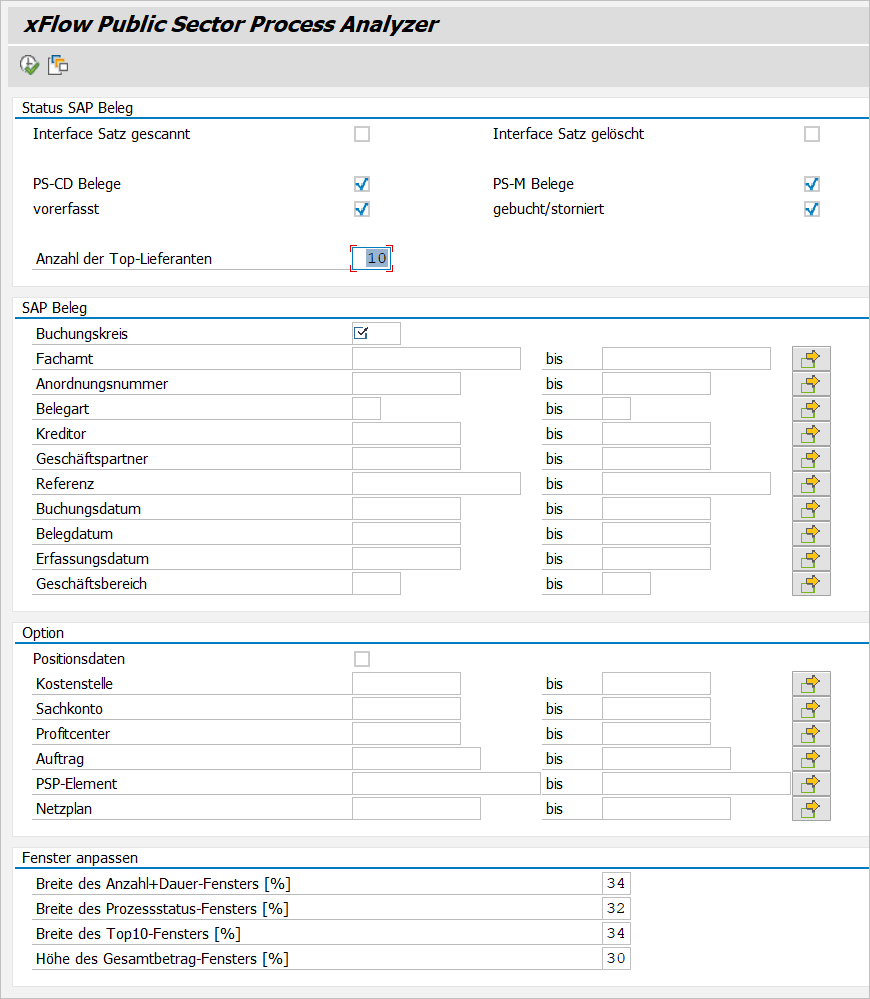
The results dialog is divided into multiple panes:
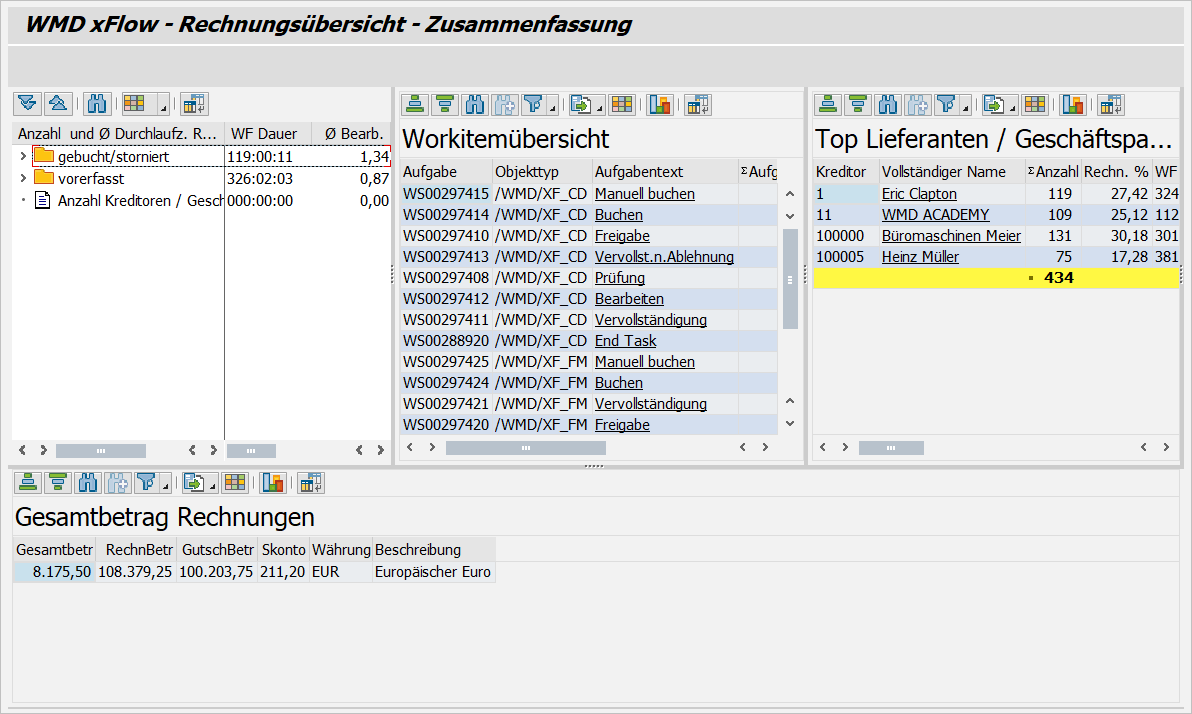
The number and document cycle times of the documents are displayed in the upper left corner.
The upper middle area displays the processing status of documents, broken down according to the current workflow step of the respective document.
An overview of top customers is located in the upper right corner.
In the lower section of the screen, the total amounts are displayed, broken down by currency key.
It is possible to drill down to more detailed information in the different sections.
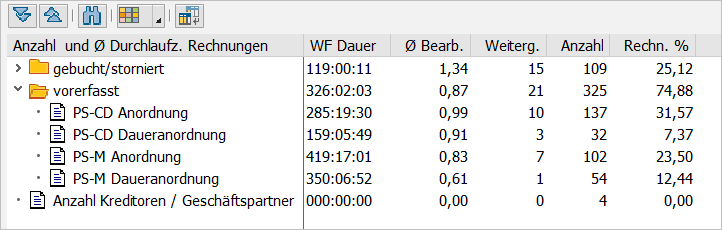
[de] Der Bereich Anzahl und Ø Durchlaufzeiten Rechnungen listet die Anzahl und die Durchlaufzeiten der Belege auf. Zusätzlich können Ø Bearbeiter und die Anzahl der Weiterleitungen angezeigt werden.
![[de] Bereich "Workitemübersicht"](image/uuid-b53ad576-f89d-049d-81ff-c90395c20c7d.png)
[de] Der Bereich Workitemübersicht gibt einen Überblick über die Bearbeitungsschritte, in denen sich die Belege befinden. Wenn in der Spalte Aufgabe der Wert "NO_STATS" auftaucht, liegt das in der Regel daran, dass hier ältere Belege ausgewertet wurden, für die noch keine Einträge in den xFlow-Statistiktabellen existieren. Ein Klick auf die Aufgabenbezeichnung verzweigt in die Rechnungsübersicht und zeigt die Belege, die sich im jeweiligen Bearbeitungsschritt befinden.
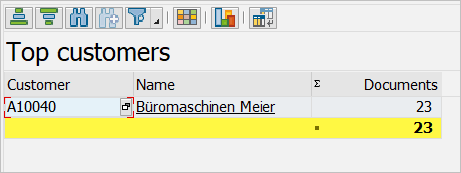
The section Top customers lists customers by the number of the respective sales document.
Click on the customer name to go back to the Sales Document Overview and view the documents of the customer.
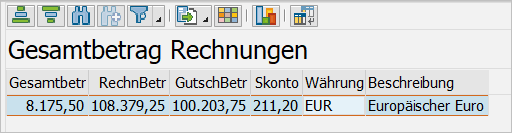
The section Total amount of orders lists the total amounts by currency key. Click on the currency key (outlined in red; here, Euro) to go to the Sales Document Overview and see the documents in the currency key.
General Account-Assignment Templates FP_ACC Now Available in Workflow
In the xFlow Interface, you can use the transaction /WMD/FP_ACC to maintain account-assignment templates across all users.
Now this transaction can also be used in the workflow to use the components xFlow Invoice FI and xFlow Public sector account-assignment templates.
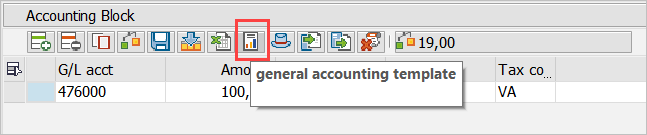
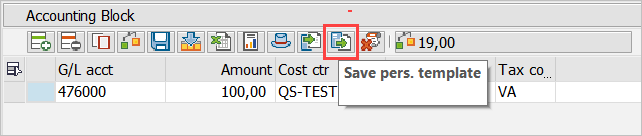
Open the dialog for account assignment with the General account-assignment templates button and make your selection by double-click.
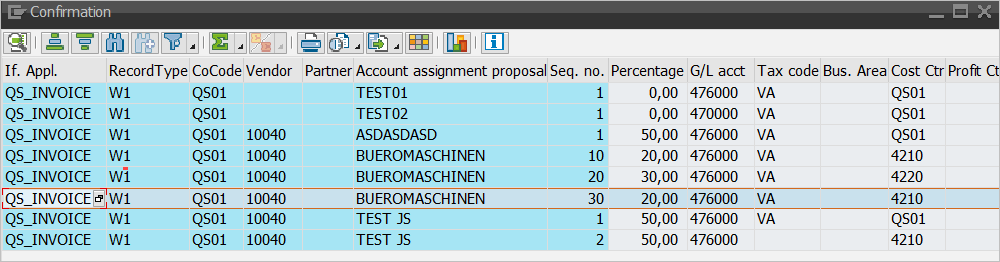
This will replace all lines that already exist in the account-assignment block and distributes the invoice amount from the header data of the document proportionally as specified in the account-assignment template.
There are three different ways in the xFlow workflow to use account-assignment templates:
General account-assignment templates, based on the maintenance with the transaction /WMD/FP_ACC:
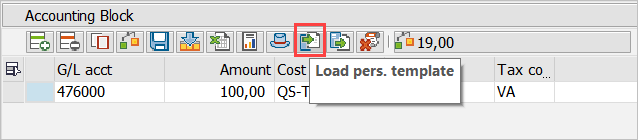
The account-assignment templates already familiar:
Account-assignment templates based on Excel files:
Extension of 4-Eye Principle
The 4-eye principle has been extended to include additional combinations of exclusions.
You can now also check to make sure that a releaser of a document has not performed either Approve Document or Complete Document.
To do so, store the roles AVAG and AAC1 for the user role AREL in the transaction /WMD/XF_AGDET in the tab 4-eye principle.
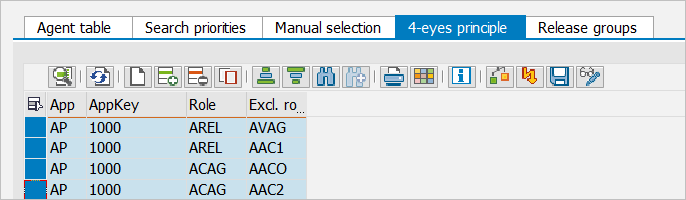
During role resolution, this causes the users performing Approve Document and Complete Document to be removed from the group of those authorized for Payment Release.
Note
The old parameter 4_EYE_APP in the Overrule Exit still functions for the roles AREL, LREL and XIRE, to the extent that there is no new customizing for these roles. The old parameter should, however, not be used any more.
[de] Fehlende Berechtigungsprüfung ergänzt
[de] Beim Aufruf von Transaktionen wurden fehlende Berechtigungsprüfungen im Coding ergänzt.
[de] Dazu wurde die Klasse /WMD/CL_BC_BTC erweitert.
[de] Die Berechtigungsprüfung wird durch die Methoden CALL_TRANSACTION und CALL_TRANSACTION_RC durchgeführt.
[de] Entsprechende Methodenaufrufe wurden anstelle von direkten Aufrufen von Call Transaction eingebaut.
[de] Änderungsbelege im xFlow-Protokoll ausdrucken
[de] Für PS-CD und PS-M sieht das Formular für das xFlow-Protokoll Änderungsbelege zwar vor, sie werden aber nicht mit ausgedruckt, weil der zugrunde liegende Funktionsbaustein /WMD/XF_FORM_READ_CHANGES nur /WMD/XF_AP und /WMD/XF_LO kann.
[de] PS-M Daueranordnungen müssen separat betrachtet werden, da diese ein anderes Änderungsbelegobjekt haben.
[de] Für PS-CD muss zusätzlich noch das Smartform-Formular erweitert werden.
[de] Relevante Änderungsbelegobjekte sind:
[de] Änderungsobjekt | [de] Beschreibung |
|---|---|
[de] BELEGV | [de] PS-M Anordnungen |
[de] BELEG | [de] PS-M Anordnungen |
[de] PSODAUERAO | [de] PS-M Daueranordnungen |
[de] FKK_* | [de] PS-CD Anordnungen |
[de] FKK_REQPOS | -- |
[de] Nach Beendigung des Workflows können nun die Änderungsbelege der SAP-Anordnung an das xFlow-Protokoll angehängt werden. Dazu ist der xFlow-Parameter XF_PROT_DOC_CHANGES zu setzen.
[de] Die Änderungsbelege des xFlow-Kontierungsblocks können nicht an das xFlow-Protokoll angehängt werden.