Assigning a PO Item to Another SAP Purchase Order
Open a document in the validation screen. For more information, see Opening a Document in Validation in the SAP GUI.
Click the Change PO items button
 in the table Purchase Order Items in the section Item Data.
➣ The columns Purch.Doc. and Item can now be used. All other columns will be disabled.
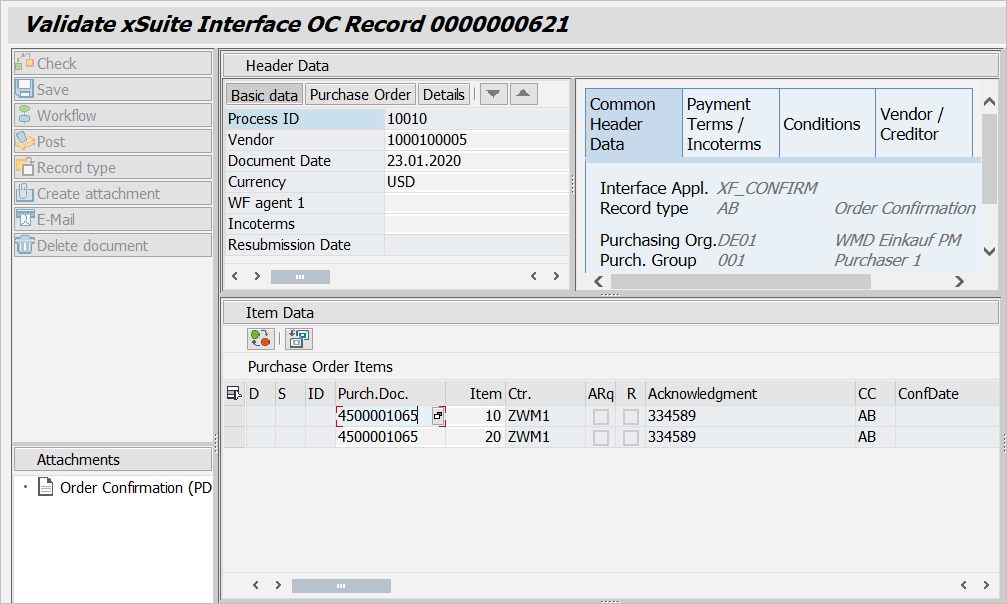
Click a PO item in the column Purch.Doc., and press F4.
➣ F4 help will open.
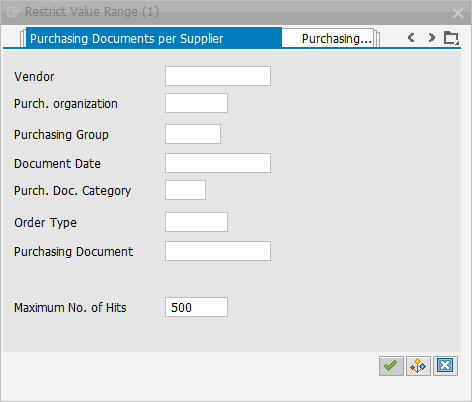
Select the Purchasing Documents per Supplier tab, enter your search criteria, and confirm.
➣ The hit list of values will appear.
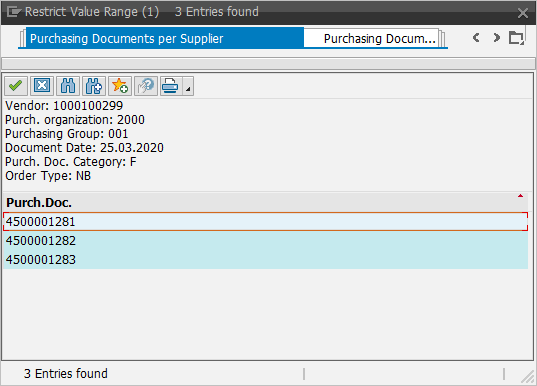
Double-click on a value.
➣ The value will be adopted to the PO item.
Click on the
 Mix in PO data button.
➣ The data of the selected purchasing document will be transferred to the PO item.
Click in the column Item, and press F4.
➣ F4 help will open.
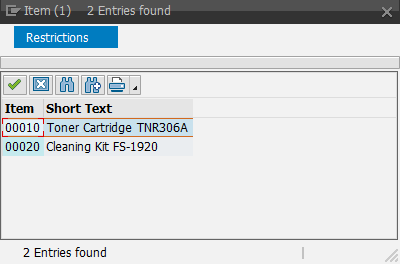
Double-click on a value.
➣ The value will be adopted to the PO item.
Click on the
Mix in PO data button.➤ The data of the selected item number will be transferred to the PO item.