Creating a new website
Open the portal manager. For more information, see Opening the portal manager.
Click on
 Website Manager and then click the Create Site button.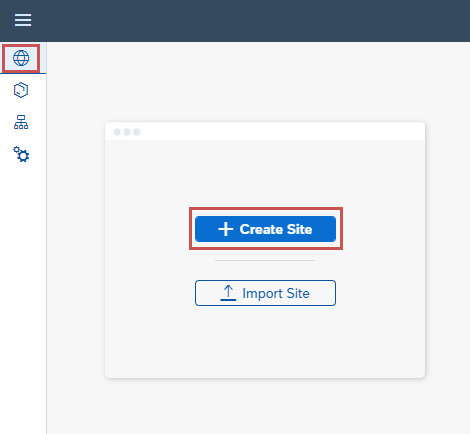
Enter the name of the website in the Site name field and then click Create.
➣ The settings of the newly created website will be displayed.
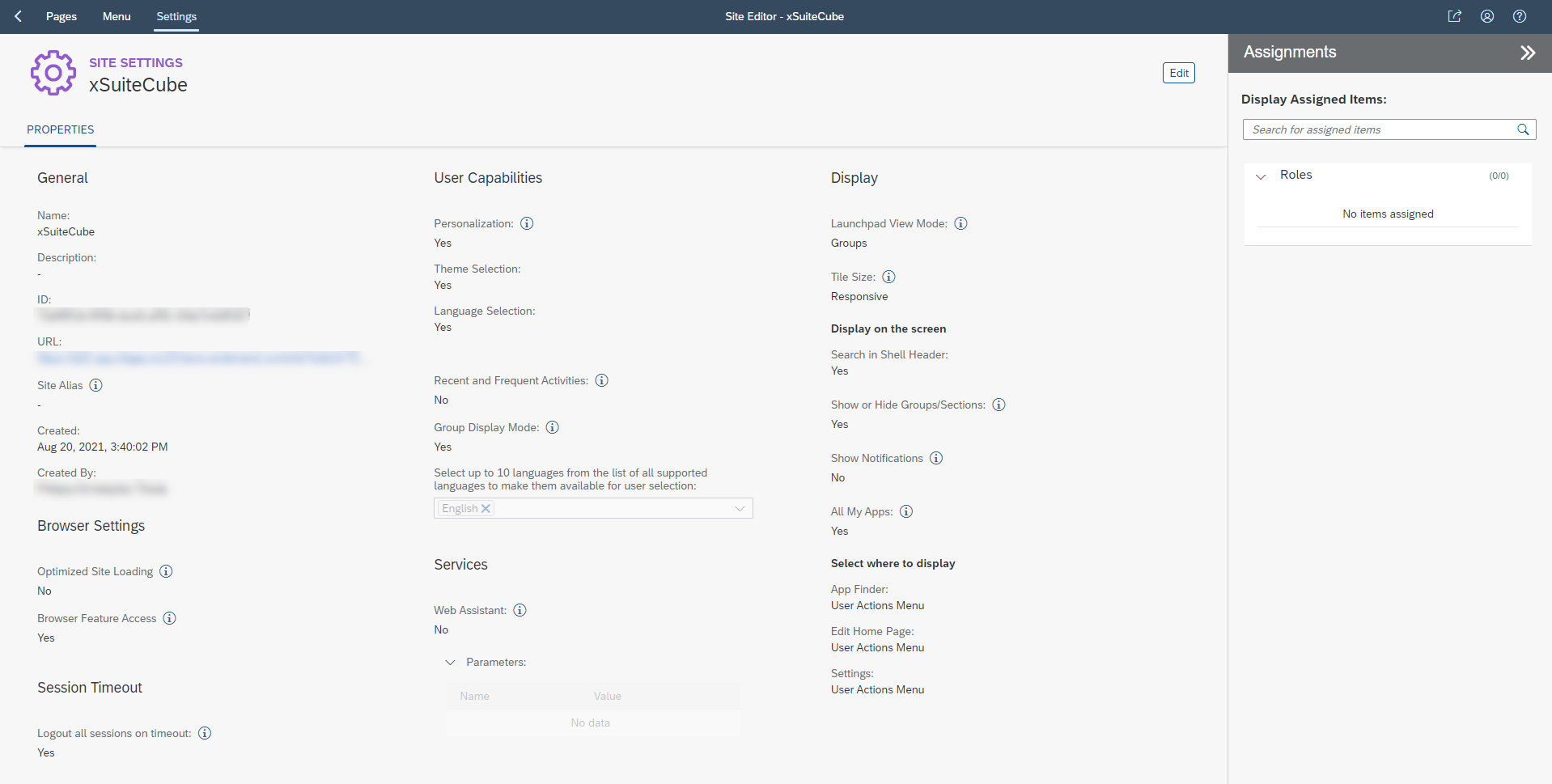
Click Edit.
➣ The settings can now be edited.
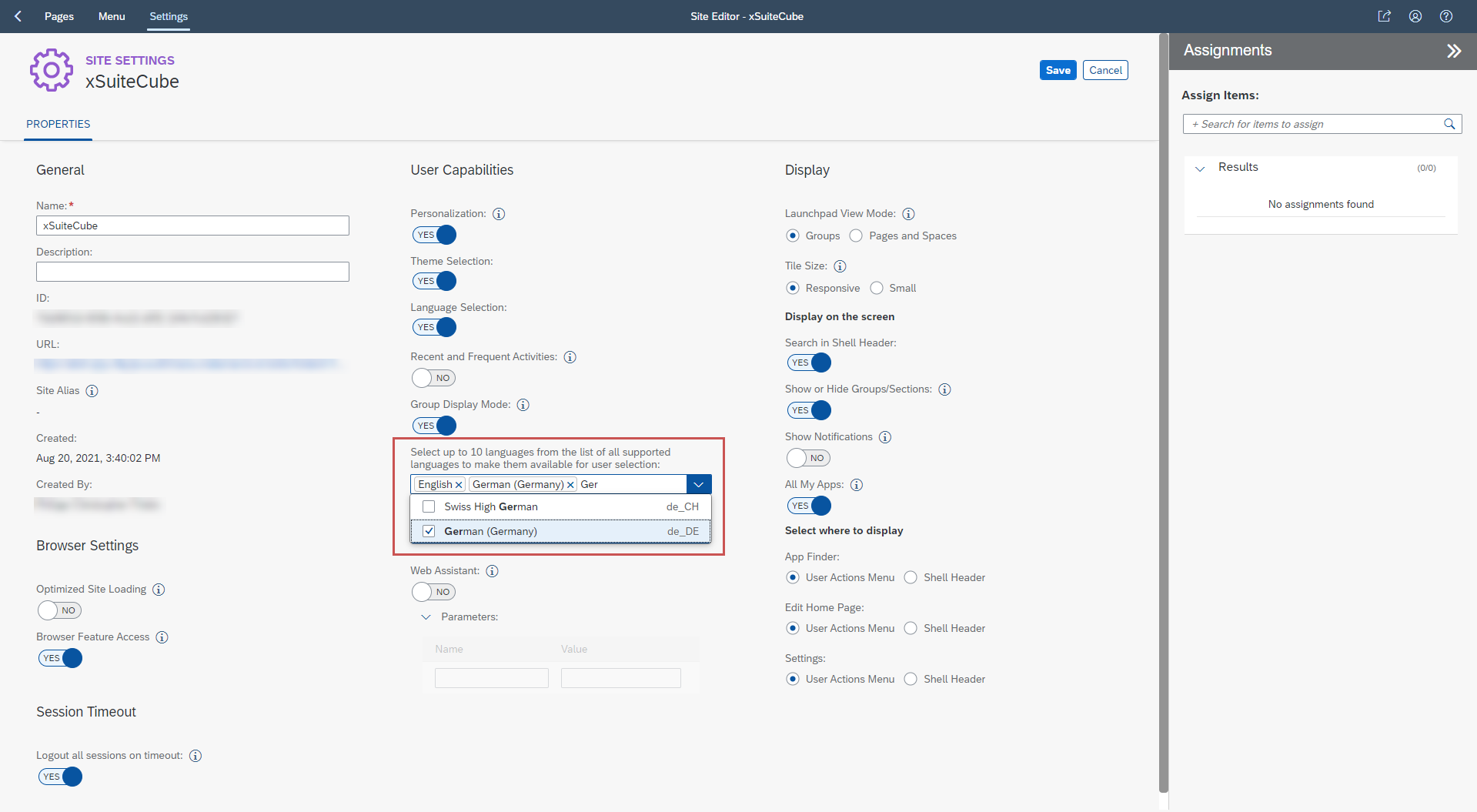
Add more languages to the User Capabilities section.
Notice
If you do not add any other languages, the Fiori Launchpad will always be displayed in English, regardless of the browser language.
In the Assignments area, click in the search field to search for roles whose applications are to be visible in the Launchpad.
Click the
 button next to the name of a role to add this role to the website.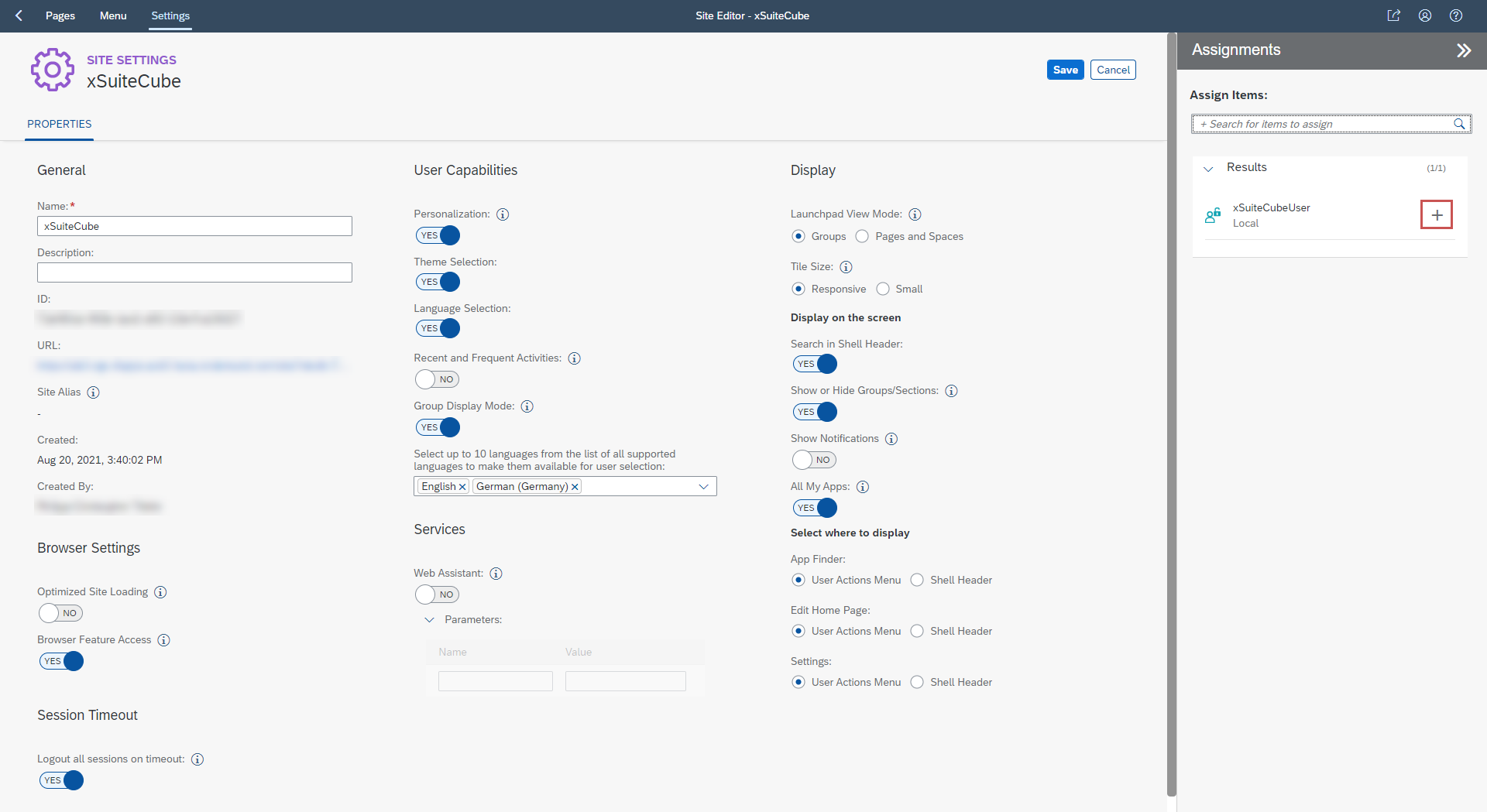
Click Save.
➤ The website has now been created and configured.