Creating a text template for license notifications
Call transaction /WMD/XF_TXTPL.
➣ The xSuite text template editor will open.
In the Language key field, enter the language key
EN.Caution
You must enter the language code
ENfor English. License notifications are always sent in English.If you enter a different language key, the license notification will not be sent.
In the field User role, enter the value
MAIL.Enter the value
XSLICWARNin the Text abbreviation field.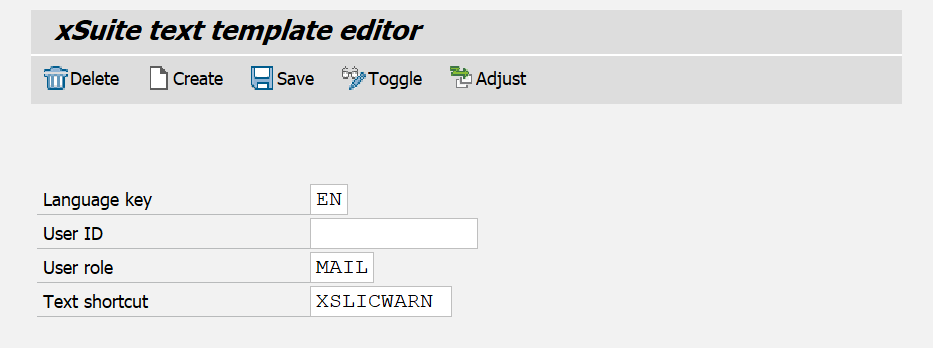
Click Create.
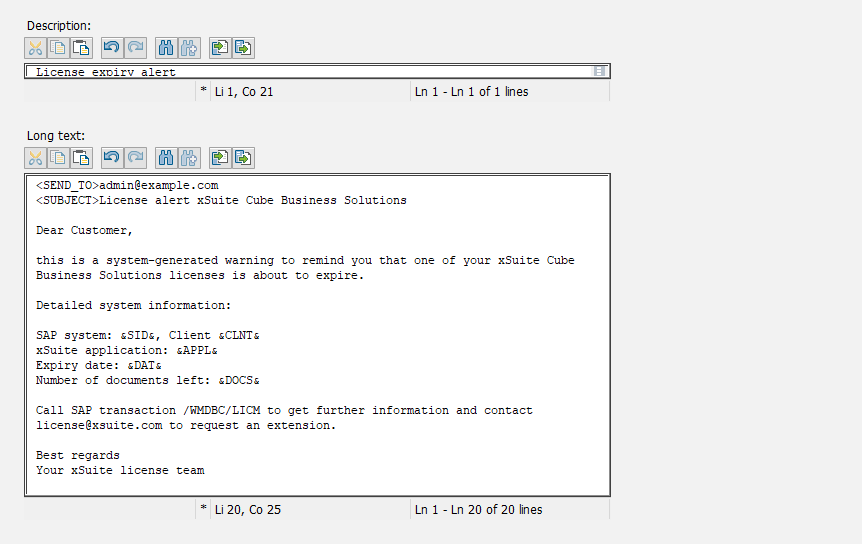
In the field Description, enter a short description for the text template (e.g.,
License expiry alert).In the Long text field, enter the text for the text template. You can use text variables.
For a sample text template for license notifications, go to Sample text template – License notification.
Notice
You can specify the email recipient in the template using the text variable <SEND_TO>. If no recipient is specified, the value of the XF_LICENSE_MAIL parameter will be used (default:
license@xsuite.com).Use the text variable <SUBJECT> as the e-mail subject. For an overview of other available text variables, go to Text variables – License notifications.
Click Save.
➤ The text template has now been created.