[de] Aufruf von Workitems
[de] Benutzer können auf Workitems im SAP GUI, in xSuite Web und in SAP Fiori zugreifen.
[de] Im SAP GUI erfolgt der Aufruf von Workitems im SAP Business Workplace, siehe [de] Workitems im SAP GUI.
[de] In xSuite Web erfolgt der Aufruf von Workitems im xSuite-Webarbeitsplatz, siehe [de] Workitems in xSuite Web.
[de] In SAP Fiori erfolgt der Aufruf von Workitems im xSuite-Eingangskorb, siehe [de] Workitems in SAP Fiori.
[de] Workitems im SAP GUI
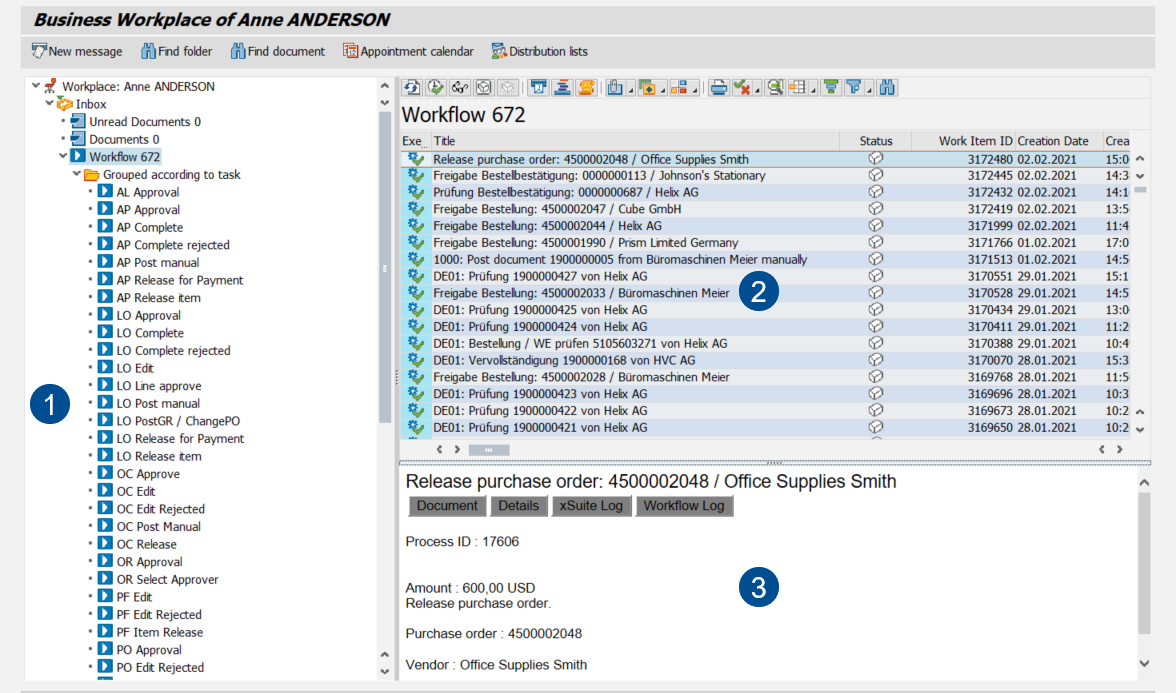
[de] Im SAP GUI werden Workitems im SAP Business Workplace angezeigt (Transaktion SBWP).
[de] Ein Benutzer sieht alle Workitems, die sich in einer Workflowaufgabe befinden, für die er zuständig ist.
[de] Der grundsätzliche Aufbau aller Workitems ist gleich. Abhängig von der Workflowaufgabe, in der sich ein Workitem befindet, stehen unterschiedliche Buttons und Aktionen zur Verfügung.
[de] Zusätzlich kann der Benutzer Vertreter festlegen.
SAP Business Workplace: Main Overview
 |
Area | Information and comments | |
|---|---|---|
1 | Folders | This is where the folders in your SAP Business Workplace are displayed, in hierarchical order. To see work items that relate to the xSuite workflow, go to Inbox → Workflow. |
2 | Work Item List | This is where work items from the selected folder are displayed. Double click on a work item to open it. |
3 | Work item preview | This is where a preview of the selected work item is displayed. The preview can be hidden. |
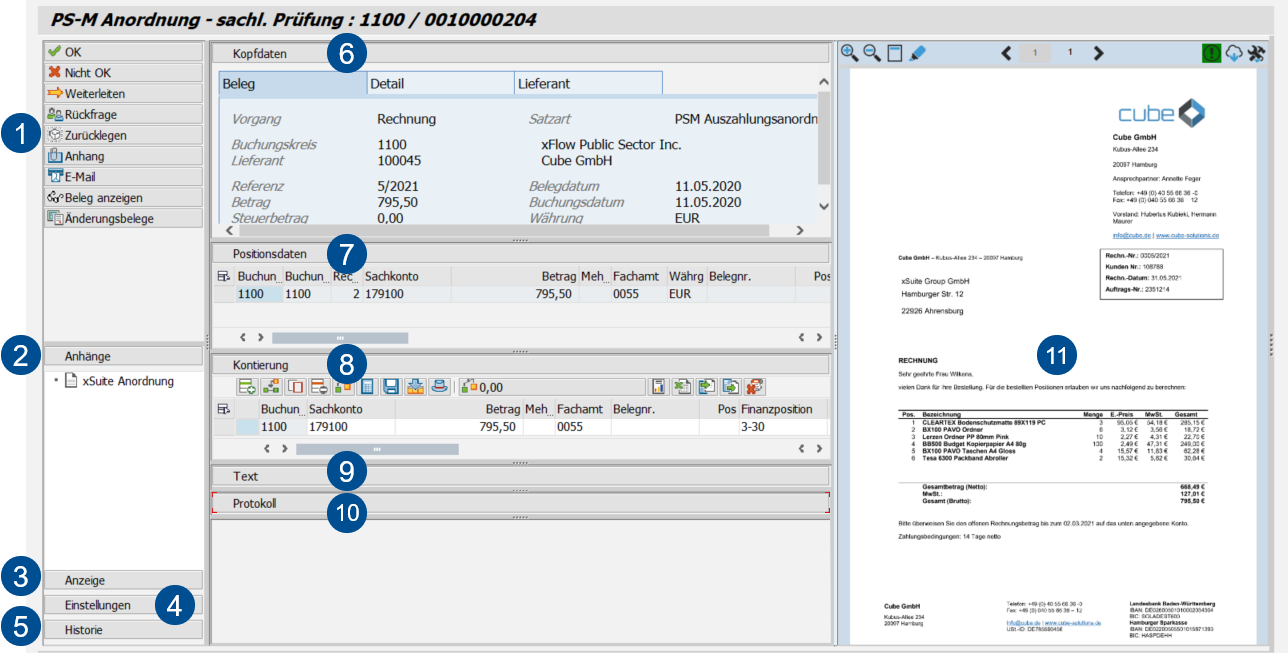
[de] Aufbau – Workitem im SAP GUI
 |
[de] Bereich | [de] Weitere Informationen | |
|---|---|---|
1 | [de] Buttons am Beleg | [de] Abhängig von der Belegart und der Workflowaufgabe, in der sich ein Beleg befindet, stehen unterschiedliche Buttons zur Verfügung. |
2 | [de] Anhänge | |
3 | [de] Anzeige | |
4 | [de] Einstellungen | |
5 | [de] Historie | |
6 | [de] Kopfdaten | [de] In den Kopfdaten werden die zentralen Daten des Belegs angezeigt, z. B. Lieferant und Buchungskreis. |
7 | [de] Positionsdaten | |
8 | [de] Kontierung | |
9 | [de] Text | |
10 | [de] Protokoll | |
11 | [de] Viewer | This is where the image and other attachments to the document are displayed. [de] Das Dokument wird im xSuite Viewer oder im PNG Viewer angezeigt. Die weiteren Anhänge werden in einer einfachen Seitenansicht angezeigt. [de] Informationen zum xSuite Viewer finden Sie unter xSuite Viewer in the SAP GUI. [de] Informationen zum PNG Viewer finden Sie unter The PNG Viewer in the SAP GUI. |
Substitute Maintenance in the SAP GUI
You can set your own substitute for planned times of absence. If you have multiple roles, you can select substitutes by role.
Substitute maintenance can be accessed in the SAP GUI with transaction /WMD/XF_USR_SUB.
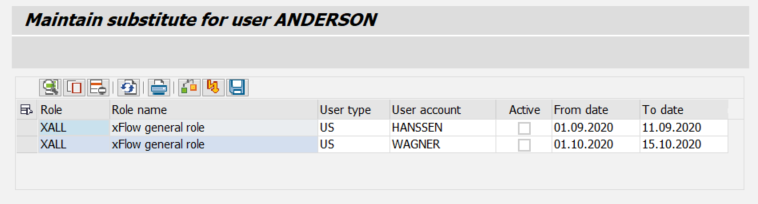 |
During the period for which you are being substituted, both you and your substitute will receive the work items that are assigned to your role. Your substitutes will be able to process your work items during your absence.
If the substitutions you specify for individual users or for user groups conflict with other substitutions, or if the substitutes you specify do not exist, an error message will appear.
Notice
Do not use SAP substitute maintenance. SAP substitute maintenance does not include any xSuite roles, so always maintain substitutes for xSuite roles within xSuite itself.
Column | Description | Editable |
|---|---|---|
Role | Indicates your role. | |
Role name | Indicates the description of a role. | |
User type | Indicates whether the substitute is a user (US) or a user group (GR). | X |
User account | Indicates the name of a substitute. | X |
Active | Activates a substitute assignment. | X |
From Date | Indicates the date on which a substitution period is to start. | X |
To Date | Indicates the date on which a substitution period is to end. | X |
[de] Workitems in SAP Fiori
[de] In SAP Fiori werden Workitems im xSuite-Eingangskorb angezeigt (Startseite → Kachel Eingangskorb).
[de] Ein Benutzer sieht alle Workitems, die sich in einer Workflowaufgabe befinden, für die er zuständig ist.
[de] Der grundsätzliche Aufbau aller Workitems ist gleich. Abhängig von der Workflowaufgabe, in der sich ein Workitem befindet, stehen unterschiedliche Buttons und Aktionen zur Verfügung.
[de] Zusätzlich kann der Benutzer Vertreter festlegen.
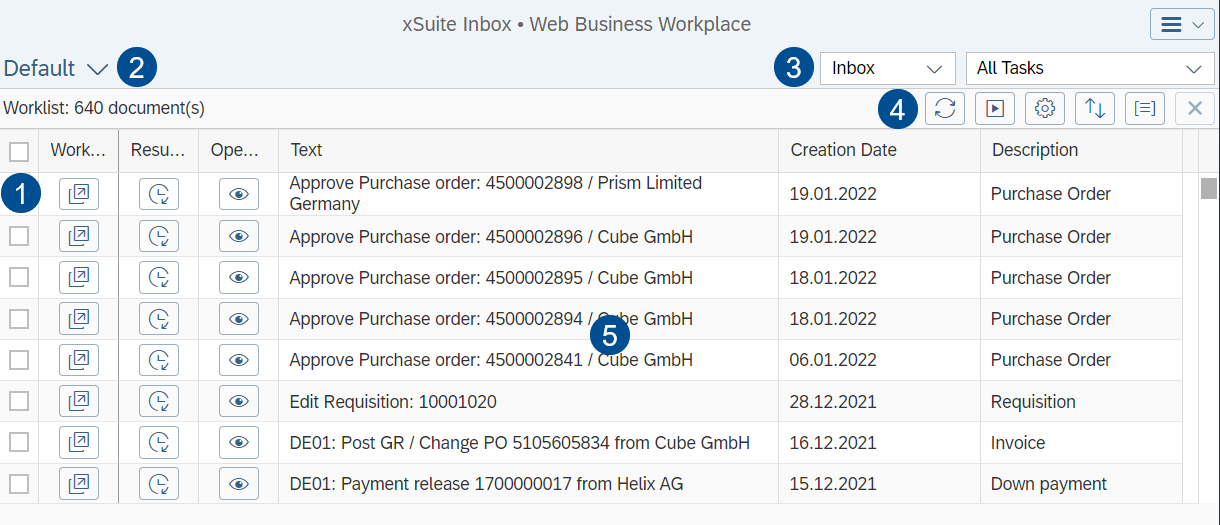
xSuite Inbox: Main Overview
 |
Area | Information and comments | |
|---|---|---|
1 | Button per work item | |
2 | Views | For more information, see Views in SAP Fiori. |
3 | Filter | |
4 | Buttons in the xSuite Inbox | |
5 | Work item list | For information on the columns, see xSuite Inbox: Columns in SAP Fiori. You can change selected columns with the |

xSuite Inbox: Buttons in SAP Fiori
Button | Name | Context | Description | |
|---|---|---|---|---|
| Refresh worklist | xSuite Inbox | Refreshes the xSuite Inbox. Among other things, work items are displayed that have not been added until the xSuite Inbox was opened. | |
| Open selected workitems | xSuite Inbox | Opens the selected work items. This allows multiple work items to be processed quickly in sequence. Note: Use the | |
| Columns | xSuite Inbox | ||
| Delete from history | xSuite Outbox | Deletes the selected work items from the list. The work items themselves are not deleted, they are simply no longer displayed in the list. This button is only available in the Outbox. | |
| Sorting | xSuite Inbox | Opens sorting options You can select one or more columns and specify the type of sorting (ascending/descending) in each case. | |
| Categorization | xSuite Inbox | Opens options for categorizing. You can select a column whose values are to be categorized. This categorization will then be used for sorting as well. | |
| Clear all sorting and categorization | xSuite Inbox | ||
| Settings | xSuite Inbox | ||
| Open Workitem | Work item | Opens a work item. | |
| Resubmit Workitem | Work item | Returns a document to the inbox so that it can be edited at a later point in time. Documents that have been flagged for resubmission will not be displayed in the hit list until the resubmission date. | |
| Workitem Preview | Work item | Opens a preview and displays the image of the work item. You can release or reject work items directly from the work item preview using the Release and Reject buttons if you have the appropriate rights. |


xSuite Inbox: Filters in SAP Fiori
Filter | Description |
|---|---|
Worklist type | Filters the xSuite Inbox according to Inbox, Outbox, or Resubmit. |
Task type | Filters the xSuite Inbox for a workflow task. |
xSuite Inbox: Columns in SAP Fiori
Column | Description |
|---|---|
Creation date | Indicates the date on which the work item was created. |
Description | Shows the company code of a work item. |
Object Key | Indicates the object key of the SAP purchase order. |
Object Type | Shows the xSuite module which houses a given workflow task. |
Obj.type/Obj.ID | Shows the task type of a work item. |
Process ID | Shows the process ID of a document. The process ID is assigned by xSuite. The purpose of a process ID is to identify a document throughout the process of workflow-supported document approval. |
Role | Shows the role assigned to the workflow task in which a work item is located. |
Text | Shows the description of a work item. |
Work Item ID | Shows the ID of the work item. |
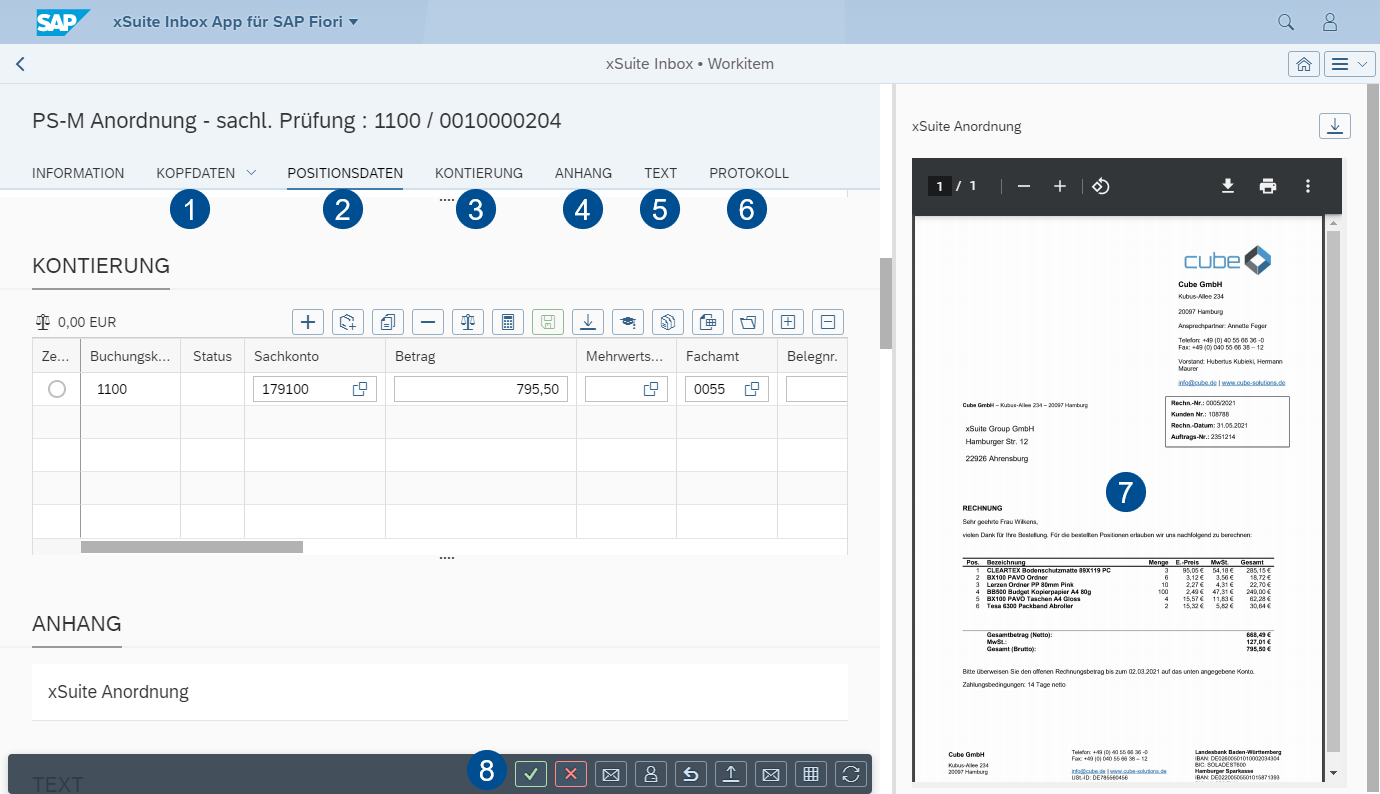
[de] Aufbau – Workitem in SAP Fiori
 |
[de] Bereich | [de] Weitere Informationen | |
|---|---|---|
1 | [de] Kopfdaten | [de] In den Kopfdaten werden die zentralen Daten des Belegs angezeigt, z. B. Lieferant und Buchungskreis. |
2 | [de] Positionsdaten | |
3 | [de] Kontierung | |
4 | [de] Anhang | [de] Der Bearbeiter kann weitere Anhänge per Drag-and-drop hinzufügen. |
5 | [de] Text | |
6 | [de] Protokoll | |
7 | [de] Dokumentanzeige | [de] Hier wird das Dokument des Belegs angezeigt. |
8 | [de] Buttons am Beleg | [de] Abhängig von der Belegart und der Workflowaufgabe, in der sich ein Beleg befindet, stehen unterschiedliche Buttons zur Verfügung. |
Substitute Maintenance in SAP Fiori
You can set your own substitute for planned times of absence. If you have multiple roles, you can select substitutes by role.
Substitute maintenance can be accessed in SAP Fiori via the Substitute Maintenance tile.
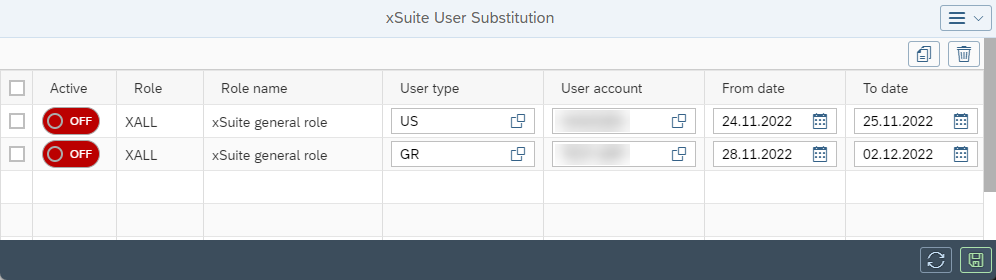 |
During the period for which you are being substituted, both you and your substitute will receive the work items that are assigned to your role. Your substitutes will be able to process your work items during your absence.
Column | Description | Editable |
|---|---|---|
Active | Activates a substitute assignment. | X |
Role | Indicates your role. | |
Role name | Indicates the description of a role. | |
User type | Indicates whether the substitute is a user (US) or a user group (GR). | X |
User account | Indicates the name of a substitute. | X |
From date | Indicates the date on which a substitution period is to start. | X |
To date | Indicates the date on which a substitution period is to end. | X |
Button | Name | Description | |
|---|---|---|---|
| Copy Substitution Entry | Copies the line selected. | |
 | Delete Substitution Entry | Deletes the line selected. | |
| Refresh | Updates the data in the table. | |
| Save | Saves all changes. Caution: If you exit substitute maintenance without saving, any changes you have made will be lost. |


[de] Workitems in xSuite Web
[de] Mit xSuite Web kann der Bearbeiter Workitems browserbasiert bearbeiten. Der Bearbeiter benötigt keinen Zugriff auf SAP und somit auch keinen SAP-Benutzerstamm.
[de] In xSuite Web werden Workitems im xSuite-Webarbeitsplatz angezeigt.
[de] Ein Benutzer sieht alle Workitems, die sich in einer Workflowaufgabe befinden, für die er zuständig ist.
[de] Der grundsätzliche Aufbau aller Workitems ist gleich. Abhängig von der Workflowaufgabe, in der sich ein Workitem befindet, stehen unterschiedliche Buttons und Aktionen zur Verfügung.
[de] Zusätzlich kann der Benutzer Vertreter festlegen.
Opening Your xSuite Web Business Workplace
○ The Web browser is HTML5-compatible.
For further information on all system requirements, see the publication xSuite Cube System Requirements.
Open your browser.
Enter the URL for xSuite Web.
➣ The login screen will open.
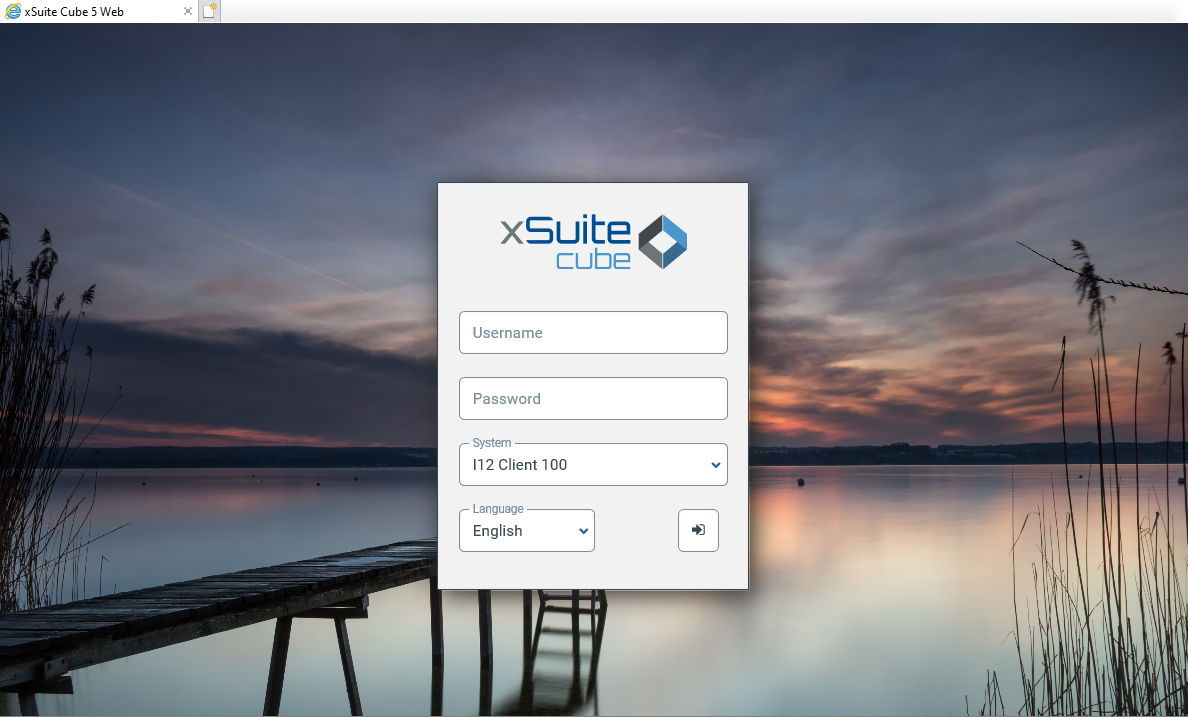
Enter your user name and password.
Select a system and the language.
Both settings will apply throughout the session.
Click on the
 Login button.
➤ The xSuite Web Business Workplace will open.
How to Change Your Password in xSuite Web
Open your browser.
Enter the URL for xSuite Web.
➣ The login screen will open.
Enter your user name.
Do one of the following:
If you have forgotten your password, leave the field Password blank and press Enter.
If you wish to change your initial password, enter it and press Enter.
➣ The New Password button will appear.
Notice
The New password button will also appear if you have entered an incorrect user name or password and pressed Enter.
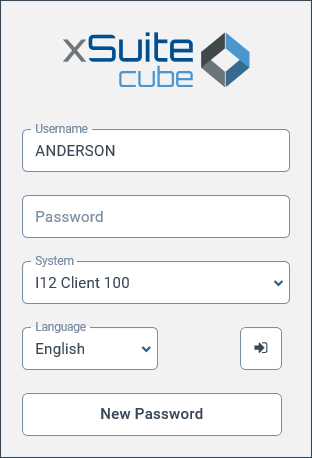
Click the New password button.
➣ The dialog screen New Password will open.
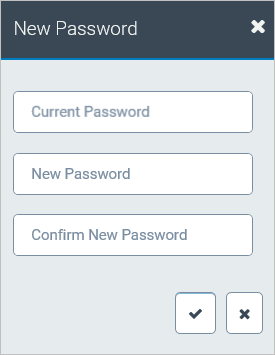
Enter your old password and your new password, and confirm.
➤ Your new password has now been set.
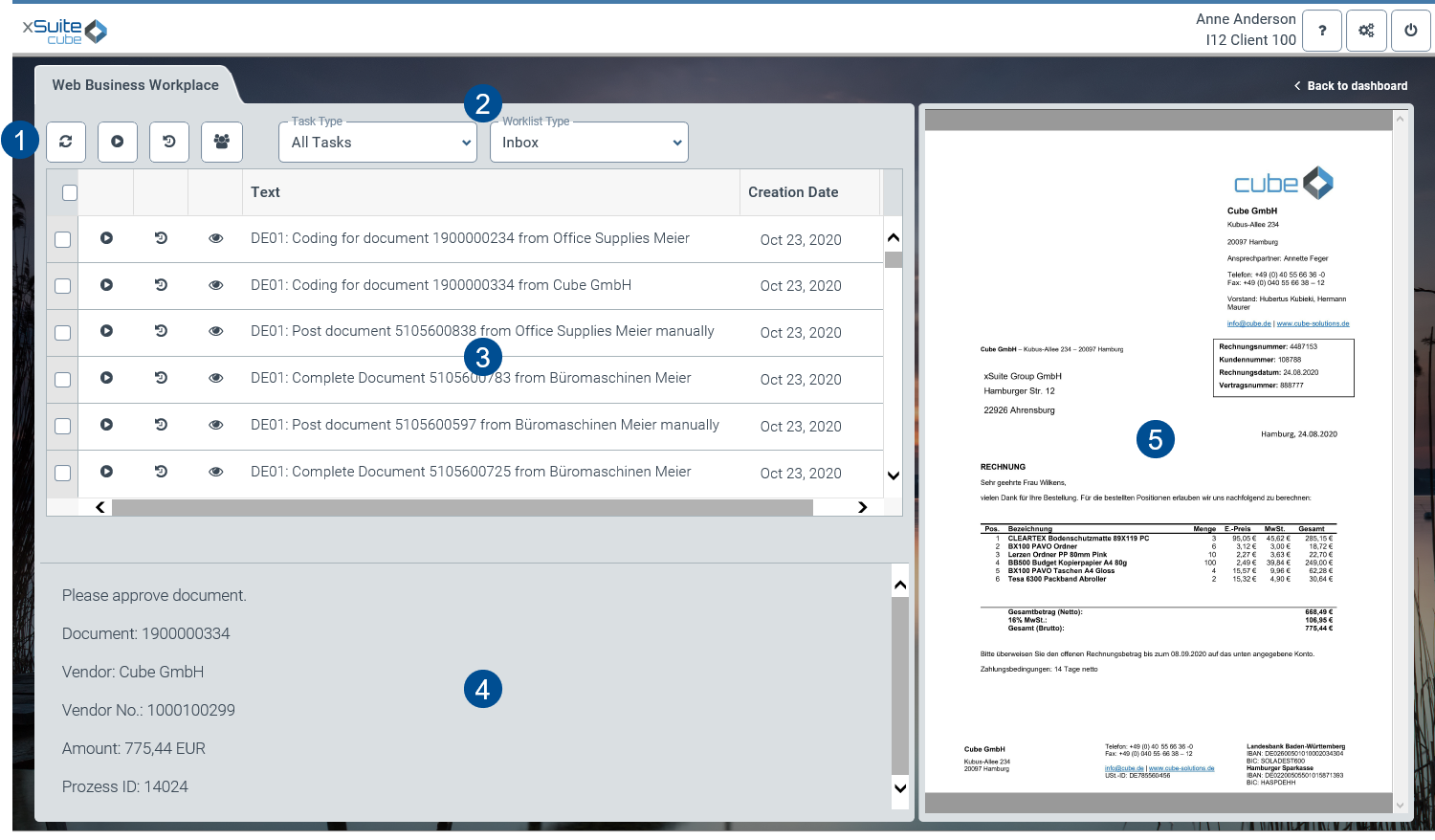
xSuite Web Business Workplace: Main Overview
 |
Area | Information and comments | |
|---|---|---|
1 | Buttons | |
2 | Filter | |
3 | Work item list | For information on the columns, see xSuite Web Business Workplace: Columns. You can change selected columns with the |
4 | Work item preview | Here, the most important data of the flagged work item is displayed in a preview. With the appropriate authorization, you can release work items in the release step by clicking the Release and Reject buttons directly from the work item preview. Note: The buttons are only visible if the corresponding attribute is activated in xSuite User Administration. |
5 | Image display | This is where the image of a work item is displayed. |

xSuite Web Business Workplace: Buttons
Button | Name | Context | Description | |
|---|---|---|---|---|
| Refresh Worklist | xSuite Web Business Workplace | Refreshes the Web Business Workplace. Now the information displayed will be supplemented with work items and other changes added after the Web Business Workplace was opened. | |
| Open selected Workitems | xSuite Web Business Workplace | Opens the selected work items. This allows multiple work items to be processed quickly in sequence. Note: You can select several work items with Ctrl or by clicking the corresponding checkboxes. If you set a check mark in the table header of the selection column, all work items will be selected. | |
| Resubmit selected workitems | xSuite Web Business Workplace | Returns one or more documents to the inbox for later editing. Documents that have been flagged for resubmission will not be displayed in the hit list until the resubmission date. | |
| Substitute maintenance | xSuite Web Business Workplace | Opens substitute maintenance. For information on substitute maintenance, see Substitute Maintenance in xSuite Web. | |
| Delete from history | xSuite Web Business Workplace | Deletes the selected work items from the list. The work items themselves are not deleted, they are simply no longer displayed in the list. This button is only available under Worklist Type → Outbox. | |
 | Open Workitem | Work item | Opens a work item. | |
 | Forward Workitem | Work item | Forwards the work item to the selected user for editing. | |
 | Workitem Preview | Work item | Opens a preview and displays the image of the work item. |


xSuite Web Business Workplace: Filters
Filter | Description |
|---|---|
Task type | Filters the xSuite Web Business Workplace for a workflow task. |
Worklist type | Filters the xSuite Web Business Workplace according to Inbox, Outbox, or Resubmit. |
xSuite Web Business Workplace: Columns
Column | Description |
|---|---|
Creation date | Indicates the date on which the work item was created. |
Description | Shows data specific to a customer. |
Object Key | Indicates the object key of the SAP purchase order. |
Object Type | Shows the xSuite module which houses a given workflow task. |
Obj.type/Obj.ID | Shows the task type of a work item. |
Process ID | Shows the process ID of a document. The process ID is assigned by xSuite. The purpose of a process ID is to identify a document throughout the process of workflow-supported document approval. |
Role | Shows the role assigned to the workflow task in which a work item is located. |
Text | Shows the description of a work item. |
Work Item ID | Shows the ID of the work item. |
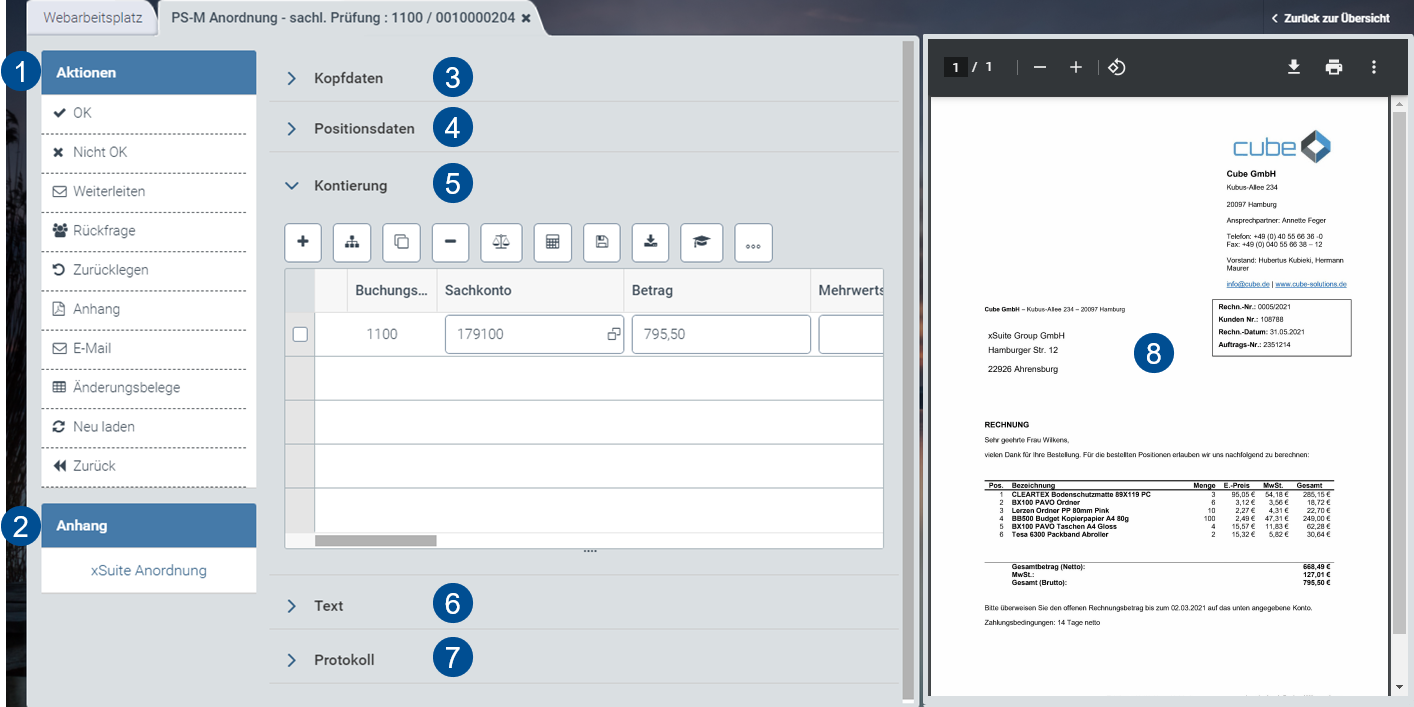
[de] Aufbau – Workitem in xSuite Web
 |
[de] Bereich | [de] Weitere Informationen | |
|---|---|---|
1 | [de] Aktionen | [de] Abhängig von der Belegart und der Workflowaufgabe, in der sich ein Beleg befindet, stehen unterschiedliche Buttons zur Verfügung. |
2 | [de] Anhang | [de] Der Bearbeiter kann weitere Anhänge per Drag-and-drop hinzufügen. |
3 | [de] Kopfdaten | [de] In den Kopfdaten werden die zentralen Daten des Belegs angezeigt, z. B. Lieferant und Buchungskreis. |
4 | [de] Positionsdaten | |
5 | [de] Kontierung | |
6 | [de] Text | |
7 | [de] Protokoll | |
8 | [de] Dokumentanzeige | [de] Hier wird das Dokument des Belegs angezeigt. |
Substitute Maintenance in xSuite Web
You can set your own substitute for planned times of absence. If you have multiple roles, you can select substitutes by role.
Substitute maintenance is opened in the xSuite Web Business Workplace with the button  Substitute maintenance.
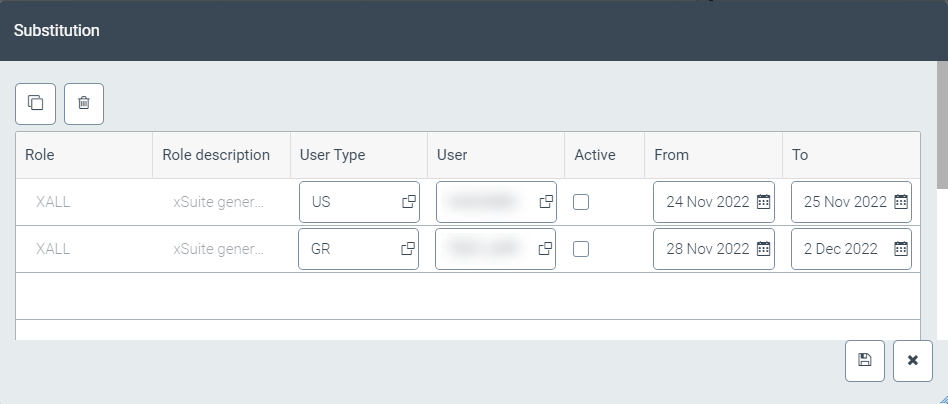 |
During the period for which you are being substituted, both you and your substitute will receive the work items that are assigned to your role. Your substitutes will be able to process your work items during your absence.
Column | Description | Editable |
|---|---|---|
Role | Indicates your role. | |
Role description | Indicates the description of a role. | |
User type | Indicates whether the substitute is a user (US) or a user group (GR). | X |
User | Indicates the name of a substitute. The substitute may be a user or a user group. | X |
Active | Activates a substitute assignment. | X |
From | Indicates the date on which a substitution period is to start. | X |
To | Indicates the date on which a substitution period is to end. | X |