SAP Certificates (V2)
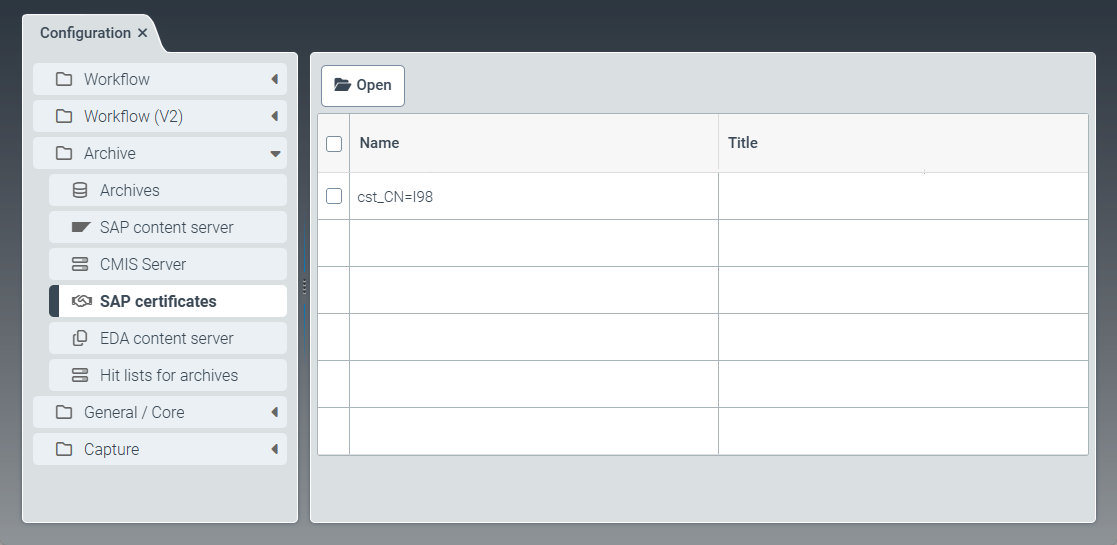 |
The SAP certificates menu item displays all SAP certificates that have been transferred by SAP.
Here you can activate or delete SAP certificates. In xSuite Helix, you can only use SAP certificates that are activated.
The SAP system uses the private part of the key to sign the parameters of a request. The archive can now use the public certificate to check whether the caller is known and authorized.
Creating a certificate in SAP (V2)
Execute the transaction OAC0.
➣ The view Display Content Repositories: Overview will open.
Create a new content repository or select an existing content repository.

Click the button
 Send certificate to send the SAP certificate to the archive.
Click
 Save.
Save.Execute the transaction STRUST.
➣ The Trust Manager will open.
Double-click on the host name in the entry SSL client (Standard).
Click the button
 Import certificate and import the SSL certificate from the file in binary format.
Notice
The SSL server certificate must be issued by a CA (Certificate Authority) that the SAP system also trusts.
Click the button
 Add to Certificate List.
Click
Save.
Activating an SAP certificate (V2)
Select the menu item SAP certificates, then open an SAP certificate by clicking on the corresponding table row.
➣ The SAPCertificate: {Certificate Name} tab will open.
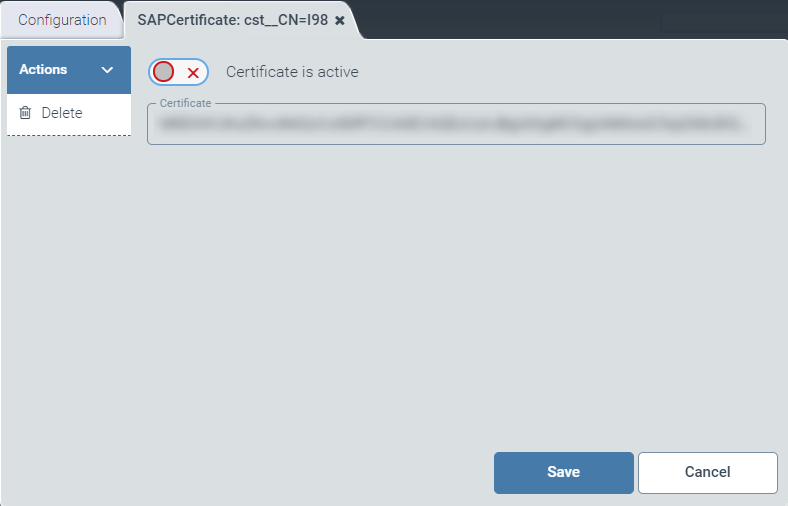
Activate the SAP certificate using the Certificate is active toggle button.
Click Save.
➤ The SAP certificate is now activated and can be used.