Lookups (V1)
 |
Lookups allow you to change the view of the data and the data source in the client.
You can edit lookup values for all existing data sources in the Lookups tab. For more information, see Editing a lookup (V1).
You can also create new lookups. For more information, see Creating a lookup (V1).
Creating a lookup (V1)
From the configuration menu, open the Lookup window and click New.
➣ The Lookup: New lookup window will open.
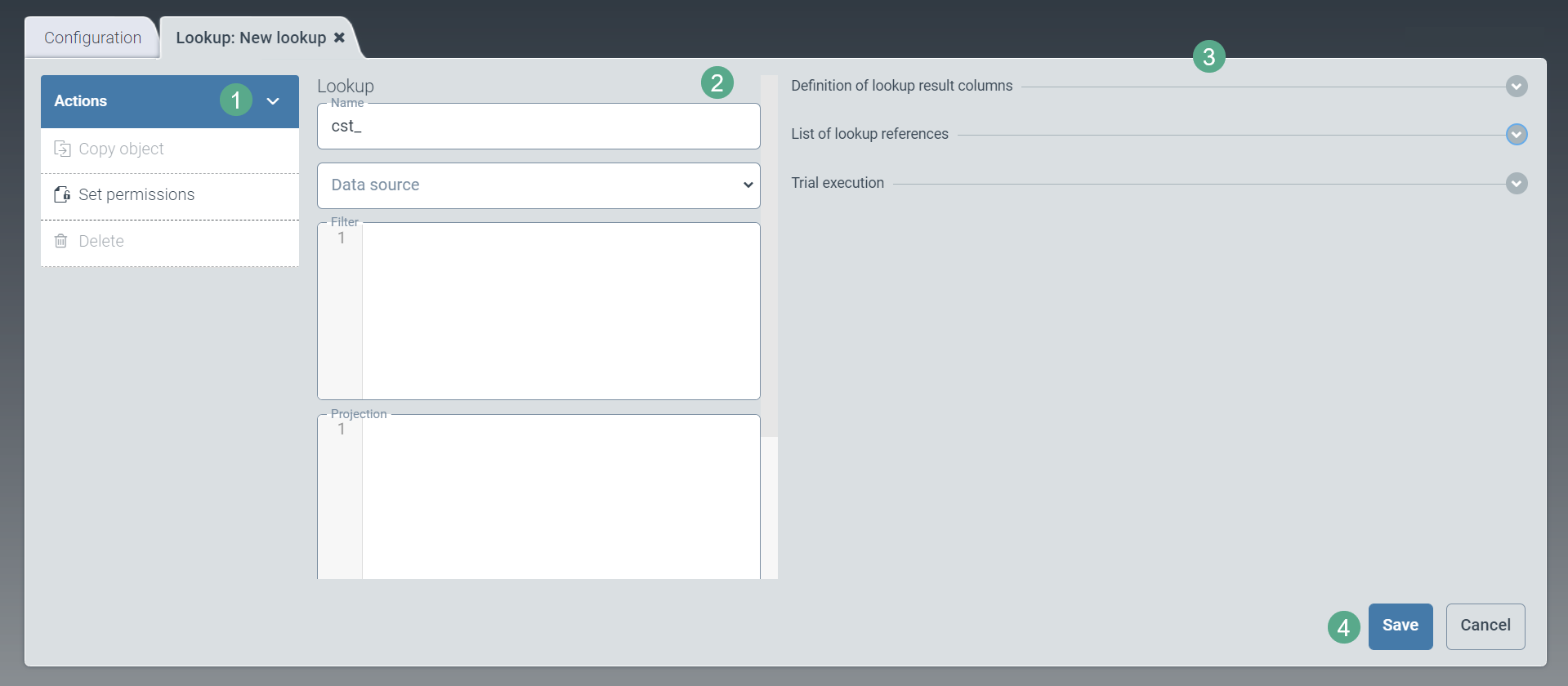
In the middle pane (2), make your specifications:
Field
Action
Name
Enter the technical name of the lookup.
Notice
The technical name comes prepended with cst_. This prefix cannot be deleted.
Data source
Enter the technical name of the associated data source.
You can select the data source from the drop-down list.
Filter
This refers to the query filter in the MongoDB filter language. The query filters can be extended with handlebar expressions to replace elements or add conditions to the query.
Projection
The projection reduces results to the values of certain columns.
Default sorting
According to MongoDB syntax, the sort direction in the MongoDB expression must be marked with
1for ascending order and-1for descending order.The syntax is therefore:
{"data.COLUMN": 1 / -1}.For example: If search results are to be sorted in ascending order based on the entries in the CompanyCode column, the correct input is:
{"data.CompanyCode": 1}Key property
Here you can select or enter the column of the data source that contains the key value for the record.
Translation property
Here you can select or enter the data-source column that contains the localization value for the record. The column must have the value
LOC.Valuein the underlying data source. The translation element is used to display language-dependent data in the client.Open the panels in the accordion on the right (3) and make your specifications:
Field
Action
Definition of lookup result columns
Define which columns to display in the F4 help.
To do so, enter values in the following columns:
Sequence
Column name
Column width
Localization key
Trial execution
If you click on the Try button, you can open the Lookup result dialog box with a preview of output values.
The results of the test execution show what results are found during the execution.
Click Save to confirm the data you have entered and selected, or click Cancel (4) to discard changes.
Notice
After editing and saving, the options Copy object and Delete will also appear in the action menu (1).
You can create a copy of the lookups currently open by using the option Copy object. The copy will be identified with the suffix _Copy postpended to the name of the lookup.
To delete a lookup you have saved, click Delete.
Editing a lookup (V1)
Select a lookup in the Lookup tab by clicking on the respective table row.
➣ The Lookup: {Name of the lookup} tab will open.

Notice
You can overwrite standard lookups that are marked with the sys_ prefix.
If you do not wish to overwrite the standard lookups, proceed as follows:
Click on the button Create custom-version (1) to create a custom version.
Save the custom version.
Close the window and open it again.
In the middle pane (2), make your specifications:
Field
Action
Name
Enter the technical name of the lookup.
Notice
The technical name comes prepended with cst_. This prefix cannot be deleted.
Data source
Enter the technical name of the associated data source.
You can select the data source from the drop-down list.
Filter
This refers to the query filter in the MongoDB filter language. The query filters can be extended with handlebar expressions to replace elements or add conditions to the query.
Projection
The projection reduces results to the values of certain columns.
Default sorting
According to MongoDB syntax, the sort direction in the MongoDB expression must be marked with
1for ascending order and-1for descending order.The syntax is therefore:
{"data.COLUMN": 1 / -1}.For example: If search results are to be sorted in ascending order based on the entries in the CompanyCode column, the correct input is:
{"data.CompanyCode": 1}Key property
Here you can select or enter the column of the data source that contains the key value for the record.
Translation property
Here you can select or enter the data-source column that contains the localization value for the record. The column must have the value
LOC.Valuein the underlying data source. The translation element is used to display language-dependent data in the client.In the accordion on the right (3), open the panels detailed below and make your specifications:
Field
Instructions
Definition of lookup results in columns
Define which columns are displayed in the F4 help.
To do so, enter values in the following columns:
Sequence
Column name
Col. width
Localization key
Trial execution
If you click on the Try button, you can open the Lookup result dialog box with a preview of output values.
The results of the test execution show what results are found during the execution.
Click Save to confirm the data you have entered, or click Cancel to discard changes.
Notice
To create a copy of the lookup version currently open, click Copy object. The copy will be identified with the suffix _Copy postpended to the name of the lookup.
To delete a lookup that you have saved, click Delete.