UI elements in the "Tenants" screen
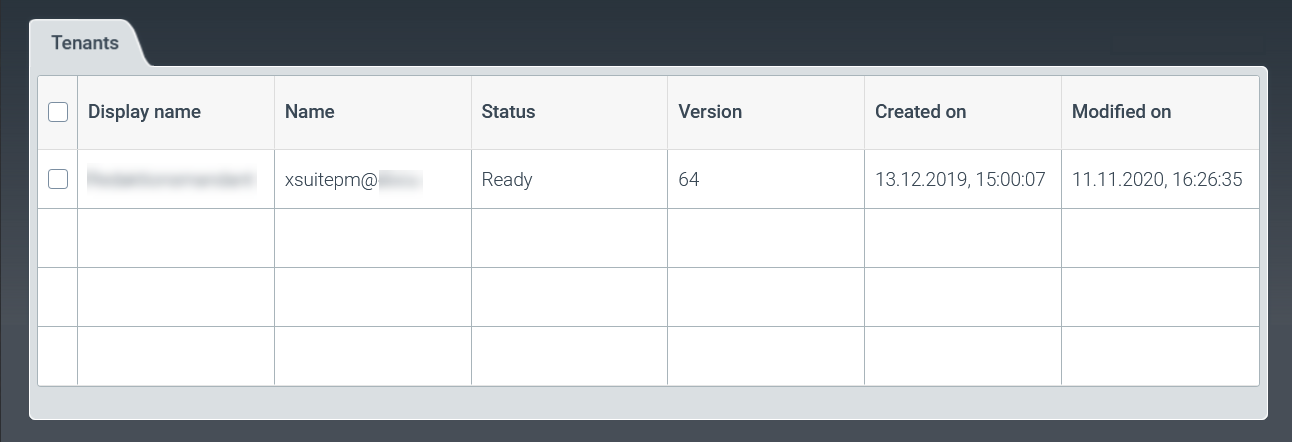
The Tenants tab contains all the important information about the tenant. For more information on tenants, see Overview of the columns in the "Tenants" screen.
Click on a tenant line to open the associated parameters and services.
For more information on parameters, see Overview of parameters.
For more information on services, see Services for the tenant.
Overview of the columns in the "Tenants" screen

Column | Description |
|---|---|
Display name | Shows the name of a tenant. |
Name | Shows the technical name of a tenant. The technical name of a tenant has the following structure: [customer key]@[tenant key] |
Status | Shows the current status of a tenant, e.g. Ready. |
Version | Shows the version number of a tenant. |
Created on | Shows the time and date when a tenant was created. |
Modified on | Shows the date and time when the last change was made to a tenant. |
Overview of parameters
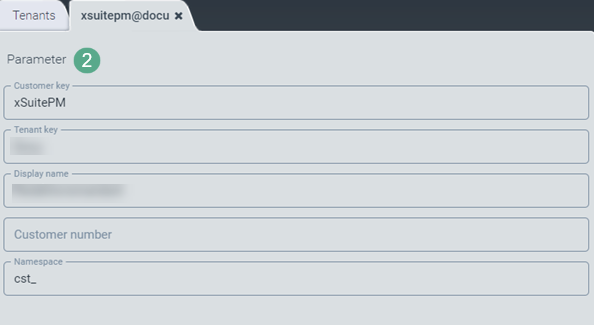
Single-click on a tenant line  in the Tenants tab to open the overview of parameters
  .
.

Field | Description |
|---|---|
Customer key | Shows the customer key of the selected tenant. |
Tenant key | Shows the tenant key of the selected tenant. |
Display name | Shows the name of the selected tenant. |
Customer number | Shows your customer number. |
Namespace | Shows the namespace in which the selected tenant can work. |
Note
The parameter view is for informational purposes only and you cannot change the values in the fields.
Specify the customer and tenant key for support cases.
Services for the tenant
Click on a tenant line in the Tenants screen to open the Services screen .

Column | Description |
|---|---|
Service name | Shows the name of the service that is assigned to the tenant. |
Action | Shows the action pending for the service. |
Status | Shows the status of the service. |
Current version | Shows the current version of the service. |