Companies
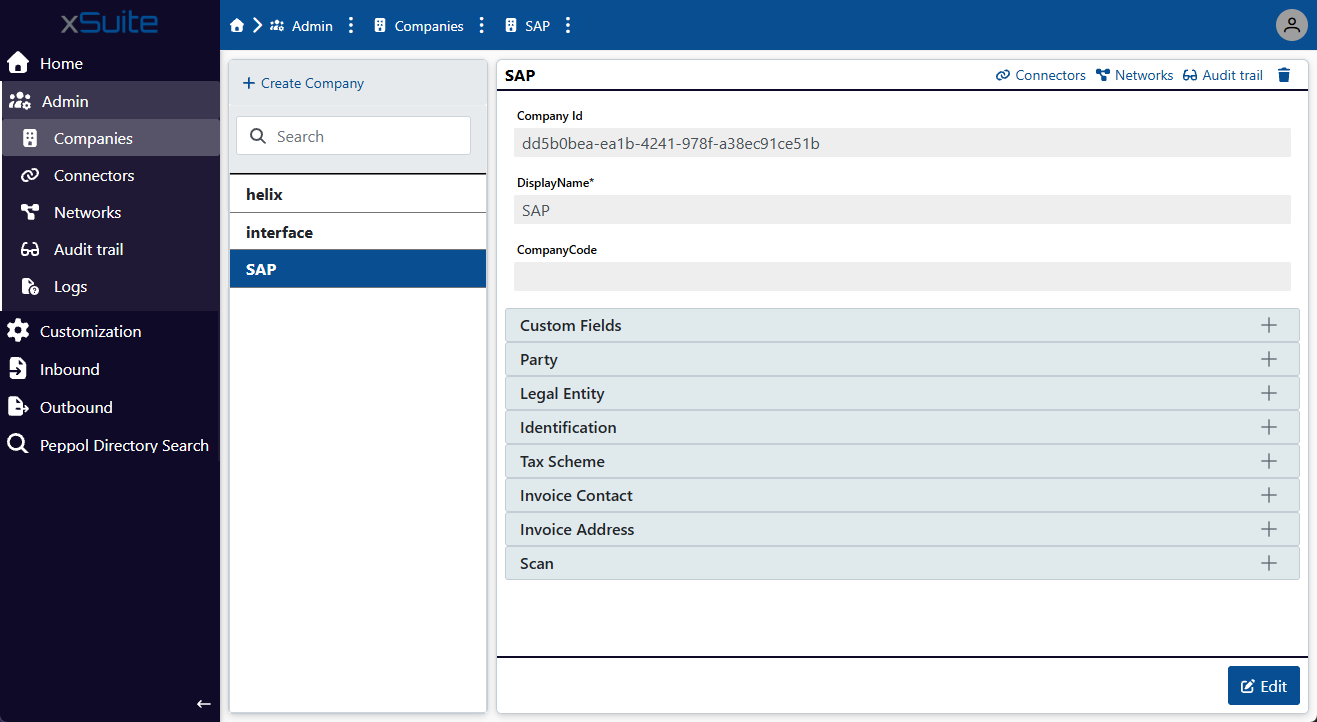 |
Under the Companies menu item, you can add new companies, edit existing company data, and delete companies.
Each company represents a tax entity. By adding companies, you can map your company structure within an xSuite eDNA tenant.
For each company, you can add one or more connectors. The data and connectors for each company are stored separately in the system, meaning you can edit and delete data for one company independently of the data for other companies.
Adding a company
To create a new company in the xSuite eDNA client, you only need to specify a name for the company. All other information, such as a company code or invoice address, is optional.
In the Admin menu item, click on Companies → Create Company.
➣ The company is added to the list of companies and the company's data is displayed.
Click Edit.
➣ The data is editable.
Notice
The company automatically receives an ID. The ID will be displayed in the Company Id field and is not editable.
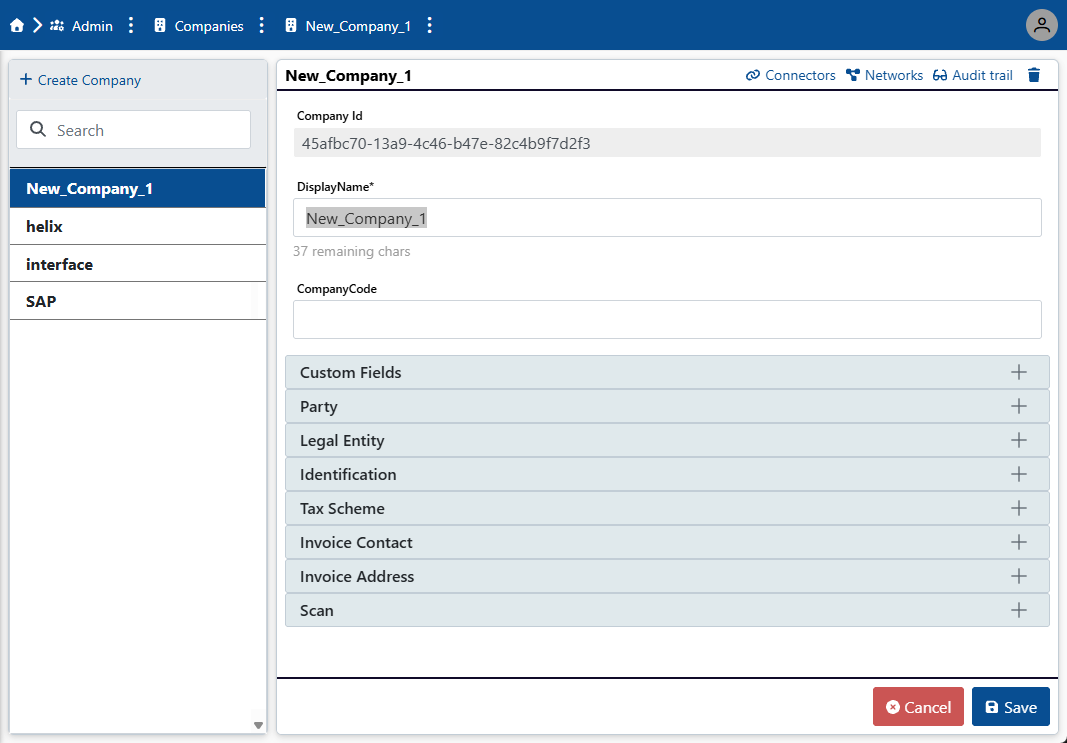
In the DisplayName field, enter a display name for the company.
If necessary, enter a company code in the CompanyCode field.
When you enter a company code, the CompanyCode field is automatically populated with the specified company code during data transfer to xSuite Helix. In this case, the company code is not determined via data extraction.
If necesaary add additional sender information in the following sections:
Section
Description
Custom Fields
In this section, you can add custom fields.
Party
In this section, you can enter basic sender information, such as the endpoint ID and schema ID. These IDs are used by Peppol.
Peppol uses the schema ID to determine which standard is used to identify the company. You can find an overview of the available schema IDs at https://docs.peppol.eu/edelivery/codelists/v9.5/Peppol%20Code%20Lists%20-%20Document%20types%20v9.5.html.
Legal Entity
In this section, you can enter data relating to the legal entity (i.e., the company), such as the schema ID. This ID is used by Peppol.
Identification
In this section, you can enter identification data, such as the identification ID and the schema ID. These IDs are used by Peppol.
Tax Scheme
In this section, you can enter tax data, such as the tax scheme ID. This ID is used by Peppol.
Invoice Contact
In this section, you can enter contact details, such as an email address.
Invoice Address
In this section, you can enter your billing address details.
Scan
In this area, you can enter scan data, such as the scan scenario. This data is transferred to the xSuite Helix system.
Click Save.
➤ The company has been added. You can assign one or more connectors to the company.
Displaying the connectors of a company
Navigate to the menu item Admin → Companies.
➣ A list of existing companies will be displayed.
Click on a company from the list.
➣ The company's data is displayed.
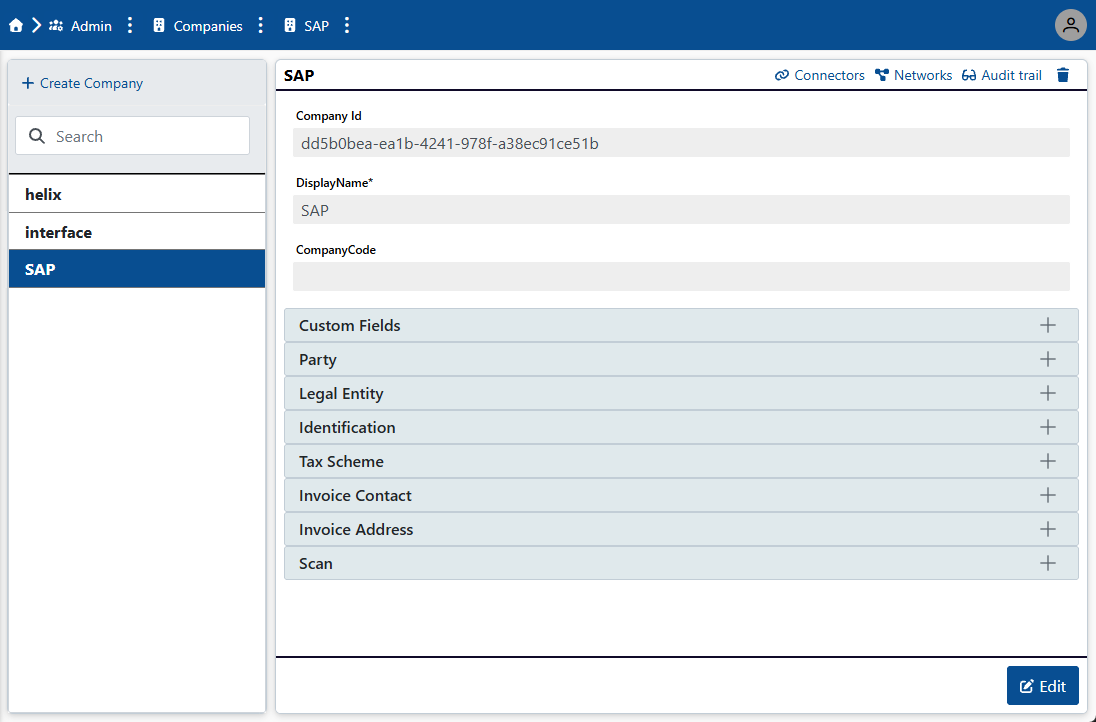
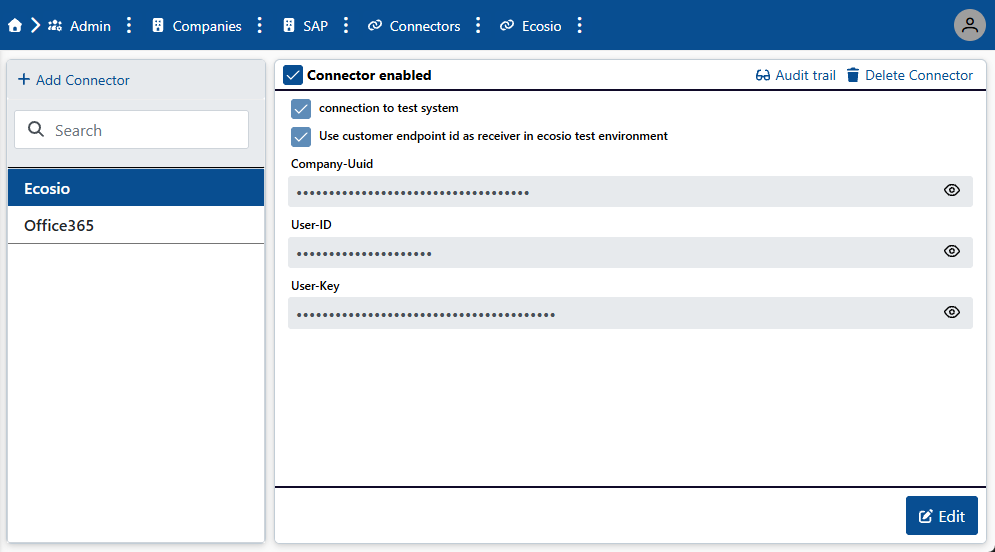
Click on Connectors.
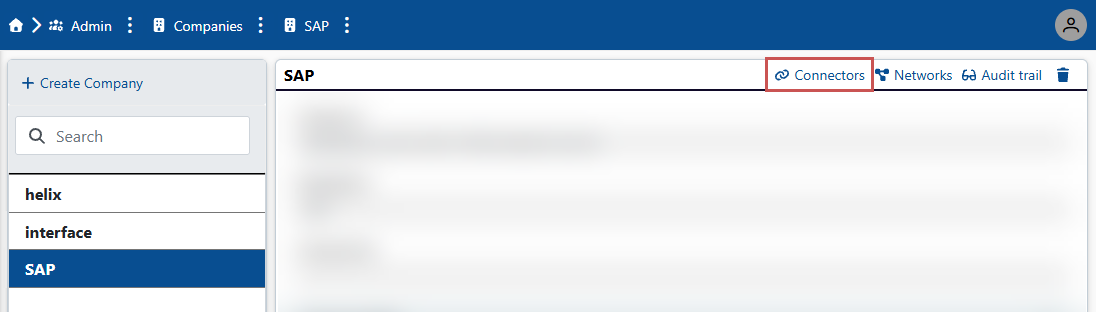
➤ All connectors of the company are displayed.
Tip
By clicking Add Connector, you can add a new connector for the company.
Displaying the audit trail of a company
Navigate to the menu item Admin → Companies.
➣ A list of existing companies will be displayed.
Click on a company from the list.
➣ The company's data is displayed.
Click on Audit trail.
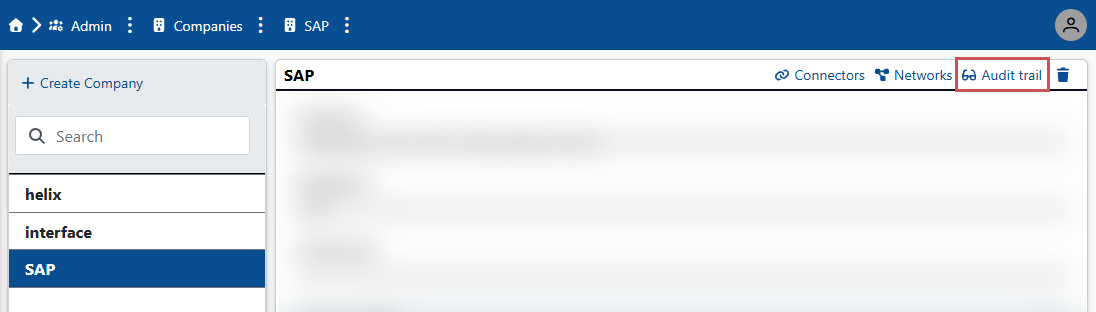
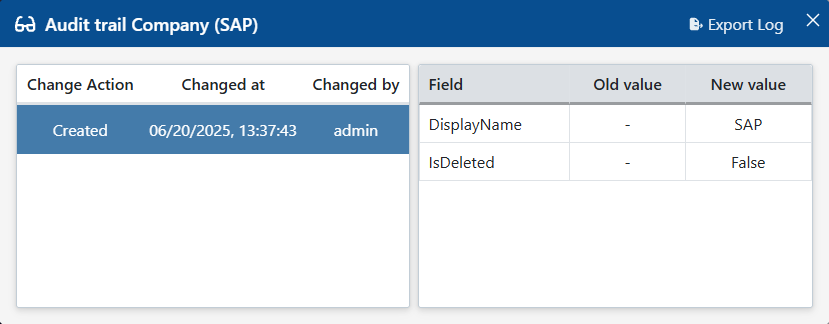
➣ The audit trail of the company will open in a new window.
Tip
By clicking on Export Log, you can download the company's audit trail as a JSON file.