CMIS Server (V2)
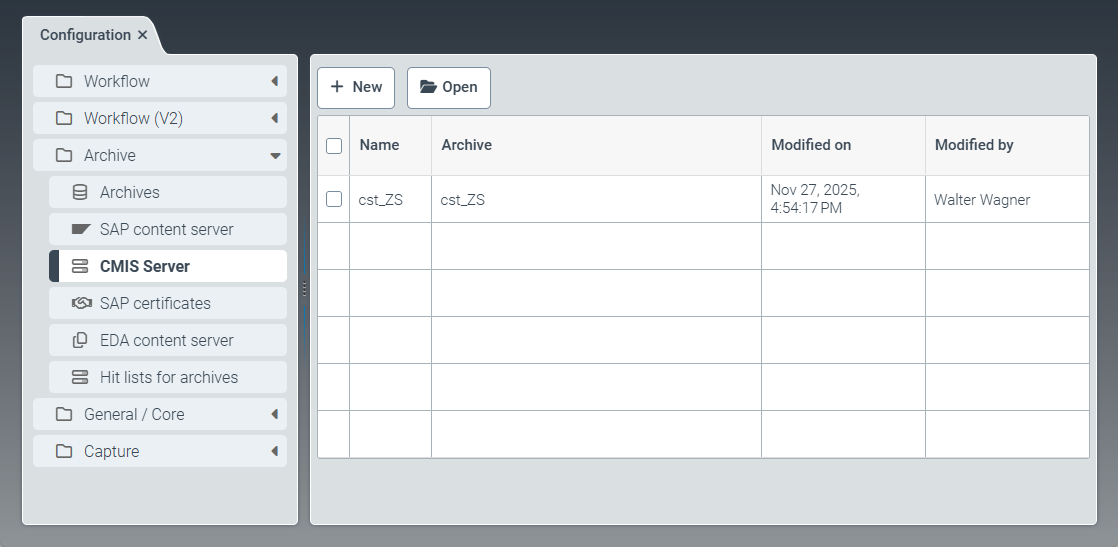 |
The CMIS Server menu item offers options for creating new CMIS configurations and editing existing CMIS configurations.
CMIS configurations are used to establish a connection between an SAP repository and an xSuite Helix archive.
Creating a CMIS configuration (V2)
Notice
Before creating a CMIS configuration, ensure that the xSuite Helix archive has been created.
Select the CMIS Server menu item, then click New.
➣ The CMIS Repository: Unnamed item tab will open.
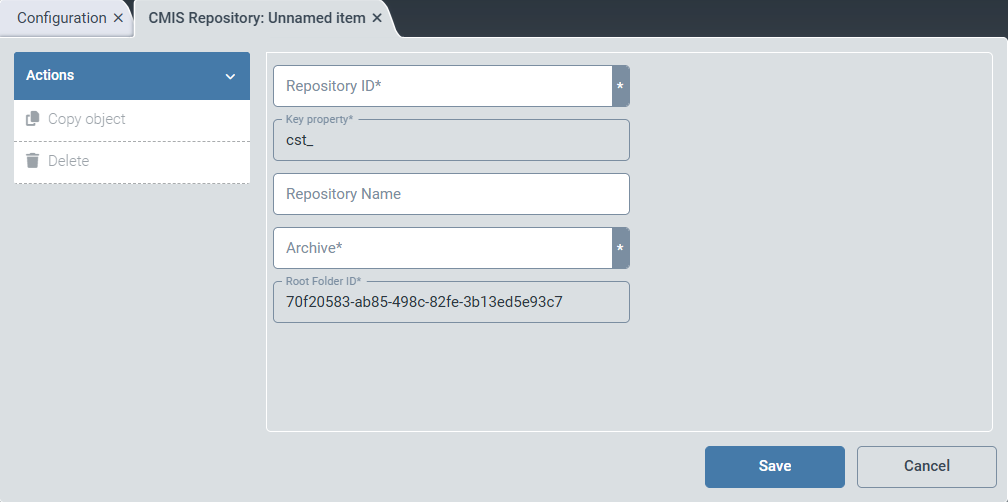
Enter the ID of the CMIS repository in the Repository ID field.
Notice
The ID of the CMIS repository consists of 2 characters in accordance with SAP standards and begins with the letter
Z.➣ The ID will automatically be inserted in the Key property field.
In the Repository Name field, enter the display name of the CMIS repository.
In the Archive field, enter the name of the Helix archive.
Tip
We recommend choosing the same name for the CMIS archive and the CMIS repository.
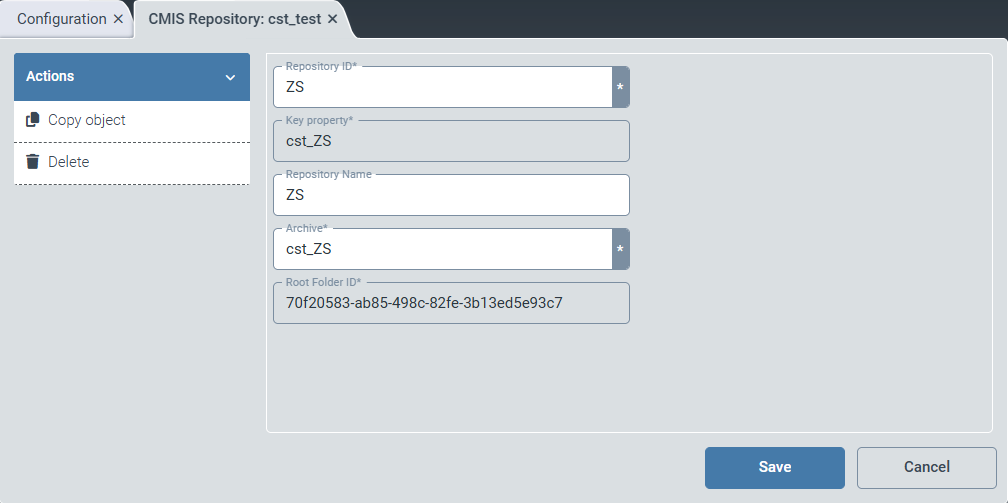
Click Save.
➤ The CMIS configuration has been created.
Tip
Once you have completed the CMIS configuration, you can use the connected SAP system to test whether the configuration was successful.
In xSuite Helix, use the Archive Document Manager tile to check whether a document is displayed for the respective archive.
Alternatively, you can click on the System Events tile and filter for the value
CmisServicein the Service table column. This will display the calls made via the CMIS interface in the table.