Classification training – Classification models
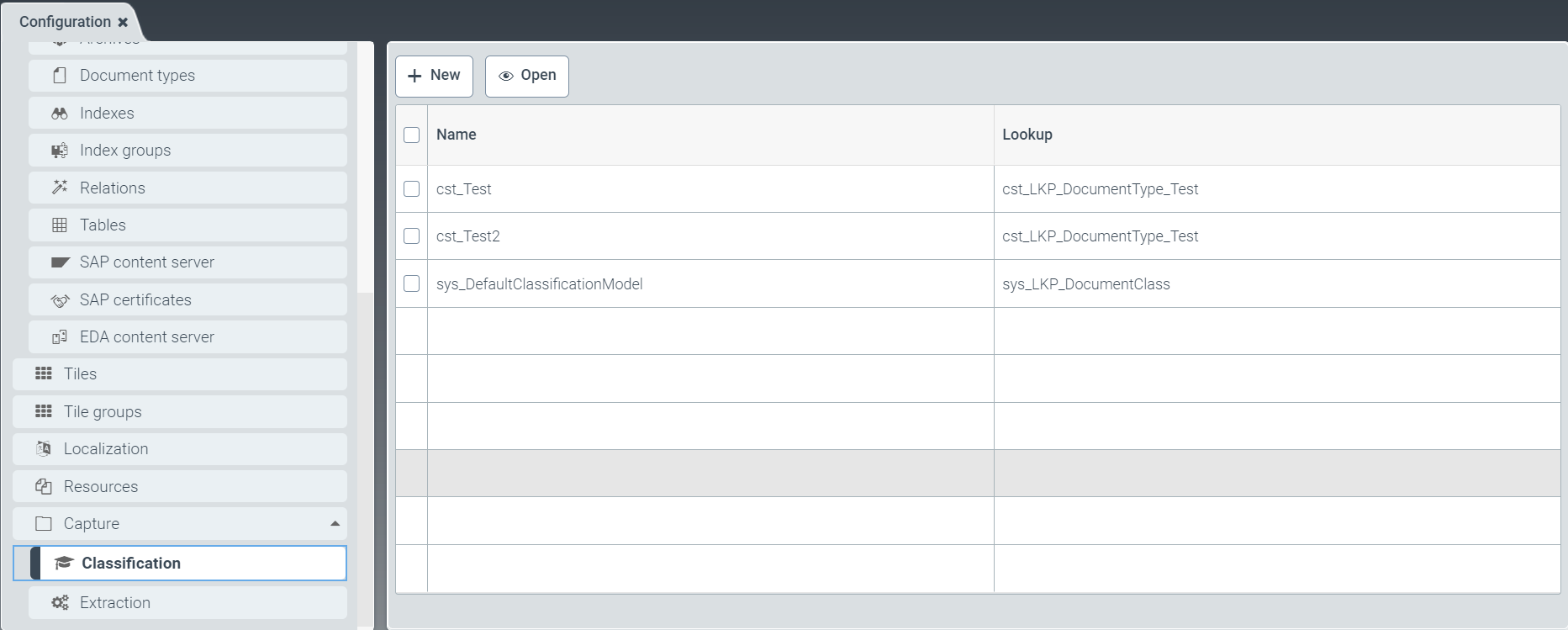 |
In the Classification menu item, you can enable or disable automatic training of document classes. You can also create different classification models for different workflows. Each can contain a different set of document classes to be trained.
Performing classification training
Performing classification with the delivered model
Caution
All changes made in the tab Classification: sys_DefaultClassificationModel overwrite default settings.
To recover default settings, go to the action menu (1) and click on the button Reset.
Click on the icon
 to the right of the Capture menu item.
➣ The menu items Classification and Extraction will appear.
Go to the menu item Classification and click a delivered model that you wish to train, e.g. sys_DefaultClassificationModel.
➣ The tab Classification:sys_DefaultClassificationModel will open.
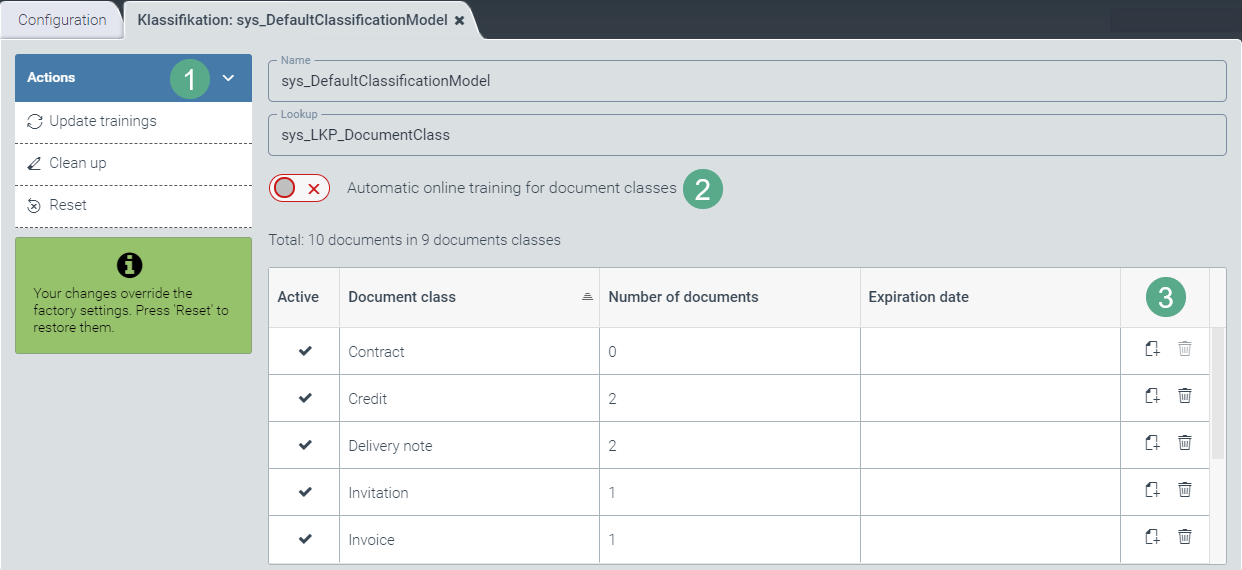
In the line of the document class to be trained, click the button
 Upload file(s) (3).
Select one or more PDF files that correspond to the document class, and click Open.
➣ The selected PDF files will be uploaded.
In the action menu, click the button Update trainings (1).
➤ The document class will be trained using the uploaded PDF files.
To train the document classes automatically, select automatic training via the toggle button (2).
Performing classification training with a newly created classification model
Click on the icon
to the right of the Capture menu item.➣ The menu items Classification and Extraction will appear.
In the menu item Classification, click the button New.
➣ The dialog Create Classification Training will open.
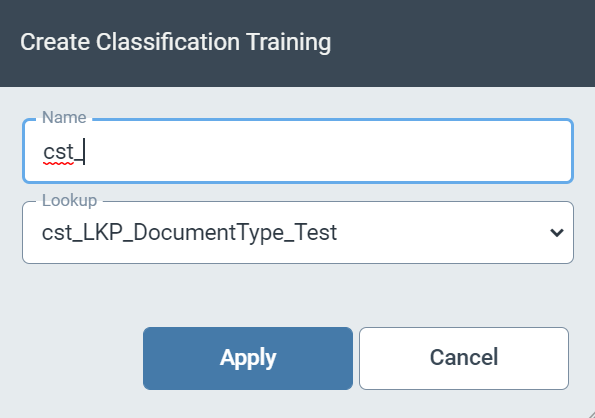
Specify a name for the classification model after the cst_ prefix, and select the corresponding lookup table name from the drop-down list.
➣ The tab Classification:{name of the chosen classification model} will open.
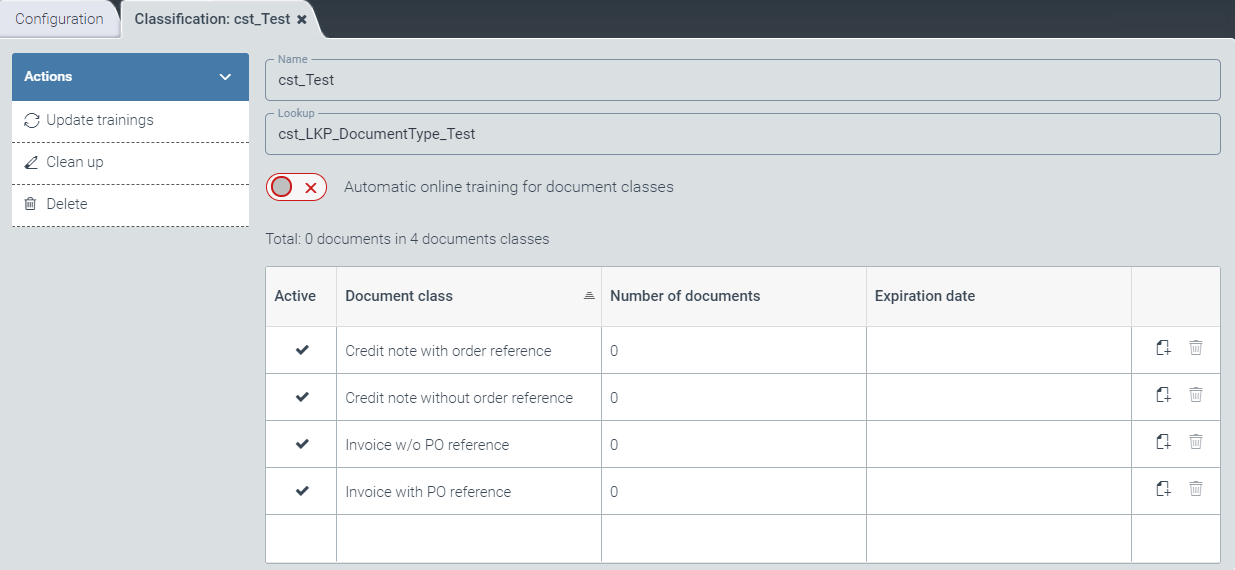
In the line of the document class to be trained, click the button
Upload file(s) (3).Select one or more PDF files that correspond to the document class, and click Open.
➣ The selected PDF files will be uploaded.
In the action menu, click the button Update trainings (1).
➤ The document class will be trained using the uploaded PDF files.
To train the document classes automatically, select automatic training via the toggle button (2).
Deleting a classification model or a classification training for a document class
Deleting a classification training
Click on the icon
to the right of the Capture menu item.➣ The menu items Classification and Extraction will become visible.
Click on a line in the table of the menu item Classification.
➣ The tab Classification:{name of the chosen classification model} will open.
In the line of the document class with the classification training to be deleted, click the button
 (Remove document class) (3).
➣ A security prompt will open.

Click Delete in the dialog.
➤ The classification training of the selected document class is now deleted.
Deleting a classification model
If you wish to delete the entire model with all classification trainings, click Delete in the action menu (1).
➣ A security prompt will appear.
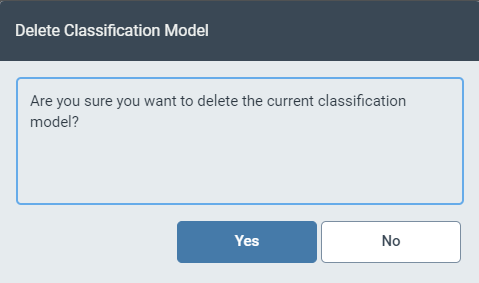
Click Yes in the Delete Classification Model dialog.
➤ The classification model is now deleted.
Deleting several classification trainings for a specific period
Click on the icon
to the right of the Capture menu item.➣ The menu items Classification and Extraction will become visible.
Click on a line in the table of the menu item Classification.
➣ The tab Classification:{name of the chosen classification model} will open.
Click the Clean Up button in the action menu (1).
➣ The dialog Clean up existing trainings will open.
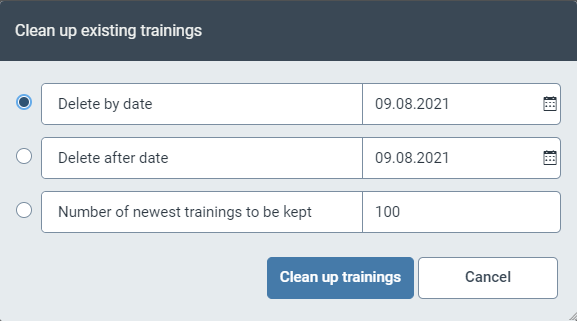
Select one of the three delete options and adjust the information in the respective field:
Delete all before: By clicking on the
 button, you will delete all the trainings that were performed before the date selected.
Delete all after: By clicking on the
button, you will delete all the trainings that were performed after the selected date.Number of recent trainings to be kept: Retains the specified number of most recent classification trainings and deletes all others.
Click Clean up trainings.
➤ Multiple trainings are now deleted according to the selected criterion.