Configuration
On the main dashboard, click on the Configuration tile.
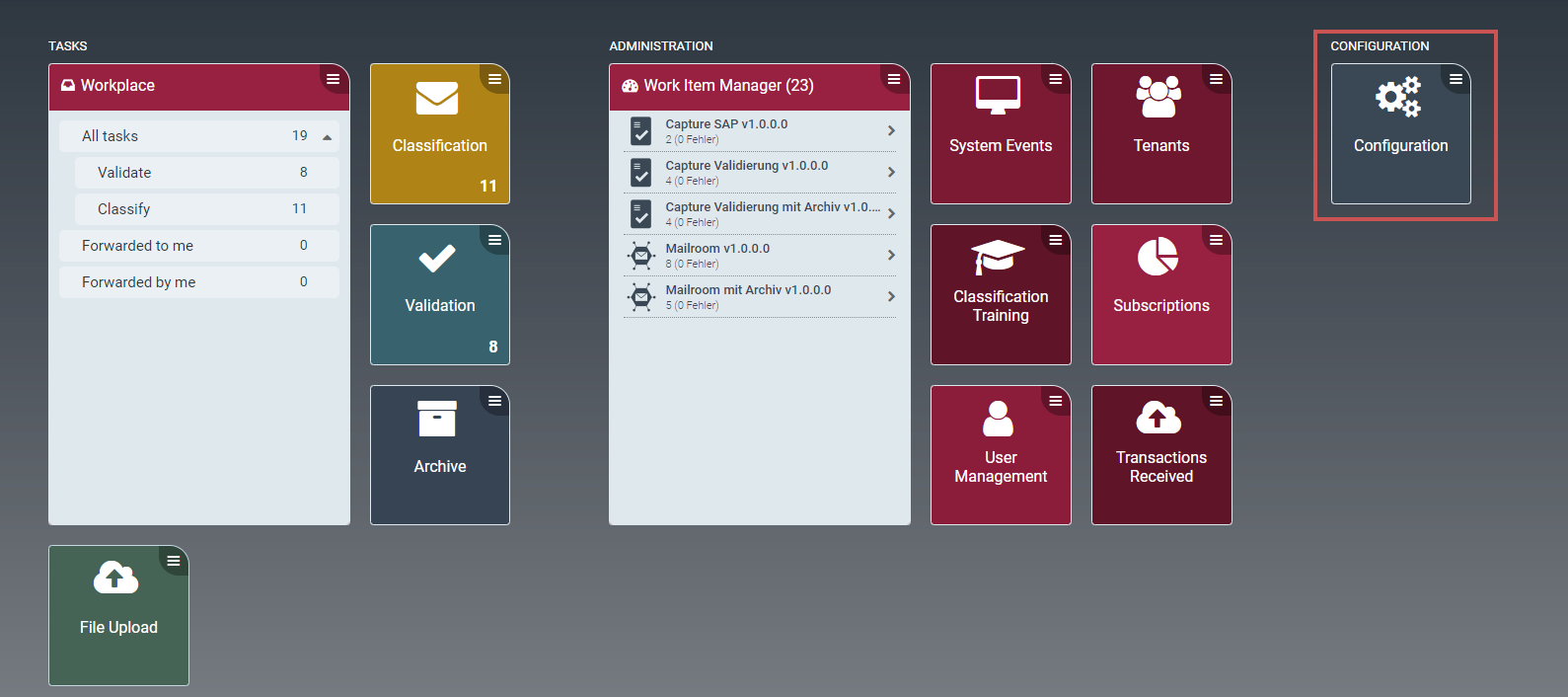 |
➤ The menu for the configuration workspace will open as a structure tree on the left side of the screen.
UI elements in the configuration workspace
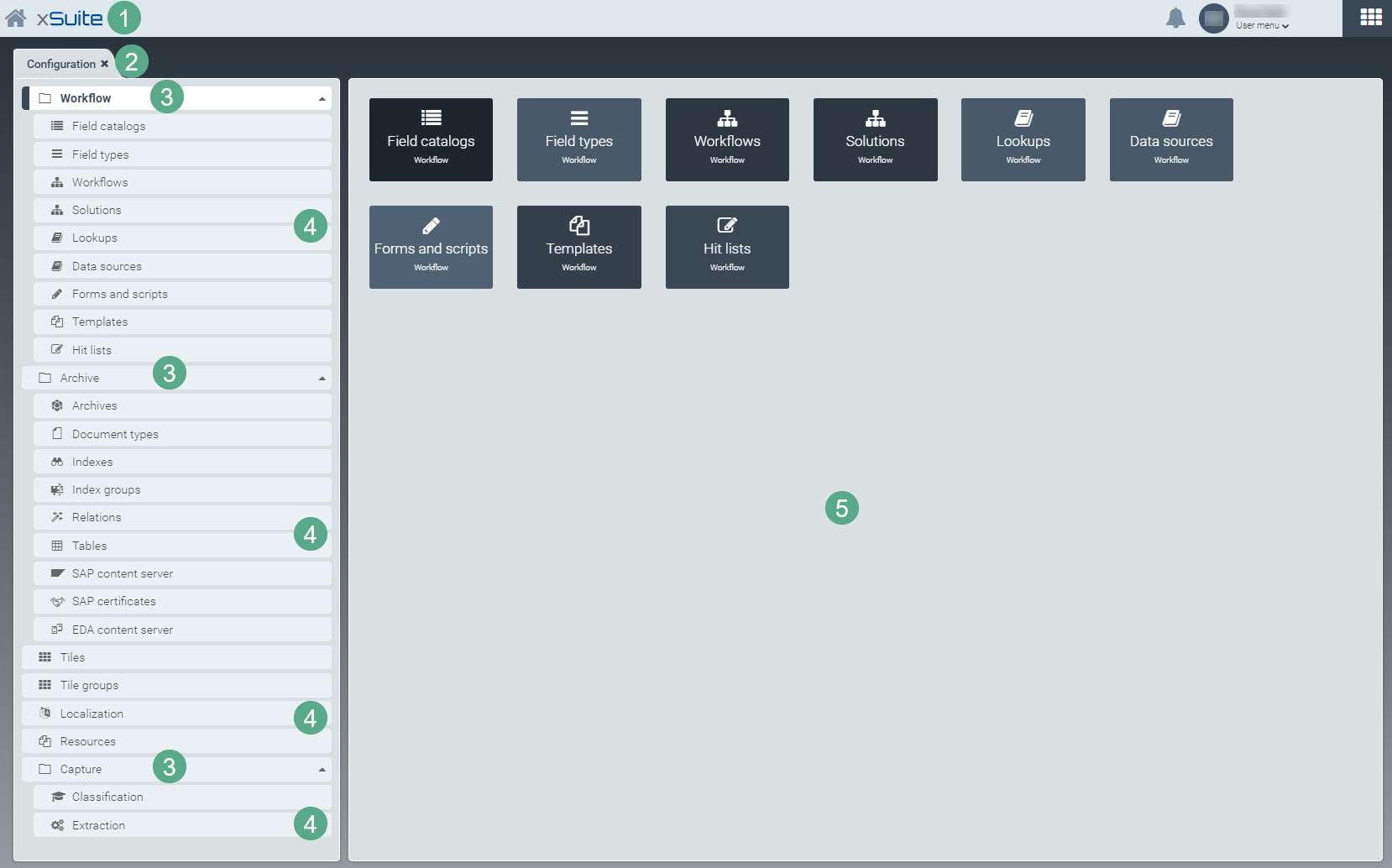 |
Number | How it works |
|---|---|
1 | When clicked, the Home button or the xSuite logo will take you from the configuration workspace back to the dashboard. |
2 | When clicked, the Configuration dashboard tile will open to the Configuration window shown in the screenshot above. |
3 | When clicked, both the Workflow and Archive folders will display a set of tiles on the right side of the screen (4). |
4 | When a tab in the configuration menu is clicked, a primary configuration screen will open on the right side of the screen. For more information, see UI elements in the primary configuration screens. |
5 | Primary configuration screen opening from the item selected in the menu The screenshot shows an overview of items that can be configured for a given category (e.g. Workflow or Archive). At this level, you can see the tabs displayed in the form of tiles. These tiles offer access to the primary configuration screens just as the respective tabs do. |