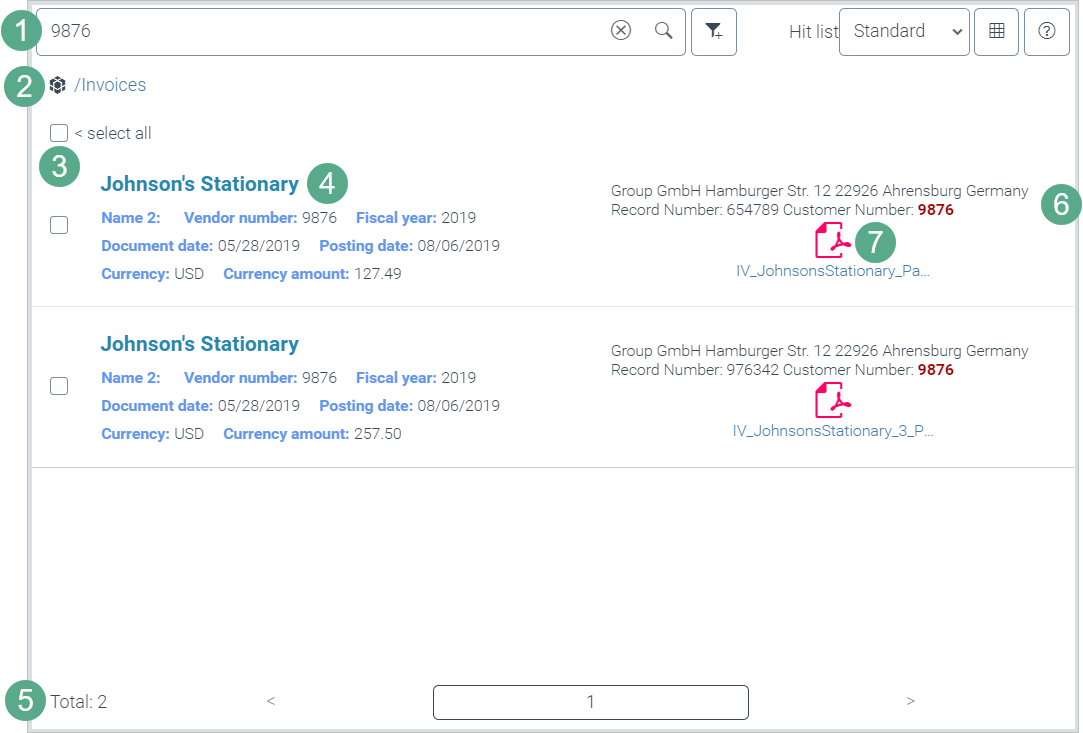
UI elements in the search engine view of the archive hit list
Element | More information | |
|---|---|---|
1 | Hit-list toolbar | This is where you perform actions in the archive hit list. For more information, see Overview of buttons and fields in the hit-list toolbar. |
2 | Path navigation | Here you can see which archive level you have selected. You can navigate to the higher archive levels. For more information, see The path navigation in the archive hit list. |
3 | Multiple selection | Use the check boxes to select archive documents. For more information, see Selecting multiple archive documents. |
4 | Archive document index fields | The index fields of an archive document are displayed here. For more information, see Archive document index fields. The hit list layout controls which index fields are displayed. For more information, see Hit-list layouts. The first index field that is of type "Text field" is used as the title for the index fields. |
5 | Navigation bar | Navigate to a hit list page in the navigation bar. For more information, see The navigation bar in the archive hit list. |
6 | Text passages with highlighting | If a search term is found in an attachment, the passage of text will be displayed with the hits highlighted. |
7 | Attachments (as icons or preview) | The attachments of an archive document are displayed here. Depending on the archive configuration, attachments are displayed either as icons or as a preview. |