Filtering documents
You can filter the list of documents by column to narrow down the display of documents.
Navigate to Inbound or Outbound.
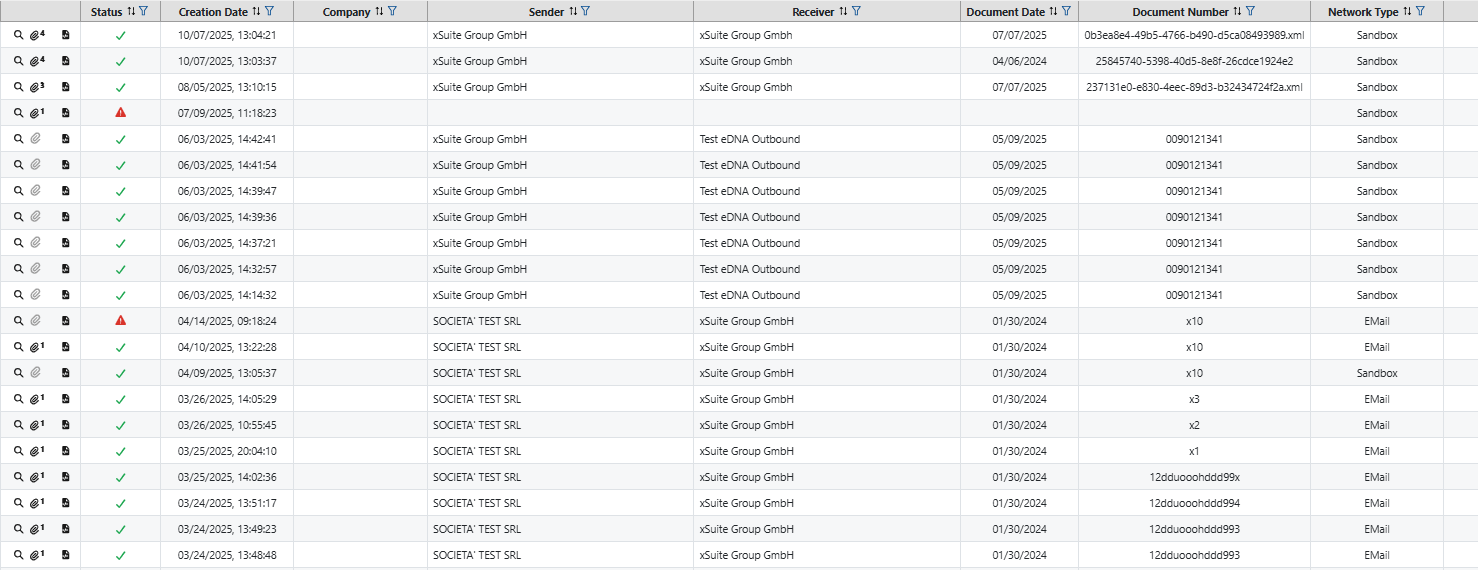
➣ The Monitor area with the table of all documents will open.
Notice
The Monitor section contains all documents. This means that even documents that were not recognized as invoices are listed in the table.
Unlike the Monitor area, the Invoices area only contains documents that have been recognized as invoices by the system.
Optionally, click on the Invoices navigation area. Here you can filter incoming or outgoing invoices.
Click on the
 button in the desired column.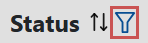
➣ The filter options will open.
Enter filter values:
Filter type
Description
Free text
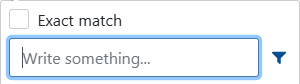
For example, enter the vendor you are looking for in the search field. All search results are displayed in the table. Both a wildcard search with * and a search with the exact name are possible with this filter type. To filter exclusively for a specific name, activate the ExactMatch checkbox.
For some columns (e.g., Network Type and Invoice type code) the checkbox Exact match is activated by default and cannot be deactivated.
Date with limits (from/to)
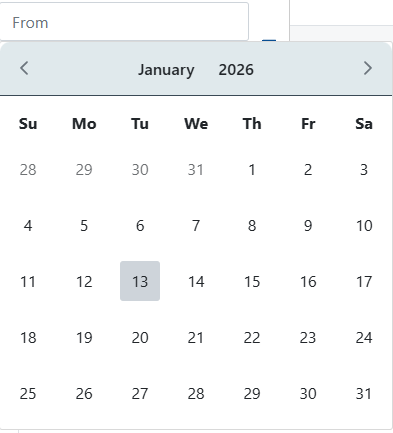
Click on the desired date in the calendar overview that opens. You can select one or both limits via the calendar overview. The date format is linked to the set language.
Drop-down list

Select a preset filter option from the drop-down list.
Limits (from / to)
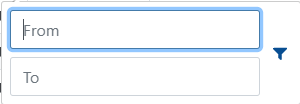
Enter the numerical limits in the fields.
Click on the
 button.
➤ The invoices are filtered based on your specifications.
Notice
To remove all filters set for a column, click on the button
 .
.