UI elements in the "Subscriptions" screen

Section | Description | |
|---|---|---|
1 | xSuite Helix solution | Shows the name of the xSuite Helix solution to which the subscription refers, e.g. Archive or Capture. |
2 | Document volume | Shows the used and the total available document volume for a subscription. Multiple versions of a document count as a single document. |
Storage volume | Also indicates the used and the total available storage volume of the subscription for xSuite Archive Helix. | |
3 | Status | Shows the status of a subscription. The following statuses are available:
For more information, see UI elements in the detailed subscription view for an xSuite Helix solution. |
4 | Duration | Shows start and end date of the current subscription period. |
5 | Details | Opens the detailed view of a subscription. For more information, see UI elements in the detailed subscription view for an xSuite Helix solution. |
UI elements in the detailed subscription view for an xSuite Helix solution
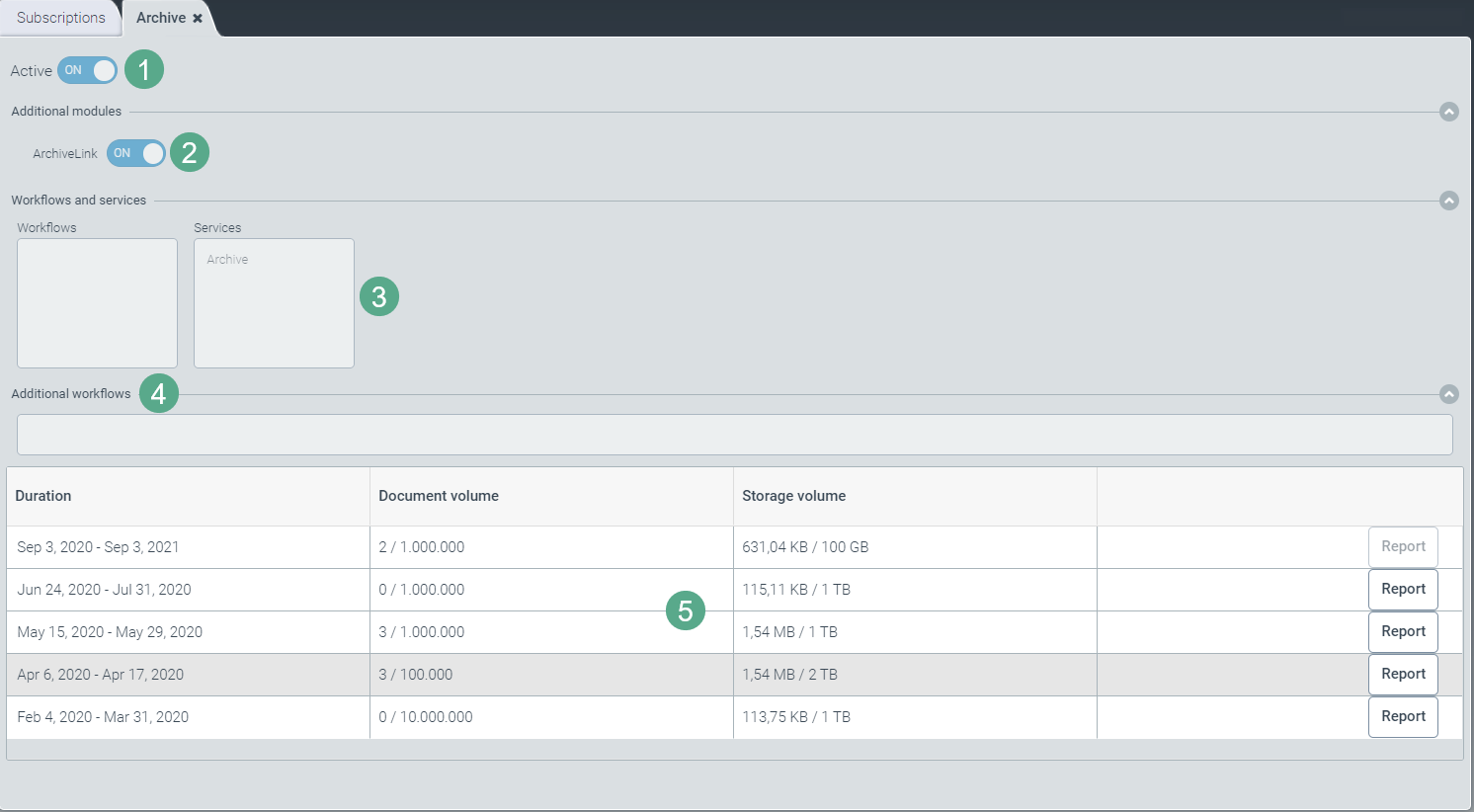
Section | Description | |
|---|---|---|
1 | Active | Shows the status of a subscription. |
2 | Additional modules | Indicates whether additional modules are enabled or disabled. NoticeThe Additional modules section exists solely for the xSuite Helix solution Archive. |
3 | Workflows and Services | Shows the workflows and services of a subscription. |
4 | Additional workflows | Shows the additional workflows of a subscription. |
5 | Detailed list | Shows a list of all subscription periods and the respective document and storage volume by subscription period. For a PDF download of the subscription data ("Subscription Report"), click on the Evaluation button. For more information on downloading a PDF of subscription data, see Downloading a subscription report. |
Downloading a subscription report
In the Administration tile group, click on the tile Subscriptions.
Note
If the tile is hidden, open the default dashboard. For more information, see Opening a dashboard.
The subscription overview will open.
Click on the Details button of the corresponding xSuite Helix solution.
Click on the Report button in the last column.
A PDF file with an overview of the itemized bills will be downloaded for the previous billing period.
The subscription report contains information on the following categories:
Period of activity
xSuite Helix solution(s)
Modules
Processed work items