Code Maps
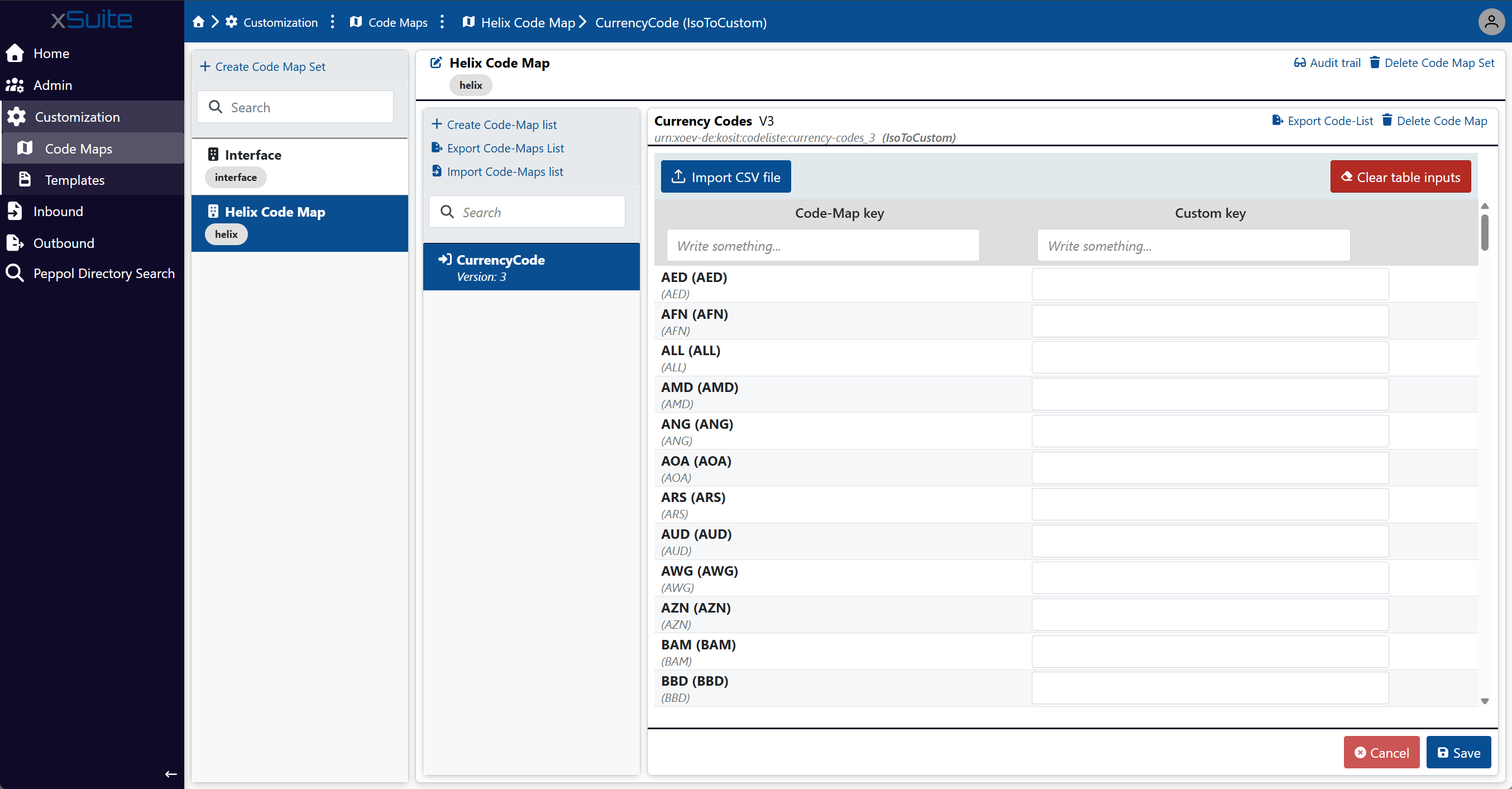 |
The Code Maps menu item offers options to define data for ISO code mapping. In accordance with the European standard EN 16931, ISO codes must be used for units when processing electronic invoices. xSuite eDNA Helix converts the unit codes from the invoice into the required ISO codes. For this purpose, you can create custom code map sets that contain the unit codes and the corresponding ISO codes. The code maps can be used for sending and receiving e-invoices.
xSuite eDNA Helix converts the unit codes from the invoice into the required ISO codes. To do this, you can create custom code map sets that map your custom unit codes specific to your ERP system to the corresponding ISO codes from the standardized code lists. The code maps can be used for both sending and receiving e-invoices.
A code map set can be used either globally for all companies or only for one or more specific companies. Each code map set contains at least one code map list. For each code map list, you define whether it is used for sending or receiving e-invoices. In the code map list, you specify the relevant unit codes and the corresponding ISO codes. xSuite eDNA Helix uses this information when processing e-invoices for the selected companies to automatically translate the codes into ISO codes.
You can import and export data from a code map list. Both JSON and CSV file formats are supported for exporting and importing.
Creating a code map set
When creating a new code map set, you need to specify the companies for which the code map set will be used. You can either create a code map set that is used globally for all companies or a code map set that is used only for selected companies. After creation, you can add a code map list within the code map set.
Creating a global code map set
Under the Customization → Code Maps menu item, click Create Code Map Set.
➣ The Create Code Map Set dialog box will open.
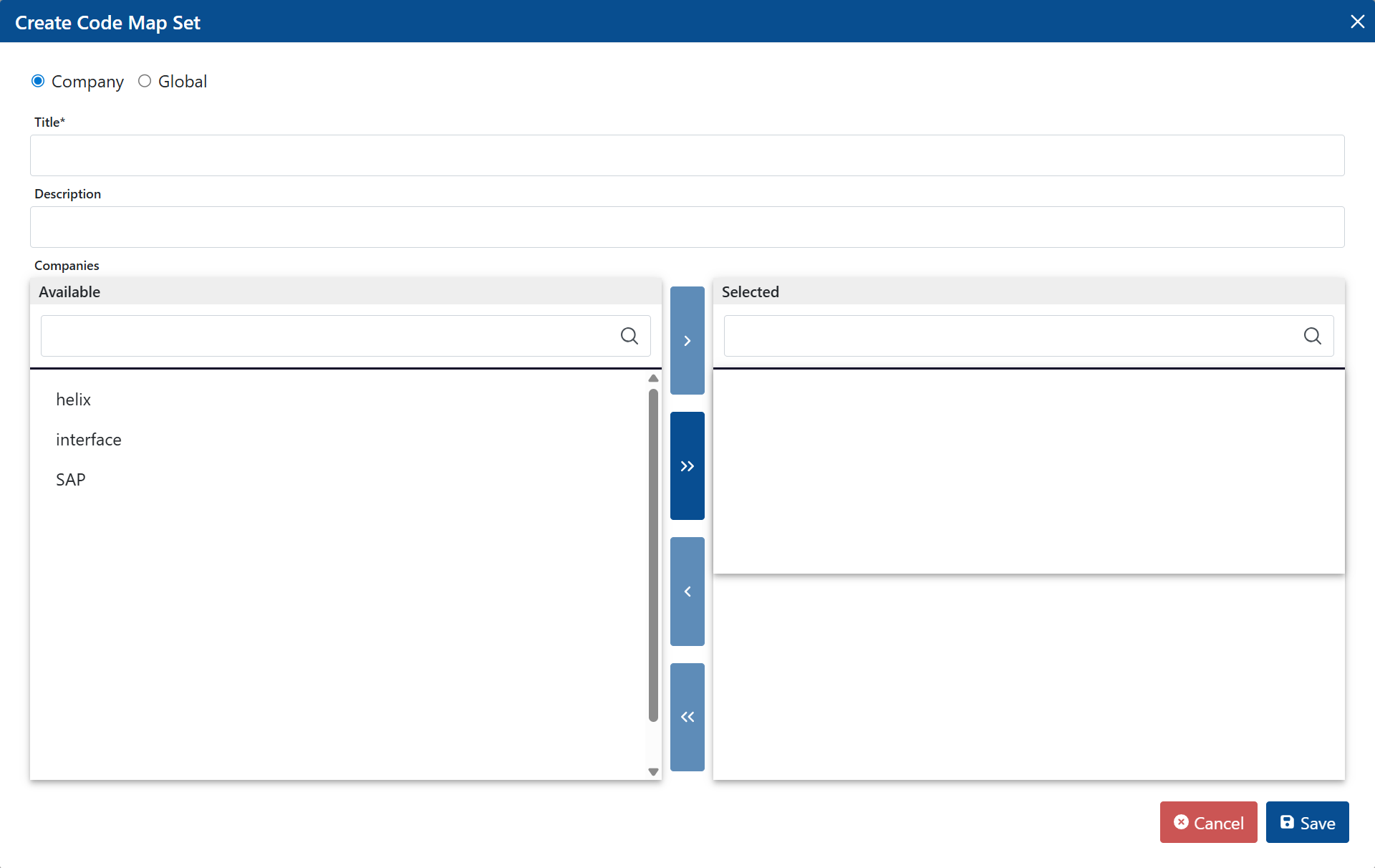
Select the Global option.
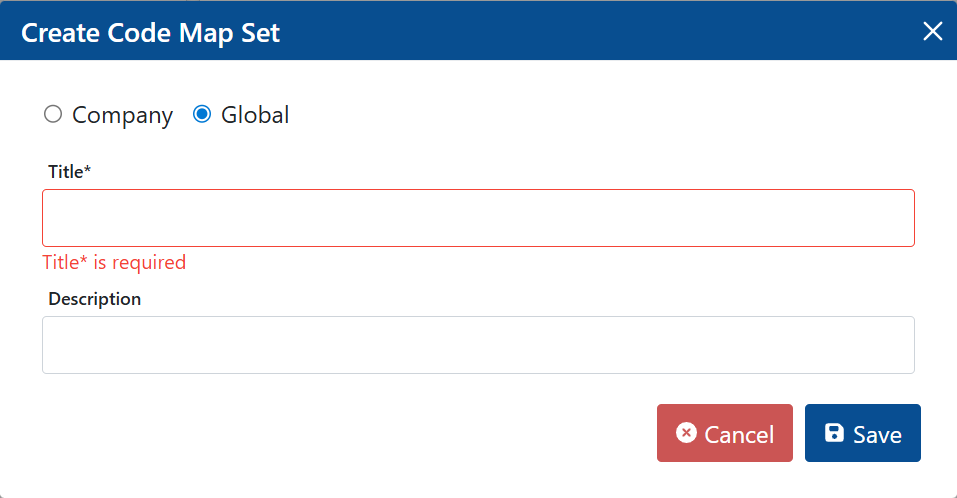
In the Title field, enter a display name for the code map set.
If necessary, enter a brief description of the code map set in the Description field.
Click Save.
➤ The code map set has been created. You can now add a code map list.
Creating a code map set for selected companies
Under the Customization → Code Maps menu item, click Create Code Map Set.
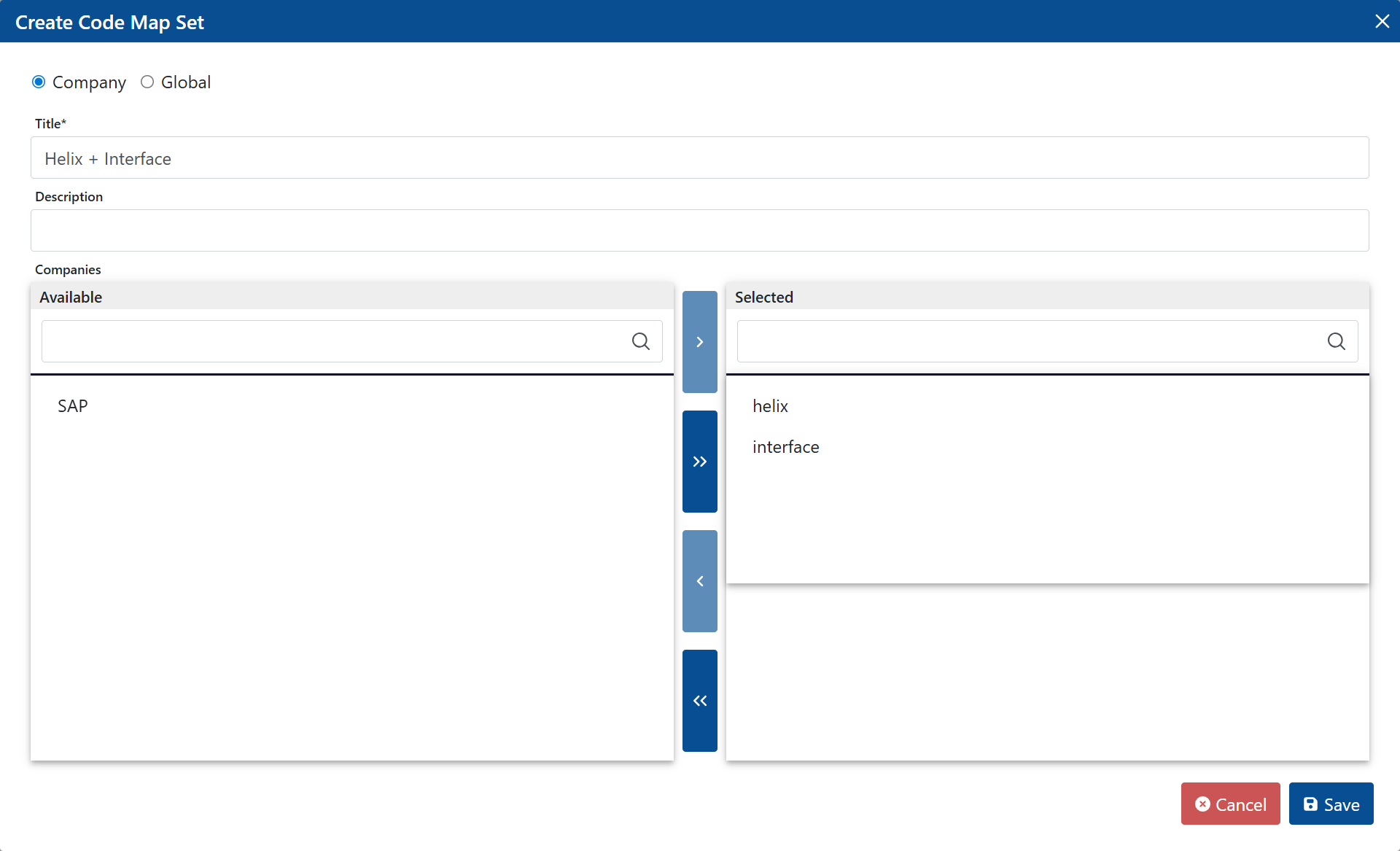
➣ The Create Code Map Set dialog box will open.
Select the Company option.
In the Title field, enter a display name for the code map set.
If necessary, enter a brief description of the code map set in the Description field.
In the Companies section, click the companies in the Available list for which the code map set is used.
Tip
To select multiple companies at once, hold the Ctrl key.
To move all companies to the Selected list at once, click the button
 .
.➣ The companies are highlighted in the Available list.
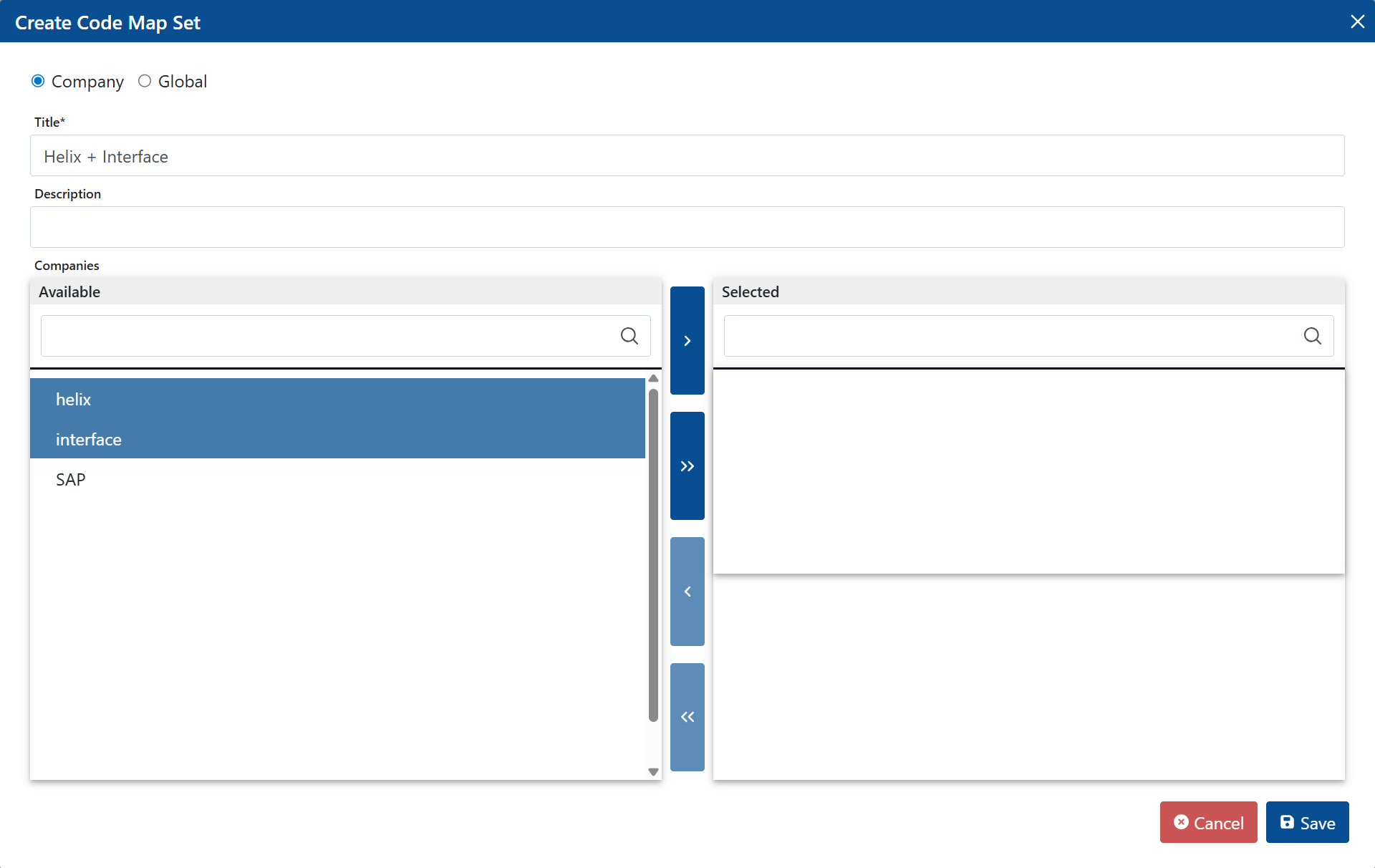
Click the button
 .
.➣ The highlighted companies will be moved to the Selected list.
Tip
To remove a company from the Selected list, click on the company and then click the button
 . The company will be moved back to the Available list.
Click Save.
➤ The code map set has been created. You can now add a code map list.
Adding a code map list
Within a code map set, you can add multiple code map lists. For each code map list, you define whether it is used for receiving invoices or for sending invoices. You also select which standardized code list is used for the mapping.
Tip
Instead of manually adding code map lists and typing in the codes, you can also import code map lists.
Go to the menu item Customization → Code Maps.
➣ A list of available code map sets will be displayed.
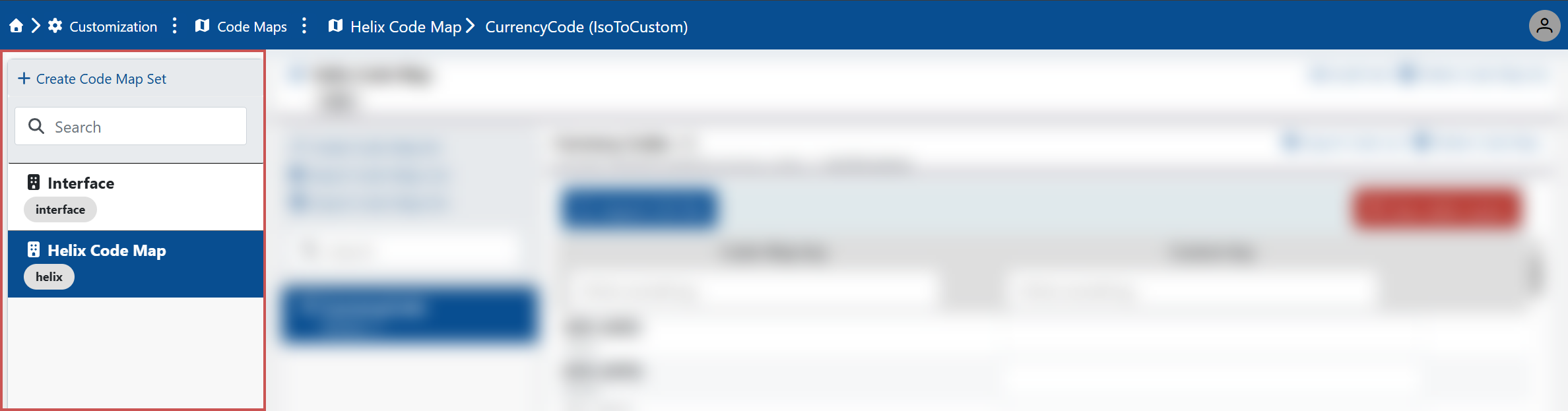
Click on a code map set in the list.
Click Create Code Map List.
➣ The Create Code Map List dialog box will open.
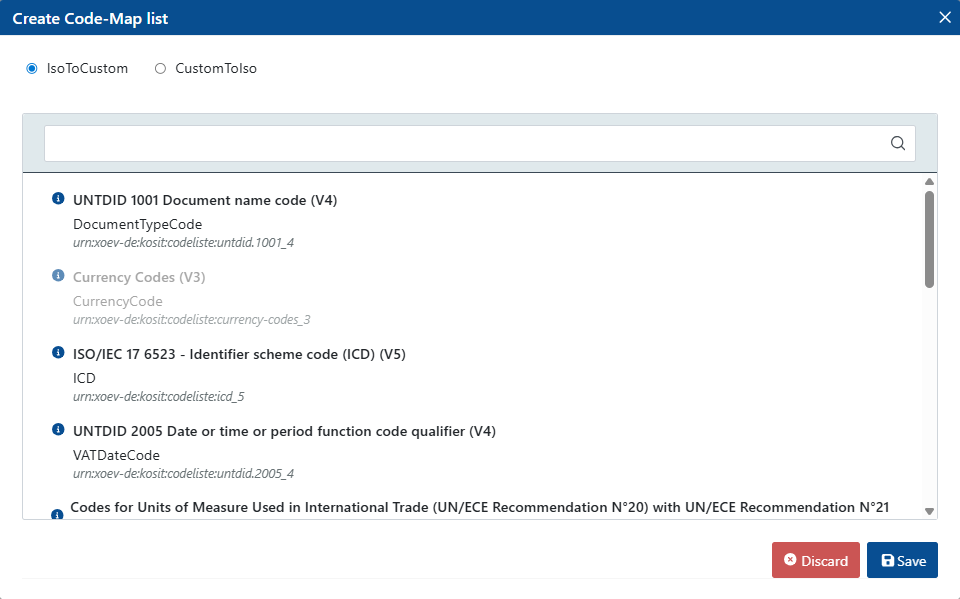
Select one of the following options:
IsoToCustom: Creates a list for mapping ISO codes to custom codes. This list is used for incoming invoices (inbound).
CustomToIso: Creates a list for custom codes to ISO codes. This list is used for sending invoices (outbound).
Select a standardized code list to use for mapping, and then click Save.
Notice
Depending on whether you have selected the IsoToCustom or CustomToIso option, different code lists are available.
➣ The selected code list is added.
Click Edit.
➣ The edit mode is enabled. The ISO codes from the selected code list will automatically be inserted into the Code Map Key column.
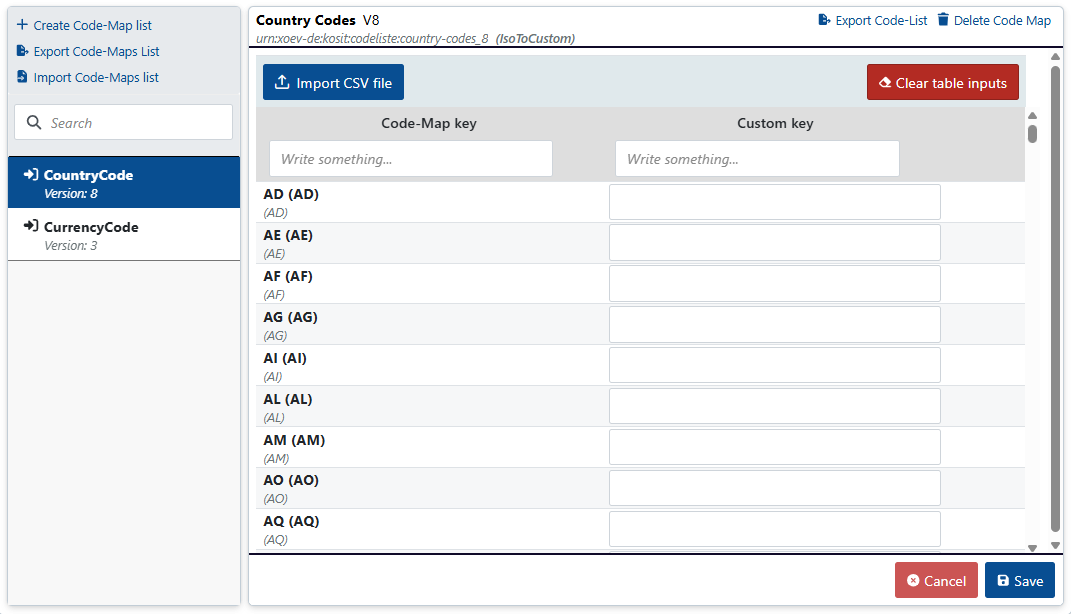
In the Custom Key column, enter the corresponding custom codes for all relevant ISO codes.
Tip
To clear all entered custom codes, click Clear table inputs.
Click Save.
➤ The code list has been added.
Importing a code map list
You can import a code map list in JSON or CSV format.
Code map lists in JSON format are primarily designed for machine processing. The CSV format, on the other hand, is recommended if you need the codes in a tabular overview and plan to maintain them manually.
Importing a code map list in JSON format
Go to the menu item Customization → Code Maps.
➣ A list of available code map sets will be displayed.
Click on a code map set in the list.
➣ A list of the code map lists available in this code map set will be displayed.
Click Import Code Map List.
➣ A file selection dialog box will open.
Select a JSON file to import, then click Open.
Notice
The JSON file must use the following syntax:
[
  {
    "Mappings": {<List of codes>},
    "CodeListName": "<Name of code list>",
    "Version": "<Version number>",
    "Direction": "<Direction of mapping>"
  }
]
Example:
[
  {
    "Mappings": {
      "AD": "A1",
      "AE": "A2",
      "AF": "A3",
      "AG": "A4",
      "AI": "A5"
    },
    "CodeListName": "CountryCode",
    "Version": "8",
    "Direction": "IsoToCustom"
  }
]
➣ The Import Code Maps List dialog box will open. The list of code maps to be imported is displayed.
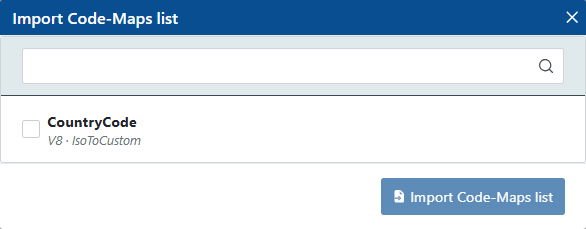
Select the code map list, then click Import Code Maps List.
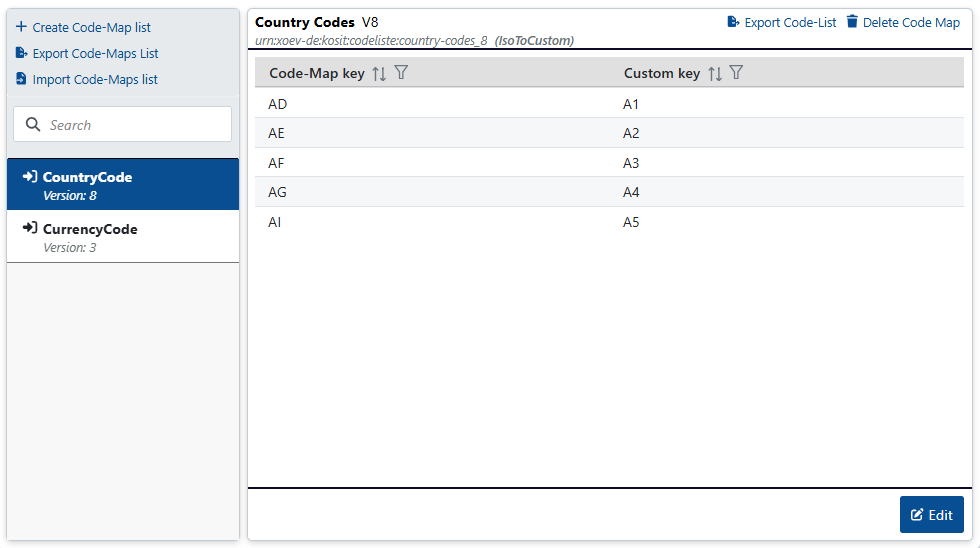
➤ The code map list has been imported. The list data is displayed.
Importing a code map list in CSV format
Caution
When you import the code map list, all existing data will be overwritten.
Go to the menu item Customization → Code Maps.
➣ A list of available code map sets will be displayed.
Click on a code map set in the list.
➣ A list of the code map lists available in this code map set will be displayed.
Click on a code map list, and then click Edit.
➣ Edit mode is enabled.
Click Import CSV file.
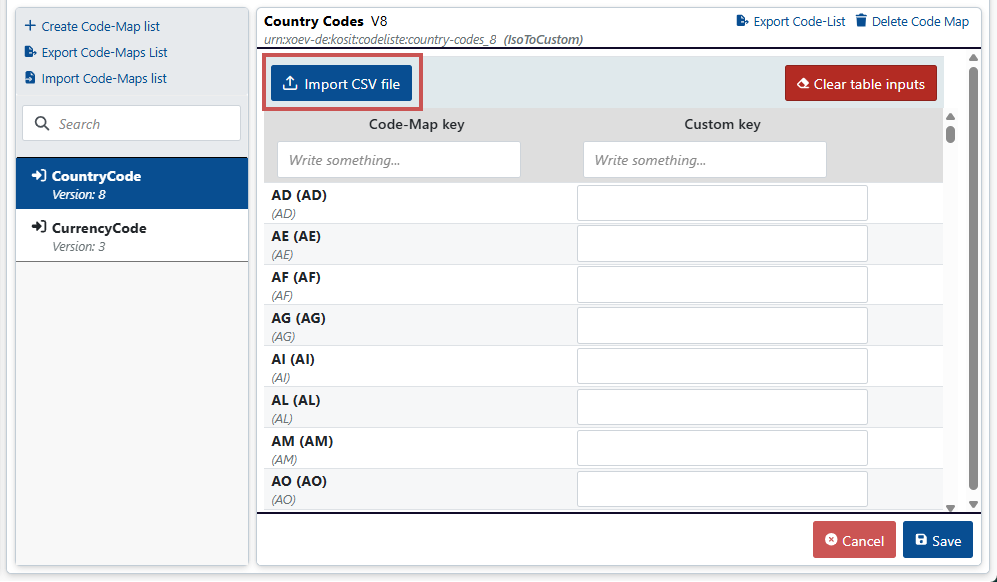
➣ A file selection dialog box will open.
Select a CSV file to import, then click Open.
Notice
The CSV file must contain one column titled Code Map Key and one column titled Custom Key .
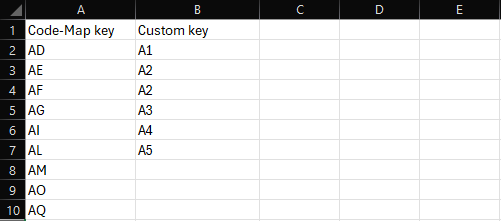
➣ The code map list has been imported. The data of the list is displayed.
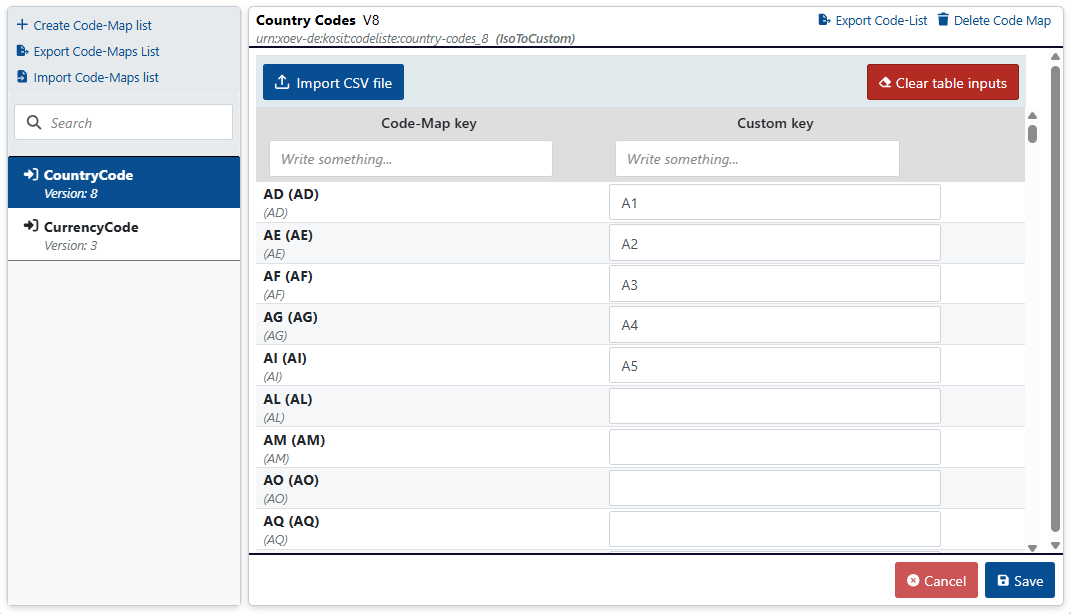
Click Save.
➤ The code map list has been saved.
Exporting a code map list
You can export a code map list in JSON or CSV format. In JSON format, you can export multiple code map lists at once, which are saved together in a single JSON file. In CSV format, you can export only one code map list at a time.
Code map lists in JSON format are primarily designed for machine processing. The CSV format, on the other hand, is recommended if you need the codes in a tabular overview and plan to maintain them manually.
Exporting a code map list in JSON format
Go to the menu item Customization → Code Maps.
➣ A list of available code map sets will be displayed.
Click on a code map set in the list.
➣ A list of the code map lists available in this code map set will be displayed.
Click Export Code Map List.
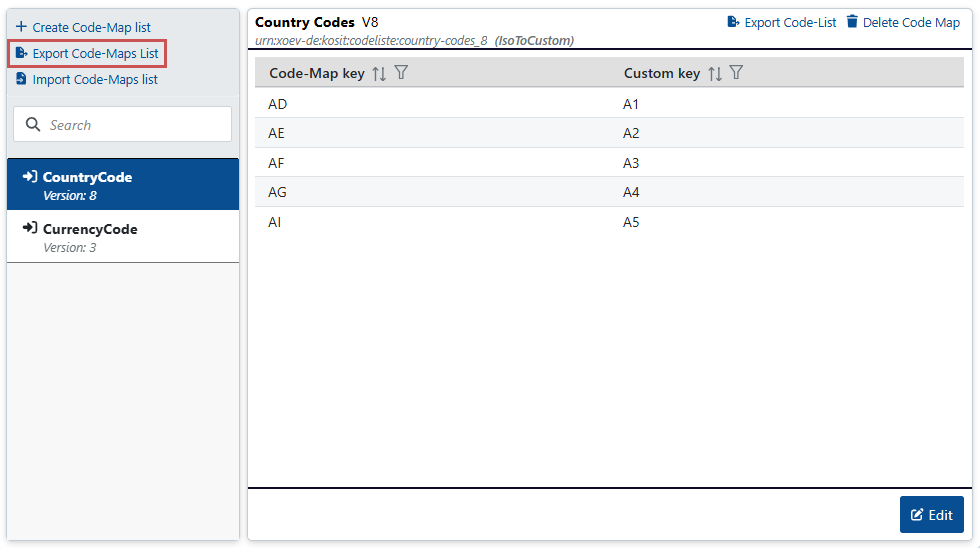
➣ The Export Code Map List dialog box will open. All available code map lists will be displayed for selection.
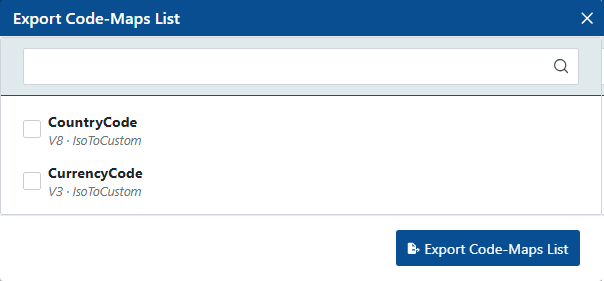
Select one or more code map lists to export, and then click Export Code Maps Lists.
➤ The code map list is exported in JSON format.
Notice
The JSON file has the following structure:
[
  {
    "Mappings": {<List of codess>},
    "CodeListName": "<Name of code list>",
    "Version": "<Version number>",
    "Direction": "<Direction of mapping>"
  }
]
Example:
[
  {
    "Mappings": {
      "AD": "A1",
      "AE": "A2",
      "AF": "A3",
      "AG": "A4",
      "AI": "A5"
    },
    "CodeListName": "CountryCode",
    "Version": "8",
    "Direction": "IsoToCustom"
  }
]
Exporting a code map list in CSV format
Go to the menu item Customization → Code Maps.
➣ A list of available code map sets will be displayed.
Click on a code map set in the list.
➣ A list of the code map lists available in this code map set will be displayed.
Click on a code map list, and then click Export Code-List.
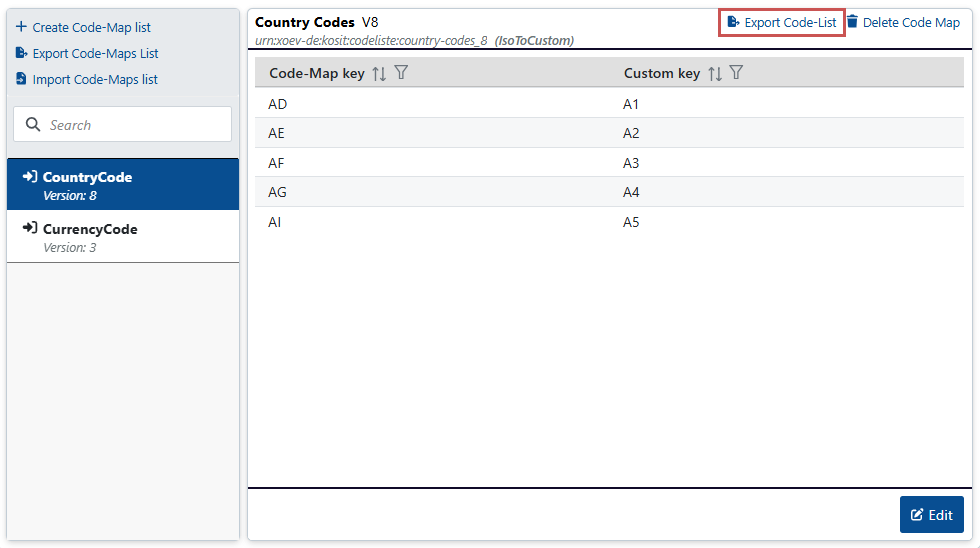
➤ The selected code map list is exported in CSV format.