Relations
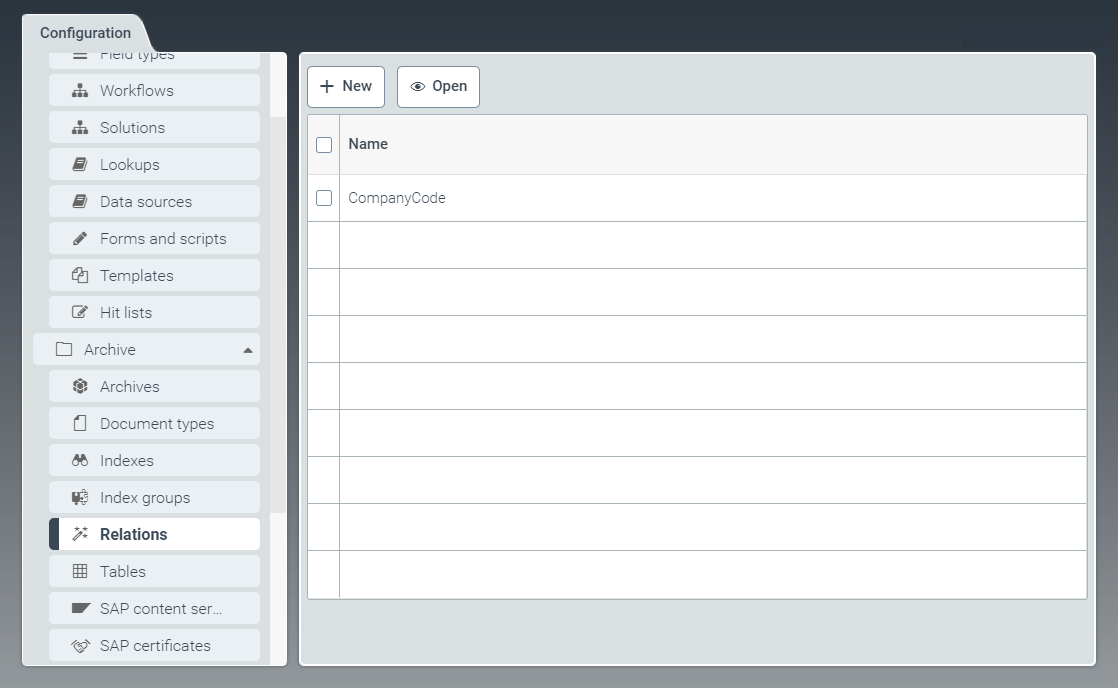 |
The tab Relations offers options for defining global fields that link archive documents.
New relations can be created, and existing relations edited.
You can restrict a relation to specific archives or specify that the relation applies to all archives.
Creating a relation
From the configuration menu, open the Relations window and click New.
➣ The Relation: Unnamed item window will open.
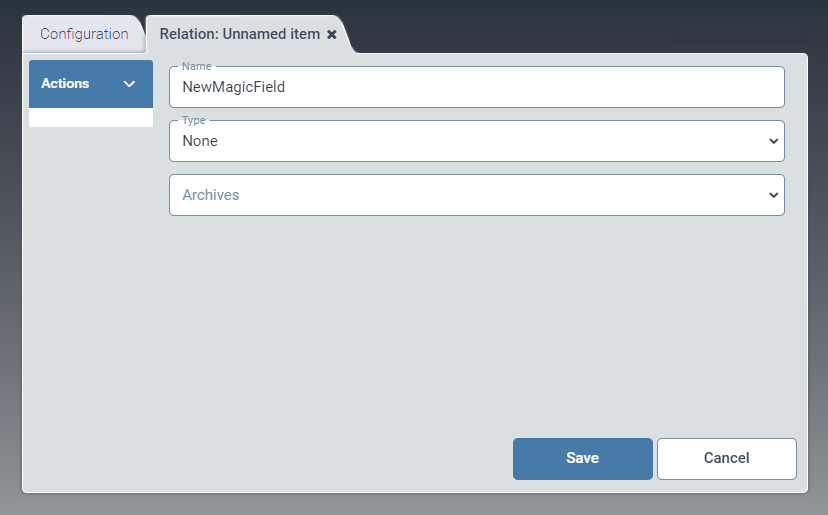
In the Name field, enter the technical name of a global field to be used for the relation.
Notice
Never choose the technical name of a table cell. It is not possible to create relations for those entries that have been made in the Fields column under the tab Table in the Configuration menu.
For fields of document types, on the other hand, it is possible to configure relations. When creating the relation, use the technical name of the document-type field desired. For more information on document-type fields, see Document type - Adding a field.
In the drop-down list Type, select the data type of the field.
Possible values:
NoneThe data type specified in the document type for the field will be used.
StringAny text
BoolCheck box for yes/no selection
IntegerLong integer (64-bit)
DateDate
DecimalNumber with decimal places
AttachmentAttachment
In the dropdown list Archives, select the archives to be linked.
All archives that have been created in Archives are available for selection here.
Click Save.
➤ The new relation has now been created.