Scripts (V2)
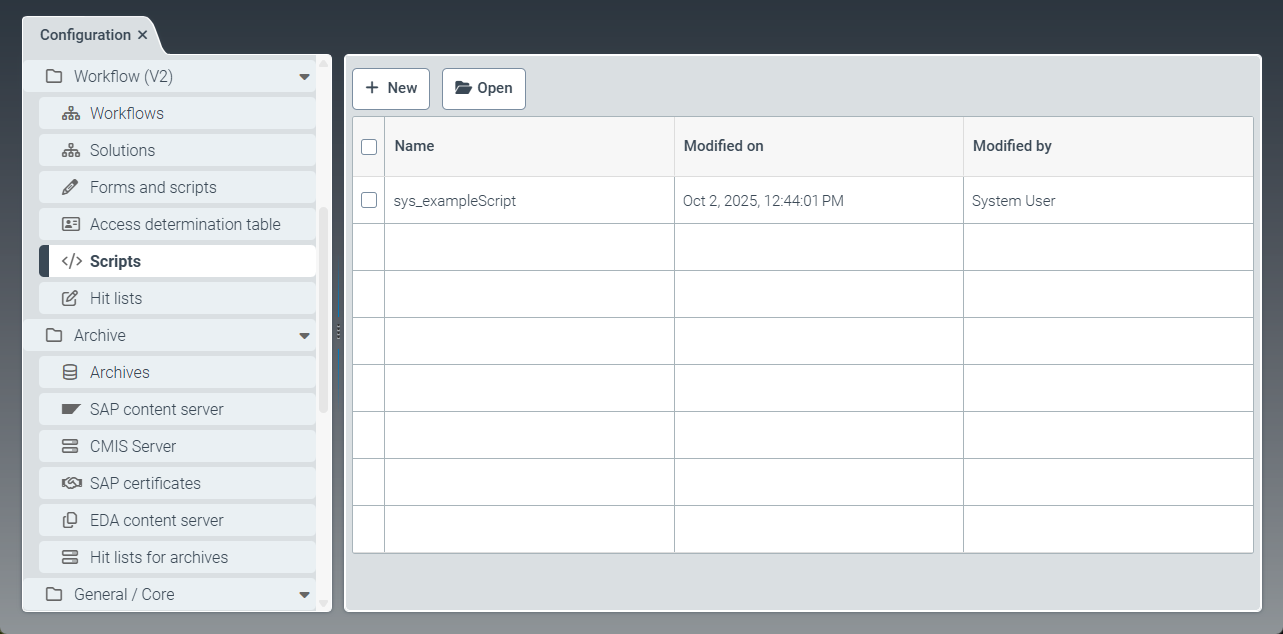 |
The Scripts menu item provides options for adding new scripts and editing existing ones. For example, a script may contain project-specific data checks, data changes, or workflow decisions. Integrating scripts into workflows allows for project-specific actions to be performed within the workflows.
The scripts are created graphically using the "Blockly" notation. For more information on "Blockly" notation, see Google's Blockly website.
The sample script sys_exampleScript comes with the software. You may use this script as a starting point for your own scripts. For additional sample scripts, see Example script: Customizing the extraction data (V2) and Example script: Tax line item (V2).
Creating a script (V2)
Select the Scripts menu item, then click New.
➣ The Script: Unnamed item tab will open.
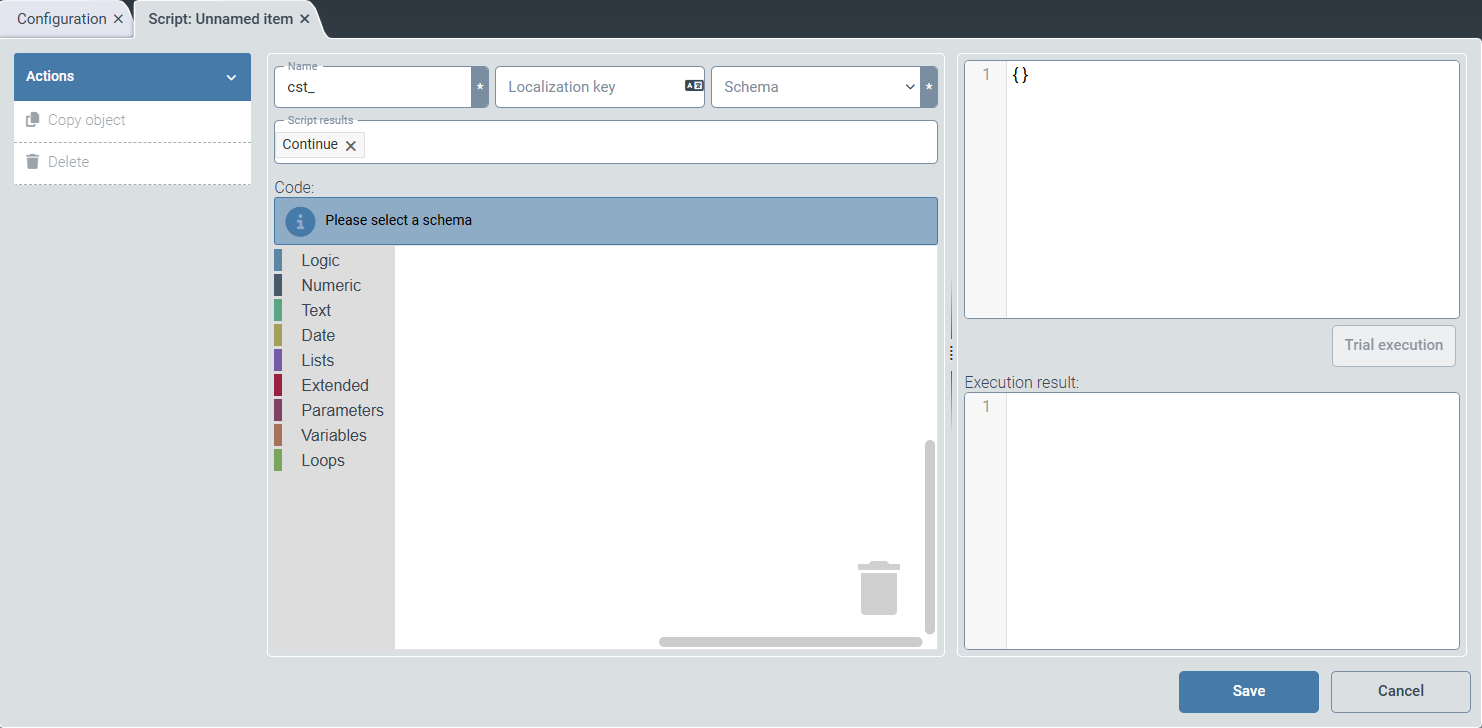
Enter the technical name of the script in the Name field.
Notice
The technical name comes prepended with cst_. This prefix cannot be deleted.
In the Localization key field, enter the localization key for the script name to be displayed.
To open the Select localization dialog box, click the
 button.
For more information, see Selecting a localization.
From the drop-down list, select the schema to which you want to assign the script.
To create the script code, drag and drop Blockly elements into the Code field.
Click Save.
➤ The script data has been saved. You can now use the script in workflows.
Tip
Enter test data for the script in JSON notation in the upper input field. The test data must be structured according to the script's selected schema.
To test the script, click Trial execution. The script is executed in test mode, and the result is displayed in the Execution Result field.
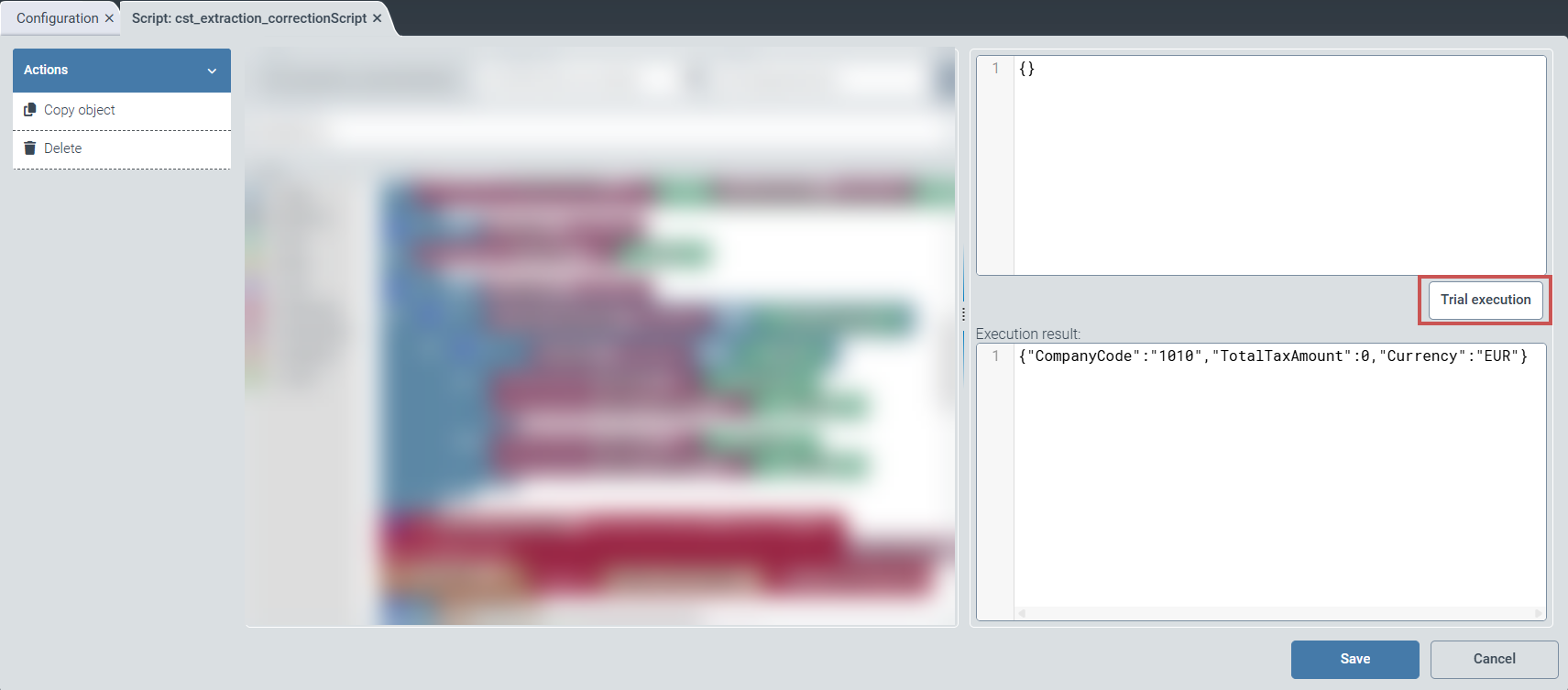
If an error occurs during execution, an error message is displayed.
Example script: Customizing the extraction data (V2)
The following screenshot shows the cst_extraction_correctionScript example script, which automatically adjusts extraction data.
Tip
This type of script is useful when xSuite Interface Prism is not used for data preparation, such as when working with xSuite Invoice Sphere.
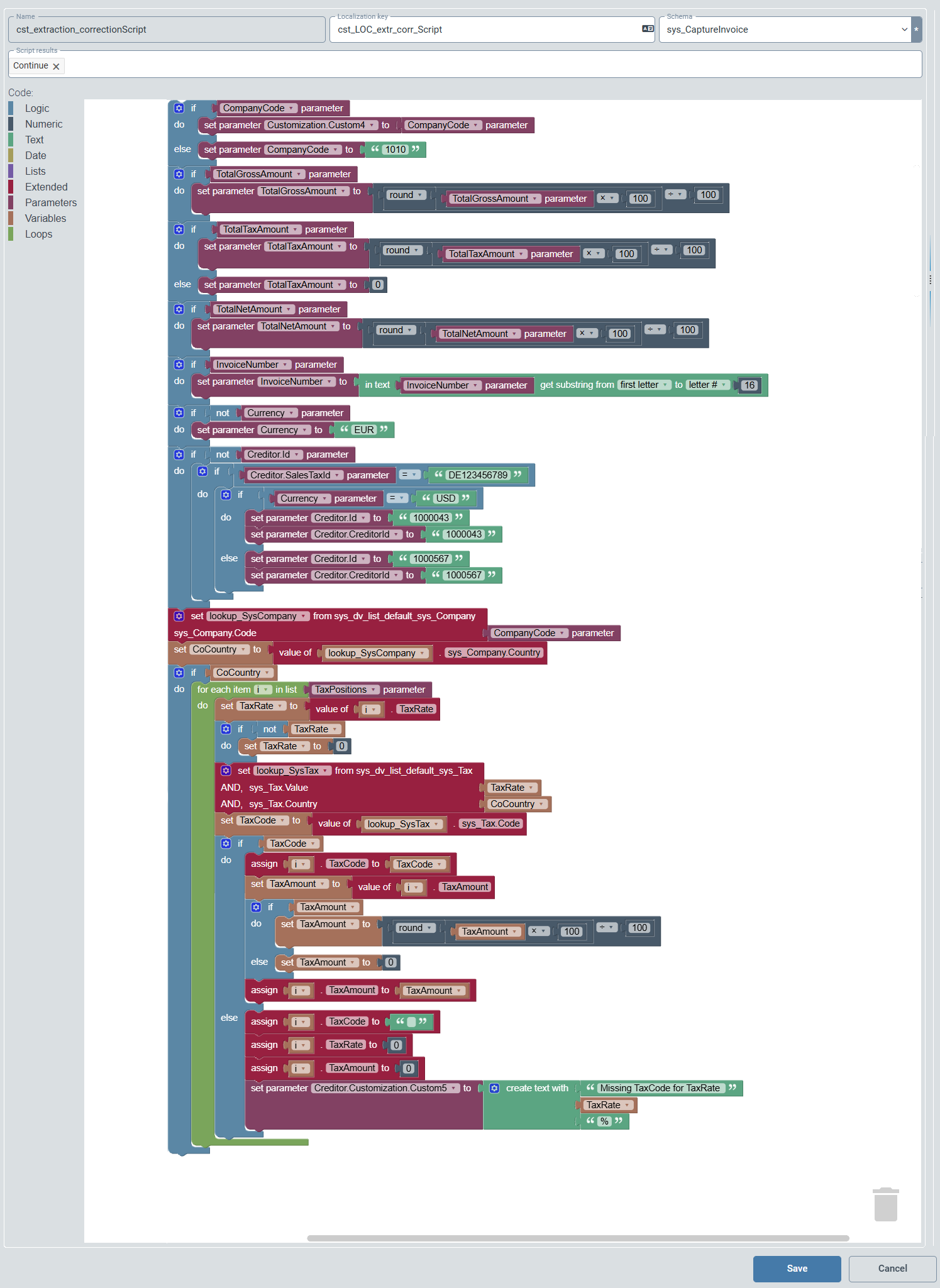 |
This script executes the following actions:
Code section | Description | |
|---|---|---|
| Sets the company code to the default company code | |
| Rounds the gross amount, net amount and tax amount to two decimal places. | |
| Shortens the invoice number to 16 characters. | |
| Sets the default currency to Euro. | |
| Sets a different vendor for a specific VAT identification number, depending on the currency. | |
| Rounds the amounts in all tax sub-items to two decimal places and sets all tax lines that contain an unknown tax rate to |

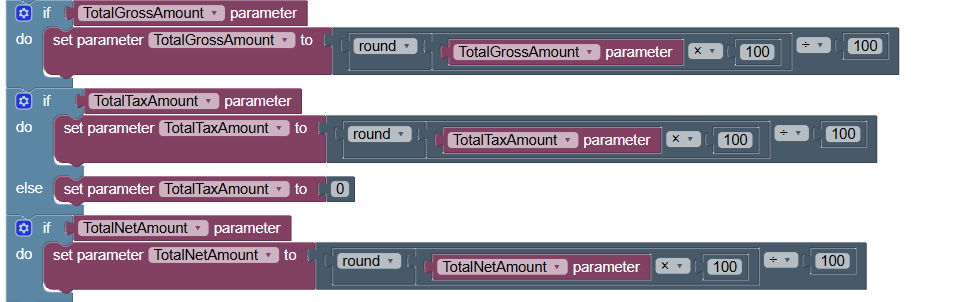


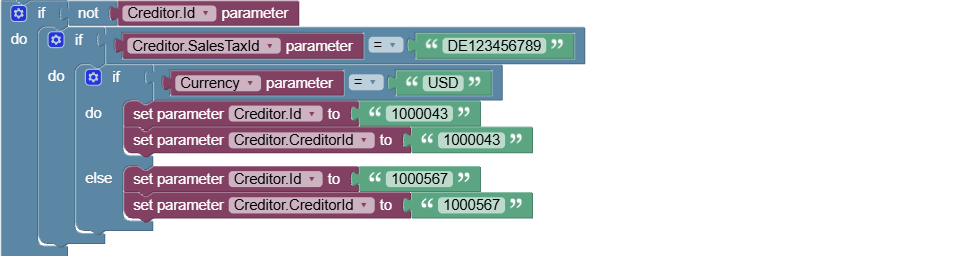
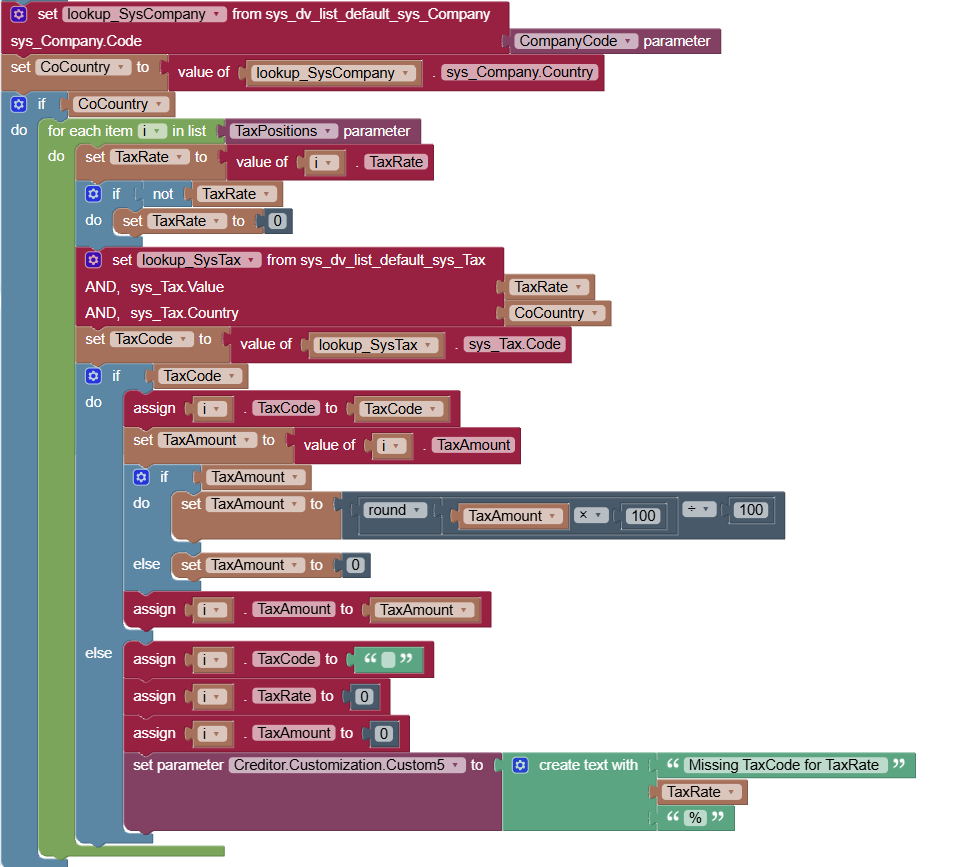
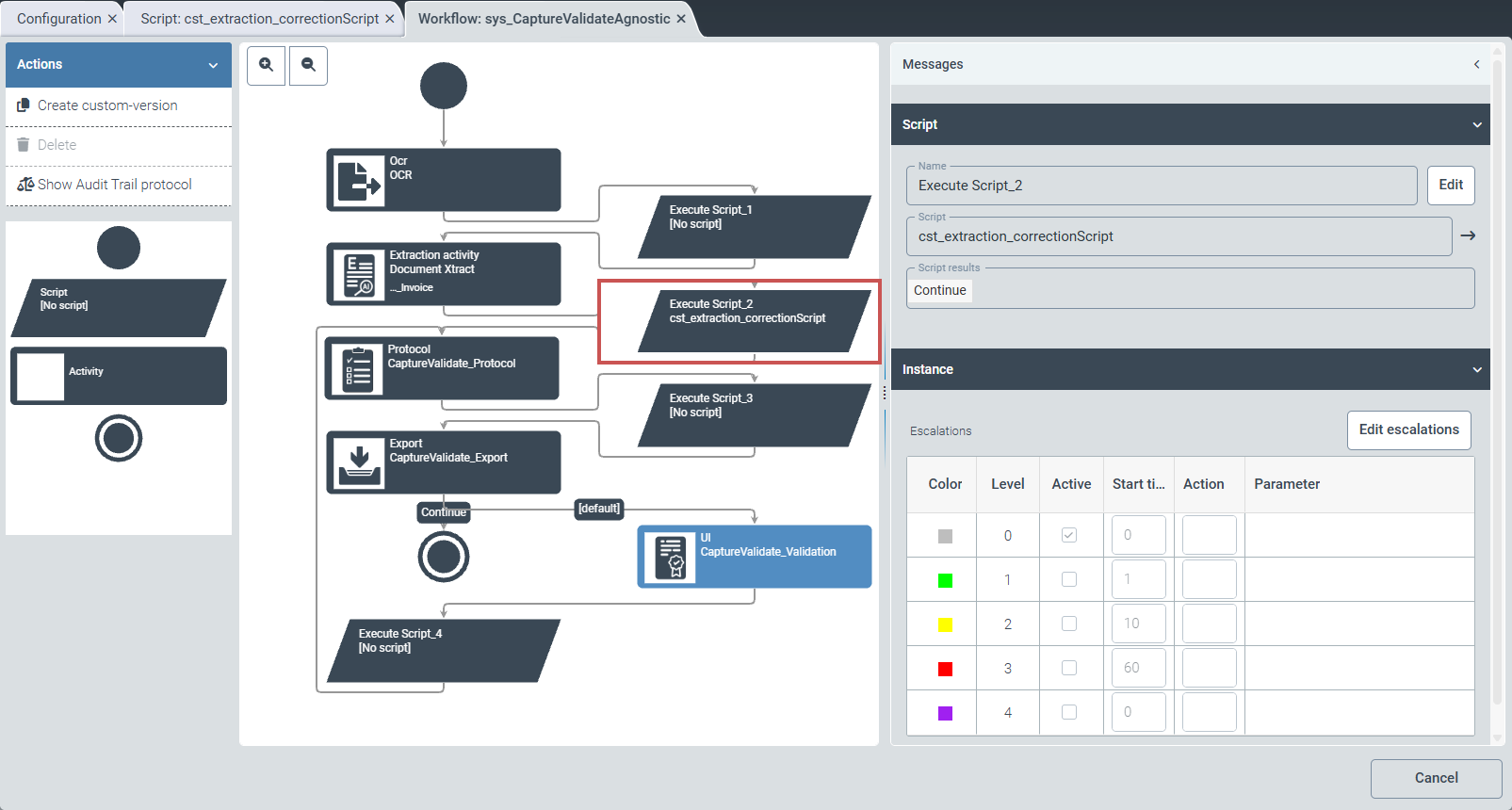
In this example, the cst_extraction_correctionScript script is integrated into the sys_CaptureValidateAgnostic workflow between data extraction and logging.
 |
Example script: Tax line item (V2)
The following screenshot shows the cst_move_taxpos_lineitem example script, which remembers a recognized tax line item.
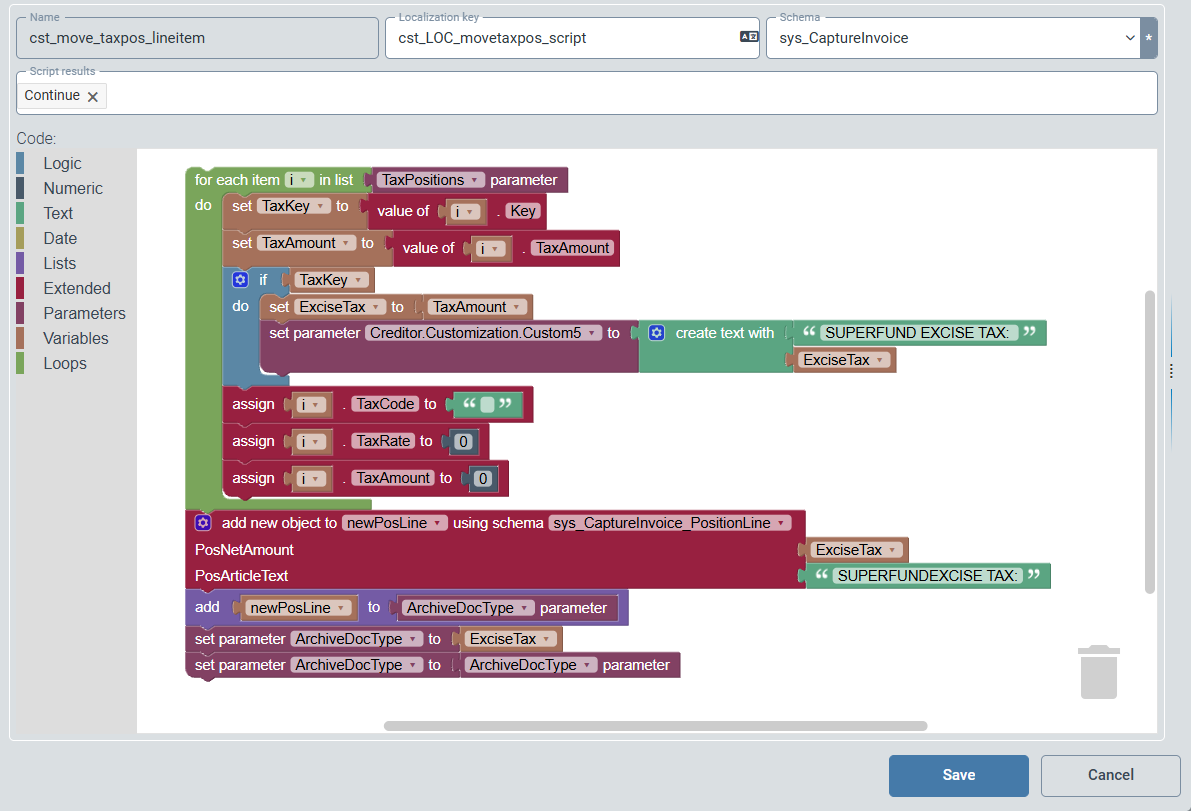 |
This script sets the data of the tax line item to 0. From the saved tax data, the script creates a normal line item row.
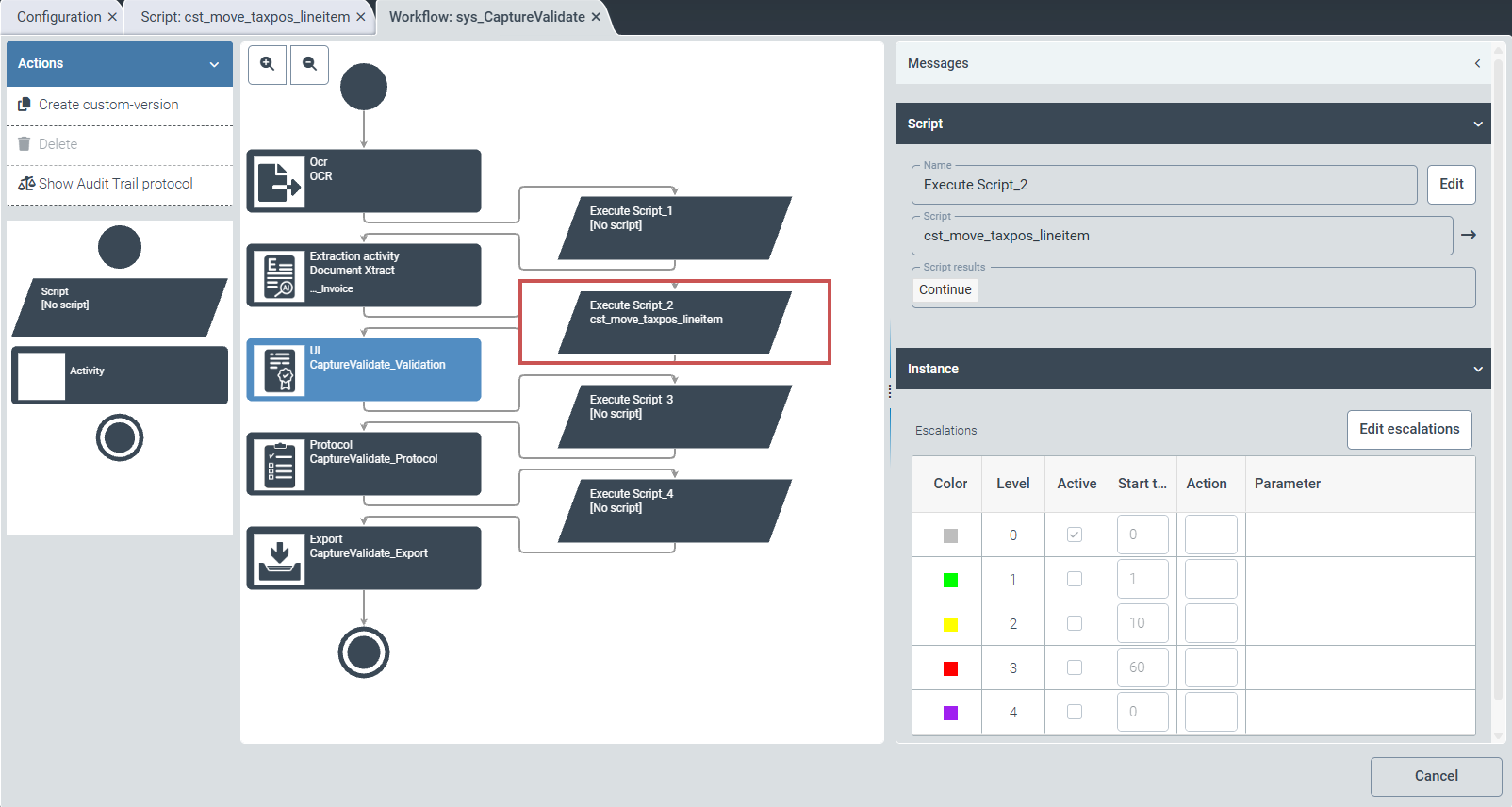
In this example, the cst_move_taxpos_lineitem script is integrated into the sys_CaptureValidate workflow between data extraction and validation.
 |