Archives
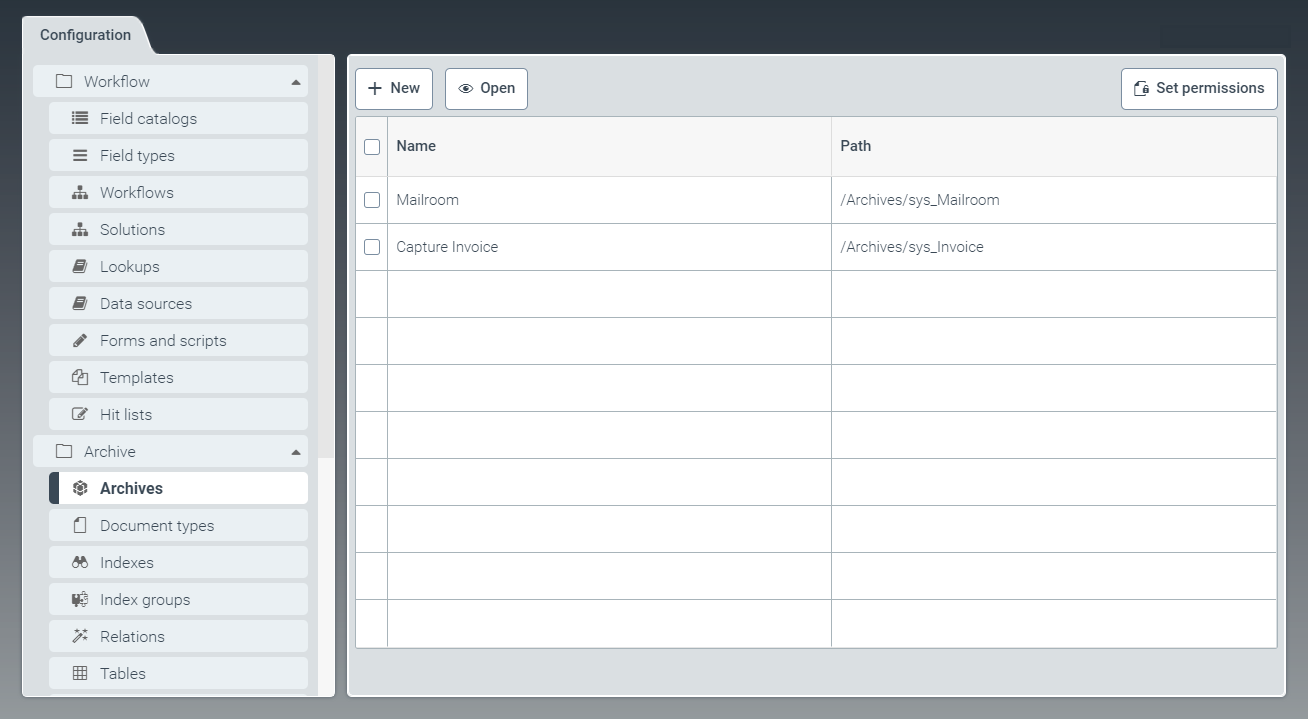 |
The tab Archives is for creating new archives and viewing and editing existing archives.
You can set access authorizations for each archive, select a default document type and make retention settings here.
The standard xSuite Helix package includes the archives Mailroom and Capture Invoice.
Creating an archive
From the configuration menu, open the Archives window and click New.
➣ The Archive: Unnamed item window will open.
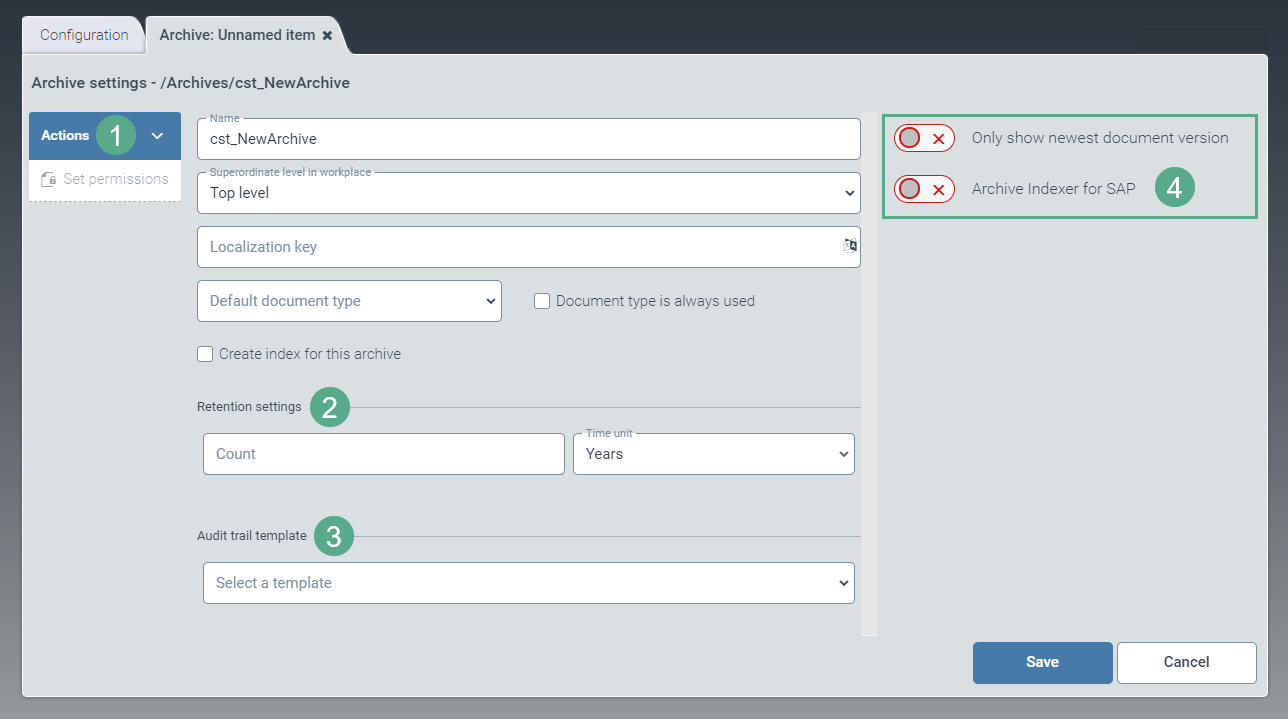
Configure the following fields:
Field
Action
Name
Enter the technical name of the archive.
The prefix
cst_is predefined and cannot be changed.Notice
Once the archive is saved, this field will no longer be editable.
Superordinate level in workplace
Specify the level at which the archive is to be created.
Possible values:
Top level: The archive will be created at the uppermost level.Archives/{archive name}: The archive will be created subordinate to the archive selected.
Notice
Once the archive is saved, this field will no longer be editable.
Localization key
Enter the localization key for the archive name to be displayed.
To open the Select localization dialog box, click the
 button.
For more information, see Selecting a localization.
Default document type
Select the document type that will be used automatically when creating a document via the archive client. Creating other document types will still be possible.
If you activate the check box Document type is always used, the standard document type will always be used when creating a document.
Create index for this archive
Specify whether an index is created for the archive.
In the pane Retention settings (2), make any necessary changes to the following fields:
Notice
The retention settings you specify here will override the retention settings of the assigned document type.
If you do not specify retention settings at this point, the document-type settings will apply.
Field
Action
Count
Set the number indicating the retention time. The number relates to the time unit used.
Time unit
Set the time unit for the retention period.
Possible values:
Years,Months,DaysUse the drop-down list Audit trail template (3) to select a template for displaying the audit trail of an archive document.
For information on creating templates, see Templates (V1).
If required, activate the following options using the toggle buttons on the right side of the screen (4):
Only show newest document version: Defines whether only the newest document version is to be indexed. If this is the case, then old document versions will be removed from the index and will not be included in results lists of a search.
Archive Indexer for SAP: Defines whether indexing is activated for archives used for SAP archiving.
Click Save.
➣ The archive has now been created.
➣ The options in the action menu (1) will now be active.
In the action menu (1), click Set permissions and define authorizations.
Select from the following types of authorization:
Authorization
Description
Read
Unrestricted read rights to the archive
Write
Authorization to create and edit archive documents
Delete
Authorization to delete documents from the archive
Delete entire archive
Authorization to delete entire archives
Set and remove legal hold
Authorization to set and remove legal holds on documents in an archive
Query
Authorization to search within an archive
Admin
Administrative authorization for an archive
Caution
Administrative rights must be granted to at least one role so that archive settings can be made.
Click Save.
➤ The archive has now been configured and saved.
Quick Access Link
You can use Quick Access Links to link archive documents to other applications or systems.
If you open a Quick Access Link you have to log in to the Helix application.
URL Structure
[HELIX TENANT URL]/xSuiteCLient/#/app/apptile-sys_AppTile_ArchiveClient?[QUERY STRING]
Example:
https://xsuite.xsuite.com/xSuiteClient/#/app/apptile-sys_AppTile_ArchiveClient?archive=sys_Invoice&fields=CompanyCode:CC000002&openUnique=1
Parameter
You can add the following parameters to a Quick Access Link. Parameters are always linked with &.
Parameter | Value | Description |
|---|---|---|
|
| Mandatory when searching in an archive. In this case the parameter |
|
| Mandatory when searching in an index group. In this case the parameter |
|
| Hit list used for the query result. |
|
| Query string in Elastic Syntax (Elasticsearch syntax) Note: Special characters and blanks must correspond to the URL encoding. For example, blanks must be replaced with %20. For more information, see https://de.wikipedia.org/wiki/URL-Encoding. |
|
| Field query |
|
| Forces the table view mode for the hit list. |
|
| Opens the archive document directly if there is only one hit. |
Restrictions
The search (with the query option) is only possible with an index (like the search field).
The field query (with the fields option) is possible only with a hit list. It does not need to be specified, if there is only one.
The field query applies only to fields that are defined in the hit list and are of the type "String".
The field query and the filter button work the same way.