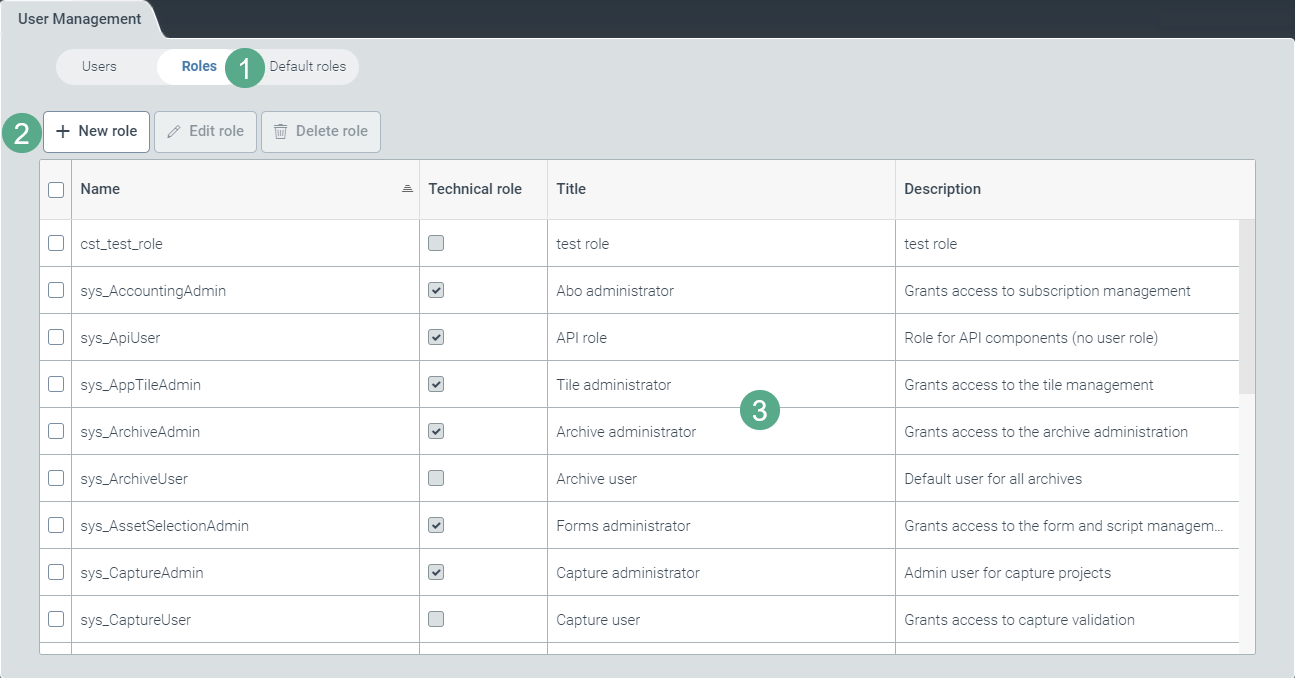
UI elements in the "User Management" screen — "Roles" view
Section | Description | |
|---|---|---|
1 | Button for toggling views | Switches between the views Users, Roles, and Default roles. For more information on the view Default roles, see Creating a new role and Deleting a default role. For information on the User view, see UI elements in the "User Management" screen — "User" view. |
2 | Buttons in role administration | For more information, see Buttons in the "User Administration" screen — "Roles" view. |
3 | List of roles | For more information, see Overview of the columns in the "User Administration" screen — "Roles" view. |
Buttons in the "User Administration" screen — "Roles" view

Name | Description |
|---|---|
New role | Opens the window for creating a new role. For more information, see Assigning a role to a user. |
Edit role | Opens the role properties of a selected role in edit mode. The edit mode is only available for newly created roles (prefix Roles with the prefix For more information, see Editing a role. |
Delete role | Deletes one or more selected roles. Deletion is only possible for newly created roles (prefix Roles with the prefix |
Overview of the columns in the "User Administration" screen — "Roles" view
Column | Description |
|---|---|
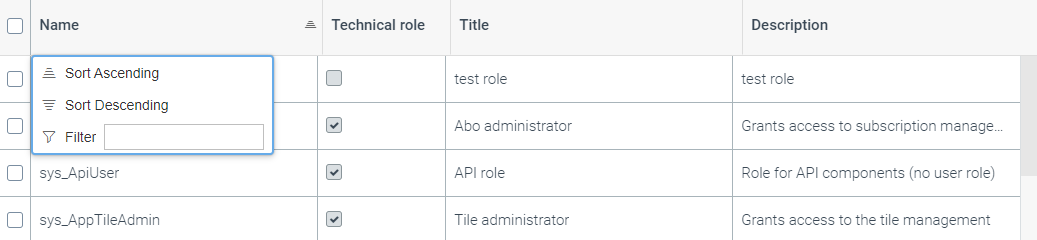
Name | Shows the technical name of a role. Right-click on the column header of the Name column to open a pop-up window with the following filter and sorting options:
|
Technical role | Indicates whether the role is a technical one. NoteTechnical roles are not displayed in user actions, e.g. when work items are forwarded to another role. |
Title | Shows the title of a role. |
Description | Shows the short description of a role. |