April and May 2025
With the current release, “Busy Beaver”, of xSuite Helix, AI services have been integrated even more into xSuite Helix workflow processes. The first version of a microservice was introduced for this purpose. The microservice provides the data extracted by xSuite AI for validation based on master data matching or other rules.
Furthermore, the file format of the xSuite Helix workflow protocol was changed from PDF to HTML for performance reasons.
New Functions
Create new entries in the role determination table while table filters are active
Identifying vendors by recognized order numbers
Creating new entries in the role determination table
Additional rows can now be added to the role determination table while filter criteria are already activated in the role determination table.
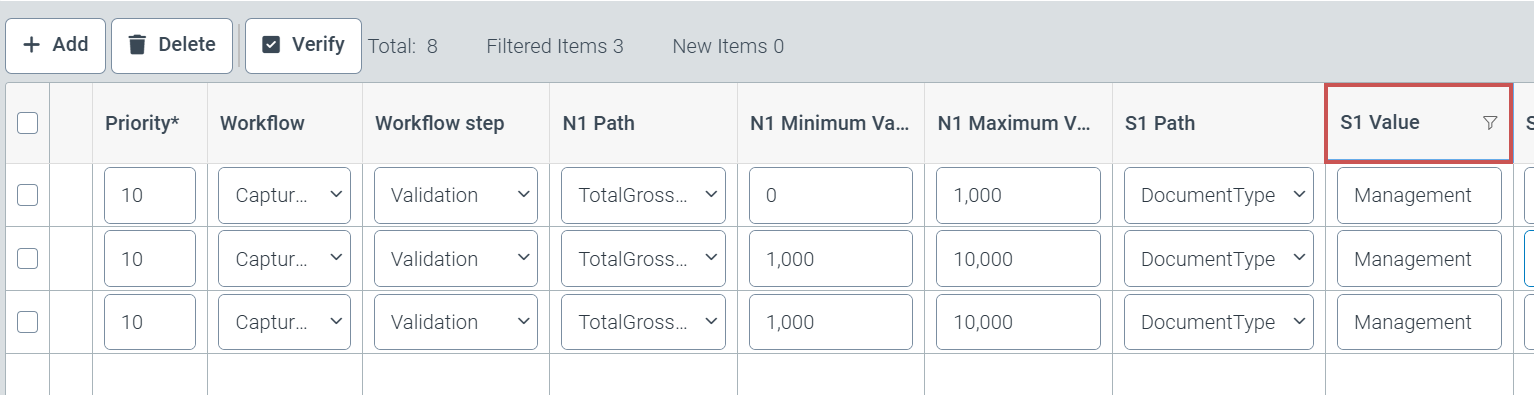
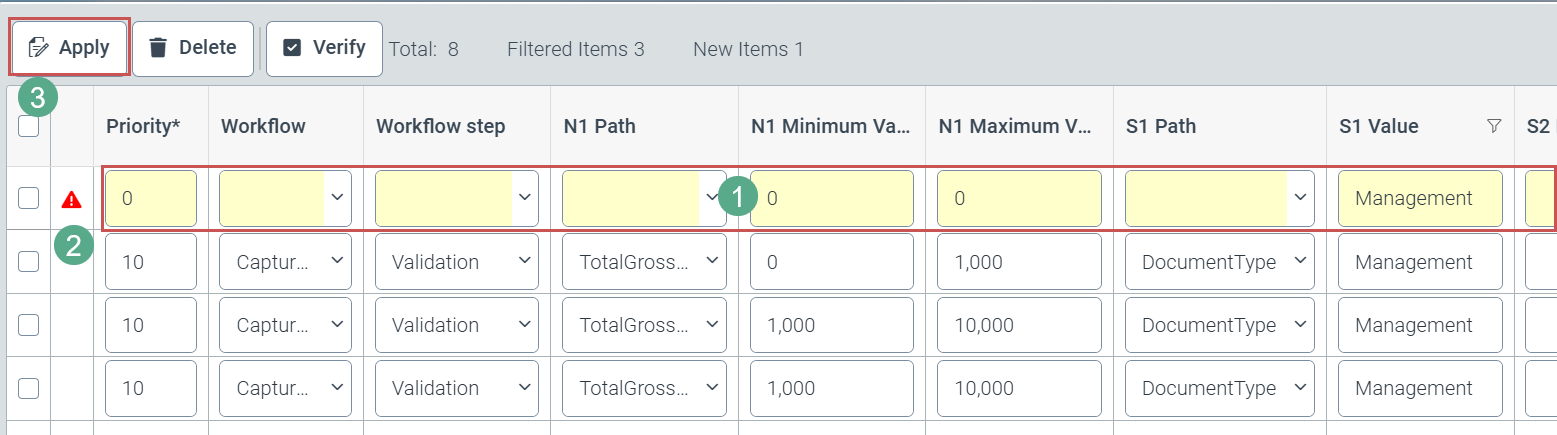
Newly added rows are highlighted in yellow (1) until they are finally saved. The defined filter criteria are automatically adopted as field content in the corresponding field. This is why, for example, Management appears prefilled in the corresponding column for which the Management filter was already set when the new row was added.
An icon with an exclamation mark (2) in front of the row indicates that mandatory fields in this table row have not yet been filled out. The user must confirm completed rows by clicking the Apply button (3).
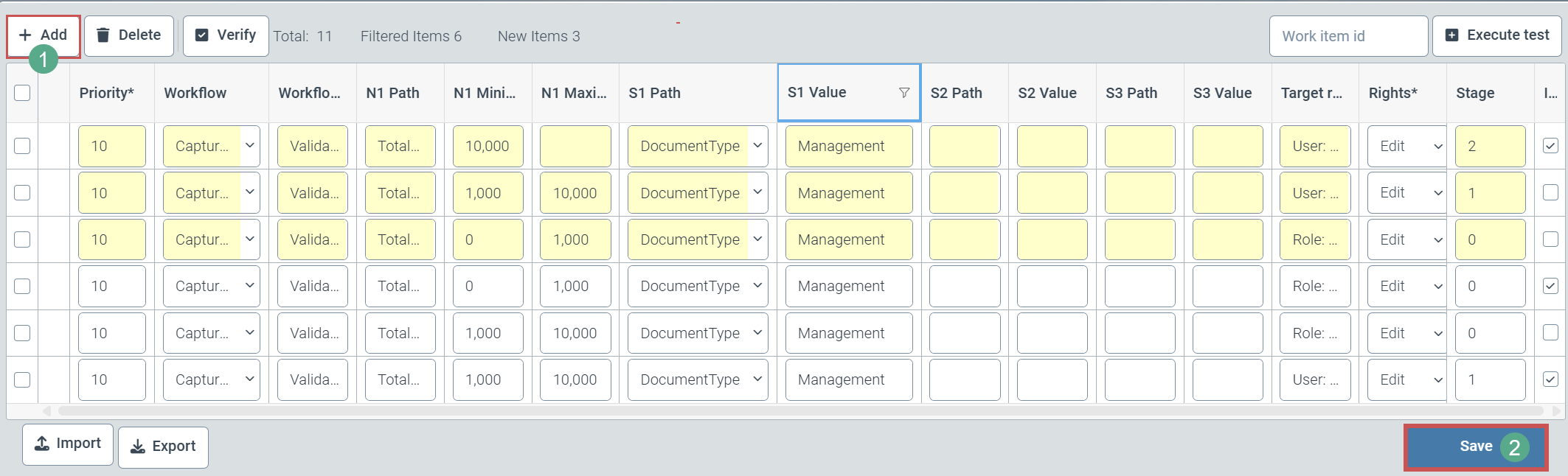
Additional table rows can then be added using the Add button (1).
Only by clicking on the Save button (2) can the user finally save all table row-related additions and corrections.
Determining vendor IDs from order numbers
xSuite AI extraction can determine the vendor number from order numbers found on an invoice. To do this, the Supplier entry is read from the master data of the orders (data source: sys_Order).
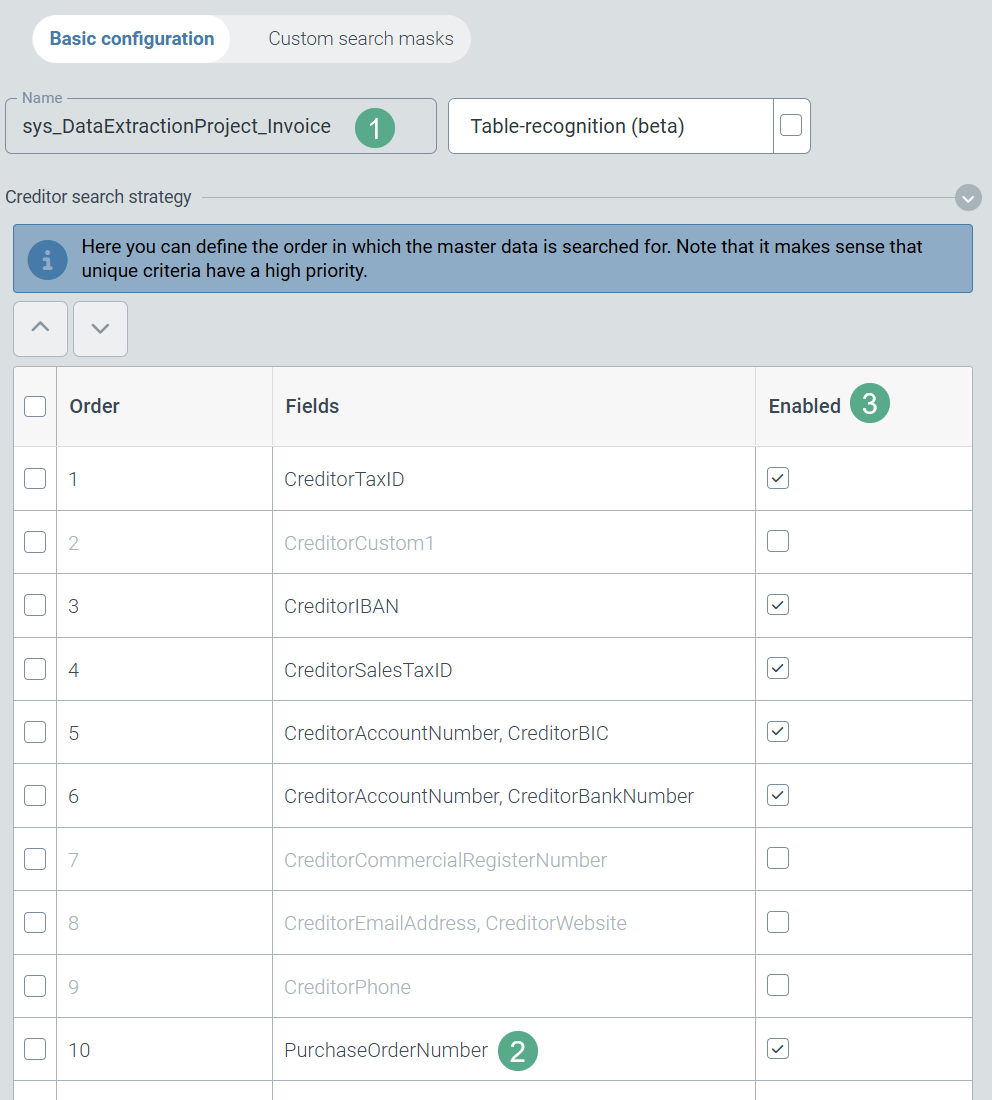
The priority of this additional search strategy (PurchaseOrderNumber (2)) can be changed in the configuration of the respective capture extraction project (sys_DataExtractionProject_Invoice or sys_DataExtractionProject_Invoice_US (1)) with regard to other strategies.
 |
Notice
By default, this new search strategy is active and assigned the lowest priority.
In special project situations, the PurchaseOrderNumber search strategy (2) can also be deactivated for the extraction project in the Enabled column (3). The search for the vendor ID then follows the previous search pattern consisting of the activated search strategies with their respective priorities.
Changes
New service for validating xSuite AI reading results
File format change for the xSuite Helix workflow protocol
Colored background for buttons that indicate user reactions in individual workflow steps
New service for validating reading results from xSuite AI
A new microservice for validating extraction results has been integrated into the xSuite Helix platform. In the current release (“Busy Beaver”), this microservice checks order numbers that were supplied exclusively by xSuite AI and compares them with the order numbers that were stored in xSuite Helix by the ERP system.
Order numbers that are not included in the list of open order numbers are deleted. If there are no more order numbers as a result of this process, the invoice type of the order is automatically changed to invoice without PO reference.
Changing the file format for the xSuite Helix workflow protocol
The technical file format of the xSuite Helix workflow log was changed from PDF to HTML. In projects that transfer this log with the extraction results to an ERP system, the change of format must be taken into account for the configuration of xSuite Interface 5 and for the configuration of the ERP system.
Colored background for buttons that indicate user reactions
Buttons receive the following background color depending on their defined status within a workflow activity:
Status | Background color |
|---|---|
Default | white |
Accept | green |
Reject | red |
Attention | white |
Notice
The colored background is only visible in the editing view of the work item.