"Maintain Catalogs" activity
/WMD/BC_SPRO → xSuite Business Solutions → Workflow → Procurement → Catalog
Direct access: /WMD/XF_PF_MAINT
The xSuite catalog is based on an Excel file, which must have a defined structure in order to be interpreted correctly.
The file type "Excel 97-2003 workbook (*.xls)" must be used as the format for the catalog so that the catalog can be read correctly.
Maintaining catalogs allows you to import a new catalog maintained in Excel into the SAP system, update an existing catalog, or export an existing catalog to an Excel file, for example, to make adjustments to it.
Notice
When you initially create a catalog, it might be helpful to first output an blank table so that you know what the required structure of the catalog is.
Overview of fields in catalog maintenance
Field | Description |
|---|---|
Catalog ID | The catalog ID of the catalog that is maintained is specified here. |
Catalog Language | Specifies the catalog language of the catalog. This is important because there are language dependencies in SAP, for example, in the quantity descriptions. If "ST" (Stück) is specified in a German catalog, the same element must be specified with "PC" (piece). |
Update catalog from file | Controls whether catalog data is imported from an Excel file and whether existing entries are updated. If entries already are present in the catalog, then the entries now imported will be listed underneath. If an entry has already been listed, then duplicates may occur. This setting is be used when you first create a catalog or when you add a catalog with the same ID, but in a different language. |
Overwrite catalog from file | Controls whether catalog data is imported from an Excel file and whether existing entries are overwritten. When creating a catalog for the first time, this setting will overwrite all catalogs previously created with the same ID, even those in other languages. For example, if a German catalog with catalog ID 1 already exists and an English catalog is also uploaded with catalog ID 1, it may only be updated, but not overwritten. |
Path to XLS File | Specifies the path where the Excel file can be found in Windows. The F4 help opens a file browser with which the file to be uploaded can be selected. If you want to initiate a catalog export, then specify here where you want it to be stored. The files to be exported can then be named in the dialog. |
Number of Rows | Specifies the maximum number of rows to be imported or exported. |
Including Header | Controls whether a header line is taken into account when importing or whether a header line is output when exporting. When exporting, we recommend that you output the header line, since errors in maintaining the catalog can be avoided by displaying the column captions. |
Download catalog to XLS | Controls whether the catalog is exported to an Excel file. The exported Excel catalog file must be saved in the "Excel 97- 2003 Workbook (*.xls)" format so that it can be imported again. |
Export catalog to Excel
Context
You can use an Excel file of your own to maintain your own articles for the xSuite catalog. To obtain the structure of this Excel list, it is easiest to export a blank catalog.
Procedure
Call transaction /WMD/XF_PF_MAINT.
In the Catalog ID field, specify a valid catalog ID.
In the Catalog Language field, specify a language.
Enter the location of the Excel file in the Path to XLS file field.
Activate the Including Header checkbox so that a header is displayed in the Excel file.
Activate the checkbox Download catalog to XLS.
Click the Execute button or press F8.
The catalog is exported to Excel.
For information on the columns, see Overview of the columns in an Excel catalog file.
Overview of the columns in an Excel catalog file
Column | Description |
|---|---|
ARTICLEID | Serial article identification number |
MATKL | Material class of the article |
MAKERTXT | Brand name text |
KNTTP | SAP account assignment category |
MATNR | Material number in SAP |
LIFNR | Vendor number that can be assigned to the article. |
MFRPN | Material number of the manufacturer |
EKORG | Purchasing organization Only if the purchasing organization is assigned to the user can he or she view and select this article. |
EKGRP | Purchasing group Only if the user is assigned to the purchasing group can he or she view and select this item. |
BSTME | Order unit of the article |
MEINS | Order unit of the article that is available for selection. |
WEBAZ | Processing time for goods receipt |
WAERS | Currency that applies to the article. |
PREIS | Estimated price of the item |
PEINH | Price unit in which the article is offered. |
TXZ01 | Descriptive text for the article |
TXZ01_DESC | Descriptive long text for the article |
TEXTID | Text ID stored in the xSuite text system for the article. Only one TEXTID or one NEW_TEXT can be displayed, since these two fields share the same position in the catalog. |
ARC_DOC_ID | Document ID in the SAP archive The document number of an archive document that can be linked to the article and displayed in the catalog. Only one ARC_DOC_ID or one NEW_ATTACHM can be displayed, since these two fields share the same item in the catalog. |
URL | URL that can be assigned to the article. This URL can be opened via a link in the catalog. |
NEW_TEXT | New free text that can be assigned to the article. A text window is opened in the catalog in which this text can be read. Only one TEXTID or one NEW_TEXT can be displayed, since these two fields share the same position in the catalog. |
NEW_ATTACHM | Annex for the article Here you can specify a path and a file from which a file supported by SAP can be uploaded. Only one ARC_DOC_ID or one NEW_ATTACHM can be displayed, since these two fields share the same item in the catalog. |
Example of a filled Excel catalog file
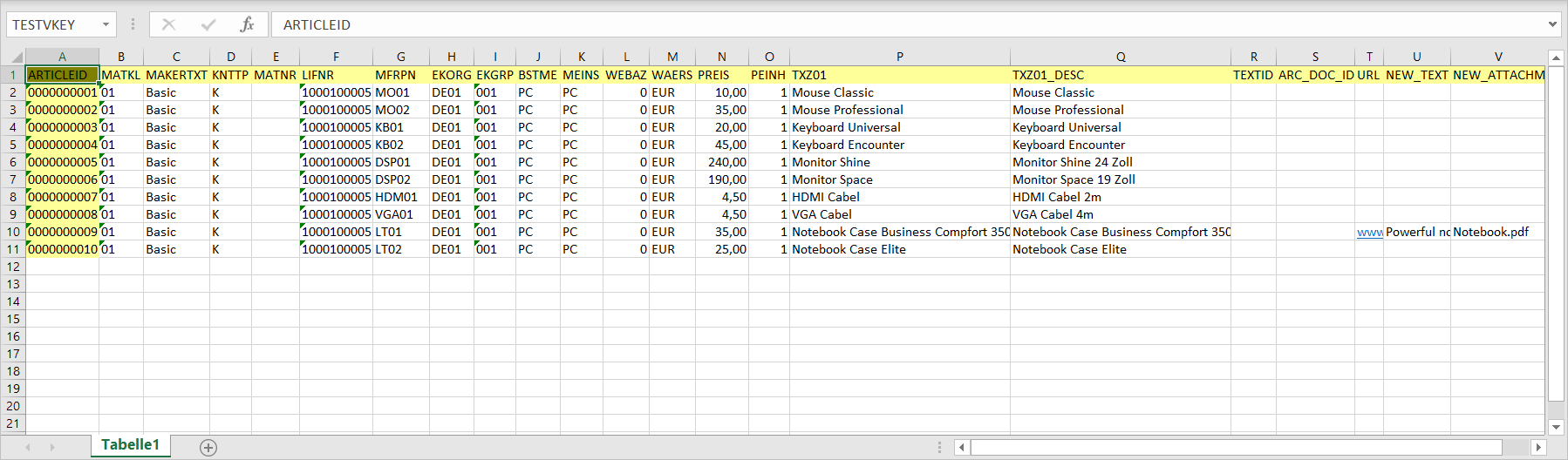
An Excel file ready for upload could look like this:
Example for the display of a catalog in the xSuite Feeder
When an editor creates an xSuite Feeder, she can use a catalog to select items if she has the necessary permissions.
In the SAP GUI, a catalog can be displayed as follows:
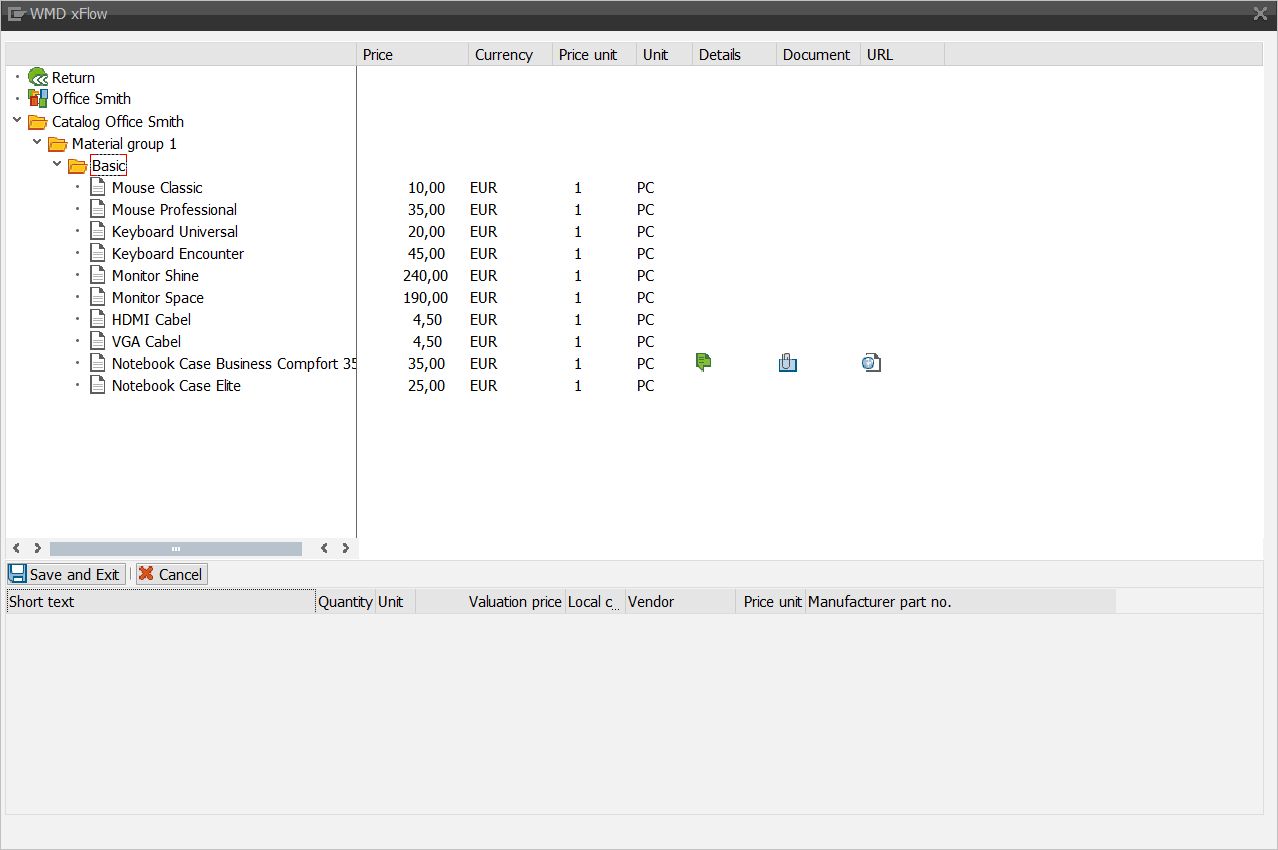
The columns in the catalog correspond to the following columns in the Excel catalog file:
Column in catalog | Description | Column in Excel catalog file |
|---|---|---|
{Tree structure} | Structure of the catalog | TXZ01 |
Price | Price | PREIS |
Currency | Currency | WAERS |
Price unit | Price unit | PEINH |
Unit | Unit | MEINS |
Details | Details | TXZ01 or NEW_TEXT |
Document | Attached document | ARC_DOC_ID or NEW_ATTACHM |
URL | URL | URL |