"Workflow Builder" activity
/WMD/BC_SPRO → xSuite Business Solutions → Workflow → Basis → Workflow Builder
Direct access: /WMD/XF_BUILDER
Caution
The workflow templates included in the package are overwritten when updates are performed. Therefore, when making changes, do not alter any delivered workflow templates; rather, always create a copy and activate the copy. Templates that you have created yourself and then copied will not be overwritten by updates.
You can use the configuration dialog of the Workflow Builder to plan, describe and control a workflow definition that was previously created in the graphical Workflow Builder. Each workflow defined in the workflow builder is based on a real business process which is characterized as a single workflow instance with each occurrence of the business transaction.
The Workflow Builder is also available in SAP Fiori. For more information, see The Workflow Builder in SAP Fiori.
Open configuration dialog of the Workflow Builder
Call transaction /WMD/XF_BUILDER.
Enter the search criteria in the following view:
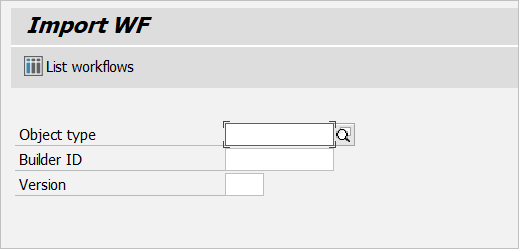
Field
Description
Object type
The business application to be processed is selected here. The function of the object type is to encapsulate the specific functions of a workflow class or workflow application. The list of available object types can be opened with F4:
Builder ID
An existing workflow definition of the workflow type entered in the Object type field can be set here.
Version
In addition to the Builder ID, the version can also be selected using the actual version of a workflow.
Click the List workflows button.
➤ The configuration dialog will open.
Buttons – Configuration dialog of the Workflow Builder
Button | Name | Description |
|---|---|---|
| Detail | This displays the workflow initiation event, the function module and the workflow text of the relevant workflow definition. To execute this function, you must first select the entry in the list. The fields that need to be filled include the following:
|
| Change | This takes you to the graphical workflow builder for the respective workflow definition. It opens in edit mode. The user can change the workflow definition (for example, insert new workflow steps) and create a new version if necessary. |
| New ID | This creates a new workflow definition. When you click on it, the graphical workflow interface opens with a blank template. The tools can now be used to start creating a sequence for the new workflow. |
| New version | This creates a new workflow version for an existing workflow definition. |
| Copy to new ID | This creates a duplicate of a workflow definition with its own ID and version. The procedure facilitates the creation of new workflow definitions. For example, it allows an existing workflow definition to be adopted and adjusted in scope for the current project. |
| Copy to new vers. | This creates a duplicate of the selected workflow version analogous to Copy ID. |
| Activate | This sets the selected workflow definition to operational. |
| Deactivate | This deactivates the selected workflow. The marker set in the Active column is removed again. |
| Delete | This removes the workflow definition selected beforehand from the list. A deletion indicator is set in the first column L for this purpose. Only after exiting or after a refresh will the selected entry be removed. However, if a workflow exists for the relevant workflow definition (if the indicator in the xSuite column is set), it cannot be deleted. |
| Status | This is used to define the current processing status:
Only workflow definitions with status R (Release) can be activated and thus set to operational. |
| Display | This opens the graphical workflow representation of the respective workflow definition, exclusively for display. |
| Export WF | A pop-up is used to define the external storage location in order to save the selected workflow locally. |


Columns - Configuration dialog of the Workflow Builder
Column | Description |
|---|---|
D (Deletion flag) | If a workflow definition has been selected and the "Delete" function executed, an "X" is set in this column. |
Builder ID | The Builder ID displays the unique identification number of the current workflow definition. Each workflow definition is automatically assigned an ID when it is created. Execute setting/display of the number range with Transaction SNRO (number range: /WMD/XF_ID). |
Version | The version represents the development and modification of the workflow definition over a period of time. All versions created for a given builder ID will be included here. |
Status | This can be used to indicate the current processing status:
The status is displayed in the Status column of the workflow list. Only workflow definitions with status "R" (Release) can be activated and thus set to operational. |
Active | This column shows which workflow definitions are available for use and can be used operationally. An "X" in the column xSuite exists indicates that there is currently also a workflow instance for the respective workflow definition, that is, a concrete business transaction. |
Object Type | The workflow application used in each case is listed here. The example above shows the application for invoice processing. |
Event | This column shows which incident (event) is used to start the actual workflow instance. |
Function module | The function module can be used to control which workflow template is started for the respective application. |
xSuite exists | This column indicates whether a workflow instance exists for the respective workflow definition. It is indicated by an "X" in the column. |
Text | The text describes the respective workflow definition or workflow variant. |