"Maintain xSuite Users" activity
/WMD/BC_SPRO → xSuite Business Solutions → Workflow → Basis → Workflow Agents
Direct access: /WMD/XF_USR_ADMIN
User administration is used to maintain individual users or user groups:
Function | Description |
|---|---|
Maintenance of general user data | See Managing user data. |
Agent maintenance | See "Substitutes" tab. |
Role assignment | See "Roles" tab. |
Group assignment | See "Groups" tab. |
Activation/deactivation of users | See "Status" tab. |
Setting or changing of user type and password | See "Password" tab. |
Maintenance of user attributes | See "Attributes" tab. |
Maintenance of escalation notifications | See "Escalation" tab. |
Maintenance of contact information | See "Addresses" tab. |
In addition to creating a single user, you can also create and manage user groups. This is particularly recommended if several users with similar task areas are grouped together. In this way, the creation of users and subsequent adjustments can be made conveniently via the user group. Users are categorized in four different basic user types:
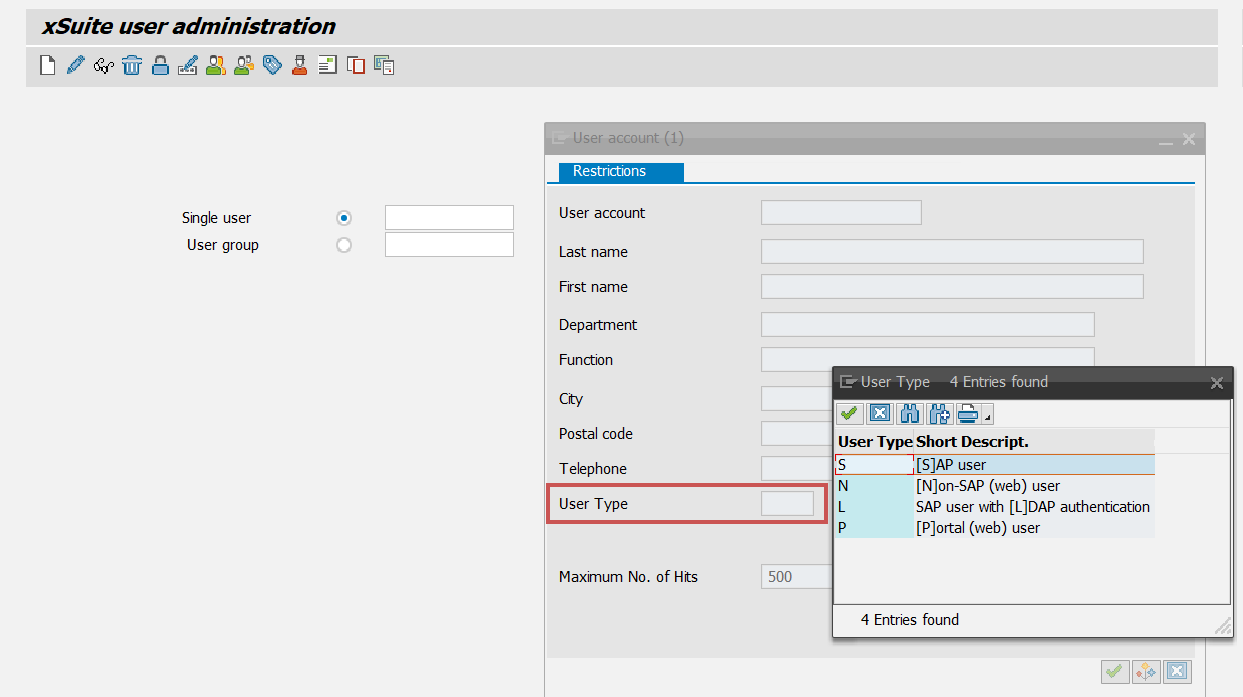 |
S = SAP user
N = Non-SAP (web) user (xSuite Web user)
L = SAP user with LDAP authentication
P = Portal (web) user (Vendor Portal)
Buttons – xSuite User Administration
Notice
The name of a user or user group must be entered in the Single user field or in the User group field.
Button | Name | Keyboard shortcut | Description | |
|---|---|---|---|---|
| Create xSuite user | F5 | Creates a new user or user group. | |
| Change xSuite user | F6 | Opens the profile of a user or user group in change mode. | |
| Display xSuite user | F7 | Opens the profile of a user or user group in display mode. It is not possible to edit the data in this mode. | |
| Delete xSuite user | ShiftF2 | Removes a user or user group from xSuite User Administration. Existing user settings of SAP user administration or an LDAP system will be retained. | |
| Lock/Unlock user | CtrlF5 | Locks or unlocks a user or user group for the xSuite system. | |
| Change password | ShiftF8 | Opens password settings for a user. | |
| Edit substitute | F9 | Opens substitute maintenance for a user. | |
| Group assignment | ShiftF11 | Opens group assignment for a user. | |
| Group member | ShiftF6 | Opens group-member maintenance for a user group. | |
| User attributes | ShiftF7 | Opens maintenance of xSuite user attributes for a user. | |
| Escalation settings | ShiftF9 | Opens escalation notification settings for a user. | |
| Maintain address data | F8 | Opens address data for a user. | |
| Copy xSuite user | ShiftF5 | Copies a user or user group with all profile settings. | |
| Show change documents | CtrlF6 | Opens change documents for a user or user group. The change documents show a chronological list of all changes made to the user profile. |


Managing user data
/WMD/BC_SPRO → xSuite Business Solutions → Workflow → Basis → Workflow Agents → Maintain xSuite Users → Single user
Direct access: /WMD/XF_USR_ADMIN
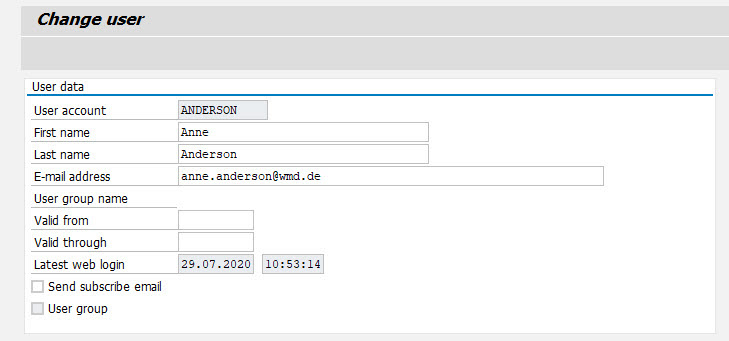
The administrator can view and edit the general user data of a user or user group in the User Data section of xSuite User Administration.
 |
Field | Description |
|---|---|
User account | User name of an xSuite user or xSuite user group |
First name | First name of a user |
Last name | Last name of a user |
E-mail address | E-mail address of a user The specification of an e-mail address has the following functions:
|
User group name | Short description of a user group |
Valid from | Start date for the validity period of an xSuite user or an xSuite user group |
Valid through | End date for the validity period of an xSuite user or an xSuite user group |
Latest web login | Date and time of the last login to xSuite Web |
Send subscribe email | Determines whether a user receives an e-mail notification for pending workflow tasks. Prerequisite: Entry of an e-mail address in the E-mail address field. |
User group | If it is a user group, this option will automatically be enabled as a tip. |
"Substitutes" tab
/WMD/BC_SPRO → xSuite Business Solutions → Workflow → Basis → Workflow Agents → Maintain xSuite Users → Single user
Direct access: /WMD/XF_USR_ADMIN
The Substitutes tab is used by the administrator to define substitution periods and substitutes for a user. The defined substitutes receive the work items of the defined absent user within the substitution period. Definition is made by workflow task (per role).
 |
When a substitution is set up, both the originally intended user and his substitute are always assigned the workflow task pending.
Notice
Conflicting substitutions for individual users or for user groups, as well as specified substitutes that do not exist, result in an error message.
Alternatively, substitute maintenance can be carried out by the user himself. The user maintains his substitute in the SAP GUI using transaction /WMD/XF_USR_SUB.
In xSuite Web, a button for substitute maintenance is available in the xSuite Web Business Workplace, provided that this button is activated via the user attribute BSP_SUBST_ENABLED. In SAP Fiori, substitute maintenance is available as a separate xSuite app.
If the substitute maintenance from the SAP Business Workplace is used for SAP users, activate the Subst. BW parameter under Global Settings, for example, under "Global Settings" activity (FI Documents). Otherwise, the SAP Business settings will not allow for the xSuite Web users and the xSuite role concept.
Columns – "Substitutes" tab
Column | Description |
|---|---|
Role | Assignment to a specific xSuite workflow task |
Role name | Short description of the role |
User type | Shows whether the user is an individual user( |
User account | Selection of the substitute responsible |
Active | Determines whether the substitution of a user is activated. Only when substitution is activated does the substitute receive the work items of the user. |
From date/To date | Start and end date of a substitution period |
"Roles" tab
/WMD/BC_SPRO → xSuite Business Solutions → Workflow → Basis → Workflow Agents → Maintain xSuite Users → Single user
Direct access: /WMD/XF_USR_ADMIN
The administrator assigns one or more xSuite roles to a user or user group in the Roles tab. xSuite roles authorize xSuite users to receive and edit specific tasks in a workflow.
Any number of xSuite roles can be assigned to a user. You can choose between roles for individual workflow tasks and collective roles for multiple workflow tasks, e.g. AALL for all FI workflow tasks or XALL for all xSuite roles.
For a comprehensive overview of xSuite roles, see Appendix I, Comprehensive overview of xSuite roles
Columns – Tab "Roles"
Column | Description |
|---|---|
Role | xSuite role assigned to a user |
Role name | Short description of a role |
Active | Determines whether the assigned role is enabled or disabled for the user. If role assignment is deactivated, the user will not receive any more work items for this workflow task. |
"Groups" tab
/WMD/BC_SPRO → xSuite Business Solutions → Workflow → Basis → Workflow Agents → Maintain xSuite Users → Single user
Direct access: /WMD/XF_USR_ADMIN
The Groups tab shows all xSuite user groups a selected user is a member of. The administrator can assign new user groups to the user or remove memberships to groups.
xSuite user group memberships can also be edited in the maintenance section of the respective user group (Members tab).
Members of a user group inherit certain xSuite roles and user attributes of the user group. For more information, see Inheritance between user groups and individual users.
"Status" tab
/WMD/BC_SPRO → xSuite Business Solutions → Workflow → Basis → Workflow Agents → Maintain xSuite Users → Single user
Direct access: /WMD/XF_USR_ADMIN
In the Status tab, the administrator activates or deactivates xSuite users.
Only users with the status "active" are considered in the agent determination, in a manual selection, and in the substitute maintenance.
Deactivated users do not receive workflow tasks and cannot participate in xSuite workflows.
"Password" tab
/WMD/BC_SPRO → xSuite Business Solutions → Workflow → Basis → Workflow Agents → Maintain xSuite Users → Single user
Direct access: /WMD/XF_USR_ADMIN
The administrator defines the type of authentication in the Password tab. xSuite User Administration distinguishes between SAP users and non-SAP users.
Columns – "Password" tab
Option | Description |
|---|---|
SAP user | Specifies that the user is an SAP user. An SAP user can also log into xSuite Web with his or her SAP access data. An additional password is not required. |
xSuite Web user | Specifies that the user is an xSuite Web user. An xSuite Web user does not have SAP access and can therefore only process workflow tasks in xSuite Web. For these users, a password must be set. For more information, see Password settings for xSuite Web users and xSuite Portal users. |
LDAP user | Specifies that the user is an LDAP user. If the user is an LDAP user, the password will be checked against the respective LDAP system during login. An additional password is not required. |
xSuite Portal user | Specifies that the user is an xSuite Portal user. An xSuite Portal user only has access to the xSuite Vendor Portal, not to SAP. For these users, a password must be set. For more information, see Password settings for xSuite Web users and xSuite Portal users. |
Password settings for xSuite Web users and xSuite Portal users
Field | Description |
|---|---|
New password | Sets the initial password for the user. The password is case-sensitive. |
Last date initial pw | Shows the date up to which the initial password is valid. |
Last date chg pw | Shows the date up to which a password set by the user is valid. |
MD5 Hash value | Shows the encrypted value of the password. |
"Attributes" tab
/WMD/BC_SPRO → xSuite Business Solutions → Workflow → Basis → Workflow Agents → Maintain xSuite Users → Single user
Direct access: /WMD/XF_USR_ADMIN
In the Attributes tab, the administrator assigns xSuite user attributes to a user. xSuite user attributes allow the administrator to grant a user more extensive authorizations than the default settings define. User attributes authorize users, for example, for various functions in xSuite Web, SAP Fiori and in SAP GUI.
The participation of a user in an xSuite workflow requires the user attribute CC_<CoCode>. The user attribute CC_<CoCode> determines the company code for which a user is authorized within xSuite.
For a comprehensive overview of user attributes, see Appendix C, xSuite user attributes.
Example of a user attribute:
Attribute name | Attribute value | Description |
|---|---|---|
ACS_TPL_ENABLED | X | For saving account-assignment templates in SAP to allow recurring account assignments. |
"Escalation" tab
/WMD/BC_SPRO → xSuite Business Solutions → Workflow → Basis → Workflow Agents → Maintain xSuite Users → Single user
Direct access: /WMD/XF_USR_ADMIN
In the Escalation tab, the administrator defines settings for escalation notifications. If a work item has not been processed for a certain period of time, an additional user can be informed via an automatic escalation.
The text of the escalation e-mail is defined by the /WMD/XF_USR_ESCALATION report.
Columns – "Escalation" tab
Column | Description |
|---|---|
Role | Identifies the xSuite task of the current user. |
Role name | Shows a short description of the xSuite task. |
EscStep | Specifies the escalation level. The administrator can schedule multiple escalation levels for an incident. Up to 4 escalation levels are available. |
EscDays | Sets the number of days after which the registered user (EscUser column) is notified by e-mail. The time that has elapsed since the start of the workflow step is counted. Each restart of the workflow step resets the counted time. This also applies to cases of forwarding. Work items that have been accepted in xSuite Web or are set to resubmission are not taken into account. |
EscUser | Specifies the recipient of the escalation e-mail. |
"Addresses" tab
/WMD/BC_SPRO → xSuite Business Solutions → Workflow → Basis → Workflow Agents → Maintain xSuite Users → Single user
Direct access: /WMD/XF_USR_ADMIN
In the Addresses tab, the administrator specifies a user's contact information, such as address and phone number.
Inheritance between user groups and individual users
A user can be a member of any number of user groups. When a user is a member of a user group, that user inherits certain features and permissions of the user group.
Inheritance of roles is to be distinguished from inheritance of user attributes.
Role inheritance
A user who is a member of a user group inherits the roles of this user group for each work item.
If the agent determination function finds a user group as the agent for a work item, all members of the user group will inherit the roles of the user group for this work item. Role inheritance is restricted to this work item.
A work item is in the workflow task "Release FI invoice" (role AREL). User group "A" has the role AREL. User "B" is a member of the user group and only has the role AVAG.
User group "A" is found as the agent for the work item. User "B" now inherits the roles of the user group, that is, the role AREL. User "B" can process the work item.
Attribute inheritance
A user who is a member of a user group only inherits the company code user attribute of this user group (for example, the attribute CC_ALL for all company codes or the attribute CC_<CoCode> for a specific company code).
Other user attributes cannot be inherited. The assignment of all other user attributes takes place in User Administration for the individual user. For more information, see "Attributes" tab.
Synchronization of users
Users that are maintained outside of xSuite can be automatically integrated into xSuite User Administration. The integration procedure depends on the user type of the users.
In xSuite User Administration, a distinction is made between the following 4 user types:
User type | Description |
|---|---|
SAP user | The administrator can integrate users that are maintained in the SAP user administration into xSuite User Administration. An SAP user is authenticated against the SAP user master and not against the xSuite user master when logging on. SAP users are integrated via the /WMD/WF_XF_USR_GET_SAPUSER report. For further information on this report, see the publication xSuite Cube Administration Guide. |
LDAP user | The administrator can integrate users that are maintained in an external LDAP system (e.g. Active Directory) into xSuite User Administration. These users are only created as xSuite Web users. LDAP users must specify their password from the LDAP system during login to xSuite Web. A configured LDAP connection in the SAP system is required to integrate LDAP users. For further information on this report, see the publication xSuite Cube Administration Guide. |
xSuite Web user | The administrator creates xSuite Web users manually in xSuite User Administration. xSuite Web users can only log onto xSuite Web. xSuite Web users cannot log onto the SAP system. |
xSuite Portal user | The administrator creates xSuite portal users manually in xSuite User Administration. xSuite portal users can only log into the xSuite vendor portal. The logged-in xSuite portal user can view all processes of the stored vendor via a separate web interface. |