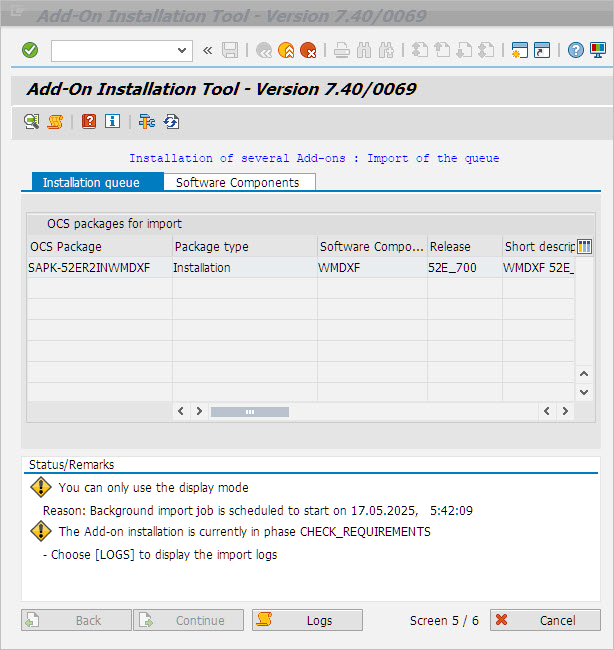
Transaction SAINT in the Client "000"
Log in on client "000" and call the Transaction SAINT.
➣ The installation tool will open.
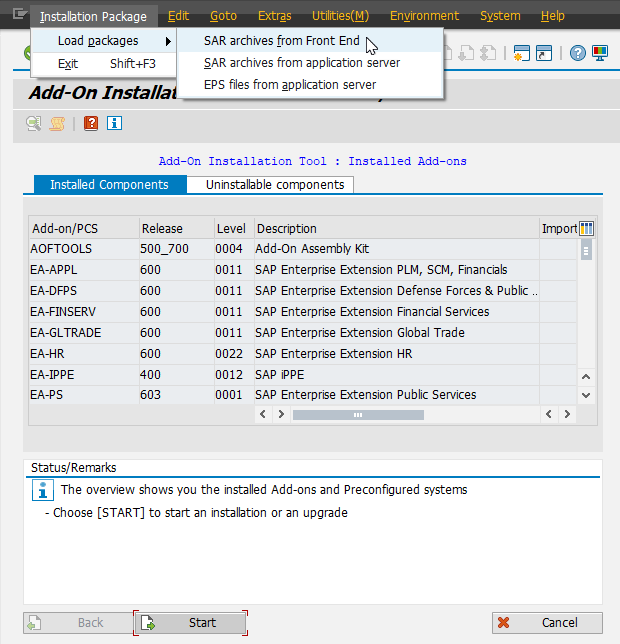
Go to the options in the menu item Installation Package and select the combination of options Load packages and SAR archives from Front End.
➣ The package will be loaded.
After confirmation and successful upload, start the installation by clicking on the Start button.
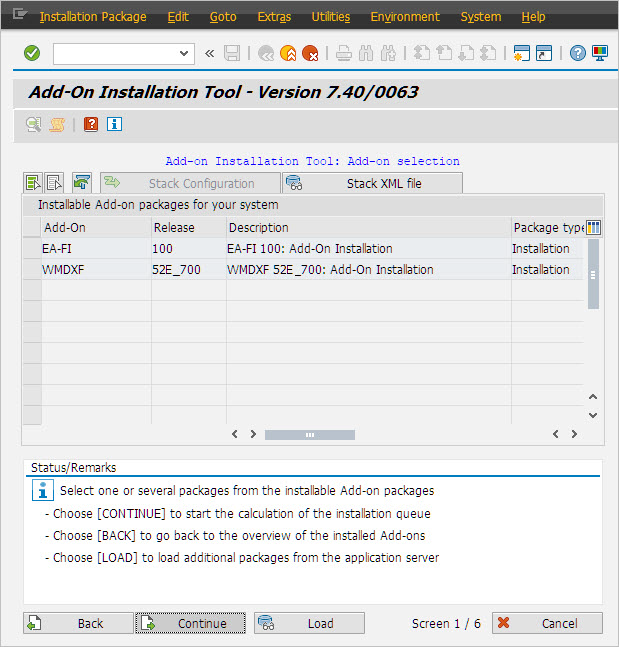
Select the package WMDXF and click Continue.
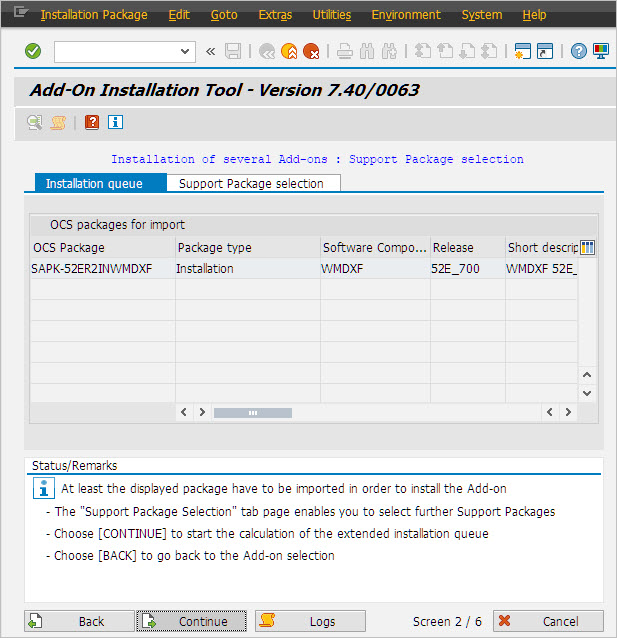
In the next screen of the dialog, click Continue again.
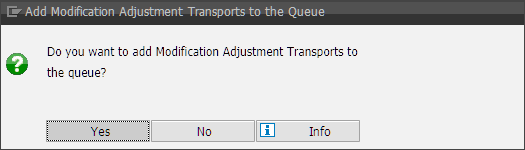
➣ You will be asked to make a decision regarding a modification adjustment transport. At this point, a transport with customizing can be added to the installation queue in the consolidation system and the productive system. Generally speaking, transports are not added to the development system.
Notice
For ERP systems, the following notification may appear:
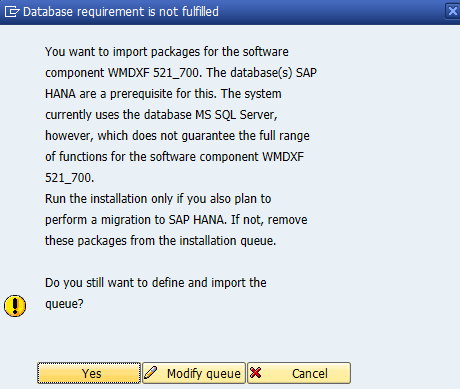
To install the package on an SAP S/4HANA database, a specific attribute must be set for the package. On other databases, this attribute generates the misleading notification shown above. The package is, however, fully operable on all databases supported by SAP.
Confirm with Yes.
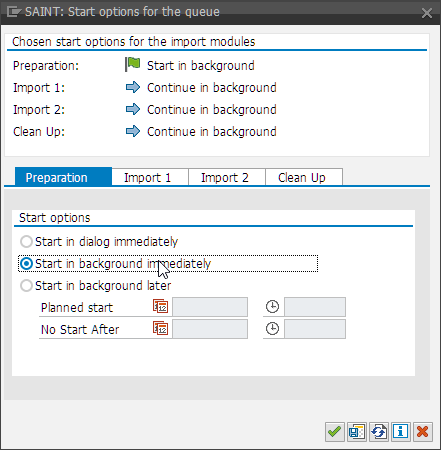
You can now start the installation. Due to the size of the package, xSuite recommends importing the transport in the background.
In the tab Preparation, go to Start options and select the option Start in background immediately.
Check the import status called up with the button Logs.